How to Respond to Facebook Page Messages Faster


You can respond to Facebook Page messages faster by turning on Meta Business Suite‘s Instant Reply and setting up three or four Saved Replies for your most common questions. Instant Reply greets new contacts straight away, and Saved Replies save you from typing the same sentences over again.
The actual speed you reach depends on how many questions you get each day, whether you use the mobile app or a desktop browser, and if you’ve already written out your answers. The rest of this page walks through each of those factors so you can pick the right setup.
Who needs faster Facebook Page replies
Solo owners, social media managers and support agents all need faster replies, but this page fits a solo owner or single manager best. Three different people usually search for ways to handle Facebook Page messages faster. A solo business owner gets ten to twenty questions a week and types every answer from scratch on their phone. They need a way to stop repeating themselves.
A social media manager handles five or more Pages at once, switching between accounts all day. They need one inbox where everything lands together. A customer support agent works inside a larger team and needs to assign conversations without losing track of them.
This page is built for the solo owner or the single manager running one to three Pages with under fifty messages a day. It assumes you’re using Meta Business Suite, which is the free tool Meta provides for managing Pages.
If you run a large support team that needs ticket numbers, routing rules, or shift handovers, these steps won’t be enough. You’ll need a dedicated helpdesk platform like Zendesk or Freshdesk instead. Trying to force a high-volume support queue into a basic Page inbox just slows everyone down.
What actually speeds up your replies
Four things decide how fast you can clear your Facebook message queue. The number of saved templates you prepare before messages arrive matters the most. If you have zero templates, you type every word manually. If you build five good ones covering shipping, hours, pricing, returns, and directions, you only click and send.
Instant Reply settings control what happens in the first sixty seconds after someone writes to you. Turning this on means the sender gets an answer immediately, even at two in the morning. Leaving it off means they sit waiting until you open the app.
Your choice between the Meta Business Suite mobile app and the desktop site changes your speed too. The desktop version lets you see your full list of saved replies and drag files easily. The mobile app is better when you’re away from your desk but makes finding older templates slower.
Finally, the volume of messages you receive each day sets your limit. Handling five messages takes a few minutes no matter what tools you use. Handling fifty requires sorting them by urgency first.
The factor people get wrong most often is relying only on the Instant Reply. That automated greeting buys you time, but it doesn’t solve the customer’s problem. Without saved replies ready for the follow-up, you still end up typing everything out later. Check your Page’s inbox count for the last seven days to see where you stand.
Setting up quick replies in Meta Business Suite
Follow these steps in order on a desktop computer, where the full menu is visible. The process takes about fifteen minutes the first time, assuming you have your answers already written in a separate document.
- Log into Meta Business Suite and select your Page from the dropdown menu in the top left corner.
- Click Inbox in the left sidebar, then select the Messages tab to view your active conversations.
- Click the gear icon or Settings near the top of the Inbox panel to open your messaging options.
- Select Automations from the menu, then toggle the switch next to Instant Reply to turn it on.
- Type your welcome message in the text box—keep it under 50 words so it fits on a phone screen without scrolling.
- Go back to the main Inbox view, open any conversation, and click the Saved Replies icon (it looks like a small speech bubble with lines).
- Click Add New, paste your first pre-written answer, and give it a short keyword like “hours” or “shipping”.
- Repeat step 7 for your other common questions until you have at least three templates saved.
- Test the setup by sending a message to your Page from your personal Facebook account to confirm the Instant Reply fires within five seconds.
- Open the test message on your Page side, click the Saved Replies icon, type your keyword, and hit enter to send the template.
The real judgement call here is deciding which questions deserve a saved reply. Don’t try to write a template for every possible situation. Pick the three topics that make up more than half of your incoming messages.
If a question is rare or highly specific, type it out manually. Forcing a generic template onto a unique problem frustrates the person asking. If your messages involve legal claims, medical advice, or payment disputes, stop using automated replies for those threads and hand them to a qualified professional.
Situations and the fastest response method
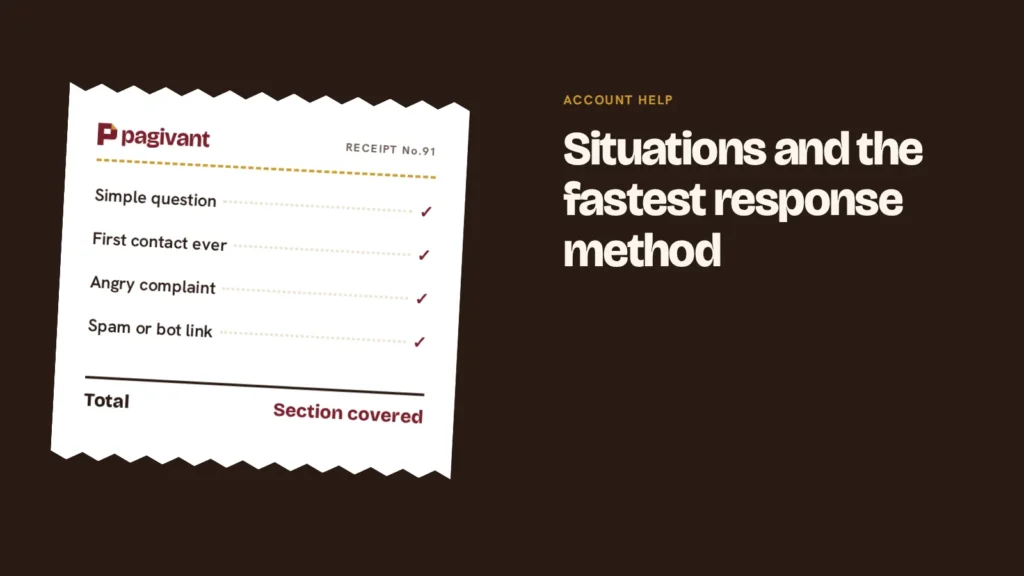
Different types of messages require different actions to keep your response time low. Match what you see in your inbox to the correct approach below.
| Message type | Best action | Time it takes | Watch out for |
|---|---|---|---|
| Simple question | Use a saved reply | Under 10 seconds | Wrong keyword typed |
| First contact ever | Let Instant Reply fire | Zero manual time | Outdated business hours |
| Angry complaint | Type a custom reply | Two to five minutes | Sounding like a robot |
| Spam or bot link | Mark as spam | Under 15 seconds | Clicking the bad link |
| Complex order issue | Move to Messenger | One minute | Losing the chat history |
| After-hours question | Rely on automation | Zero manual time | Promising immediate help |
Each row assumes you’re working from the desktop version of Meta Business Suite. On the mobile app, moving complex issues to a different thread takes longer because the menus are hidden behind extra taps. If a message doesn’t fit these six categories, treat it like a complex order issue and give it your full attention rather than forcing a shortcut.
Details that keep Facebook Page replies fast
Preparing your templates correctly
A saved reply only saves time if it’s ready to send without edits. Write your templates in a plain text editor first, not directly inside the Facebook inbox. Keep each one under 100 words. Long templates look like automated spam to customers reading on a small screen. Include the exact information asked for, like your address or return window, rather than a link pointing somewhere else.
Leave a blank space at the very start of each template for the person’s name. When a message comes in, type their first name, add a comma, and then insert the saved reply right after it. This takes three extra seconds but stops the message from feeling cold. Never use a template that starts with “Dear Valued Customer.” People ignore those instantly.
Sorting before you start typing
If you have more than ten unread messages, don’t answer them in the order they arrived. Scan the list first. Look for messages that contain words like urgent, broken, or refund. Answer those first.
Don’t try to multitask by answering while doing something else. Close your other browser tabs. Switching back and forth between a spreadsheet and your Page inbox costs you about thirty seconds of focus every time you look away. Work through the sorted list from top to bottom. Once you finish the urgent batch, move to the simple questions where you can use your saved replies rapidly.
Fixing slow Facebook Page message problems
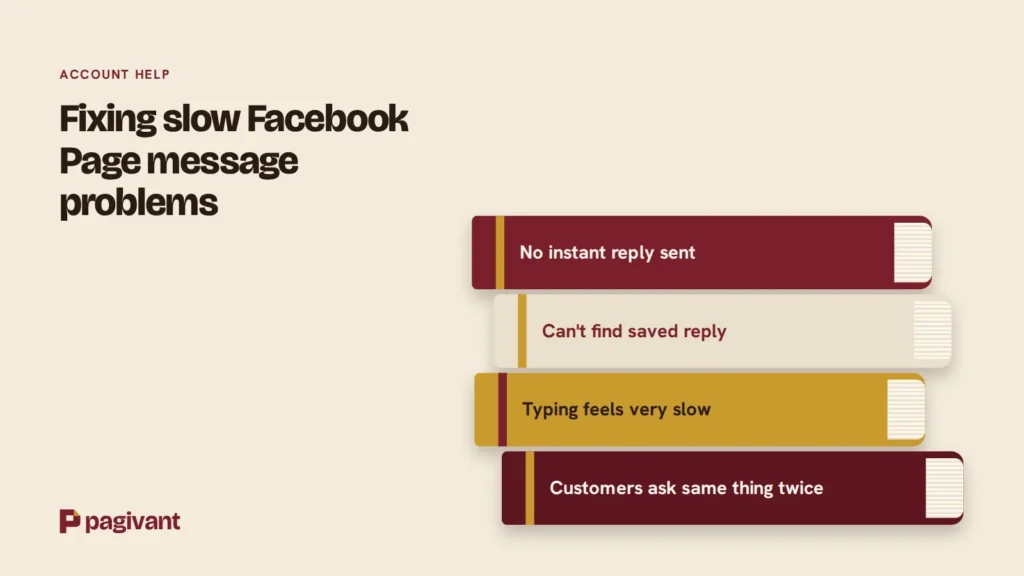
When your replies stall, the cause is usually a setting you missed or a habit that slows you down. Match the symptom you see to the fix below.
| What you notice | What it usually means | What to do first | How to stop it happening again |
|---|---|---|---|
| No instant reply sent | Automation is turned off | Check Automations settings | Leave the toggle on |
| Can’t find saved reply | Wrong keyword typed | Scroll the full list manually | Use shorter keywords |
| Typing feels very slow | Using mobile for long text | Switch to desktop browser | Keep phone for short replies |
| Customers ask same thing twice | Your template was unclear | Rewrite it with simpler words | Read it out loud first |
| Inbox shows old messages | Filter is set wrong | Change filter to Unread | Reset filters weekly |
| Notifications arrive late | Phone battery saver is on | Turn off battery optimization | Whitelist the Business app |
If you check all these fixes and your messages still aren’t going through, the problem might be on Meta’s side. You can verify current platform issues on the official Meta Business Help Center outage page. Don’t keep clicking “send” repeatedly during an outage, as that sometimes creates duplicate messages when the system recovers.
Rules for Page messaging and response times
Facebook displays a “Very responsive to messages” badge on Pages that maintain a high response rate, but earning it requires following Meta’s published guidelines. To qualify, Meta states your Page must maintain a response rate of at least 90% and a response time of under fifteen minutes over the last seven days. These figures apply to the standard Page inbox managed through Meta Business Suite.
You can’t achieve this legally by using unauthorized third-party scraping bots to auto-reply. Meta’s Terms of Service explicitly ban automated tools that bypass their official API, and using them risks having your Page unpublished entirely. Stick to the native Instant Reply and Saved Replies features provided inside the platform.
If your business operates in a regulated industry like healthcare or finance, remember that Facebook Messenger isn’t a secure channel for protected data. Don’t ask customers to send account numbers or health details through Page messages. Direct them to a secure portal instead. If you’re unsure whether your industry allows handling customer queries on social platforms, check your local regulatory body’s guidance on digital communication before replying.
How to increase your response rate on your Facebook Page
Your response rate is the share of new messages that get a first reply on the day they arrive. Meta looks at the last seven days. These habits help:
- Reply to the first message in each new conversation on the same day. Follow-up messages in the same chat don’t count.
- Don’t rely on Instant Reply. Instant Replies and messages marked as spam don’t count toward your response rate or response time.
- Set your Page’s messaging status to away when you can’t reply. Messages that arrive then are measured from the time you become available again.
- If you can’t give a full answer yet, send a short personal reply first, then follow up.
- Use Saved Replies for common questions, and filter your inbox by Unread so nothing is missed.
The real cost of faster responses
Speeding up your Facebook replies costs time upfront, not money, since Meta Business Suite is completely free to use. Expect to spend about two hours writing your initial saved replies and testing your automations. That assumes you’re creating five to seven templates covering your most frequent questions.
After the setup is done, the daily cost drops significantly. Replying to a message using a saved reply takes roughly ten seconds, compared to the two or three minutes it takes to type a fresh answer. If you receive twenty messages a day, you’ll save nearly an hour of work daily.
The trade-off is flexibility. A rigid template can’t handle a weird edge case. If you rely entirely on shortcuts, you’ll eventually send the wrong answer to a unique problem, which costs you a customer’s trust. Balance is the real currency here.
Use templates for the repetitive eighty percent of your inbox, and spend your saved time giving careful attention to the remaining twenty percent. Your hourly rate for this work goes up when you stop charging yourself for typing “we’re open Monday to Friday” fifty times a week.
Keeping your Facebook Page inbox fast
Keep your inbox fast by updating your Instant Reply when your hours change and reviewing your saved replies every month. Setting up your saved replies once doesn't mean you're finished. Your business changes, and your templates need to change with it. Update your Instant Reply whenever your operating hours shift, especially around holidays. An automated message promising you’re open when you’re actually closed creates angry follow-ups that erase all the time you saved.
Review your saved replies at the end of every month. Look at your sent folder and find the questions you had to type out manually more than three times. Those questions need new templates. Delete any saved replies you haven’t used in sixty days so your keyword search stays clean and fast.
The sign that your system needs attention is when your average response time creeps back above five minutes. You don’t need to guess this number; Meta Business Suite displays your Page’s average response time directly on the Inbox dashboard. If that number climbs, your templates are outdated or your message volume has grown past what your current setup can handle.
When quick replies are the wrong choice
Saved replies and instant automations don’t work for every Facebook Page. If your business handles sensitive complaints—like a clinic dealing with patient concerns or a lawyer fielding case questions—automated responses feel dismissive and may violate privacy expectations. In these cases, turn off the Instant Reply and type a careful, manual response every time.
If you receive hundreds of messages daily across multiple platforms, Meta Business Suite will bottleneck your workflow. You’ll need a unified customer service tool like Sprout Social or Hootsuite that pulls Facebook, Instagram, and email into a single ticketing queue.
If your product requires heavy troubleshooting, like technical software or hardware repairs, a static text template won’t solve the user’s problem. You should route those users immediately to a live chat agent or a scheduled phone call. Pushing frustrated people through a loop of pre-written answers damages your brand faster than a slightly delayed human response. Know where your shortcuts end and real support begins.
If you would rather have this handled for you, our Facebook Page Setup service covers it end to end.
If you want every detail, read How to Respond Faster on Facebook Messenger.
Frequently asked questions
Can I set up automatic replies on my Facebook Page?
Yes, you can turn on the Instant Reply feature inside Meta Business Suite. It sends a pre-written message immediately when someone contacts your Page for the first time. You control the exact wording in the Automations menu.
Why is my Facebook Page not sending instant replies?
The automation toggle is likely switched off, or the person messaging you has already received their one allowed Instant Reply in a previous conversation. Check your Automations settings in Meta Business Suite to ensure the feature is active.
How long should a saved reply be on Facebook?
Keep your saved replies under 100 words so they display fully on a mobile screen without requiring the reader to scroll. Longer messages look like automated spam and lose the customer’s attention quickly.
Is it safe to use saved replies for customer complaints?
No, you shouldn’t use templates for angry or complex complaints. Automated responses to frustrated customers make them feel ignored. Type a custom reply that addresses their specific issue directly.
What happens if I take too long to reply to a Page message?
Your Page’s public response time badge will drop, and you’ll lose the “Very responsive” label if your average time exceeds fifteen minutes. Customers also tend to leave negative reviews when they wait hours for a simple answer.
Does Meta charge for faster messaging tools?
No, Meta Business Suite and all its messaging features, including Instant Replies and Saved Replies, are completely free for Page admins. You don’t need a paid subscription to access these automation tools.
How many saved replies can I create on Facebook?
Meta doesn’t publish a strict hard limit, but keeping your list under twenty templates ensures you can find the right keyword quickly. Too many saved replies clutter the search menu and slow you down.
Do instant replies count toward my response rate?
No. Meta's guidance says Instant Replies and messages marked as spam don't count toward response rate or response time. Your own first reply to each new message is what counts, so answer it yourself on the same day.
Start speeding up your Facebook Page replies today
Log into Meta Business Suite right now and turn on your Instant Reply with a short, accurate welcome message. Then save your first few replies so you can answer the first message of each day quickly. If your messages start involving legal threats, billing disputes, or requests for private data, stop using templates and contact a professional who handles those specific issues.

Derek Campbell writes about Facebook features, tools, and account management, covering topics such as account troubleshooting, Business Manager, Facebook Marketplace, and outreach strategies. His content also explores Facebook Groups, community engagement, and ways to connect with relevant audiences. His writing emphasizes practical Facebook know-how, from navigating Marketplace and managing business communities to building meaningful connections through Groups and outreach.
Checked against Facebook’s own help and policy pages on the date shown above.