How to Connect a CRM to Facebook Lead Ads: 3 Ways

How to connect a crm to facebook lead ads depends on the CRM, the Facebook Page, and the connection method. In most cases, you’ll connect through a native CRM integration, an approved partner such as Zapier, or Meta’s Lead Ads webhook and API. Then you’ll map fields, test a lead, and check that it reaches the right owner.
The answer changes with your CRM plan, your business portfolio and Page permissions in Meta, and whether you need instant delivery or a scheduled sync. Your lead form fields, consent wording, and follow-up rules also affect the setup.
CRM and Facebook lead connections
Three groups usually search for this setup. A small business owner may already have a Facebook Page, a lead form, and a CRM account, but needs new leads to arrive without manual copying. They need a short connection path and a reliable test.
A marketing manager may already understand Meta Ads and wants lead ownership, campaign tracking, and automatic follow-up. They need field mapping, duplicate handling, and a clear record of failures.
A developer may need a custom connection for several Pages, multiple forms, or a private CRM. They’ll need API access, authentication details, webhook handling, and monitoring.
This page serves small teams and marketers using a supported CRM integration or automation platform. It assumes you can access Meta Business Suite, the Facebook Page, the lead form, and the CRM account. If you’re building a custom app or handling tokens in code, use your CRM’s developer documentation and Meta’s developer documentation instead.
What controls the connection
The connection method matters most. A native CRM integration is usually quicker to manage, while an automation platform adds flexibility but may add task limits, delay, or another subscription. If your CRM has a verified Meta integration, start there; if it doesn’t, compare an approved connector with a custom API build.
Your permissions decide whether the connection can work. You’ll normally need access to the business portfolio, the Facebook Page, the ad account, and the CRM workspace. The CRM also needs leads access on that Page. Check the Page’s settings and your CRM’s user role before changing anything.
The lead form’s fields control what reaches the CRM. Standard fields such as name, email, and phone are easier to map. Custom questions may arrive with different labels, so compare the form preview with the CRM field names before publishing.
The destination rules affect the result. A single sales queue is simpler than routing by location, product, or campaign. Write down the owner, pipeline stage, source value, and follow-up action before you connect the accounts.
The mistake that causes the most wasted time is testing only the form, not the full journey. A successful Facebook submission doesn’t prove the CRM received, mapped, assigned, and notified the lead.
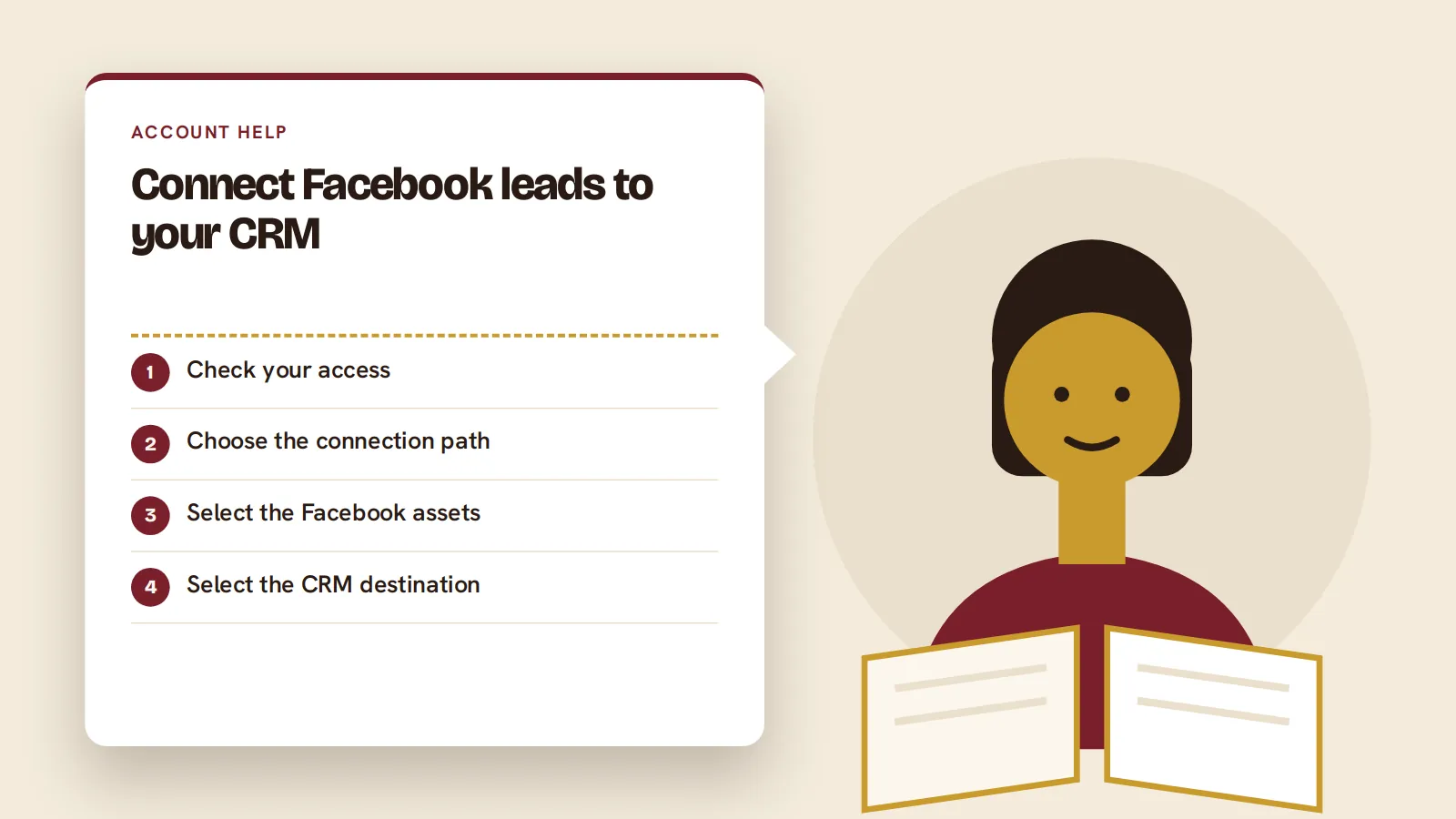
Connect Facebook leads to your CRM
-
Check your access. Confirm you can manage the Facebook Page, lead form, ad account, and CRM workspace. The account should appear in Meta Business Suite and in the CRM’s integration screen.
-
Choose the connection path. Open the CRM’s app marketplace or integration settings. Choose its native Facebook Lead Ads connection first; choose an approved automation service only when the native option lacks a needed trigger or action.
-
Select the Facebook assets. Sign in to Meta when prompted. Choose the correct business portfolio, Page, ad account, and lead form. If an asset is missing, stop and fix its permission instead of choosing a similar-looking Page.
-
Select the CRM destination. Choose the workspace, contact list, pipeline, or campaign that should receive the lead. The destination should be visible in the CRM before you continue.
-
Map each field. Match Facebook’s full name, email, phone, and custom answers to the correct CRM fields. Mark required CRM fields only when the Facebook form always supplies those values.
-
Set ownership and follow-up. Choose the sales owner, pipeline stage, tags, and notification action. Use a source tag that identifies the Page, campaign, or form without relying on memory later.
-
Set duplicate behavior. Choose whether a matching email or phone updates an existing contact, creates a new contact, or sends the lead for review. Use the CRM’s documented option rather than creating a second contact by default.
-
Submit a test lead. Use Meta’s Lead Ads testing tool or submit the form with a test contact when your setup allows it. Check the CRM record, field values, owner, source, and notification.
-
Publish and monitor. Turn on the workflow only after the test record is correct. Check the first real leads in both systems and review any failed or paused tasks.
The key judgment is whether the CRM record is usable, not merely present. If the lead has the wrong owner, missing consent details, or a blank source field, the connection isn’t finished.
If the setup asks you to write code, manage access tokens, or change webhook permissions, stop at that point unless you’re qualified to handle it. Ask your CRM administrator or a developer to complete that part.
Check leads access in Meta Business Suite
A CRM can only receive leads if it has permission to. To connect a CRM, you must be an admin of the Facebook Page and have leads access.
Someone with full control of the business portfolio can customize leads access. They do this in Meta Business Suite under Integrations, then Leads access. Once access is customized, new Page admins and CRM systems get no leads access until someone assigns it. If leads aren’t reaching your CRM, check this setting first.
Connection choices by situation
The right option depends on how much control you need and how much maintenance you’ll accept. Native tools reduce moving parts; custom connections give more control but require technical support.
| Situation | What to do | What it takes | What to watch for |
|---|---|---|---|
| One Page, one form | Use native integration | Short setup time | Field mapping |
| Several forms | Add source tags | Extra planning effort | Wrong destination |
| CRM lacks integration | Use approved connector | Possible subscription | Task limits |
| Custom CRM | Ask a developer | Technical build effort | Token failures |
| Strict lead routing | Use CRM workflows | Setup and testing | Owner rules |
| Duplicate contacts | Configure matching | Review existing records | Email variations |
| Sensitive sales process | Limit data fields | Permission review | Unneeded answers |
Details that improve lead quality
Prepare the fields first
Create or confirm CRM fields before connecting Facebook. Use one clear field for each value, and write down the exact destination for custom answers. If the CRM uses separate first-name and last-name fields, don’t map Facebook’s full name into only one of them.
Keep the Facebook form short enough for the campaign goal. A request for a quote may need phone, location, and service type, while a newsletter form may need only email. Extra questions can create incomplete or low-value records if the sales team doesn’t use them.
Check the record, not the button
Send a test lead through the complete path. Compare the submitted values with the CRM record, including capitalization, phone format, campaign source, owner, and pipeline stage.
Experienced setup work also leaves some things alone. Don’t overwrite an existing customer’s sales stage just because a new lead form was submitted. Don’t create duplicate custom fields for every campaign when one source field and campaign value can answer the same question.
Facebook lead connection problems
A missing lead, blank field, or duplicate contact usually points to a permission, mapping, or workflow setting. Check both Meta and the CRM before rebuilding the connection.
| What you notice | What it usually means | What to do first | How to stop it happening again |
|---|---|---|---|
| Page isn’t listed | Missing Page permission | Recheck Meta access | Review users monthly |
| Lead stays in Facebook | Workflow is off | Check connection status | Monitor failed runs |
| Custom answer is blank | Field mapping mismatch | Remap the question | Keep field names stable |
| Two CRM contacts appear | Duplicate rule allows creation | Merge test records | Set matching behavior |
| Wrong owner receives lead | Routing rule is broad | Review assignment logic | Test each route |
| Notifications don’t arrive | Alert action is disabled | Check CRM alerts | Add a backup alert |
| Old form won’t connect | Form or app access changed | Select the current form | Remove unused connections |
Meta permissions and lead rules
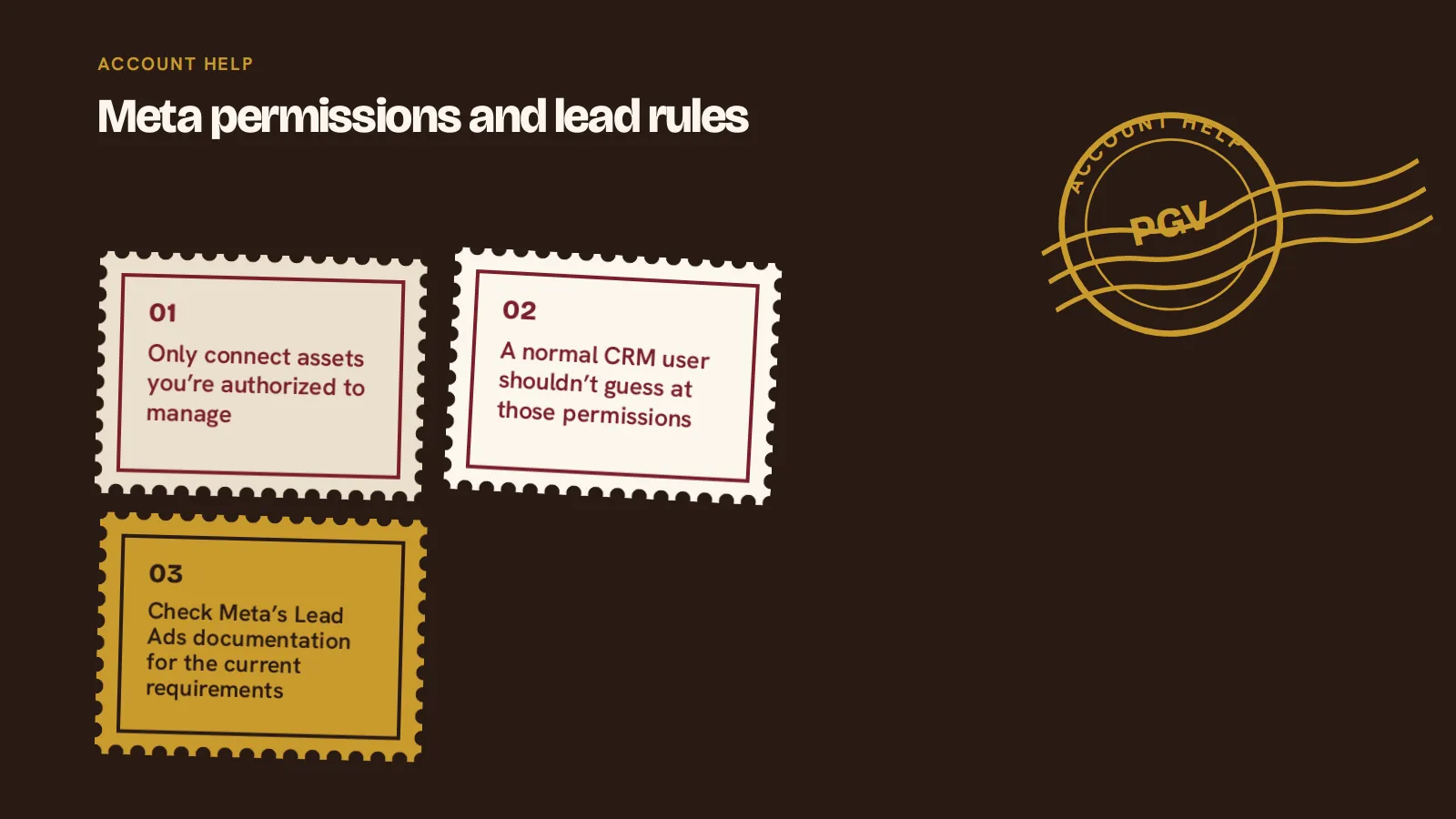
Meta controls access to Facebook Pages, lead forms, and business assets through Business settings and user permissions. Your exact screens and available actions can vary by account type, Page role, region, and Meta product changes. Check Meta’s Lead Ads documentation for the current requirements.
Only connect assets you’re authorized to manage. If a Page belongs to another business, ask its administrator to grant the needed access rather than sharing a password.
Your privacy notice and consent wording must match your business and location. Rules can differ by country and state, so ask a qualified privacy or legal professional when the form collects sensitive information or uses marketing consent.
Stop and get professional help if the connection involves regulated data, a legal consent dispute, or a custom application handling access tokens. A normal CRM user shouldn’t guess at those permissions.
The real cost of connecting leads
The visible setup may take only a short session, but the real cost is checking every path. You’ll spend more time when there are several Pages, many forms, custom questions, or different sales owners.
A native CRM connection normally costs less effort than a custom build because the CRM handles much of the authentication and delivery logic. The trade-off is less control over unusual routing, retry rules, and data transformations.
An automation platform may charge according to tasks, runs, or plan limits. Check the current pricing and usage rules on the platform’s official pricing page before choosing it. A custom integration may avoid connector fees, but developer time, monitoring, security reviews, and maintenance become your responsibility.
Compare the cost of one missed lead with the cost of monitoring. If a missed lead could affect revenue or a service promise, add an alert for failures and assign someone to review the connection.
Keep the lead connection working
Keep a written record of the connected Page, form, CRM destination, field map, owner rule, and test date. This makes changes easier when someone edits the form or leaves the team.
Check the connection after changing Facebook form questions, CRM fields, user permissions, or routing rules. A new custom question can arrive unmapped even when the main connection still looks active.
The sign of trouble is a missing lead, an unexpected duplicate, a blank required field, or an owner who didn’t receive the alert. First check the connection status and recent run history, then send a controlled test. Don’t delete the workflow until you’ve saved its settings.
If a connection repeatedly fails, ask the CRM provider or automation provider to review the error logs. Rebuilding it without reading the error can remove useful history and create more duplicates.
When Facebook lead syncing isn’t right
Facebook Lead Ads may be the wrong choice when your audience needs a detailed application, document upload, or a long qualification process. Send people to a secure website form connected directly to the CRM instead.
A native integration may be wrong when you need complex routing across several regions or brands. Use an approved automation platform or a custom integration designed by a developer.
This approach also isn’t suitable for a team that can’t monitor lead delivery. Use a CRM form with built-in alerts, or assign an administrator to check failures. If the data is sensitive or legally restricted, ask a privacy professional before collecting it through an ad form.
Related guides
- How to Run Instagram Ads Without a Facebook Page: Yes
- Facebook Page Restricted: What It Means for Ads
Our team handles exactly this through Facebook Page Setup.
Frequently asked questions
Can Facebook leads go directly into a CRM?
Yes, Facebook leads can go directly into a supported CRM through a native integration or approved connector. You’ll still need to select the correct Page and form, map fields, choose duplicate behavior, and test the complete path before running the campaign.
Why are my Facebook leads not showing in my CRM?
The most common checks are permissions, the selected form, the workflow status, and the destination list or pipeline. Send a test lead, then inspect the connector’s run history. If no run appears, the trigger or asset access is usually the first place to check.
How long does it take for Facebook leads to reach a CRM?
Native connections usually deliver leads within minutes, but the exact time depends on the CRM, connector, plan, and temporary service delays. Check the connector’s run history rather than guessing. A new lead that remains missing after a test needs investigation.
Is it safe to connect Facebook Lead Ads to a CRM?
It can be safe when you use authorized accounts, collect only needed data, protect access, and follow applicable privacy rules. Review the CRM and Meta permissions before connecting. Ask a privacy professional about sensitive data, consent, or regional requirements.
What happens if I change my Facebook lead form?
Changing questions can break field mapping or leave new answers out of the CRM. Review the form and CRM fields after the change, then send a new test lead. Keep the same field meaning when possible, rather than creating unnecessary replacements.
Does it matter which Facebook Page I choose?
Yes, it matters because leads belong to the selected Page and form. Choosing the wrong Page can send test records to the wrong CRM destination. Compare the Page name, form name, campaign, and CRM destination before you publish.
How much does a Facebook CRM integration cost?
The cost may be included in your CRM plan, charged by an automation platform, or based on custom development time. Check the current plan details and usage limits for your CRM or connector. Also include the cost of monitoring and fixing failed deliveries.
What to do next
Start by confirming access to the exact Facebook Page, lead form, and CRM destination. You should see a correctly mapped test record with the right owner and source. Stop and get help if permissions, sensitive data, or repeated delivery failures prevent a reliable test.

Derek Campbell writes about Facebook features, tools, and account management, covering topics such as account troubleshooting, Business Manager, Facebook Marketplace, and outreach strategies. His content also explores Facebook Groups, community engagement, and ways to connect with relevant audiences. His writing emphasizes practical Facebook know-how, from navigating Marketplace and managing business communities to building meaningful connections through Groups and outreach.
Checked against Facebook’s own help and policy pages on the date shown above.