How to Respond Faster on Facebook Messenger


You’ll respond faster on Facebook Messenger by turning on message previews, pinning your active chats, and setting up saved replies for the questions you get every day. These three changes cut out the time spent opening threads, searching for names, and typing the same sentences over again.
The exact speed you gain depends on whether you’re using a phone or a computer, how many conversations you handle daily, and if you’re replying as yourself or through a business page. Each setup has its own shortcuts, and picking the wrong one wastes effort instead of saving it.
Who needs faster Messenger replies
Three different people search for ways to speed up their replies here. The first is someone managing personal chats who keeps missing messages because they’re buried under group threads. They already have the standard app but don’t know about pinning or notification controls. They need a way to keep important people at the top of the list without paying for anything.
The second is a small business owner answering customer questions from a Facebook Page. They type the same five answers all day and want templates. They already use Meta Business Suite but haven’t set up saved replies yet. They need steps that work inside the professional tools Meta provides.
The third is a social media manager handling several pages at once. They need keyboard shortcuts and desktop tools to jump between accounts in seconds. This page serves the first two readers best. If you manage more than three pages or need automated chatbots, read Meta’s official developer documentation instead. Everything below assumes you’re working with fewer than 50 active conversations a day.
What actually speeds up your replies
Four things decide how fast you can answer a message, and getting even one wrong slows everything else down.
Your device matters most. A physical keyboard on a computer lets you type twice as fast as thumbs on a glass screen. If you answer more than 20 messages a day, move to a desktop browser or the Messenger app for Windows or Mac. If you only handle a handful, your phone is fine.
Notification settings control when you even see the message. Leaving default alerts on means your phone buzzes for every group chat reaction. You end up ignoring all of them, including the urgent ones. Set custom notifications so only priority contacts break through. That single change stops you from finding messages hours late.
Saved replies remove the typing entirely for repeated questions. Instead of writing your opening hours or return policy each time, you tap a shortcut word and the whole paragraph appears. This is where most people lose time—they keep retyping the same 40 words manually instead of spending ten minutes setting up a template once.
Chat organization decides how long you spend looking for the right thread. Pinning puts your top four conversations at the very top of the inbox. Without pins, you scroll past old chats just to find the person who messaged you five minutes ago. Check your current inbox: if you have to scroll to find active chats, you need pins.
Steps to reply faster in Messenger
Follow these actions in order to set up your account for quicker responses. These steps assume you’re using the mobile app; I’ll note where the computer version differs.
- Open Messenger and tap your profile picture or the three-line menu in the top corner to reach Settings.
- Tap Notifications, then turn off alerts for message requests and group chats you don’t need instantly. Keep alerts on only for direct messages from real contacts.
- Go back to your main inbox. Press and hold the conversation you answer most often, then tap Pin. Do this for your top four chats.
- If you run a Page, open Meta Business Suite instead. Go to Inbox, click Saved Replies, and create a new template. Type your common answer and assign a shortcut word like “/hours”.
- On a computer, press
Ctrl + K(orCmd + Kon a Mac) to open the search bar. Type a name to jump straight to their thread instead of scrolling. - Turn on message previews in your phone’s system notification settings. This lets you read the full message from the lock screen before deciding to open the app.
- Use voice-to-text for longer replies. Tap the microphone icon on your keyboard instead of the Messenger one, as system keyboards usually process speech faster.
- Archive finished conversations. Swipe left on a chat and tap Archive so your inbox only holds active threads.
The judgment call here is knowing when to stop optimizing. Setting up saved replies takes about 15 minutes per template. If a question comes up less than twice a week, typing it out manually is faster than building and remembering a shortcut for it. Don’t build templates for rare situations.
If you need to connect external customer service software to your page, that requires API access. Leave that to a developer, as changing those permissions incorrectly can disconnect your inbox entirely. You can check Meta’s current platform rules on saved replies in Meta Business Suite.
Situations and what to do
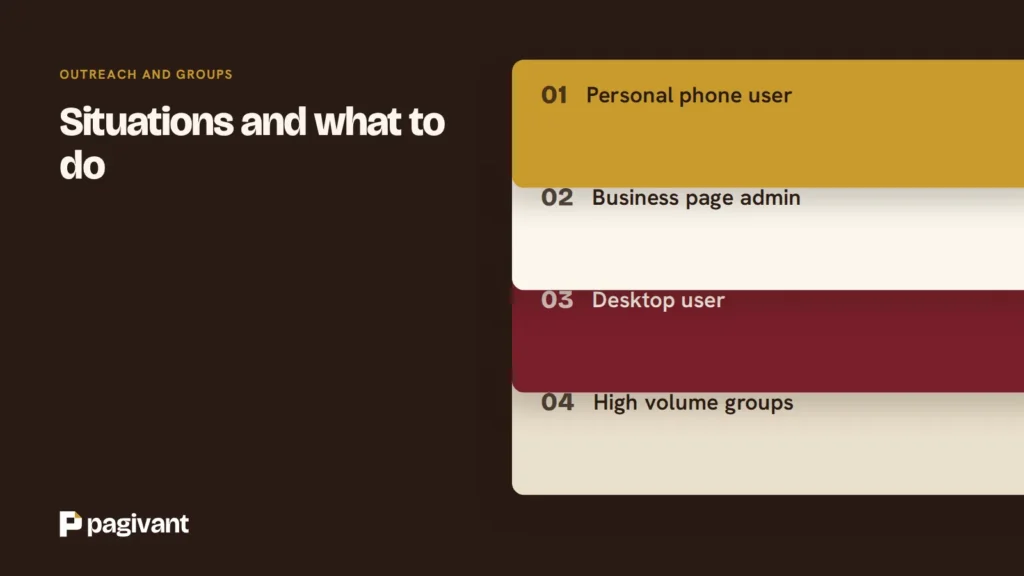
Different setups require different shortcuts, so pick the row below that matches your actual situation.
| Your situation | What to do | What it costs | Watch out for |
|---|---|---|---|
| Personal phone user | Pin top four chats | Two minutes | Pins push older chats down |
| Business page admin | Create saved replies | Fifteen minutes per template | Shortcuts are case-sensitive |
| Desktop user | Learn Ctrl+K search | Ten minutes practice | Shortcut differs on Mac |
| High volume groups | Mute non-essential threads | One minute | You might miss tagged messages |
| Replying while driving | Use voice-to-text | Zero extra cost | Background noise causes typos |
| Managing multiple pages | Switch via Meta Business Suite | Five minutes | Requires admin role on each |
Don’t mix personal and business methods. Pinning works for private accounts, but saved replies only exist inside Meta Business Suite for Pages. Trying to find the saved replies button in your personal app will just waste your afternoon. Match the tool to the account type you’re currently logged into.
Details that make replies faster
Setup before messages arrive
Speed starts before anyone types your name. Organizing your inbox while it’s quiet saves you from fumbling during a rush.
Mute every group chat that doesn’t need instant action. Tap the group name, select Mute, and choose Until I change it. This stops your screen from lighting up for reactions nobody expects you to answer immediately.
Set up text replacement in your phone’s main settings, not just inside Messenger. Add shortcuts like “omw” expanding to “I’m on my way, give me ten minutes.” This works across every app, so you aren’t limited to Messenger’s built-in tools.
Keep your active threads under ten. Once your inbox passes that number, your eyes take longer to scan the list. Archive resolved chats every evening so you start the next morning with a short, readable list.
Actions during the conversation
When a message arrives, don’t open the app immediately if you can’t finish the reply. Read the preview on your lock screen first. Opening a thread marks it as read, which hides the unread badge you rely on to track pending answers.
Use the reply feature instead of sending standalone messages. Long-press the specific message you’re answering and hit Reply. This links your text to theirs, preventing confusion when multiple topics happen in one thread.
Avoid switching between apps while typing. Copying an address from Maps and pasting it into Messenger breaks your flow. If you need to look something up, send a quick “Give me a second” first, then switch screens.
Messenger problems and fixes
When your replies slow down, it’s usually a specific technical block rather than bad habits. Here is what to check.
| What you notice | What it usually means | What to do first | How to stop it happening again |
|---|---|---|---|
| Messages won’t send | Poor internet connection | Toggle airplane mode on, then off | Move closer to your router |
| App freezes while typing | Cache is too full | Clear cache in phone settings | Restart the app weekly |
| Notifications arrive late | Battery optimization is blocking it | Turn off battery saver for Messenger | Check settings after OS updates |
| Can’t find saved replies | Using personal app instead of Business Suite | Open Meta Business Suite | Bookmark the correct login page |
| Voice typing inserts wrong words | Microphone picked up background noise | Delete and re-record in a quiet spot | Pause fans before speaking |
| Search shows old results | Index hasn’t updated | Close and reopen the app completely | Keep the app updated automatically |
If clearing the cache doesn’t fix freezing, uninstall and reinstall the app. Your messages live on Meta’s servers, not your phone, so you won’t lose any history by reinstalling. Just remember your password before you delete anything.
Rules for business messaging
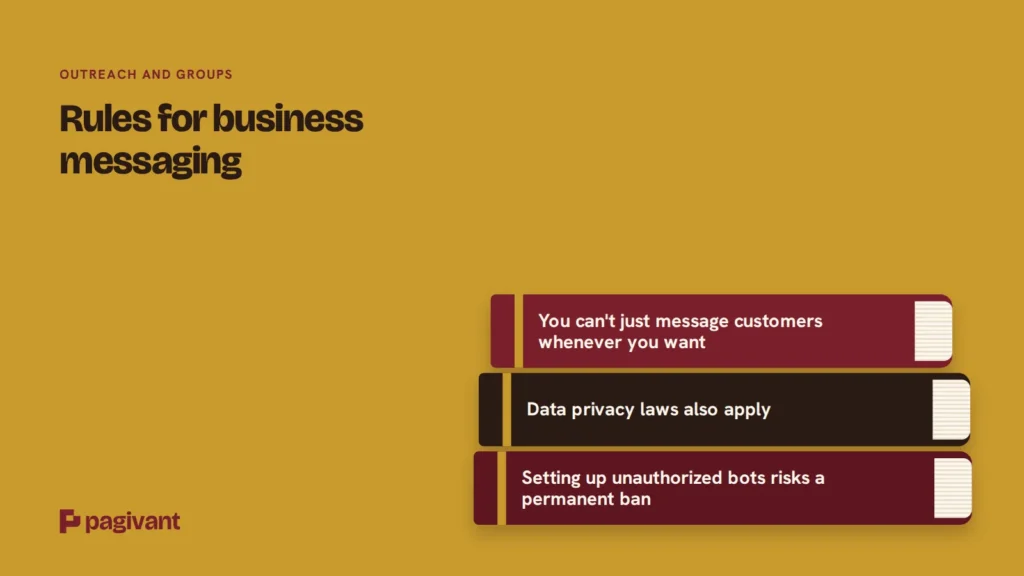
If you reply as a business, Meta enforces strict limits on how and when you contact people. You can’t just message customers whenever you want.
The 24-hour standard messaging window applies to all Facebook Pages. Once a person messages you, you have exactly 24 hours to reply freely. After that window closes, you can’t send promotional text. You must use a paid message tag or wait for them to write again.
Meta sets these rules to stop spam, and breaking them gets your Page restricted. You can read the current messaging policies directly on the Meta for Developers platform to see exactly which tags allow replies outside the window.
Data privacy laws also apply. If you operate in Europe, the GDPR requires you to handle message data carefully. Never copy personal details from Messenger into an unsecured spreadsheet.
If you plan to use third-party automation tools that reply on your behalf, those require formal API approval. Setting up unauthorized bots risks a permanent ban. Hire a certified Meta partner if you need automated routing beyond basic saved replies.
Time and effort required
Speeding up your replies isn’t free—it costs setup time upfront to save typing time later. Knowing the trade-off helps you decide what to build.
Pinning four chats takes about 30 seconds total. It costs nothing but requires you to update the pins when your active conversations change. If your main contacts shift weekly, you’ll spend a few minutes rearranging them every Monday.
Building saved replies in Meta Business Suite takes roughly 15 minutes per template. If you create five templates for your most common questions, that’s over an hour of work today. But if each template saves you two minutes per message and you use it ten times a day, you earn that hour back within three days.
Switching from phone to desktop involves no money if you already own a computer. However, you lose portability. You can’t walk around a warehouse answering from a laptop easily. If you’re tied to a desk anyway, the keyboard speed is worth the trade-off.
Voice typing costs zero dollars but demands a quiet room. Using it in a noisy cafe generates errors that take longer to fix than typing manually. Match the method to your physical environment.
Keeping your inbox fast
Setting up shortcuts only works if you maintain the system. An inbox degrades quickly when you stop managing it.
Archive completed conversations at the end of every workday. Don’t leave resolved customer questions sitting in your main view. Swiping left and tapping Archive takes one second per chat and keeps your pinned items visible.
Review your saved replies once a month. If your business hours change or a policy updates, your old template will send wrong information. Sending outdated answers forces customers to message you again, doubling your workload instead of cutting it.
Check your notification settings after every major phone update. Operating systems sometimes reset app permissions to default, turning your custom silent groups loud again. If your phone suddenly vibrates constantly, check the Messenger notification menu first.
Watch your pinned chats. If a pinned conversation hasn’t had a message in two weeks, unpin it and replace it with an active one. Stale pins defeat the purpose of organizing your inbox for speed.
When these shortcuts fail
These methods only work for manual replies handled by a human. Some situations demand a completely different approach.
If you receive hundreds of identical messages daily—like ticket sales or viral post reactions—manual typing won’t scale. You need a chatbot built through Meta’s approved bot partners. Trying to handle high volume with just saved replies leads to burnout and missed messages.
If you’re dealing with sensitive legal or medical inquiries, speed shouldn’t be your goal. Rushing complex answers creates liability. For regulated industries, use secure, compliant messaging platforms designed for healthcare or law, not standard Messenger.
If your delay happens because you don’t know the answer, shortcuts won’t help. Pinned chats don’t write knowledge base articles. Build an internal FAQ document for your team first, then map those answers to Messenger templates.
If you lack admin access to the Facebook Page, you can’t create saved replies in Meta Business Suite. Ask the page owner to grant you the correct role before attempting the setup steps above.
The full step-by-step version is in How to Respond to Facebook Page Messages Faster.
If you would rather have this handled for you, our Facebook Accounts Setup service covers it end to end.
Frequently asked questions
Can I reply without opening the app?
Yes, if you enable message previews in your phone’s system notification settings. You can use the quick-reply box that appears under the banner on both iOS and Android. This saves the loading time of opening the full application.
Why are my Messenger notifications delayed?
Battery optimization features on Android and Low Power Mode on iOS often pause background syncing. Go to your phone’s battery settings and exclude Messenger from power-saving restrictions. This allows the app to fetch new messages instantly.
How long does it take to set up saved replies?
Creating one saved reply in Meta Business Suite takes about 15 minutes, assuming you already know the text you want to use. This includes naming the shortcut, typing the response, and testing it in a sample thread.
Is it safe to use voice typing for private messages?
Yes, standard voice-to-text processed by your phone’s operating system is generally secure. The audio converts to text locally on modern devices. Avoid third-party keyboard apps that send your voice data to unknown external servers.
What happens if I mute a group chat?
You won’t receive sound or vibration alerts when members post. The unread badge disappears, but the messages still arrive silently. You can check them whenever you open the app manually.
Does pinning chats slow down the app?
No, pinning simply changes the visual sorting order of your inbox list. It uses negligible memory and doesn’t affect loading times. You can safely pin the maximum allowed four conversations without performance issues.
How many chats can I pin on Messenger?
You can pin exactly four conversations at the top of your inbox. If you try to pin a fifth, the app asks you to unpin an existing one first. Choose your most urgent contacts.
Do keyboard shortcuts work on the mobile app?
No, shortcuts like Ctrl + K for search only function on the desktop web browser or the dedicated computer app. Mobile relies on touch gestures, swipes, and the search magnifying glass icon at the top.
Start speeding up your Messenger replies
Open your Messenger settings right now and pin your top four active conversations. You’ll notice immediately that finding urgent threads takes less than a second instead of thirty seconds of scrolling. If the app crashes repeatedly while you test these changes, stop troubleshooting and contact Meta support directly.

Derek Campbell writes about Facebook features, tools, and account management, covering topics such as account troubleshooting, Business Manager, Facebook Marketplace, and outreach strategies. His content also explores Facebook Groups, community engagement, and ways to connect with relevant audiences. His writing emphasizes practical Facebook know-how, from navigating Marketplace and managing business communities to building meaningful connections through Groups and outreach.
Checked against Facebook’s own help and policy pages on the date shown above.