Meta Business Suite Inbox: How to Manage All Messages

You manage all messages in the Meta Business Suite inbox by connecting your Facebook Page and Instagram account, then using filters, labels, and automation to sort conversations. It’s a single workspace where you’ll read, reply, and organize customer chats without switching apps. If you run both platforms, this saves time; if you only use one, it still works but offers less value. This guide covers the setup steps, the settings that matter, and the specific situations where you shouldn’t rely on it.
How the Meta Business Suite inbox unifies messages
The unified inbox inside Meta’s business tools combines Facebook Messenger and Instagram Direct into one screen. You don’t need to open separate apps or log into different accounts to answer customers. It’s built for small businesses and social media managers who handle support or sales through direct messages every day.
The core mechanism is simple: when you link a Facebook Page and an Instagram account to the same business portfolio, the platform routes all incoming chats to one dashboard. You can filter them by platform, date, or status. You can also assign specific conversations to team members if more than one person manages your pages.
People often think this tool replaces third-party customer service software completely. That isn’t true for larger teams. It lacks advanced routing rules and deep reporting features found in dedicated help desks. But for a small team handling under a few dozen messages a day, it’s enough.
It can also show WhatsApp messages once you connect your WhatsApp Business account. Without that connection, the inbox only pulls from Messenger and Instagram. If you need WhatsApp included, you have to configure that connection through the official Meta Business Help Center documentation first. Don’t assume all your channels will appear automatically.
Another thing people get wrong is thinking they can use it without an Instagram business or creator account. Personal Instagram profiles won’t connect. You must switch your profile type before the messages start flowing into this shared space.
Which channels and items show in the inbox
The inbox shows messages from Messenger and Instagram Direct. If you connect a WhatsApp Business account, WhatsApp messages appear there too. You can view them together or filter by platform. It also shows comments on your Facebook and Instagram posts.
For WhatsApp, Meta’s Business Messaging Policy requires you to get opt-in from people before you send them messages.
Steps to manage messages in the inbox
Setting up and running this workspace takes about ten minutes if your accounts are already linked. Follow these steps in order to get everything working correctly.
- Log into Meta Business Suite on a desktop browser and click “Inbox” on the left menu. You can’t do the full initial setup reliably from the mobile app, so use a computer for this part.
- Connect your Instagram account by going to Settings > Business Assets > Add Instagram Account. You’ll need your login details ready. This step requires admin access to the Facebook Page you’re linking it to.
- Click the filter icon at the top of the message list. Select “All Messages,” “Facebook,” or “Instagram” depending on what you want to view. Leave it on “All” to see everything together.
- Create labels by clicking the tag icon inside any open conversation. Type a name like “Order Issue” or “New Lead” and pick a color. Apply these to messages as they arrive so you can sort them later.
- Set up automated responses by navigating to Inbox > Automations. Choose “Instant Reply” and write a greeting under 150 characters. Turn it on for new conversations so customers aren’t left waiting while you sleep.
- Assign messages to yourself or a colleague using the person icon at the top right of an open chat. Do this within five minutes of a message arriving if you work in a team. Unassigned messages easily get forgotten.
- Use saved replies for questions you get daily. Go to Settings > Saved Replies, type your answer (up to 1,000 characters), and give it a shortcut word. When someone asks about shipping, type the shortcut and hit send instead of typing the whole thing again.
- Mark conversations as “Done” once resolved. They disappear from your main view but stay searchable. Check this off immediately after sending your final answer, not at the end of the week.
If adding your Instagram account stalls on the Page admin check, our team can look at the Page roles with you or do the connection for you.
The single judgment call here is deciding which messages need a human versus an automation. If a customer asks a basic question like opening hours, let the bot handle it. If they mention a refund or a complaint, route it to a person instantly. Getting this split wrong means angry customers talking to bots or staff wasting time answering simple FAQs.
Quick reference for inbox settings
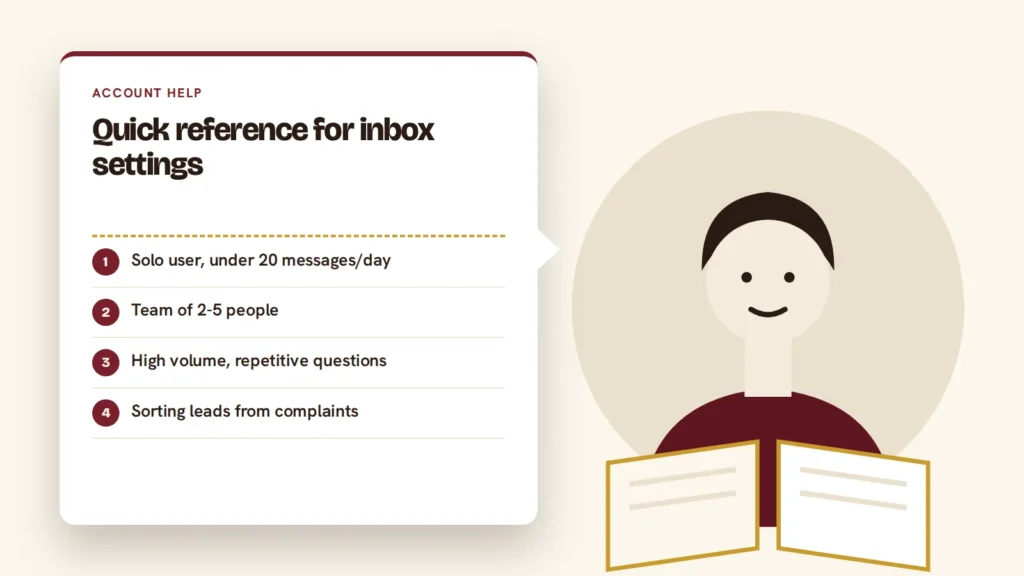
Solo users do well with labels and Instant Reply, and teams do well with the Assigned To feature. These numbers and options change based on how many people work on your team and how many messages you receive daily. Keep this table handy when you’re configuring your workspace.
| Situation | What to use | How long | What to watch for |
|---|---|---|---|
| Solo user, under 20 messages/day | Labels + Instant Reply | 5 min setup | Don’t create more than 5 labels or you’ll stop using them |
| Team of 2-5 people | Assigned To feature | Assign within 5 min | Check unassigned folder twice daily |
| High volume, repetitive questions | Saved Replies | 15 min to build library | Update answers when policies change |
| After-hours inquiries | Away Message automation | Set to match store hours | Ensure it turns off when you reopen |
| Sorting leads from complaints | Custom colored tags | Apply immediately on read | Train everyone to use the exact same tag names |
| Cleaning up old chats | Mark as Done | End of each shift | Done messages hide, so double-check before closing |
This assumes you’re using the standard free version of the platform. If you pay for third-party integrations connected to your page, some of these native limits might behave differently. Always check your specific setup against these baselines.
The time estimates above apply to a fresh workspace. If you’re migrating hundreds of old messages, expect the initial sorting phase to take a few hours rather than minutes.
Details that keep inbox workflows smooth
Keep your business details identical on both platforms and handle messages in set batches. Preparation matters more than speed when dealing with customer messages. Before you even open the dashboard, make sure your business information is identical across both platforms. If your Facebook Page says you close at 5 PM but your Instagram bio says 6 PM, customers will message you expecting answers during that gap. Align those details first.
Work through your unread messages in batches rather than reacting to every notification. Set aside two 20-minute blocks per day—one in the morning, one in the afternoon—to clear the queue. Jumping in and out constantly breaks your focus on other tasks. During these blocks, label everything first, reply second. Tagging takes seconds and prevents things from slipping through the cracks while you type longer answers.
Halfway through a busy period, check your “Done” folder. Sometimes a customer replies after you’ve closed their ticket, pushing it back into active status without you noticing. Scan for reopened threads before finishing your shift. Leave the automation settings alone once they’re working. Tweaking your instant reply every day confuses customers who message you twice in a week and get different greetings. Pick a clear, short message and leave it for at least a month.
Where the system falls short
The inbox loads large files slowly and can't merge conversations from different accounts. Every tool has boundaries, and ignoring them costs you customers. The exact number of messages you can comfortably process here depends entirely on your typing speed and how complex your typical customer issue is—look at your own average resolution time from last week to find your real limit.
If a customer sends photos or screenshots, the desktop view sometimes loads them slowly compared to the native apps. Don’t try to troubleshoot heavy technical issues purely through this interface. Switch to the native platform if file sharing becomes a bottleneck. Also, you can’t merge two separate conversations from the same person if they message you from different accounts. Treat them as separate threads manually.
Fixing common inbox problems

When something stops working in your message center, it’s usually tied to permissions or connection drops between the two platforms. Don’t panic and start changing random settings. Look at the symptoms below and follow the first step listed.
| What you notice | What it usually means | What to do first |
|---|---|---|
| Instagram messages stopped appearing | The connection expired or password changed | Reconnect the account in Business Assets settings |
| Can’t assign messages to a coworker | They lack the correct Page role | Give them “Moderator” or higher access in Page settings |
| Automation didn’t send | The trigger condition wasn’t met exactly | Check if the customer was marked as “new” vs “returning” |
| Search returns no results | The conversation was fully deleted, not just archived | Check if another admin removed it permanently |
| Typing feels delayed or lags | Browser cache is full or extension conflict | Open the tool in an incognito window to test |
Reconnecting your Instagram account fixes most missing message issues. You’ll need your login details again, so have them ready before you click anything. If giving someone moderator access doesn’t fix assignment problems, remove them completely and re-add them. Sometimes the permission update doesn’t register until a fresh invitation is accepted.
If the delay persists in an incognito window, the problem sits on the server side. Wait an hour and try again. Don’t delete and recreate your automations during a temporary lag—you’ll lose your settings for nothing.
Why some Instagram messages are missing
The inbox only shows messages from your Instagram main folder. Chats sitting in Hidden requests don’t sync. Open Instagram, move those chats to the main folder, and check the inbox again. Also check your Done and Spam folders, because messages moved there leave the main view.
Rules for messaging customers
Get opt-in before sending promotional messages, and never collect sensitive data in chat. Sending messages to customers involves legal boundaries, not just platform rules. In the United States, the Telephone Consumer Protection Act (TCPA) restricts how businesses contact people electronically. While organic social media replies generally fall outside strict telemarketing definitions, sending unsolicited promotional broadcasts to users who haven’t opted in can violate platform policies and consumer protection laws enforced by the Federal Trade Commission.
Meta's Commerce Policies apply to any attempt to buy, sell or trade products across Facebook, Instagram, WhatsApp and Messenger, so sales chats in your inbox must follow them. Breaking them can lead to removed content or lost access to commerce features. Your instant replies must accurately represent your business. You can’t use automation to promise delivery times you can’t meet or to collect sensitive financial data like credit card numbers directly in the chat.
If you operate in Europe, the General Data Protection Regulation (GDPR) applies to the personal data visible in these chats. You can’t export customer message histories to external spreadsheets without a lawful basis for processing that data.
If your business handles regulated industries like healthcare or finance, standard social messaging isn’t secure enough for sharing private records. Stop using this tool for sensitive data transfer immediately. Consult a compliance officer or legal professional who understands digital communication laws in your specific region before setting up automated flows that touch personal health or financial information.
Keeping your workspace organized
Once your system runs smoothly, maintaining it takes less effort than building it. Spend five minutes at the end of each day clearing out your active queue. Mark resolved issues as done so tomorrow starts with a clean screen.
Review your saved replies once a month. Prices change, shipping policies update, and seasonal promotions end. An outdated saved reply sent to fifty customers creates more work than typing from scratch. Delete shortcuts you haven’t used in over sixty days to keep the menu short.
Your labels will naturally multiply if you don’t control them. Stick to a maximum of seven core tags. If you find yourself creating a new label for every minor variation, your categories are too narrow. Merge similar ones—for example, combine “Late Shipping” and “Missing Package” into a single “Delivery Issue” tag.
Check your automation performance weekly. The platform shows you how many times an instant reply triggered. If the number drops suddenly, your connection might be failing silently. Catching this early prevents days of unanswered messages.
Don’t rely solely on desktop notifications. Install the mobile app and enable push alerts only for high-priority labels. This keeps you responsive without forcing you to stare at a screen all day.
When this inbox is the wrong choice
This shared workspace solves a specific problem, but it isn’t built for every situation. Pushing it beyond its limits frustrates both you and your customers.
If your team receives over 100 messages a day, the manual labeling and assignment process becomes a bottleneck. You’ll spend more time sorting chats than answering them. At that volume, move to a dedicated help desk platform like Zendesk or Freshdesk. They offer automatic ticket routing and deeper analytics that this free tool simply doesn’t provide.
If you need to communicate with customers via SMS or email alongside social media, this won’t work. It handles Messenger, Instagram and WhatsApp natively, but not SMS or email. Trying to force other channels into it through messy workarounds wastes time. Use an omnichannel platform designed to pull texts, emails, and social messages into one true feed.
If your business requires strict audit trails for legal reasons—like debt collection or medical consultations—the retention and logging features here are insufficient. You can’t guarantee message permanence the way specialized compliance software can. Switch to a tool certified for your industry’s regulatory standards before you risk violating record-keeping laws.
For hands-on help with this, our team offers Facebook Page Setup.
Frequently asked questions
Can I use the inbox without an Instagram business account?
You can use the inbox with just a Facebook Page, but Instagram messages need a Business or Creator account. A personal Instagram profile won't connect to the business tools. You must switch your profile to a Business or Creator account in the Instagram app settings first. Once switched, return to the dashboard and add the account again. The messages will start flowing within a few minutes.
How long do messages stay in the inbox?
Messages remain indefinitely unless you or another admin deletes them manually. Marking a chat as “Done” hides it from the main view but doesn’t erase it. You can always search for old conversations later. However, if you disconnect your Instagram account, those specific messages may become inaccessible until you reconnect.
Why aren’t my automated replies sending?
Automated replies fail when the trigger conditions aren’t met exactly. Check if your rule is set for “new” customers only while the person messaging you has interacted with your page before. Also, verify that your Instagram account hasn’t disconnected in the background. Reconnecting the asset usually resolves silent automation failures.
Is it safe to ask for order numbers in chat?
Yes, asking for an order number is generally fine because it isn’t highly sensitive data. But never ask for full credit card numbers, passwords, or Social Security numbers in these messages. The platform isn’t encrypted for financial transactions. Direct customers to your secure website checkout if they need to update payment details.
What happens if two people reply at the same time?
The system doesn’t lock conversations while someone types. If two team members reply simultaneously, the customer sees both messages in chronological order. This is why using the “Assigned To” feature matters. Whoever claims the ticket should be the only one responding to avoid confusing the customer with duplicate answers.
How many saved replies can I create?
You can save dozens of replies, but keeping the list under 20 is best for speed. The search function works, but scrolling through fifty options slows down your workflow. Delete outdated ones regularly. Each reply allows up to 1,000 characters, which is plenty for standard support answers.
Can I forward messages to an external email?
Not directly through a native button. You’d have to copy the text manually or take a screenshot. There’s no built-in forwarding feature that pushes social conversations into Gmail or Outlook automatically. If email handoffs are critical to your workflow, you need a third-party help desk tool that supports cross-channel routing.
Conclusion
Keeping your messages organized comes down to consistency. Build your labels today, stick to them tomorrow, and clear your queue every evening. The tool gives you the space to work, but your habits determine whether customers actually get fast answers.

Derek Campbell writes about Facebook features, tools, and account management, covering topics such as account troubleshooting, Business Manager, Facebook Marketplace, and outreach strategies. His content also explores Facebook Groups, community engagement, and ways to connect with relevant audiences. His writing emphasizes practical Facebook know-how, from navigating Marketplace and managing business communities to building meaningful connections through Groups and outreach.
Checked against Facebook’s own help and policy pages on the date shown above.