How to Connect a Facebook Page to WhatsApp: Setup Steps


You can connect a Facebook Page to WhatsApp through the Page’s Settings → Linked accounts → WhatsApp, then verify your WhatsApp Business number with the code you receive. You’ll need access to the Page and control of that phone number; connecting it doesn’t require buying an ad.
Your Page permissions, WhatsApp account type, and current Facebook layout determine which screens you’ll see. If a menu looks different, check the account and Page you’re using before changing anything else.
Which Facebook Page setup this covers
A business owner with a working Page and a WhatsApp Business number usually needs a direct connection and a working message button. This guide serves that setup best. It assumes you can open the Page’s settings and receive verification messages for the business number.
A staff member or agency worker may already publish posts but still lack permission to link accounts. Your first job is to check your Page access, not to keep trying different phone numbers. Ask the person with full control to make the connection if the setting isn’t available to you.
A business using the WhatsApp Business Platform may have a different setup involving a business portfolio, provider, or shared inbox. Don’t treat those accounts as a simple phone-app connection. Use your provider’s instructions or Meta’s business support guidance instead, especially if the number already serves customers through another system.
This page isn’t a guide to recovering a stolen Page, moving ownership between businesses, or setting up automated customer service. Those jobs need different checks before you change a live connection.
What determines whether the connection works
Page access comes first. Being able to write posts doesn’t prove you can manage linked accounts. Switch into the Page and look for its settings and Page access information. If another person owns the setup, have them confirm your permissions rather than sharing their Facebook password.
The phone number must be the right business number. This is the detail to check before requesting a code. Compare the country code and full number against the account shown in WhatsApp Business settings. Linking a personal number by accident can send customer inquiries to the wrong place and create extra work to correct the button.
Your existing WhatsApp setup changes the route. A number used in the WhatsApp Business app isn’t the same setup as a number managed through a business messaging provider. Check where staff currently read and answer messages. If they use a provider’s dashboard, ask that provider before trying to reconnect the number through Facebook.
Verification depends on control of the number. You need access to the delivery method offered on the screen. Don’t assume that being logged into WhatsApp means you can receive every verification message. Check that the number still belongs to your business and can receive the requested code.
Facebook’s menus vary by account and interface. The labels available to you appear in your Page’s own Settings menu. Use that screen as your reference, not an old screenshot with a different layout.
Connect your Facebook Page step by step
Use the Facebook account that already manages the business Page. Keep WhatsApp Business available so you can compare the number before submitting it.
-
Switch into the correct Facebook Page. Open Facebook’s profile menu and select the business Page, rather than your personal profile. Continue only when the Page’s name and profile image appear as the identity you’re managing.
-
Open the Page’s settings. Select Settings & privacy, then Settings, where those labels appear. You’ve reached the right area when the settings belong to the Page, not just your personal Facebook account.
-
Find the WhatsApp connection screen. Look under Linked accounts and select WhatsApp. In Meta's help instructions, Linked accounts sits in the left menu under Permissions. Some layouts expose WhatsApp elsewhere in Page settings; continue only when the screen specifically offers a Page-to-WhatsApp connection.
-
Enter your WhatsApp Business number. Select the correct country code and enter the matching phone number. Compare the complete displayed number against WhatsApp Business before continuing, including any country-code formatting shown by Facebook.
-
Request the verification code. Use the delivery option Facebook offers for that number. The sign to wait for is the verification message itself; a request confirmation alone doesn’t mean the accounts are connected.
-
Submit the received code. Enter the code in Facebook’s verification field. Continue only after Facebook confirms the connection or displays your number as linked; don’t give that code to another person.
-
Check the Page’s contact button. Return to the Page and inspect its available action-button settings. If Facebook offers a WhatsApp button, select it and confirm that its destination matches the connected business number.
-
Test the customer-facing route. Ask a colleague to open the Page as a visitor and select the WhatsApp button. The test succeeds when it opens a conversation with the correct business account, not merely when a button appears.
A successful connection and a useful contact button are separate checks. If you lack permission, or the number belongs to a provider-managed setup, stop and ask the Page owner or messaging provider rather than removing existing assets.
Connect from the WhatsApp Business app instead
You can also start the link from the WhatsApp Business app. On the Tools tab, tap Facebook & Instagram, then Facebook and Continue. Log in, choose the Page and tap Connect WhatsApp.
- You must be an admin of the Page.
- The Page must be a business Page, not a personal profile.
- A Page can be linked to only one WhatsApp Business account at a time.
- Your WhatsApp Business account can’t already be linked to a different Page.
- Update both the WhatsApp Business app and the Facebook app first.
If you see “We could not connect your Facebook account,” wait a few minutes and try again. If Facebook says the number is already linked to another Facebook business, find out which business or Page holds the number before you try again.
Connection time and effort by setup
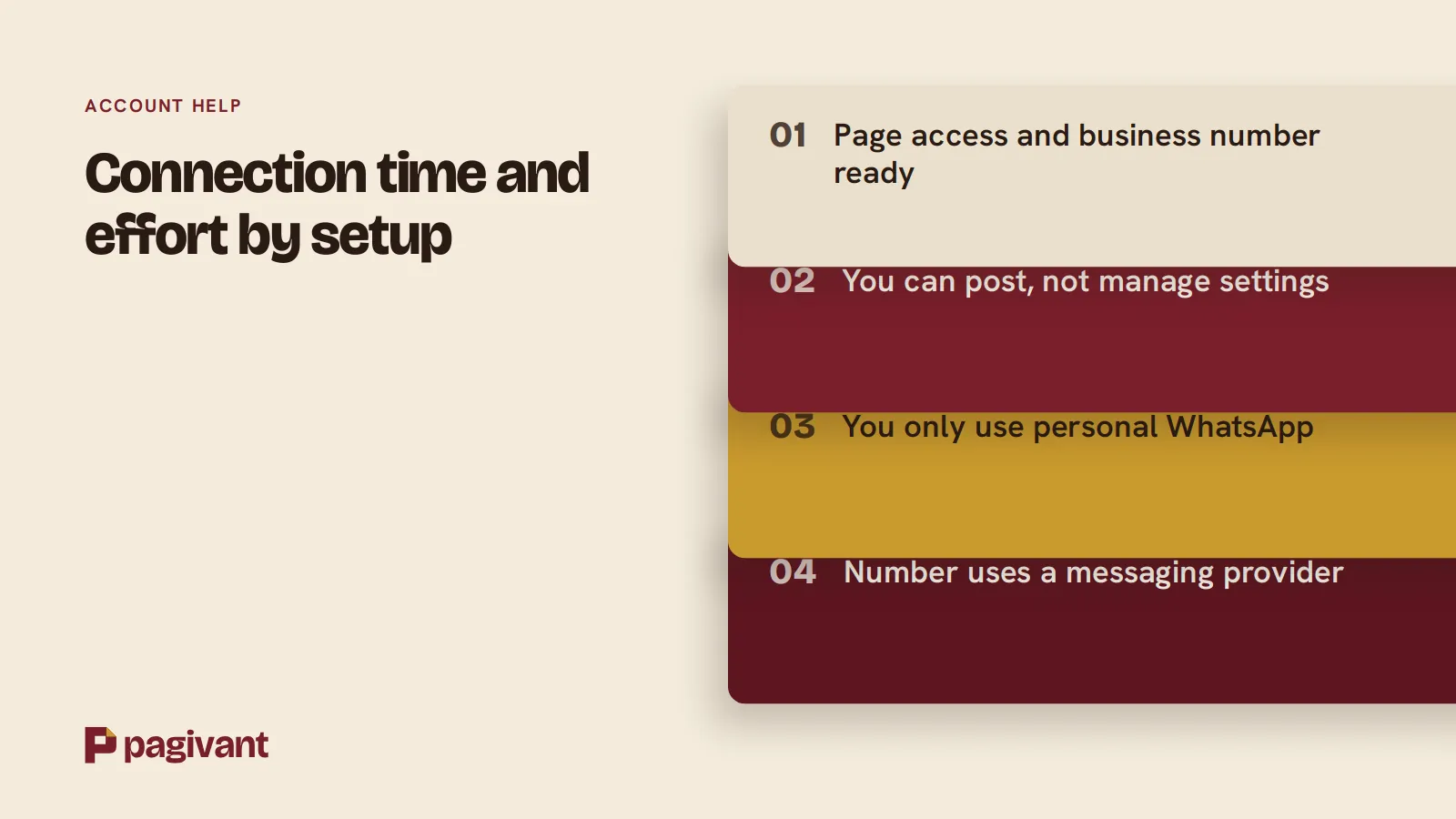
The work depends more on access and number ownership than on entering the code. Use these cases to identify what must happen before you can finish.
| Your current setup | Best next action | Time or effort needed | What could delay it |
|---|---|---|---|
| Page access and business number ready | Connect through the Page settings | One connection and visitor test | Verification message hasn’t arrived |
| You can post, not manage settings | Ask someone with full control | Owner approval before setup continues | Your current permissions are limited |
| You only use personal WhatsApp | Review WhatsApp Business setup first | Account preparation before Page linking | Personal and business contact details |
| Number uses a messaging provider | Contact your existing provider first | Provider-specific checks and instructions | Existing inbox or account connections |
| Page shows an outdated number | Confirm the intended replacement number | Connection update and button retest | Customers still using old details |
| Several Pages need different contacts | Map each Page to its number | Separate checks for each Page | Similar names causing wrong connections |
There’s no reliable completion time for an account waiting on someone else’s approval or a verification message. Check the status on the actual screen rather than treating a delay as proof that the setup failed.
Make the WhatsApp button work for customers
A linked number is only useful if visitors can reach the right business. Check both the destination and the public Page view before you announce that WhatsApp contact is available.
Check the destination before the appearance
Compare the number in Facebook with the number shown inside WhatsApp Business. Don’t rely on matching business names or profile photos, because separate accounts can use similar branding. The phone number is the detail that tells you which account will receive the conversation.
Next, check the profile customers see when the conversation opens. The business name should be recognizable from the Facebook Page. If it isn’t, correct the business profile through the appropriate account settings rather than changing the Page connection without checking it.
Test as a visitor, not an administrator
An administrator’s screen can show editing controls that visitors never see. Ask someone without Page management access to open the public Page and try the contact button. Have them confirm which account opens, rather than simply reporting that WhatsApp launched.
A mobile test is useful because customers may move directly from Facebook into the WhatsApp app. A desktop visitor may instead encounter WhatsApp Web or another handoff screen. Those screens can look different without meaning your number is wrong.
Keep unrelated settings unchanged while testing. Changing the number, button, and account ownership together makes a failed test harder to trace. Fix the specific mismatch you can see, then repeat the visitor check before making another change.
Fix Facebook and WhatsApp connection problems
Start with the exact message or missing control you can see, rather than deleting the connection. These checks narrow the problem without changing account ownership or removing a working customer inbox.
| What you notice | What it usually means | What to do first | How to stop it happening again |
|---|---|---|---|
| Settings show your personal account | Wrong Facebook identity is selected | Switch into the business Page | Check the Page name before editing |
| Screen says you lack permission | Current access doesn’t allow this action | Ask someone with full control | Confirm access before planning account changes |
| Displayed number has wrong country code | Entered number doesn’t match intended account | Correct the displayed phone number | Compare against WhatsApp Business settings first |
| Screen says number is already linked | An existing connection needs attention | Identify the current linked business | Record which assets use each number |
| Code is rejected as expired | That verification code is no longer valid | Request another code when allowed | Use the current request’s code promptly |
| Button opens the wrong business | Contact destination doesn’t match your intention | Inspect the button’s destination settings | Repeat a visitor test after changes |
If the screen reports an account restriction, use the review or support route it provides. Repeatedly changing numbers won’t resolve an ownership or permission problem.
Permissions and messaging rules
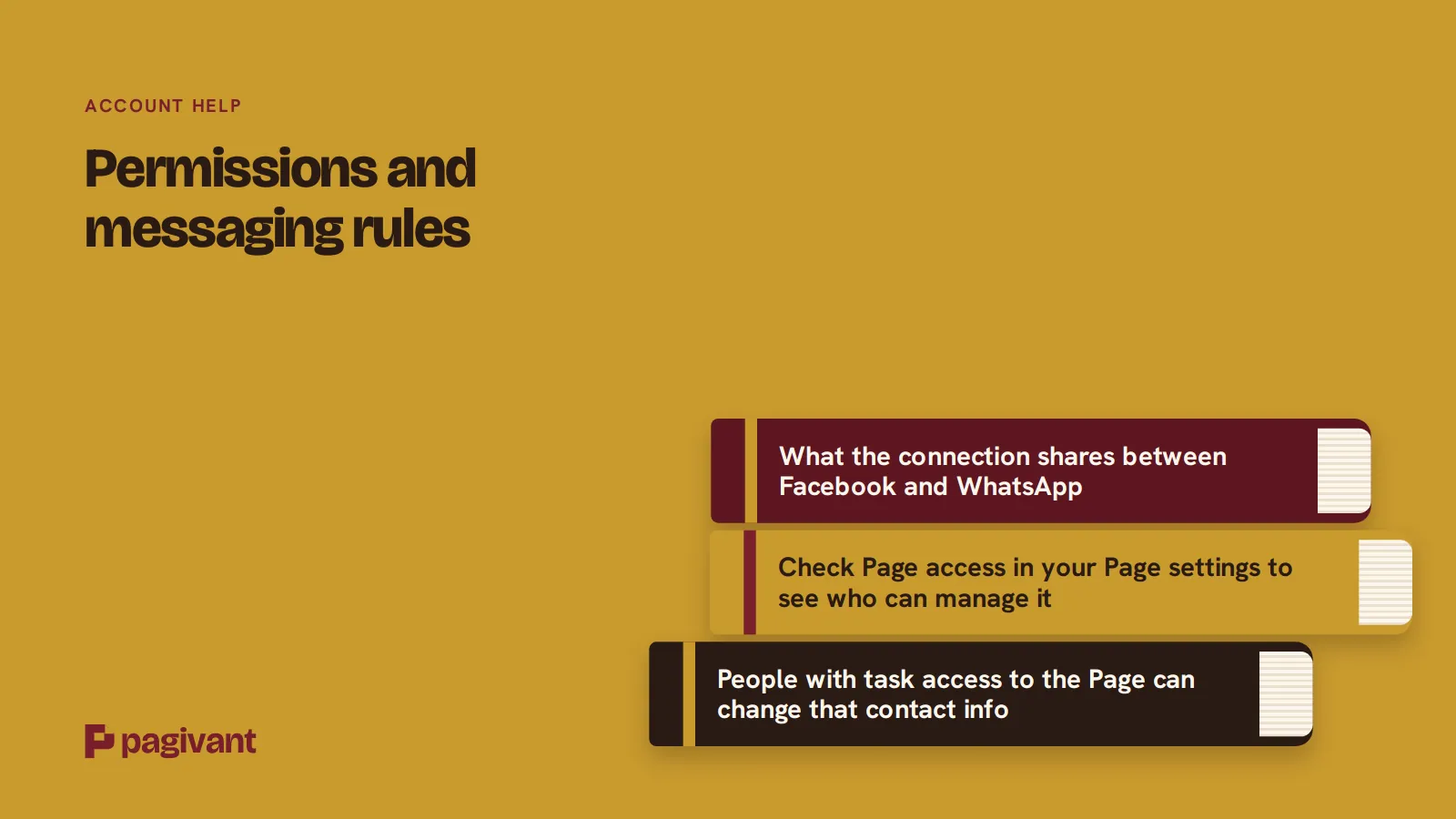
Meta controls Page permissions and the account-linking options available in Facebook. Check Page access in your Page settings to see who can manage it. If your assigned access doesn’t permit the connection, someone with the required control must handle that action.
WhatsApp also has rules for business messaging beyond the technical connection. The WhatsApp Business Messaging Policy requires businesses to have the recipient’s number and permission to contact them through WhatsApp. A Page connection doesn’t give you permission to send unsolicited promotional messages to everyone who visits.
The WhatsApp Business Platform has additional messaging requirements, including rules for initiating conversations. Read the current policy and your provider’s documentation for the setup you actually use; don’t apply phone-app instructions to a provider-managed account.
Stop if the process asks you to remove an unfamiliar business owner or transfer a number you don’t control. The Page owner, your messaging provider, or Meta support should resolve that issue before you continue.
What the connection shares between Facebook and WhatsApp
Updates you make to the Page’s business contact info on Facebook can appear on WhatsApp. People with task access to the Page can change that contact info. Review who has access before you connect, and check the public details after any change.
Connection costs and optional spending
The basic Page-to-WhatsApp connection doesn’t require an ad purchase. You can link the accounts and test the contact route without starting a paid campaign. Mobile data or internet charges still depend on your service plan.
Ads that send people to WhatsApp are a separate purchase. If you choose that option, review the budget and schedule in Meta Ads Manager before publishing. Don’t confuse a prompt to promote your Page with a required connection fee.
A provider-managed WhatsApp setup can involve different charges. Compare the provider’s current plan, Meta’s applicable WhatsApp Business Platform pricing, and any separate inbox or automation fees. The amount depends on your actual service and usage, so read your account’s billing details rather than a general setup guide.
The trade-off is simplicity versus shared handling: the app-based route avoids adding a provider just for this connection, while a shared inbox may suit a team. Don’t migrate a working number merely to add a Facebook contact button.
Keep the linked number accurate
Record which Page connects to which WhatsApp number once the visitor test passes. Include the business account name and the person responsible for managing access. Don’t put verification codes or passwords in that record.
Check the connection again when your business changes its phone number, Page ownership, messaging provider, or public contact details. Those changes are a reason to test the button; there’s no need to invent a calendar schedule for reconnecting a working account.
If the button disappears but Facebook still shows the correct linked number, inspect the Page’s action-button settings first. You may need to restore the public contact route rather than repeat number verification.
If the business stops using that number, update the Page before directing new customers there. Test the replacement destination as a visitor, and remove outdated contact details from the Page information as well.
When direct WhatsApp linking isn’t enough
A team that needs assigned conversations and a shared customer history may need a shared inbox rather than only a Page button. Compare WhatsApp Business Platform providers against those needs. A direct connection alone doesn’t create a full customer-support system.
A business with a provider-managed number should follow that provider’s Facebook connection process. Don’t delete the number from its existing setup to force the phone-app route. Ask the provider to explain the effect on the current inbox before approving a change.
A Page with disputed ownership or signs of unauthorized access needs account recovery first. Use Meta’s recovery or support process and involve the legitimate business owner. This guide stops at linking accounts you already control; it doesn’t cover ownership disputes or recovering compromised business assets.
If you would rather have this handled for you, our Facebook Page Setup service covers it end to end.
Frequently asked questions
Can I connect WhatsApp without showing my personal number?
Yes—use a separate business number registered to the WhatsApp Business account you intend to connect. Check the number shown on the connection screen before verifying it. Don’t assume that a business name hides whichever phone number you choose for customer contact.
Why does Facebook ask me to use WhatsApp Business?
Facebook’s business connection flow is designed around WhatsApp Business rather than treating a personal chat account as a business contact setup. Follow the account type requested on your screen. Before changing apps, review WhatsApp’s current account-transfer guidance and the account you’re moving.
How long does the WhatsApp verification code take?
The delivery method and request status decide the wait; check Facebook’s verification screen for the resend countdown or available alternative. There isn’t one dependable delivery time for every number. If the screen gives a waiting period, follow it rather than submitting repeated requests.
Is it safe to give someone my WhatsApp verification code?
No—enter the code only in the connection screen you opened yourself. WhatsApp’s Help Center warns users not to share verification codes. A person claiming they need your code to finish the connection should instead use their own authorized Page access.
What happens if I disconnect WhatsApp from Facebook?
Disconnecting removes that Page association; it isn’t the same action as deleting your WhatsApp account. Review any confirmation message before accepting it. Afterward, inspect the Page’s contact button and public information so visitors aren’t left with a contact route you no longer intend.
Does it matter which Facebook profile I use?
Yes—the profile must have the access needed to manage the intended Page. Using a different personal profile won’t bypass missing permissions. If a colleague manages the Page, ask them to grant suitable access or complete the connection without sharing their login.
Can customers see my WhatsApp chats on Facebook?
No—adding a WhatsApp contact button doesn’t publish your conversations as Facebook posts. Access to business messages depends on the WhatsApp devices, inbox tools, and business setup you use. Review those separately if several staff members help answer customer messages.
Check your Facebook Page access first
Open the intended Page’s settings and confirm you can manage its linked accounts before requesting a code. You should finish with the correct business number displayed and a visitor test that opens that account. If Facebook reports an ownership conflict, stop and contact the Page owner or Meta support.

Derek Campbell writes about Facebook features, tools, and account management, covering topics such as account troubleshooting, Business Manager, Facebook Marketplace, and outreach strategies. His content also explores Facebook Groups, community engagement, and ways to connect with relevant audiences. His writing emphasizes practical Facebook know-how, from navigating Marketplace and managing business communities to building meaningful connections through Groups and outreach.
Checked against Facebook’s own help and policy pages on the date shown above.