WhatsApp Business Number Already Registered: Fix

If you searched for whatsapp business number already registered, the message usually means your phone number is still connected to another WhatsApp account, app, device, or Business Platform setup. It doesn’t always mean someone stole it. In most cases, you can recover the number, remove an old registration, or identify a migration problem without changing your phone number.
Key Takeaways
- Verify ownership first: You need access to the number’s SMS messages or voice calls to register it again.
- Check both apps: A number can’t stay active on WhatsApp Messenger and WhatsApp Business at the same time.
- Don’t share codes: WhatsApp registration codes, PINs, and backup codes are private.
- Restore carefully: Uninstalling the app won’t necessarily delete the account or release the number.
- Allow migration time: Moving from Messenger to Business usually requires registering the number inside the Business app.
- Contact support last: Include your full number in international format, device details, and the exact error message.
What the Error Means
“Already registered” generally means WhatsApp’s system sees your number as associated with an existing account. That account may be active on your current phone, an old phone, a second phone, WhatsApp Business, or a cloud-based WhatsApp Business Platform account.
The message can appear during several different actions:
- Registering a phone number in WhatsApp Business
- Reinstalling WhatsApp after changing phones
- Moving from Android to iPhone
- Switching from WhatsApp Messenger to Business
- Adding a number to a Meta or third-party inbox
- Reusing a number that previously belonged to another person
- Attempting registration after an unauthorized login
The key distinction is between registration and activation. Registration identifies the phone number and verifies ownership. Activation creates the current session on your phone. When you register the number on a new phone, WhatsApp normally signs the account out of the previous primary phone.
An “already registered” notice may therefore be a normal protection rather than proof of fraud. WhatsApp needs to prevent two unrelated people from controlling the same number at once. Its terms also require account information to be accurate and prohibit unauthorized or abusive use; review the WhatsApp Terms of Service if you suspect the account is being misused.
Check Your Current Setup
Before deleting anything, identify where the number is currently connected. Many failed fixes happen because the owner removes the app that contains important chats, then discovers there’s no usable backup.
Check the two mobile apps
Look for both of these apps on every phone you own:
- WhatsApp Messenger, usually the green phone icon
- WhatsApp Business, usually the green icon with a white “B”
Open each app and check Settings. Tap the profile area and compare the displayed phone number with the number you want to use.
If the number appears in Messenger, you have two choices:
- Keep it in Messenger and use a different number for Business.
- Move the number into WhatsApp Business.
You generally can’t maintain the same phone number as two separate primary accounts in both apps. The number must be registered in one mobile app at a time.
Check companion devices
On the phone where the account works, open:
Settings → Linked Devices
Review the listed computers, tablets, and other devices. Remove anything you don’t recognize by tapping the device and choosing Log Out.
A linked computer normally can’t independently register the number as a second primary account, but an unknown linked device can signal that someone has accessed your account. Removing it is a useful security step.
Check old phones and SIM cards
Think through recent changes:
- Did you replace a phone?
- Did you move the SIM card?
- Did you port the number to another carrier?
- Did you reset or trade in the old device?
- Did you use a work phone or temporary phone?
- Did your carrier issue a replacement SIM?
The phone doesn’t need the physical SIM permanently after verification, but you must be able to receive the verification code. If your carrier recently changed the SIM, wait until calls and text messages work normally before trying again.
Warning: Don’t repeatedly request codes while troubleshooting. Too many attempts can trigger a temporary waiting period, making the problem appear worse.
Fix Messenger-to-Business Migration
If your number works in regular WhatsApp and you want to use WhatsApp Business, use the official migration path rather than trying to create a second account.
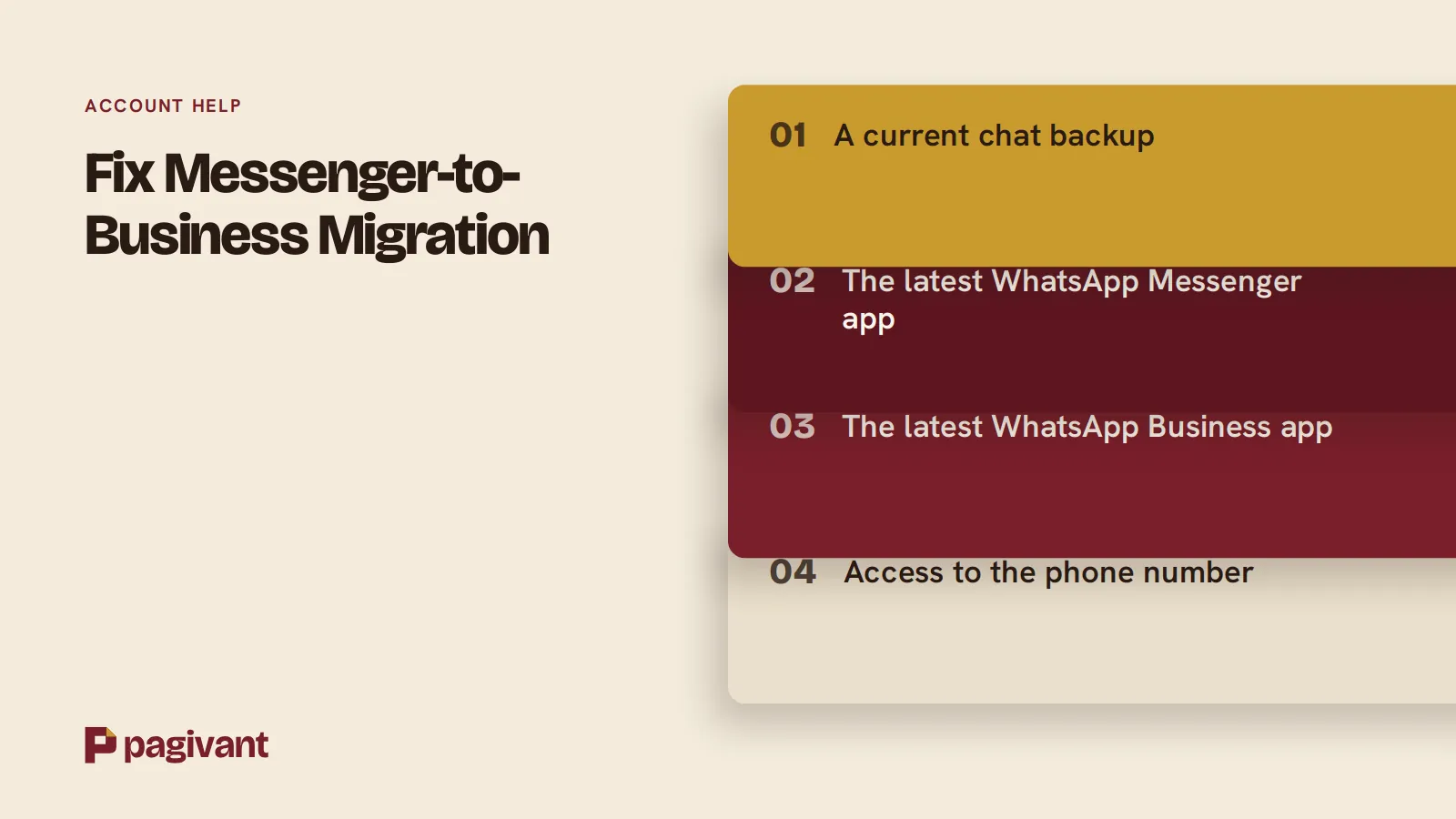
Before migrating
Prepare these items:
- A current chat backup
- The latest WhatsApp Messenger app
- The latest WhatsApp Business app
- Access to the phone number
- Enough phone storage for the backup and media
- The same Google account or Apple account used for backup, when applicable
Open Messenger and create a fresh backup from Settings → Chats → Chat Backup. Confirm the displayed backup date and size. A backup that’s still running, incomplete, or tied to another account may not restore correctly.
Migration steps
- Keep WhatsApp Messenger installed and working.
- Install WhatsApp Business from the official app store.
- Open WhatsApp Business.
- Enter the same phone number.
- Complete SMS or voice verification.
- Accept the prompt to transfer account information.
- Restore your backup when prompted.
- Create or update your business profile.
- Test sending and receiving messages.
During this process, the number moves to Business. The old Messenger installation may show that the number is no longer registered there. That’s expected.
| Situation | Correct action | What to expect |
|---|---|---|
| Number works in Messenger | Register it in Business | The account moves to Business |
| Business app detects existing account | Confirm transfer | Profile and eligible backup data may migrate |
| No backup appears | Stop before skipping restore | Check the account, phone, and backup settings |
| Verification fails | Confirm SMS, calls, and number format | Try again only after the timer allows it |
| You need both apps | Use two different numbers | Each app requires its own registered number |
What may not transfer
Some information doesn’t move exactly as expected. Depending on the operating systems and backup conditions, you may need to recreate or verify:
- Catalog items
- Automated greeting messages
- Away messages
- Quick replies
- Labels
- Linked desktop sessions
- Payment or commerce settings
- Third-party integrations
Your chat history and business settings are separate categories. Never assume that restoring chats also restores every Business feature.
Reclaim an Old Account
If you no longer have the old phone but still control the number, you can usually reclaim the account by registering the number on your current phone.
Re-registration procedure
- Install the correct WhatsApp app.
- Enter the number with its country code.
- Request the six-digit verification code.
- Enter the code only in the official app.
- Complete two-step verification if prompted.
- Review linked devices after access returns.
- Restore the correct backup, if one is available.
- Update the profile and privacy settings.
When the SMS code succeeds, the previous primary session is normally displaced. This is why control of the phone number is so important: the verification code proves that the number is currently reachable by you.
If WhatsApp asks for a two-step verification PIN that you didn’t create, don’t guess repeatedly. A former owner or attacker may have enabled it. WhatsApp may impose a waiting period before you can reset the PIN without the old email recovery method.
If the number belonged to someone else
Recycled phone numbers are common. A previous subscriber may still have left an account attached to the number. Registering it with your own verification code should establish your access, but old profile information or group membership may briefly appear.
Do these checks immediately:
- Change the profile name and photo.
- Review privacy settings.
- Remove unknown linked devices.
- Leave unfamiliar groups.
- Turn on two-step verification.
- Notify important contacts that the number now belongs to you.
Don’t read or reuse messages that belong to the previous owner. Treat any old account content as private, even if it appears after registration.
Secure a Compromised Number
The problem needs a security response if you received an unexpected registration code, lost access suddenly, or saw messages you didn’t send.
Signs of unauthorized access
Look for concrete warning signs:
- A registration code arrived without your request.
- WhatsApp logged out unexpectedly.
- Your profile name or photo changed.
- Unknown devices appear under Linked Devices.
- Contacts received suspicious messages from you.
- Your SIM stopped receiving calls or texts.
- A carrier notified you about a SIM replacement.
- Your two-step PIN no longer works.
First, contact your mobile carrier if calls and SMS stopped. Ask whether a SIM swap, port-out, account lock, or forwarding change occurred. Carrier account security is separate from WhatsApp security, so changing only your WhatsApp password won’t solve a number takeover.
Recover access
Once your number works again:
- Register it in the official WhatsApp app.
- Enter the new verification code.
- Log out every unknown linked device.
- Enable two-step verification.
- Add an email address for PIN recovery.
- Change your carrier account PIN.
- Ask the carrier to add port-out or SIM-swap protection.
- Warn contacts about suspicious messages.
Pro Tip: Take screenshots of the error, verification timer, unknown devices, and carrier notifications before resetting anything. These details can help support distinguish a normal migration from an account takeover.
Never send a verification code to a contact, “support agent,” employee, or customer. Anyone who asks for that code is attempting to control the account or test whether you’ll surrender access.
Fix Verification Problems
Sometimes the account is fine, but verification can’t complete. Work through the basics before requesting another code.
Confirm the number format
Enter the number with the correct country code. Don’t add the domestic trunk prefix when the country code already replaces it. For example, a US number should use +1 followed by the area code and number, not an extra leading 0.
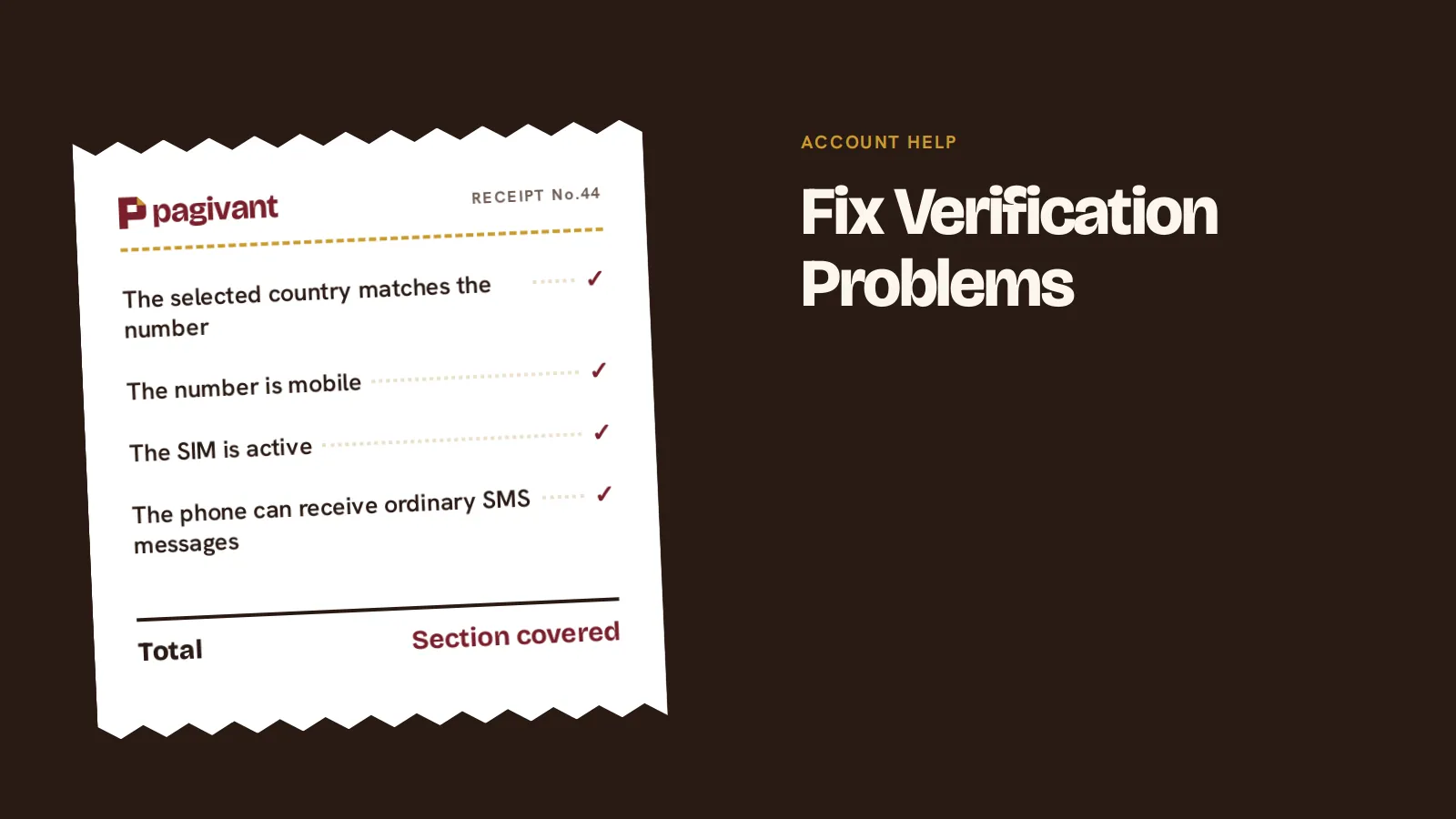
Check these details:
- The selected country matches the number.
- The number is mobile, landline, or toll-free as supported by the setup.
- The SIM is active.
- The phone can receive ordinary SMS messages.
- Call blocking isn’t rejecting verification calls.
- Do Not Disturb isn’t hiding the call.
- The device has a stable internet connection.
Choose SMS or voice
If SMS doesn’t arrive after the app’s timer finishes, use the voice-call option when available. Answer the call and enter the spoken code. Don’t keep tapping resend during the countdown.
Avoid these unreliable approaches:
- Using a temporary SMS website
- Using a VoIP number without confirming support
- Entering random codes
- Switching phones repeatedly
- Using an unofficial modified WhatsApp app
- Disabling security features to bypass the timer
| Symptom | Likely cause | Best next step |
|---|---|---|
| No SMS arrives | Carrier delay or wrong format | Check signal, format, and carrier delivery |
| Voice option unavailable | Timer hasn’t ended | Wait for the displayed countdown |
| “Too many attempts” | Repeated requests | Stop and wait for the stated period |
| PIN requested after code | Two-step verification enabled | Use the PIN or recovery email |
| App says number is unsupported | Number type or policy issue | Try a supported mobile number or contact support |
| Code works but app logs out | Another registration occurred | Secure the number and linked devices |
Update or reinstall carefully
Update the app through Google Play or the Apple App Store. If the issue persists, restart the phone and check available storage. Reinstalling may help with a corrupted app installation, but it doesn’t erase the server-side account.
Before uninstalling, confirm your backup. If you can’t open the old app, you may not be able to create a new backup first. Reinstalling also won’t recover chats that were never backed up.
Resolve Business Platform Conflicts
The mobile WhatsApp Business app and WhatsApp Business Platform are different products. A number connected to a provider, developer account, or cloud API setup may create a separate conflict from an ordinary mobile registration.
Common Platform causes
A number may be associated with:
- Meta Business Account
- WhatsApp Business Platform
- Cloud API configuration
- An official business solution provider
- A customer-service inbox
- A developer test setup
- A phone number already registered for messaging API use
If you’re trying to add the number to a new provider, first identify the existing owner of the Business Account. A former employee, agency, software vendor, or developer may control the original setup.
Mobile app versus API
Decide which product you actually need:
| Your goal | Suitable product | Main consideration |
|---|---|---|
| One person manages customer chats | WhatsApp Business app | Simple phone-based management |
| Several agents answer messages | Business Platform | Requires business setup or provider |
| Automated notifications | Business Platform | Templates and policy compliance apply |
| Personal conversations | WhatsApp Messenger | Not designed as a business inbox |
| Catalog and basic automation | WhatsApp Business app | Fewer advanced integrations |
Don’t delete a Business Account merely to clear an error. Deletion can affect message history, templates, integrations, billing records, or other administrators. Ask the existing administrator or provider to remove the number through the proper migration or deregistration process.
Warning: A provider may use terms such as “delete,” “release,” “disconnect,” or “deregister” differently. Confirm exactly whether the action removes the number, deletes the business account, or only disconnects one integration.
Contact WhatsApp Support
Contact support when you control the number, have followed the migration steps, and still receive the same message. Use the in-app help option whenever you can open the app. Otherwise, use the official WhatsApp contact route associated with the product you’re using.
Include useful details in one clear message:
- Full phone number in international format
- Country and mobile carrier
- Android or iPhone model
- Operating system version
- WhatsApp or WhatsApp Business version
- Exact error wording
- Date and approximate time of the attempt
- Whether SMS or voice verification worked
- Whether the number was recently ported or replaced
- Whether it was previously used with Messenger, Business, or an API
Don’t include private verification codes, two-step PINs, backup keys, or full chat screenshots containing customer data.
A concise support message could say:
My phone number is +[country code][number]. I control the SIM and can receive verification SMS. I am moving from WhatsApp Messenger to WhatsApp Business on [device]. The app reports that the number is already registered after verification. I have checked Linked Devices and waited for the retry timer. Please tell me whether the number is associated with another mobile account or Business Platform setup.
Support may ask you to repeat verification, wait through a security period, or provide additional account information. Reply in the same support thread and avoid opening many duplicate requests, which can make the history harder to follow.
Prevent the Error Later
Once access is restored, make the account easier to recover and harder to misuse.
Secure the phone number
Use these protections:
- Add a carrier account PIN.
- Enable SIM-swap or port-out protection.
- Keep the phone’s operating system updated.
- Use a screen lock with a strong passcode.
- Avoid displaying SMS previews on the lock screen.
- Keep your email account protected with multifactor authentication.
- Store recovery information in a password manager.
Secure WhatsApp
Inside WhatsApp, review:
- Two-step verification
- Recovery email
- Linked Devices
- Privacy for profile photo and status
- Groups permissions
- App lock
- Chat backup account
- Business administrators and connected tools
Maintain business continuity
For a business number, document who owns each account and integration. Keep a private record of:
- The legal business name
- The current number owner
- The carrier account owner
- WhatsApp administrators
- Business Platform provider
- Backup account
- Recovery email
- Date of the last successful test
Don’t store verification codes in that document. Record where recovery is managed, not the secrets themselves.
Pro Tip: Test the number periodically from a separate customer phone. Confirm that incoming messages arrive, the profile is correct, and the intended staff can respond without relying on an old employee’s device.
Our team handles exactly this through Facebook Page Setup.
Part of our guide: WhatsApp Business: The Complete Guide for Small Businesses
Frequently Asked Questions
Can I use one number for both WhatsApp apps?
No. A phone number generally needs to be registered in one primary mobile WhatsApp app at a time. To use WhatsApp Business, move the number from Messenger through the Business app’s registration and transfer process. If you need both apps on one phone, use two different phone numbers.
Why does WhatsApp say my number is already registered?
The number may still be registered on an old phone, in Messenger, in WhatsApp Business, or with a Business Platform provider. It may also be a recycled number that belonged to someone else. Verify ownership with the SMS or voice code, then review linked devices and business integrations.
Will uninstalling WhatsApp release my phone number?
No. Uninstalling the app removes or hides the local installation, but it doesn’t necessarily delete the WhatsApp account or release the number from a Business Platform setup. Register the number on the correct phone, or use the relevant account’s deregistration process.
What if I never receive the verification code?
Check the country code, mobile signal, SMS filtering, call blocking, SIM status, and carrier service. Wait for the timer before requesting another code, then try voice verification if available. Don’t use random codes or repeatedly reinstall the app, because additional attempts can extend the waiting period.
Can someone use my number without my SIM?
They can’t normally complete a new registration without receiving the verification code, but a SIM swap, port-out, unlocked phone, or already-linked device can create risk. Contact your carrier, reclaim the WhatsApp account with a new code, remove unknown devices, and enable two-step verification.
What should I do if a former employee registered the number?
Confirm whether the number is in the mobile Business app, a Meta business portfolio (also called Business Manager), or a third-party Business Platform. Ask the former employee or administrator to transfer ownership or deregister the number properly. Don’t delete the business account until you understand what data, templates, and integrations could be affected.
What to do next
Start by checking Messenger, WhatsApp Business, Linked Devices, and your carrier account. If you control the SIM, register the number in the app you actually need, secure two-step verification, and document any Business Platform owner. If the error remains, send WhatsApp support the exact message and complete technical details without sharing any code.

Derek Campbell writes about Facebook features, tools, and account management, covering topics such as account troubleshooting, Business Manager, Facebook Marketplace, and outreach strategies. His content also explores Facebook Groups, community engagement, and ways to connect with relevant audiences. His writing emphasizes practical Facebook know-how, from navigating Marketplace and managing business communities to building meaningful connections through Groups and outreach.
Checked against Facebook’s own help and policy pages on the date shown above.