How to Reconnect Instagram After Changing Passwords

To get back in after you change your login details, the process to reconnect Instagram after changing passwords is just logging out of every linked app and signing back in with the new one. You’ll do this on your phone first, then fix any third-party apps like scheduling tools that lost access.
Your exact path depends on whether you changed the password inside the Instagram app or through a linked Facebook account. The number of apps you need to update also shifts the time it takes from two minutes to about twenty.
Who needs to reconnect Instagram
Three different people usually search for this fix, and they don’t all need the same steps. The first person changed their password directly inside the Instagram app and now sees a “session expired” error on their phone. They just need to log back in on that single device.
The second person uses a tool like Buffer or Hootsuite to schedule posts. They changed their password, and now their scheduled posts are failing silently. They need to revoke the old app permission and authorize the new one.
The third person manages a business page through Meta Business Suite. Their Instagram account is linked to a Facebook Page, and a password change can break that connection. They have to update the connection inside Meta’s own dashboard.
This page serves the second person best. If you only use the main app on one phone, you just need to type your new password on the login screen. The rest of these steps assume you connect outside apps to your account.
What decides if your apps reconnect
Four things decide whether your outside apps pick up the new password automatically or break completely. Getting the biggest one wrong means your scheduled posts fail without warning you.
The method you used to change the password matters most. If you changed it inside the Instagram app, every app connected to that Instagram account loses access. If you changed it through Accounts Center on Facebook, you still changed the Instagram password, so apps tied to Instagram lose access too. Changing only your Facebook password does not change your Instagram password. Check your settings under Accounts Center to see which way yours is set up.
The type of third-party app changes the fix. Official Meta partners usually ask you to reauthorize right away. Older apps using basic login tokens might stay connected but fail when they try to post. Look at the approved apps list in your Instagram security settings to see what still has access.
Whether you use two-factor authentication adds an extra step. When you log back into an outside app, it’ll trigger a code sent to your phone or authenticator app. Have that device in your hand before you start reconnecting anything.
The device you start with sets the order. Always fix your main phone first. Outside apps often check for an active mobile session before they let you reauthorize them on a computer. If your phone stays logged out, the desktop apps will keep throwing errors.
How to log back into your apps
Follow these steps in order. Fixing your main phone first stops the outside apps from failing again while you work.
- Open the Instagram app on your primary phone.
- Tap “Log In” on the welcome screen.
- Type your username and the new password you just created.
- Enter the 6-digit two-factor code if the app asks for one.
- Wait for your home feed to load fully; that proves the session works.
- Open the third-party app that lost connection, like your scheduling tool.
- Go to its settings menu and find the “Accounts” or “Social Profiles” section.
- Tap the broken Instagram profile and select “Reconnect” or “Log in again.”
- A browser window opens; enter your username and new password there.
- Tap “Authorize” when Instagram asks if you trust this app.
The sign that step five worked is seeing new posts in your feed instead of a spinning wheel. Don’t move to step six until your phone shows fresh content.
If you manage your account through Meta Business Suite, stop at step five. Reconnecting a business asset requires admin rights inside Meta’s dashboard, not just a standard login. If you don’t hold the admin role on the Facebook page tied to that Instagram account, you can’t fix the connection yourself. Hand that job to the page admin.
Situations that change the fix
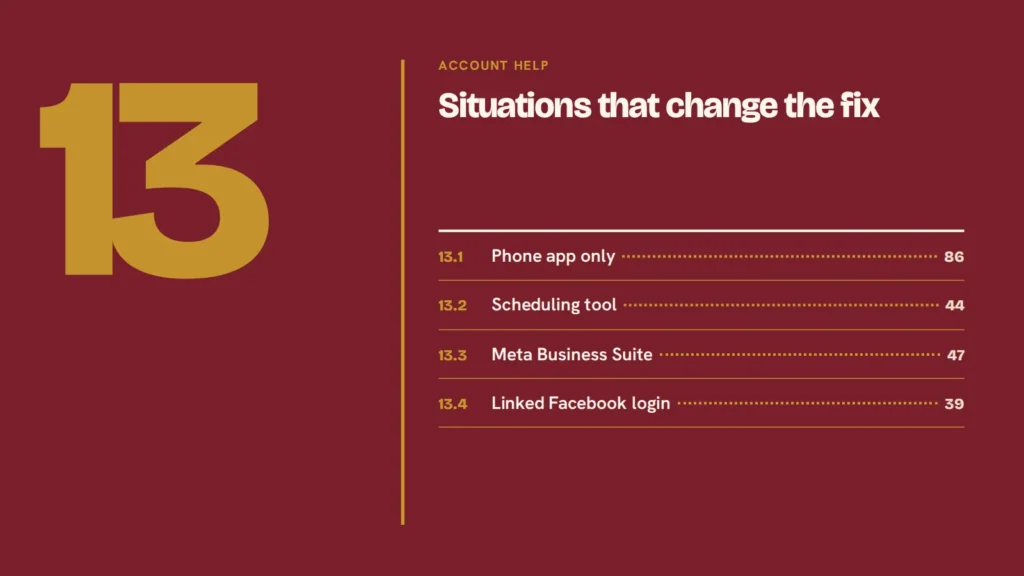
Different setups need slightly different actions to restore your connection. Here is how the most common cases compare so you know exactly where you stand.
| Your setup | Action needed | Time it takes | Watch out for |
|---|---|---|---|
| Phone app only | Log in again manually | Under 2 minutes | Two-factor codes expiring fast |
| Scheduling tool | Reauthorize inside the app | About 5 minutes | Silent failures on queued posts |
| Meta Business Suite | Reconnect in Business Suite settings | Around 10 minutes | Needing page admin rights |
| Linked Facebook login | Choose the Instagram account in Accounts Center | About 5 minutes | Breaking other connected apps |
| Multiple phones | Log in on each device separately | 2 minutes per phone | Triggering temporary security locks |
| Third-party analytics | Generate new API access token | Around 15 minutes | Old data gaps during downtime |
If your setup isn’t here, check the help page of the specific app that broke. Each platform handles Meta’s login tokens differently.
Details that keep connections stable
Checking permissions before reconnecting
Revoking old access tokens stops apps from holding onto broken sessions. Go to your Instagram profile, tap the three lines, then Settings and privacy. Find “Website permissions” or “Apps and websites” and remove anything you don’t recognize.
If you skip this, the third-party app might try to use the old expired token instead of asking for your new password. That causes a loop where it says “connected” but nothing actually posts.
Handling Meta Accounts Center
Instagram and Facebook share security settings through Accounts Center. If your accounts are linked there, each account still keeps its own password, and Accounts Center asks which account you want to change. You can verify this by checking Meta’s official login guide for Accounts Center behavior.
Changing your Instagram password does not change your Facebook password on its own. If you changed both, update the tools tied to each account so neither one keeps failing.
Fixing broken Instagram connections
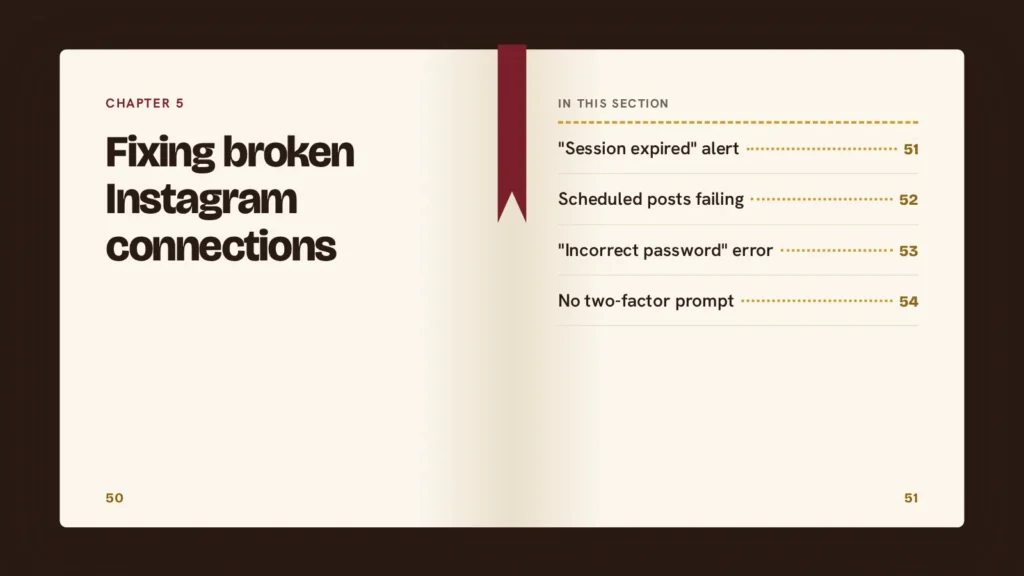
When an app fails after a password change, the error message tells you exactly what went wrong. Match what you see on your screen to the right fix below.
| What you notice | What it usually means | What to do first | How to stop it happening again |
|---|---|---|---|
| “Session expired” alert | Token died after password change | Log out and back in | Update all apps simultaneously |
| Scheduled posts failing | App lacks new authorization | Reconnect in app settings | Check queue after password changes |
| “Incorrect password” error | Typing the old password | Clear saved passwords first | Use a password manager |
| No two-factor prompt | App uses outdated login method | Revoke and re-add app | Remove unused apps monthly |
| Infinite loading screen | Server hasn’t synced yet | Wait 15 minutes, retry | Avoid peak hours for changes |
| “Action blocked” warning | Too many rapid login attempts | Stop trying and wait | Space out device logins |
If you see an error not listed here, take a screenshot and send it to the support team of the app that’s failing. Instagram’s own servers rarely block a standard reconnection unless you try too many times in one hour.
Rules around account access
Meta enforces strict limits on how often you can log in after a credential change. If you trigger too many failed attempts, they lock the account temporarily to prevent unauthorized access. There’s no public number published by Meta for exactly how many tries you get before a lockout.
Because of this, never guess your password repeatedly. If you forget the new one immediately, use the official password reset link rather than brute-forcing the login screen.
For business accounts, the rules depend on who owns the asset. Only users with full control or partial access in Meta Business Suite can reconnect an Instagram account to third-party tools. Standard employees without those roles can’t authorize new connections.
If you’re managing an account for a client or employer, ensure you have written permission to change credentials. Check your local laws regarding digital asset ownership if disputes arise.
Time and effort required
Reconnecting your account costs time, not money. Instagram doesn’t charge fees for logging in or updating app permissions. The real cost is the interruption to your workflow.
For a single phone, expect to spend about 2 minutes. You open the app, type the password, enter a security code, and you’re done. For a scheduling tool like Later or Sprout Social, budget 5 to 10 minutes per platform. You have to navigate their menus, wait for the pop-up window, and authorize the connection.
If you manage multiple accounts across several tools, the time adds up quickly. Changing a password on Monday morning might mean spending half an hour fixing every connected service.
The hidden cost is missed engagement. While your scheduling tool sits disconnected, your queued posts don’t publish. You lose whatever reach those posts would have generated. To minimize this, always reconnect your publishing tools before your next scheduled post goes live. Check your app’s queue to confirm the status changed from “failed” to “scheduled.”
Keeping your login working
Once everything connects again, you don’t want to repeat this process next week. Keep your recovery information current so a forgotten password doesn’t turn into a locked account.
Check your email address and phone number in Instagram’s security settings. If you changed your password because an old email was compromised, make sure the new email is verified. An unverified backup email won’t help you during a lockout.
Watch for emails from Meta about unrecognized logins. After a password change, your account enters a brief period of higher scrutiny. Legitimate alerts come from addresses ending in @mail.instagram.com or @facebookmail.com. Don’t click links in messages from other domains.
If you use a password manager, update the entry immediately after reconnecting. Saving the old password in your vault guarantees you’ll type the wrong thing next time you log in on a new device. The sign that your setup is stable is going a full week without any app asking you to log in again.
When reconnecting isn’t the right fix
Sometimes typing the new password won’t solve the problem because the issue isn’t a simple disconnection.
If your account was disabled by Instagram for violating community guidelines, changing the password and logging back in does nothing. You’ll see a message saying the account is disabled. You must file an appeal through the in-app prompt instead of trying to reconnect apps.
If you suspect someone else accessed your account and you changed the password to lock them out, simply reconnecting third-party apps is dangerous. Those apps might still hold tokens granted to the intruder. Go to Settings, tap “Login activity,” and log out of every session except your current one before reconnecting anything.
If you permanently deleted the account rather than just changing the password, it can’t be recovered. No amount of reconnection steps will bring it back. Contact Instagram support directly if you believe a deletion happened by mistake.
Want an expert to set this up with you? Take a look at Facebook Page Setup.
Frequently asked questions
Why did my apps disconnect after I changed my password?
They disconnected because Instagram invalidates all existing access tokens when credentials change. This is a security measure to ensure anyone or anything using the old password loses access immediately. You must generate new tokens by logging in again.
How long does it take for Instagram to sync a new password?
It usually takes under 2 minutes on the primary device where you made the change. However, third-party apps and Meta Business Suite can take up to 15 minutes to recognize the new credentials across their servers.
Can I reconnect without my two-factor authentication code?
No, you can’t bypass two-factor authentication if it was already enabled. You need the 6-digit code from your authenticator app or SMS. If you lost access to both, you must use your backup codes or request a video selfie verification.
Does changing my Facebook password affect Instagram?
Not by itself. Linked accounts in Meta Accounts Center keep separate passwords, and you choose which account to change. If you change both, reconnect any third-party apps tied to either account using its own new password.
What happens if I type the wrong password too many times?
Instagram will temporarily block your login attempts to protect the account. Meta does not publish how long a lock lasts. Stop trying and wait, then use the official password reset link if you need to.
Is it safe to save the new password in my browser?
Saving it in a reputable password manager is safe and recommended. Relying on a shared public browser’s auto-fill feature is risky. Always ensure you’re on a personal, secure device before clicking “save password.”
Do I need to update my password on every device?
Yes, every device running the Instagram app will eventually log you out. You must manually enter the new password on each phone, tablet, or computer where you want to stay signed in.
How do I know if a third-party app is officially supported?
Check if the app uses the official Meta login popup rather than asking you to type your password directly into their website. Apps requesting your raw password violate Instagram’s terms and should be removed immediately.
Start with your main phone
Open the Instagram app on your primary phone and log in with your new password right now. Once your home feed loads fresh posts, move to your scheduling tools and hit the reconnect button in their settings. If you see an “account disabled” message instead of a normal login screen, stop and submit an appeal through Instagram’s official support form.

Derek Campbell writes about Facebook features, tools, and account management, covering topics such as account troubleshooting, Business Manager, Facebook Marketplace, and outreach strategies. His content also explores Facebook Groups, community engagement, and ways to connect with relevant audiences. His writing emphasizes practical Facebook know-how, from navigating Marketplace and managing business communities to building meaningful connections through Groups and outreach.
Checked against Facebook’s own help and policy pages on the date shown above.