How to Add Admins to a Facebook Page Without Business Manager

You can add admins to a Facebook page without Business Manager by opening Page Settings, clicking Page Roles, typing the person’s name or email, choosing Admin, and entering your password. The whole process takes under two minutes on either a phone or a computer.
Your starting role, the other person’s connection to the page, and whether Meta has moved your page to the new layout all change what you’ll see. The steps below cover each path so you don’t get stuck halfway through.
Who needs to add a Facebook Page admin
Three kinds of people search for this. The first is a small business owner who created their own page and now wants a partner or employee to help run it. They already hold full admin rights and just need the exact clicks.
The second is someone who manages pages for clients but doesn’t use Meta Business Suite. They know where settings live but forget the specific dropdown order when switching between accounts.
The third is a regular editor or moderator trying to promote themselves. They don’t have permission yet and think there’s a workaround. There isn’t one. This page serves the first two readers. If you aren’t already an admin, you’ll need someone who is to follow these steps for you.
Everything below assumes you’re using a standard Facebook page where you currently hold the admin role. If your page was recently forced into Meta Business Suite, the old Page Roles menu won’t appear, and you’ll need to read Meta’s own migration guide instead.
What changes the process
Four things decide which screen you land on and whether the invite goes through. The biggest one is your page’s current layout. Meta has been moving pages to the “New Pages Experience” since 2022. If yours has switched, the old “Page Roles” menu is gone entirely. You’ll use “Page Access” instead. Check this first by looking at your left-hand menu; if you see “Professional Dashboard,” you’re on the new layout.
Your own role matters next. Only a current admin can add another admin. Editors, moderators, and advertisers can’t do it. If you hold a lower role, the option simply won’t appear in your settings.
The other person’s status is the third factor. If they’ve never liked or interacted with your page, searching their name might fail. In that case, you must use the exact email address tied to their personal Facebook account. A mismatch here means they never receive the invite.
Finally, your password readiness stops people cold. Facebook asks you to re-enter your personal account password before saving any role change. If you don’t remember it, the save button won’t work. Reset your personal password before you start, not after you’ve filled out the form. People often skip this check, spend ten minutes setting up the invite, and then lose it all at the final click because they can’t authenticate.
How to assign a new page admin
These steps assume you’re on a desktop browser, though the mobile app follows the same path with slightly different icons. If your page uses the New Pages Experience, skip to step 4b instead of 4a.
- Log into Facebook with the personal account that holds admin rights for the page.
- Click your profile picture in the top right, select “See all profiles,” and switch into the page you want to manage.
- On the left menu, click Settings & Privacy, then click Settings.
- Look at the left sidebar. If you see Page Roles, click it (step 4a). If you see New Pages Experience or Page Setup, click that, then choose Page Access (step 4b).
For classic pages (Page Roles)
- Find the box labeled “Assign a new Page role.”
- Type the person’s name or their Facebook email address. Wait for their profile picture to appear in the dropdown, then click it.
- Click the dropdown menu next to their name that says “Editor” by default, and change it to Admin.
- Click the blue Add button.
- Type your personal Facebook password into the prompt that appears and hit submit.
For the New Pages Experience (Page Access)
- Next to “People with Facebook access,” click Add New.
- Click Next, then type the person’s name or email.
- Select their profile from the list.
- Scroll down and toggle on Allow this person to have full control — this is the equivalent of making them an admin.
- Click Give Access and enter your password when prompted.
The person will see a notification on Facebook. They have 31 days to accept before the invite expires. The single judgment call here is whether they actually need full control. An admin can delete the page or remove you. If they only need to post content, give them Editor access or partial access instead. Don’t hand out full control just to avoid navigating the other options.
Situations you might run into

Different setups require slight adjustments. Here’s how the task changes based on your exact situation.
| Your situation | What to do | Time needed | Watch out for |
|---|---|---|---|
| Classic page layout | Use Page Roles menu | Under 2 minutes | Missing password prompt |
| New Pages Experience | Use Page Access menu | Under 2 minutes | Forgetting full control toggle |
| Person isn’t on Facebook | Create account first | Varies | Invites fail without accounts |
| Using the mobile app | Go to Professional Dashboard | About 3 minutes | Smaller menus hide options |
| Adding multiple admins | Repeat for each person | 2 minutes per person | Losing track of roles |
| Recovering a lost page | Use Meta's recovery tools | Varies | Meta decides each case |
If you’re on the mobile app, tap the menu icon, switch to your page, tap Professional Dashboard, and scroll down to Page Access. The options are identical, but the smaller screen hides them deeper in the menu.
For someone who doesn’t have a Facebook account yet, you can’t add them. They must create a personal profile first. There’s no way around this requirement, as page roles tie directly to personal login credentials.
Full control, partial access and task access
Meta describes two main levels of Facebook access. Full control lets a person manage all Page settings. Partial access lets them create content and interact as the Page. You need full control yourself to give anyone access.
If your Page sits in a business portfolio, you can also add people from Meta Business Suite. Page roles are separate from portfolio access, so check both places when someone says they can’t see something.
Details that prevent failed invites
Getting the search right
Typing a common name like “John Smith” brings up hundreds of results, and picking the wrong one sends the invite to a stranger. Always use the person’s exact Facebook email address if their name is common. If you must use a name, ask them for the exact spelling shown on their profile, including any middle initials.
When you type their name, don’t press Enter immediately. Wait a second for Facebook’s dropdown to load their profile picture. Clicking the picture confirms you’ve selected the right account. Skipping this visual check is why invites end up in the wrong inbox.
Choosing the correct access level
The trade-off here is between convenience and security. Giving someone full admin access means they can do everything you can do, including removing you from the page. If you trust them completely, full control saves time later because they won’t need to ask you for permissions.
If you only need them to schedule posts or reply to messages, don’t make them an admin. Assign them the Editor or Moderator role on classic pages, or leave the “full control” toggle off in the New Pages Experience. You can always upgrade their role later, but downgrading it after a disagreement is much harder. Match the permission to the actual daily task, not to the job title.
When the invite fails
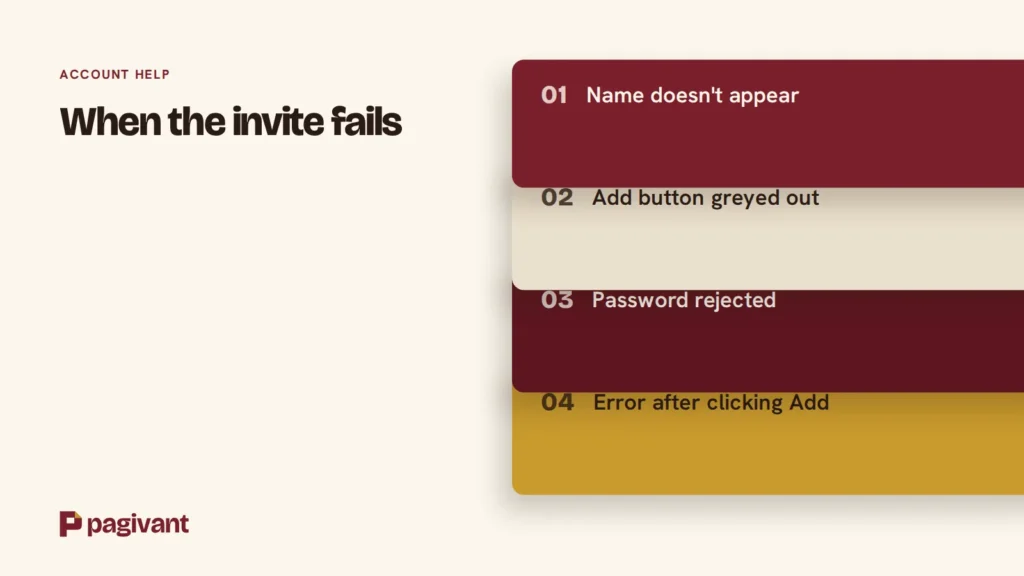
Sometimes the process breaks down even when you follow every step correctly. Match what you see on your screen to the fix below.
| What you notice | What it usually means | What to do first | How to stop it happening again |
|---|---|---|---|
| Name doesn’t appear | No interaction with page | Ask them to like page first | Have them engage beforehand |
| Add button greyed out | You lack admin rights | Check your current role | Verify role before starting |
| Password rejected | Personal password changed | Reset personal password | Update saved passwords |
| Error after clicking Add | Temporary server issue | Wait five minutes, retry | Avoid peak hours |
| Invite sent but missing | Went to spam notifications | Check their filtered requests | Tell them to check filters |
| Option missing entirely | Page moved to Business Suite | Use Meta Business Suite | Read Meta’s migration guide |
If the error persists after trying the fix, log out of Facebook completely, clear your browser cache, and log back in. Stale session cookies frequently cause permission errors that look like permanent blocks.
Rules for page access
Meta controls who can manage pages, and their rules override any workaround you might find online.
If your business operates in a regulated industry, adding external contractors as full admins might violate your internal data policies. Facebook doesn’t enforce your company rules; it only enforces its own platform requirements.
You can’t bypass the password prompt. It exists to prevent hijacked sessions from stealing pages. If you’ve lost access to the email tied to your personal password, you’ll need to go through Meta’s account recovery process before touching page roles.
Don’t share your personal login with someone else so they can “do it themselves.” That violates Meta’s terms and risks getting both your personal profile and your business page permanently disabled.
What this actually costs
Adding an admin costs nothing in money. Facebook doesn’t charge for assigning roles or changing page access settings. The real cost is measured in risk and time.
The time investment is small. Finding the menu, typing the name, and confirming takes about two minutes if you know your password. If you don’t, resetting your password adds another five to ten minutes to the process.
The hidden cost is trust. Every admin you add holds the keys to your page. They can change your payment methods if you run ads, delete your content, or lock you out entirely. Before assigning the role, weigh the time you’ll save by having help against the damage a bad actor could do in seconds.
If you hire an agency later and revoke their access, you’ll spend additional time auditing what they changed. Keep a simple written log of who received admin rights and on what date. That record costs a minute to write but saves hours of confusion if something goes wrong six months from now.
Keeping access updated later
Adding someone is only the first half of the job. You need to review page access whenever your team changes. If an admin leaves your company or stops working with you, remove their access on their last day.
To check who currently has access, return to the exact same Page Roles or Page Access menu you used to add them. You’ll see a list of names and their assigned levels. Click Edit next to anyone whose role needs changing, or click Remove to revoke access entirely.
There’s no automatic alert when someone’s personal account gets compromised. The sign that you need to audit your admins is unusual activity on your page — posts you didn’t approve, messages you didn’t send, or settings you didn’t change.
If you use the New Pages Experience, removed users lose access immediately. On classic pages, removal is also instant, but cached sessions might let them post for a few more minutes until they refresh. Don’t wait for a problem to check this list. Review it every time your staffing changes.
When this method won’t work
This approach only works for standalone pages managed directly through Facebook. If your page is already claimed inside a Meta Business Manager account, people are usually managed from the portfolio in Meta Business Suite instead. Manage people in Meta Business Suite, in the Settings area where the business portfolio is managed. Trying to force the old method on a page owned by a business portfolio can lead to dead ends.
If you’re locked out of your own page because a former employee changed the password or removed you, you can’t use these steps. You'll need to use Meta's own Page access and recovery tools in the Help Center. Third-party services can't recover the page for you, and Meta decides each case.
Finally, if you’re managing a page for a large enterprise with dozens of employees, manual admin additions become a security liability. In that case, a business portfolio in Meta Business Suite gives you more control over who can access what, even if it takes longer to learn. Stick to the direct method only when your team is small enough that you personally know everyone holding a key.
Prefer a done-for-you option? Read about Facebook Page Setup.
Frequently asked questions
Can I add an admin without being one myself?
No, you can’t. Only a current admin can assign new admin roles. If you’re an editor or moderator, you must ask an existing admin to upgrade your role first or add the other person for you.
How long does the invite last?
The invitation stays active for 31 days. If the person doesn’t accept within that window, it expires automatically, and you’ll need to repeat the entire process to send a fresh one.
Why can’t I find their name in the search?
Facebook often blocks searches for people who haven’t interacted with your page. Ask them to like the page first, or bypass the search entirely by typing the exact email address linked to their personal Facebook account.
Is it safe to give someone full control?
It carries real risk. Full control lets them remove you, delete the page, or change ad billing. Only grant it to someone you trust completely. Otherwise, use the Editor or Task access level instead.
What happens if I remove the only admin?
Facebook prevents you from doing this. A page must always have at least one admin. You must assign a new admin before the system allows you to remove yourself or the last remaining one.
Does it matter if I use my phone?
No, the result is identical. The mobile app just hides the menus inside the Professional Dashboard rather than the desktop Settings menu. The permissions granted are exactly the same across devices.
Can I undo the role if I made a mistake?
Yes, you can change or remove their access instantly. Return to the Page Roles or Page Access menu, click Edit next to their name, and select a lower role or remove them completely.
Do they need to accept the invite?
Yes, they must click accept on the notification they receive. Until they do, they hold no permissions on your page, and you remain solely responsible for everything that happens on it.
Start with your page settings
Go to your page’s Settings menu right now and confirm which layout you’re using — classic Page Roles or the New Pages Experience Page Access. Once confirmed, open your admin panel and begin inviting your team members today.

Derek Campbell writes about Facebook features, tools, and account management, covering topics such as account troubleshooting, Business Manager, Facebook Marketplace, and outreach strategies. His content also explores Facebook Groups, community engagement, and ways to connect with relevant audiences. His writing emphasizes practical Facebook know-how, from navigating Marketplace and managing business communities to building meaningful connections through Groups and outreach.
Checked against Facebook’s own help and policy pages on the date shown above.