How to Merge Two Facebook Pages

Merging two Facebook Pages combines their followers into a single destination, permanently removing the secondary Page while preserving the primary one. You can complete this process directly through Meta Business Suite or your Page settings if you hold full administrative control over both accounts. The entire procedure takes only a few minutes to initiate, though the final transfer of likes and followers typically requires up to fourteen days to finish completely.
Key Takeaways
- You must hold full admin access on both Pages to request a merge; editor or moderator roles won’t work.
- Both Pages must represent the exact same business, organization, or entity with closely matching names.
- All followers and check-ins from the source Page move to the target Page automatically during the process.
- Posts, photos, reviews, and the username from the source Page are permanently deleted upon completion.
- The merge can’t be reversed once processed, so downloading your data beforehand is essential.
- Processing usually takes between twenty-four hours and fourteen days depending on the size of the audience.
Why Merge Two Facebook Pages?
Businesses frequently end up with duplicate profiles due to franchise expansions, agency miscommunications, or rebranding efforts that were never properly cleaned up. Maintaining multiple profiles splits your audience, dilutes your engagement metrics, and confuses potential customers trying to find your official presence online.
Consolidating everything into one profile strengthens your social proof by combining all your followers into a single, larger number. A unified presence also simplifies your daily workflow, allowing your marketing team to focus on one community rather than splitting resources across several fragmented audiences.
When your followers are scattered, your organic reach suffers because algorithms favor profiles with consistent, concentrated interaction. By bringing everyone together, every new post reaches a larger total audience immediately. This consolidation is particularly important for local businesses operating under slightly different names in various directories.
Combining them ensures that every positive review and check-in contributes to a single authoritative profile. You eliminate the risk of customers interacting with an outdated or abandoned version of your brand. Ultimately, a merged Page projects professionalism and stability to anyone discovering your business on the platform.
How to Merge Two Facebook Pages
This section outlines the exact steps required to combine your audiences using the current Meta interface. Facebook updates its layout periodically, but the core mechanism remains within the Page settings menu. You’ll perform these actions while logged into the account that serves as the administrator for both properties. Ensure you’re switching into the Page profile rather than acting as your personal user before beginning.
Accessing the Merge Tool
First, log into Facebook and switch your active profile to the Page you intend to keep as your primary destination. Navigate to your Page settings by clicking your profile picture in the top right corner and selecting “Settings & privacy,” followed by “Settings.”
In the left-hand menu, look for the option labeled “New Pages Experience” or simply scroll down to find “Merge Pages.” If you don’t see this option immediately, use the search bar within the settings menu and type “merge.” Clicking this link will open the official tool where you can begin selecting the accounts you wish to combine.
Selecting Your Primary Page
The tool will ask you to identify which profile will serve as the destination. This is the profile that will survive the process and retain its name, content, and history. Choose carefully, as this decision dictates which posts, photos, and reviews remain visible to the public.
The destination profile should ideally be the one with the most historical content, the correct vanity URL, or the highest level of ongoing engagement. Once selected, the system locks this choice for the duration of the request.
Choosing the Source Page
Next, you’ll select the secondary profile whose followers will be transferred away. Type the exact name of the source profile into the provided search field. The system will display a list of matches; select the correct one from the dropdown menu.
You may need to enter your password again at this stage to verify your identity and confirm your administrative privileges. After confirming, review the final warning screen detailing exactly what will be moved and what will be lost. Click the final confirmation button to submit your request to Meta for processing.
| Action Step | Location in Interface | Required Permission |
|---|---|---|
| Switch to Page profile | Top right profile menu | Logged in as user |
| Open Settings menu | Settings & Privacy > Settings | Admin or partial access |
| Locate Merge tool | Left sidebar or Settings search | Full Admin access |
| Select destination | Merge Pages dialog box | Full Admin on destination |
| Select source | Search field in dialog box | Full Admin on source |
| Submit request | Final confirmation screen | Password verification |
What Happens During a Merge
Understanding exactly what transfers and what disappears prevents unpleasant surprises after the process completes. Meta designed this feature to consolidate audiences, not to combine content libraries. Therefore, the mechanics heavily favor moving people rather than moving media. You should treat the source Page as something being dismantled for parts, where the only valuable parts are the human connections attached to it.
Followers and Check-ins Transfer
Every person who liked or followed the source Page will automatically become a follower of the destination Page. Similarly, any physical location check-ins recorded on the source profile will roll over and add to the total count on the destination. This is the primary benefit of the entire operation.
However, individual users who follow both Pages prior to the merge will simply remain as single followers on the destination; they won’t be counted twice. The transfer happens gradually in the background, meaning your follower count might tick upward over several days rather than jumping instantly.
Content and Reviews Disappear
All posts, status updates, photos, videos, and events published on the source Page are permanently erased. Furthermore, any recommendations or star ratings left by customers on the source Page will vanish entirely. The username associated with the source Page is also released or deleted, meaning someone else could potentially claim it later. Only the destination Page’s publishing history, media library, and existing reviews remain intact.
| Data Type | Destination Page (Kept) | Source Page (Removed) |
|---|---|---|
| Followers / Likes | Retained and increased | Transferred away |
| Published Posts | Fully retained | Permanently deleted |
| Photo Albums | Fully retained | Permanently deleted |
| Customer Reviews | Fully retained | Permanently deleted |
| Physical Check-ins | Retained and increased | Transferred away |
| Vanity Username | Retained | Released or deleted |
Requirements for Merging Pages Successfully
Meta enforces strict criteria to prevent malicious actors from hijacking unrelated audiences. If your request fails, it’s almost always because one of these foundational rules was violated. Reviewing these prerequisites before attempting the process saves time and avoids unnecessary support tickets.
Both Pages must have highly similar names representing the exact same real-world entity. For example, “Joe’s Pizza New York” and “Joe’s Pizza NY” would likely qualify, whereas “Joe’s Pizza” and “Sarah’s Bakery” would be rejected immediately. You must possess full admin access on both accounts; holding a lower tier like Editor, Moderator, or Advertiser is insufficient.
Additionally, both Pages must operate under the same structural template—meaning you can’t combine a classic Page layout with a New Pages Experience layout without converting one first. Finally, neither Page can currently be restricted, unpublished, or embroiled in an active policy violation review.
If the names differ significantly but represent the same business, you must rename one of them first to create closer alignment. Wait for the name change to be approved and propagate before attempting the merge request. Attempting to force a merge between vastly different names triggers automated security flags that can temporarily restrict your ability to manage either account.
Can You Merge Pages With Different Names?
Technically, the system allows slight variations, but major discrepancies guarantee a rejection. The algorithm evaluates the text strings of both names alongside their category tags and physical addresses. If your business underwent a massive rebrand, you can’t simply absorb your old brand into your new one unless you update the old one’s name first.
To navigate this, change the name of the smaller Page to match the larger Page as closely as possible. Facebook limits how often you can change a Page name, so plan this step carefully. Once the names align—for instance, changing “Acme Corp” to “Acme Corporation”—submit the merge request.
If the system still rejects it, ensure both Pages share the exact same physical address and website URL in their About sections. Matching metadata signals to the automated review system that both entities genuinely belong to the same owner.
Warning: Don’t attempt to merge Pages representing entirely different businesses just because you own both. Absorbing a plumbing company’s audience into a landscaping company’s Page violates platform terms, confuses the transferred followers, and drastically increases your unfollow rate immediately after the transfer completes.
How Long Does the Merge Take?
Once you click the final confirmation button, the process enters a queue for Meta to review and execute. Small Pages with a few hundred followers often complete the transfer within twenty-four to forty-eight hours. Larger Pages with tens of thousands of followers require more server processing time and manual verification checks, pushing the timeline toward seven or even fourteen days.
During this waiting period, both Pages remain fully functional. You can continue posting, replying to messages, and running advertisements as normal. However, you should avoid making any changes to the names, categories, or administrative rosters of either Page while the request is pending.
Altering the underlying data mid-process can cause the system to cancel the request entirely, forcing you to start over from the beginning. You’ll receive a notification in your alerts center once the merge successfully completes and the source Page is taken offline.
Preparing Before You Merge Pages
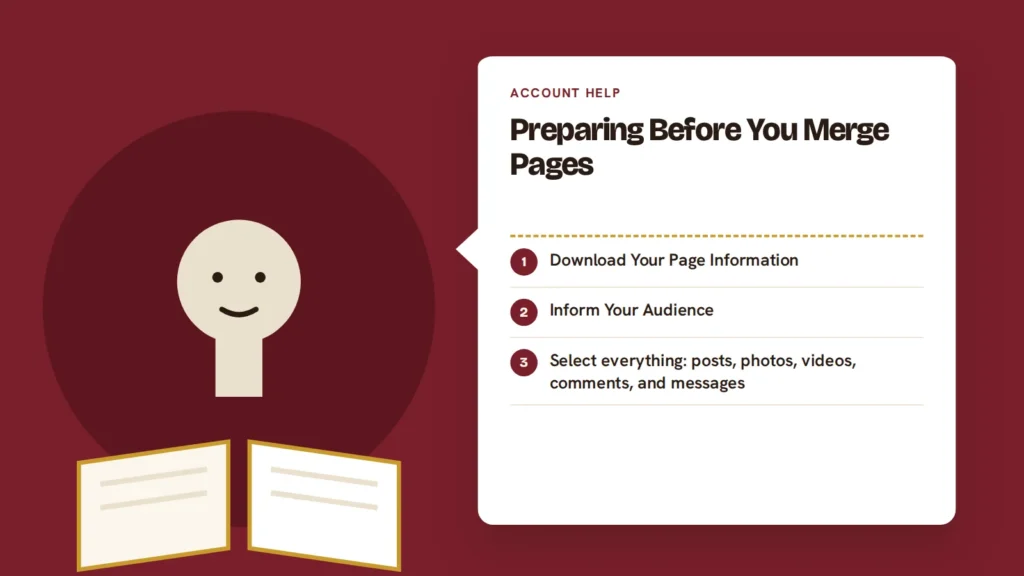
Because the source Page loses all its content permanently, preparation is the most vital phase of this entire guide. Rushing into the settings menu without backing up your data results in lost marketing assets and broken customer links.
Download Your Page Information
Navigate to the settings of the source Page and locate the “Download Your Information” tool. Select everything: posts, photos, videos, comments, and messages. Request the download in HTML format so you can easily browse the files offline without specialized software. Meta will compile this archive and email you a link when it’s ready, which can take several hours depending on the volume of media stored. Save this zip file securely on your local hard drive or cloud storage provider.
Inform Your Audience
Post an announcement on the source Page telling your followers exactly what is happening. Explain that the Page is closing and direct them to like and follow the destination Page manually. While the system transfers followers automatically, some users prefer to actively opt-in, and others might have notifications disabled.
Pinning this announcement to the top of the source Page ensures maximum visibility during the final days before the profile disappears. Update your website, email signatures, and printed materials to reflect the surviving Page’s URL.
Pro Tip: Create a simple graphic using tools like Canva or Adobe Express that visually points users from the old brand name to the new one. Visual cues dramatically improve compliance compared to plain text announcements, ensuring fewer followers drop off during the transition period.
Troubleshooting Failed Merge Requests
Rejection emails from Meta rarely provide granular details, leaving administrators guessing about what went wrong. Most failures stem from mismatched data fields or insufficient permissions that went unnoticed during the initial setup.
If your request fails, verify that your personal Facebook account is the one holding admin rights on both Pages. Sometimes, an agency holds ownership through a Business Manager asset, preventing your personal profile from executing the merge. In such cases, the Business Manager admin must perform the action, or ownership must be temporarily transferred to your personal profile.
Next, check the category tags. If one Page is listed as a “Restaurant” and the other as a “Local Business” without a specific sub-category, the system may view them as incompatible. Align the categories perfectly and try again.
If technical glitches persist, clear your browser cache, disable ad blockers, or attempt the process using an incognito window. Occasionally, third-party browser extensions interfere with the JavaScript required to submit the final form. As a last resort, wait thirty days before resubmitting, as repeated failed attempts can trigger temporary cooldowns on your account.
Should You Hire Professional Help?
For straightforward combinations where you own both Pages outright, handling it yourself costs nothing and takes minutes. However, complex situations involving former business partners, unresponsive agencies, or disputed ownership require outside intervention.
If another party controls the Page you need to absorb, you can’t initiate the merge yourself. You must first regain administrative control through Meta’s formal dispute resolution process, which involves submitting trademark documents, utility bills, or incorporation papers proving your legal right to the brand.
Digital marketing agencies specializing in social media management routinely handle these disputes. They understand the documentation requirements and can navigate the Business Support Home interface efficiently. Weigh the cost of an agency retainer against the value of the audience you’re trying to reclaim before deciding whether professional assistance is justified.
For hands-on help with this, our team offers Facebook Page Setup.
Frequently Asked Questions
Can I undo a Facebook Page merge?
No. Once Meta processes the request and the source Page disappears, the action is strictly permanent. You can’t separate the followers back into two distinct profiles, nor can you recover the deleted posts, photos, or reviews from the source Page. This is why downloading your information beforehand is mandatory.
Do my followers get notified about the merge?
Followers generally don’t receive a direct push notification stating that a merge occurred. However, they will notice that the source Page no longer exists and that they’re now following the destination Page. Their news feed will naturally begin showing content from the surviving profile instead of the old one.
Will my ads stop running during the merge?
Active advertising campaigns tied to the destination Page continue running normally throughout the waiting period. However, any ad sets specifically configured to point to the source Page will stop delivering once that Page is permanently removed. You must update your ad creative destinations inside Ads Manager before the merge finalizes.
Can I merge a Facebook Group with a Page?
No. Groups and Pages are fundamentally different structures serving different purposes. You can link a Group to a Page so they appear connected on your profile, but you can’t combine their member lists or merge them into a single entity under any circumstances.
Why is the merge option missing from settings?
If you can’t find the tool, you likely lack full admin privileges on one or both Pages, or one Page operates on the Classic layout while the other uses the New Pages Experience. Convert both to the same layout via your settings menu, ensure your role is upgraded to admin, and refresh the page.
Does merging affect my verification badge?
If the destination Page holds a blue verification badge, it retains the badge after the merge. If only the source Page was verified, that verification is lost when the source Page is deleted. You would need to reapply for verification on the destination Page using Meta’s updated application process.
Conclusion
Now that you understand the mechanics and risks involved, log into your Meta Business Suite and audit your current Page roles. Confirm you hold full administrative access on both profiles today, then schedule your data backup for tomorrow so you’re fully prepared to execute the merge safely later this week.

Derek Campbell writes about Facebook features, tools, and account management, covering topics such as account troubleshooting, Business Manager, Facebook Marketplace, and outreach strategies. His content also explores Facebook Groups, community engagement, and ways to connect with relevant audiences. His writing emphasizes practical Facebook know-how, from navigating Marketplace and managing business communities to building meaningful connections through Groups and outreach.
Checked against Facebook’s own help and policy pages on the date shown above.