How to Get a Facebook Page Username (Vanity URL)

For most Pages, you can get a Facebook Page username (vanity URL) by opening the Page settings, choosing Username, entering an available name, and saving it. The name must meet Facebook’s format rules, and you’ll need the right Page access.
Availability, Page age or history, your access level, and Facebook’s current menu layout can change the result. A name that looks available may still be rejected, so check the Page’s settings and the final URL before sharing it.
Who needs a Facebook Page username
A new Page owner usually wants a short address instead of a long string of numbers. They need the correct menu path, a name that follows Facebook’s rules, and a way to confirm the address works after saving.
An owner changing a brand name has a different problem. They must compare the new username with existing links, printed material, ads, and customer messages. A change can make old links harder to use, so the choice needs more care than a first setup.
A person helping with a Page may already have access but still not have permission to change its username. Facebook Page access can be split between full control and limited task access, so the missing field may be a permission issue rather than a technical fault.
This page serves best if you control a normal Facebook Page and can open its settings. It assumes you’re using Facebook’s current Page experience on a desktop browser or the Facebook mobile app. If you’re handling a restricted, disabled, memorialized, or business-managed Page, use the relevant administrator or Meta support route instead.
What changes the username result
Page access matters most. A person with full control can usually manage core Page settings, while someone with limited task access may not see the username option. Open the Page’s access settings and check whether your account has permission to manage Page information.
The name itself must qualify. Facebook usernames use letters, numbers, or periods, and the username must meet Facebook’s minimum length and other naming rules. Check the exact warning shown beside the field rather than guessing from a name that looks acceptable.
Availability is separate from format. A name can follow the character rules but still be unavailable because another account uses it, Facebook has reserved it, or the name appears misleading. Try a close alternative with a clear brand word instead of adding random punctuation.
Page status can affect access. A Page with restrictions, a recent change, or unusual activity may not show the option or may reject a change. Check the Page’s quality, support, and notification areas before repeating the same submission.
The most common wrong assumption is that a Page’s display name and username are the same. They aren’t: the display name can be longer, while the username forms the short address after facebook.com/.
How to set the username
Use a browser if the mobile app doesn’t show the same menu. Facebook can move labels between the classic Page view, the new Page experience, and Business Suite.
-
Sign in to the Facebook account with Page control. Open the Page from your profile menu, then confirm the Page name and profile picture. If you can’t switch into the Page, stop and fix access first.
-
Open the Page’s settings. On a desktop, choose Settings from the Page menu. On mobile, open the Page, tap the menu or settings button, and look for Page settings or Page information.
-
Open the username field. Choose Username under the Page information or general settings area. The field should show the current username or an empty box, not only the Page’s public display name.
-
Enter one candidate username. Use a clear name with letters, numbers, or periods, and follow the minimum length shown by Facebook. Don’t add spaces, symbols, or a keyword that makes the Page look like another business.
-
Read the availability message. Wait for Facebook to show that the name is available or explain the problem. If it’s rejected, change the name once and check the new message rather than submitting the same version repeatedly.
-
Save the username. Select Save, Create username, or the matching button shown in your account. The setting worked only when Facebook confirms the change or displays the username as active.
-
Test the public address. Type
facebook.com/usernameinto a private browser window or a browser where you’re signed out. The correct Page should load without relying on your administrator session. -
Update important links. Replace the old Page address in your website, email footer, ads, printed material, and profile descriptions. Keep a record of the previous address before changing anything.
The key judgment is whether the name is clear enough for a stranger to recognize. If a short version could be confused with another business, choose a slightly longer brand-based name; a shorter URL isn’t worth sending people to the wrong Page.
If Facebook shows a security, identity, or disabled-account warning, don’t try to bypass it. Stop at that point and use Facebook’s official support or account-recovery process.
Username cases at a glance
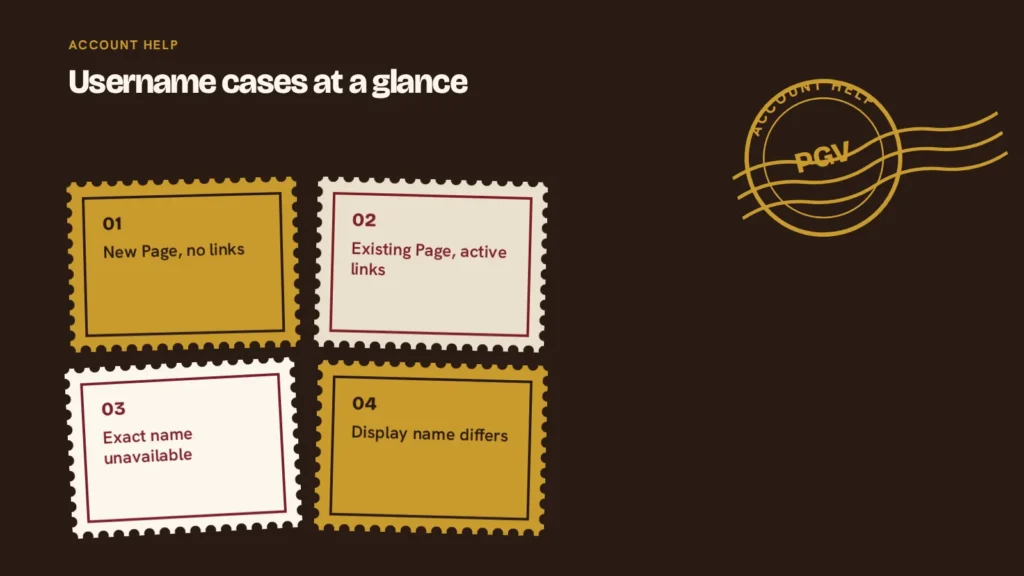
The right choice depends on what you’re changing and whether people already use the old address.
| Situation | What to do | What it takes | What to watch for |
|---|---|---|---|
| New Page, no links | Choose the brand name | Few minutes | Availability can change |
| Existing Page, active links | Record old address first | Extra checking | Old links may confuse |
| Exact name unavailable | Add a clear location word | More comparison | Avoid random numbers |
| Display name differs | Keep username recognizable | Brand judgment | Names need not match exactly |
| No username option | Check Page access | Permission review | Task access may be limited |
| Rejected candidate | Read Facebook’s warning | One new attempt | Don’t repeat blocked names |
A username is most useful when people can say it, spell it, and connect it to the Page’s visible name. The best trade-off is often a little more length for a much clearer identity.
Details that improve the result
Prepare the name first
Write down three candidates before opening the setting. Start with the official brand, then try a location or product word, but don’t use a name that suggests an official government, Facebook, or partner account when it isn’t one.
Check the same spelling on your website and other public profiles. This doesn’t guarantee availability on Facebook, but it helps you avoid a username that customers won’t recognize.
Check before and after saving
Experienced Page managers check the final public URL while signed out. They also look at the Page’s visible name, category, profile image, and contact details to make sure the new address points to the right identity.
Leave the display name alone unless you also intend to rebrand the Page. Changing both at once makes customer confusion harder to trace. The mistake costs time because support messages, ads, and printed links may all need separate corrections.
Facebook username problems and fixes

A visible warning usually points to a format, access, availability, or Page-status problem. Match what you see to the first safe action below.
| What you notice | What it usually means | What to do first | How to stop it happening again |
|---|---|---|---|
| Username field missing | Access is limited | Check Page permissions | Keep full control assigned |
| Name is unavailable | Another claim exists | Try a brand variant | Reserve names early |
| Invalid characters warning | Format breaks rules | Remove spaces, symbols | Use letters, numbers, periods |
| Save button fails | Temporary setting error | Refresh and retry later | Keep candidate notes |
| Public URL shows wrong Page | Similar name confusion | Check exact username | Add a clear location word |
| Old link no longer helps | Address was changed | Replace published links | Record changes before saving |
Don’t keep submitting a rejected name without reading the message. Repeated attempts won’t fix a permission problem, and a rushed alternative can create a confusing address that’s costly to correct later.
Rules for Facebook Page usernames
Facebook controls the username rules, and the exact wording can change. Its current help guidance says usernames use letters, numbers, or periods and must meet Facebook’s minimum length and other restrictions; read the Facebook username rules shown in the Help Center before choosing a final name.
A username can’t be used to impersonate another person, business, or organization. It also shouldn’t claim an official relationship that your Page doesn’t have. Facebook can reject or remove a username even when the spelling looks valid.
Rules can differ by account status, Page type, region, or the version of Facebook you’re using. If the Help Center wording and your Page screen differ, follow the warning on your account and use Meta support for an appeal.
Stop trying to change the name if Facebook asks for identity checks, shows a disabled Page notice, or reports a security restriction. Those cases can affect account access, so an administrator should handle them through Facebook’s support tools.
What a username really costs
The username itself usually costs no separate payment, but it can cost time and attention. You’ll spend longer if you need to compare brand names, check existing links, confirm access, or replace the address in several places.
The larger cost is a bad choice. A random number may make the URL hard to remember, while a name that’s too close to another business can send customers to the wrong Page. Compare each candidate with your website name, business documents, and customer wording before saving it.
Changing an established username also creates work. Count the places where the old address appears, including email signatures, social profiles, ads, QR codes, and printed cards. If the Page is part of a larger company, ask the person who manages the brand before making the change.
A short username saves typing, but a clear username saves explanations. If clarity and brevity conflict, choose clarity.
Keep the Page address correct
Record the final username in your brand files after Facebook confirms it. Save the full public URL, the date of the change, and the person who made it, so another Page manager won’t have to guess which address is current.
Check the address whenever you update a website, campaign, email footer, or printed design. The sign of a problem is simple: the URL opens a different Page, fails to load, or doesn’t match the name customers see.
If you change the username later, update public links before launching the new campaign. Don’t assume every old mention will redirect or remain useful. Test the new address while signed out and correct the highest-traffic links first.
When this username method is wrong
This method isn’t the right choice for a Page you don’t control. Ask a person with full Page control to make the change, or have the business owner update your access through Facebook’s Page settings.
It’s also wrong for a restricted or disabled Page. Don’t keep testing names; use Facebook’s support or appeal process, because repeated edits won’t repair an account restriction.
A username change isn’t a substitute for a full rebrand. If the business name, logo, website, and legal identity are changing together, plan the brand update first and then choose a matching Facebook username. Get help from the person responsible for the company’s legal or brand records.
When you want it set up without the guesswork, Facebook Page Setup is the place to start.
Frequently asked questions
Can I create a Facebook Page username from my phone?
Yes, you can often create it in the Facebook mobile app by opening the Page settings and choosing the username or Page information option. Menu names vary by app version. If the field is missing, try a desktop browser and check that your account has full Page control.
Why is my Facebook Page username unavailable?
An unavailable username may already belong to another account, be reserved by Facebook, or fail a naming restriction. Try a clear brand variation, such as adding a location or product word. Don’t copy a similar organization’s name, even if the spelling differs slightly.
How long should a Facebook Page username be?
At least 5 characters are required under Facebook’s stated username rules, with letters, numbers, or periods allowed. The name also needs to be available and not misleading. Check the warning beside the field, because meeting the character minimum doesn’t guarantee approval.
Is it safe to change my Facebook Page username?
Yes, the setting is normally safe to change, but published links may need attention. Record the old address, update important links, and test the new URL while signed out. Don’t change it during a live campaign unless you can check every active link.
What happens if I change my Facebook Page username?
The Page’s public address changes to the new username, while the Page itself keeps its followers, posts, and other content. Links using the old address may confuse people or stop helping them. Update websites, ads, QR codes, and printed material after saving.
Does the Facebook Page username have to match the Page name?
No, it doesn’t have to match word for word. It should still be recognizable and connected to the Page’s visible identity. A display name can include extra words, while the username works as the shorter address after facebook.com/.
Can I use spaces in a Facebook Page username?
No, spaces aren’t valid in a Facebook username. Use letters, numbers, or periods instead, and follow the minimum length shown by Facebook. If the name needs several words, join them clearly rather than adding symbols that the field rejects.
Set your Facebook Page username
First, check your Page access and prepare three clear name choices before opening the username setting. You should see an approval message and a public URL that loads the correct Page while signed out. Stop and get administrator or Meta support help if Facebook shows a security, identity, or restriction warning.

Derek Campbell writes about Facebook features, tools, and account management, covering topics such as account troubleshooting, Business Manager, Facebook Marketplace, and outreach strategies. His content also explores Facebook Groups, community engagement, and ways to connect with relevant audiences. His writing emphasizes practical Facebook know-how, from navigating Marketplace and managing business communities to building meaningful connections through Groups and outreach.
Checked against Facebook’s own help and policy pages on the date shown above.