WhatsApp Business Account Restricted: Message Limits Explained

A restricted WhatsApp Business account limits business-initiated conversations, not necessarily banning the account permanently. Key issues: separate temporary limits from policy restrictions, identify your product, and fix triggering behaviors.
Key Takeaways
- Message limits apply mainly to business-initiated conversations on the WhatsApp Business Platform; they aren’t the same as a full account restriction.
- The WhatsApp Business app has different practical limits, including broadcast-list rules and limits on reaching people who haven’t saved your number.
- Quality signals such as blocks, spam reports, ignored messages, and negative feedback can reduce messaging capacity or trigger restrictions.
- Stop bulk sending immediately, review recent templates and campaigns, and remove questionable contacts before submitting an appeal.
- An appeal works best when it identifies the likely cause, explains the correction, and includes the business details WhatsApp requests.
- Never use unofficial bulk-sending tools, modified WhatsApp apps, scraped phone lists, or automation that imitates human behavior.
WhatsApp Business message limits explained
WhatsApp doesn’t use one universal “messages per day” number for every business. Limits depend on whether you use the Business app or the Business Platform, whether you’re initiating the conversation, your account quality, and your business verification status.
- Customer-initiated chat: A customer sends your business a message first.
- Business-initiated chat: Your business starts a new conversation, usually with a template.
- Service reply: You answer within an active customer-service window.
- Marketing message: You promote a product, offer, event, or service.
- Utility message: You send an order update, appointment reminder, payment notice, or similar operational information.
On the Platform, businesses can usually respond freely during the customer-service window.
Meta defines limits by unique users initiated, not total messages. Review current WhatsApp messaging limits as rules change.
Warning: Waiting doesn’t automatically fix a restriction. Waiting may help a rolling limit reset, but it won’t resolve policy violations, repeated spam reports, or an account connected to an unauthorized automation service.
App versus Platform limits
Your product determines applicable limits. The WhatsApp Business Platform handles structured communication, integrations, templates, and larger volumes.
WhatsApp Business app
The app doesn’t expose a single public daily allowance that applies to every business.
- Broadcast lists generally work only when the recipient has saved your business number.
- A broadcast list can contain up to 256 contacts, although creating multiple lists doesn’t guarantee unlimited delivery.
- A customer who blocks or reports your number can affect account quality.
- Repeatedly sending identical promotional messages can trigger enforcement.
- Using WhatsApp Web or linked devices doesn’t create a separate messaging allowance.
- Switching phone numbers repeatedly doesn’t create a safe way around an account restriction.
The app is suitable for appointment confirmations, customer questions, order support, and modest follow-up.
WhatsApp Business Platform
The Platform uses conversation limits and quality controls.
- The number of unique users you may initiate conversations with.
- Whether a template can be sent to a particular audience.
- Whether marketing templates remain approved.
- Whether a phone number can send messages at all.
- Whether a business can move to a higher messaging tier.
A business may send many individual messages inside active support conversations while still being unable to start new marketing conversations.
Main differences
| Area | WhatsApp Business app | WhatsApp Business Platform |
|---|---|---|
| Primary users | Small businesses and manual support teams | Companies using teams, APIs, CRMs, or providers |
| Initiating chats | Manual messages and broadcasts | Approved templates and API requests |
| Typical limit visibility | Less detailed and more behavior-based | Tier, quality, template, and phone-number indicators |
| Broadcast requirement | Recipients generally need to save the number | Users need a valid opt-in and compliant template |
| Automation | Limited built-in features | API automation permitted within policy |
| Best use | Local service, retail, basic customer care | Notifications, support workflows, controlled campaigns |
Key distinction: A normal Platform limit isn’t proof that your account violated a rule. A disabled number, rejected template, or “account restricted” notice requires a separate diagnosis.
How many messages can you send?
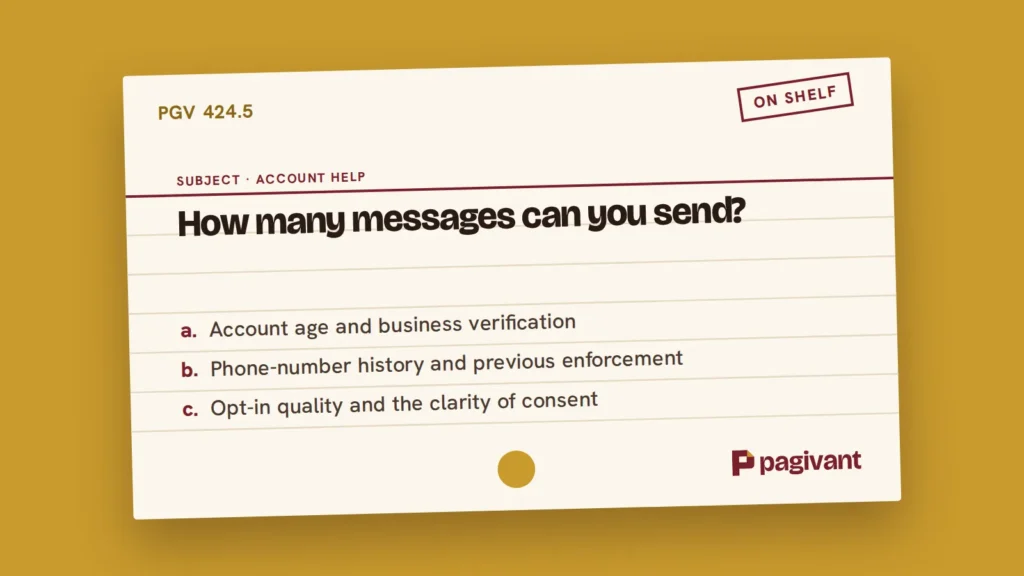
No single reliable message limit exists for every account. Platform limits use tiers ranging from hundreds to tens of thousands of unique users.
Limits usually concern new conversations, not total messages.
| Situation | What usually happens | What to check |
|---|---|---|
| You answer a customer who just contacted you | Reply may remain available during the service window | Session status and policy compliance |
| You start a new chat with an opted-in customer | Requires an approved template on the Platform | Template category and approval |
| You send a campaign to new users | Counts toward initiation limits and quality monitoring | Messaging tier, opt-in, complaints |
| You send repeated messages to nonresponders | Delivery or quality may decline | Frequency, relevance, opt-out handling |
| You exceed a rolling initiation limit | New conversations may be blocked temporarily | Limit reset time shown in your account |
| Your quality rating falls | Limit growth may stop or restrictions may occur | Blocks, reports, template feedback |
Rolling limits aren’t always calendar-day allowances.
Quality ratings matter. Strong opt-ins and useful messages may qualify for higher capacity. Frequent blocks or reports may keep you at a low tier.
Why your limit may differ
Limits vary between businesses due to:
- Account age and business verification.
- Phone-number history and previous enforcement.
- Opt-in quality and the clarity of consent.
- Block and report rates.
- Template performance.
- Whether the business is using the Platform correctly.
- Whether the business has recently changed providers, numbers, or messaging patterns.
Don’t buy a phone number or API package based on a promise of “unlimited WhatsApp messaging.” A provider may sell infrastructure access, but it can’t guarantee immunity from WhatsApp enforcement.
Why accounts get restricted
Restrictions stem from policy risk and feedback. Patterns, not single complaints, damage accounts.
Common triggers
- Purchased lists: Sending to numbers bought from a data broker.
- Scraped contacts: Importing phone numbers from websites, directories, or social media.
- Unclear opt-in: Treating a website inquiry or invoice as permission for every future promotion.
- Missing opt-out: Continuing to message someone after “stop,” “unsubscribe,” or “remove me.”
- Misleading offers: Advertising a discount, prize, loan, job, or investment inaccurately.
- Prohibited goods: Promoting restricted products or services through an unsuitable account.
- Excessive frequency: Sending daily promotions to people who expected occasional updates.
- Template misuse: Labeling a sales promotion as a utility or authentication message.
- Unofficial tools: Using modified apps, browser extensions, bulk senders, or simulated automation.
- Identity problems: Providing inconsistent business names, websites, phone numbers, or documents.
A restriction can also follow a sudden pattern change. For example, a number that normally answers 20 support chats per day may look risky if it suddenly sends thousands of nearly identical messages through an unfamiliar integration.
What the warning may mean
| Notice or symptom | Likely meaning | Immediate response |
|---|---|---|
| “You have reached your messaging limit” | You can’t initiate more new conversations for now | Stop new outreach and wait for the displayed reset |
| “This message wasn’t delivered” | Recipient, template, quality, or policy issue | Check the error code and message category |
| Template rejected | Wording, category, variable, or policy problem | Edit and resubmit a compliant template |
| “Account restricted” | WhatsApp has limited account activity | Review campaigns, integrations, and recent complaints |
| “Account disabled” | More serious enforcement or suspected violation | Stop sending and submit one clear appeal |
| App asks for review | Automated or human review is available | Use the in-app review process |
Warning: Repeatedly submitting appeals, changing the profile name, reinstalling the app, or moving the SIM card won’t address the underlying behavior. It can make the account history harder to explain.
How to check your status
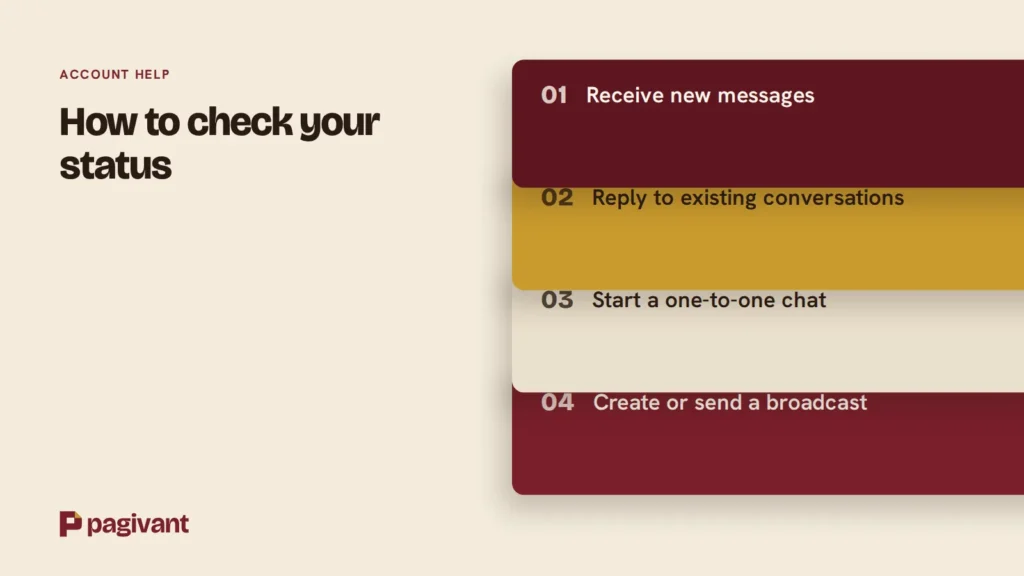
Start by identifying exactly what stopped working. “WhatsApp is restricted” can describe several different conditions.
In the Business app
Open the account’s settings and look for notifications about review, restrictions, or policy issues. Check whether you can:
- Receive new messages.
- Reply to existing conversations.
- Start a one-to-one chat.
- Create or send a broadcast.
- Link a new device.
- Edit the business profile.
- Use catalog or payment features.
Record the wording of the notice and take a screenshot.
In Business Manager or your provider
Platform users should inspect the business portfolio, phone-number status, quality rating, messaging limit, template status, and API errors. Look for:
- The affected phone number.
- The connected business portfolio.
- The exact template name.
- The recipient segment.
- The date and time sending failed.
- The API error code.
- Whether only marketing messages failed.
- Whether customer replies still work.
Create a short incident record rather than relying on memory.
| Detail to record | Example format | Why it matters |
|---|---|---|
| Phone number | Country code plus full number | Identifies the affected asset |
| Product | App, Cloud API, or provider API | Determines the correct remedy |
| First failure | Date, time, and timezone | Helps identify a campaign or change |
| Message type | Marketing, utility, authentication, or reply | Separates template issues from restrictions |
| Audience | Opted-in customers, leads, or imported list | Shows consent quality |
| Error text | Copy the full notice | Prevents vague troubleshooting |
| Recent changes | New provider, template, or campaign | Identifies the likely trigger |
What to do immediately
Pause the activity that may be causing harm. A short, controlled investigation is safer than repeated attempts.
First 24 hours
- Stop bulk sends, broadcasts, and automated campaigns.
- Disconnect unofficial extensions, bulk tools, and modified apps.
- Pause every questionable template, especially aggressive promotions.
- Export or record the error message and affected phone number.
- Review the last several campaigns and their recipient sources.
- Remove recipients who asked not to be contacted.
- Keep normal customer support available if it still works.
- Avoid changing the phone number, display name, or provider unnecessarily.
Audit your audience
For each contact, ask whether you can prove the person requested WhatsApp communication. Good evidence may include a WhatsApp checkbox, a click-to-WhatsApp conversation, a form with clear wording, or a customer request recorded by your staff.
A phone number in your CRM isn’t automatically a WhatsApp opt-in. A customer who agreed to receive an order receipt didn’t necessarily agree to receive weekly promotions.
Use separate lists for:
- Order updates: receipts, shipping notices, delivery changes.
- Appointment care: confirmations, reminders, cancellations.
- Support alerts: case updates and requested troubleshooting.
- Marketing promotions: discounts, launches, events, and recommendations.
- Re-engagement: only where the person’s consent and timing support it.
Don’t mix promotional content into an operational message simply to avoid marketing-template rules.
Audit your content
Review the exact text, links, images, buttons, and variables. Remove:
- “Act now or lose everything” pressure.
- Unexplained shortened links.
- Claims that can’t be verified.
- Excessive emojis or repeated capital letters.
- Surprise fees or hidden conditions.
- Promotions unrelated to the customer’s request.
- Language that disguises marketing as a service notice.
Pro Tip: Keep a versioned record of every template, its category, its opt-in source, and its opt-out wording. That record makes both internal troubleshooting and an appeal more credible.
How to appeal a restriction
Use the review option inside the WhatsApp Business app when the app provides one. Submit one accurate explanation before trying again.
A useful appeal includes:
- The legal or trading name of the business.
- The affected WhatsApp phone number with country code.
- The business website, if applicable.
- Your product: Business app or Platform.
- The date the restriction appeared.
- The exact error or notice.
- How customers opted in.
- What you paused or changed.
- A request for human review, when available.
Keep the explanation factual. Don’t claim that every recipient consented if you haven’t checked. Don’t blame customers, competitors, or a former employee without evidence.
Sample appeal structure
Our WhatsApp Business number, [number], was restricted on [date]. We use it for [specific customer service or notification purpose]. We paused all campaigns and reviewed our audience, templates, and connected tools. We removed contacts without documented WhatsApp consent, added an opt-out process, and disconnected [tool, if relevant]. Please review the account and let us know whether additional information is required.
If you use an official provider, ask it to confirm whether the problem is at the phone-number level, business-portfolio level, template level, or provider-integration level.
How long will recovery take?
There’s no guaranteed universal recovery time. A temporary sending limit may clear after the relevant rolling period. A manual review can take longer, and a disabled account may remain unavailable if WhatsApp confirms a serious violation.
How to prevent another restriction
Prevention depends on consent, relevance, frequency, and technical compliance. The safest system assumes that every recipient can easily ignore, block, report, or unsubscribe from your business.
Build a consent trail
Record:
- Where the person opted in.
- The date and time.
- The wording shown at consent.
- Whether the consent covered marketing or only service messages.
- The phone number and country.
- Any later opt-out or preference change.
Use a clear checkbox or statement such as, “I agree to receive order updates from this business on WhatsApp.” For marketing, say that promotional messages may be sent and explain how to stop them.
Control campaign frequency
Set a contact policy before launching a campaign:
- Suppress people who recently received a promotion.
- Exclude customers who haven’t engaged for a long period.
- Stop after a clear unsubscribe request.
- Avoid sending the same offer through SMS, email, and WhatsApp at once.
- Send only to the segment that benefits from the message.
- Test content with a small, consented audience before scaling.
Maintain technical hygiene
Use an authorized WhatsApp Platform provider or Meta’s supported API options. Keep business details consistent across the account, website, privacy notice, and provider profile. Limit staff access and remove former employees from connected systems.
Use human review for new templates and campaign audiences.
| Prevention control | Practical rule | Warning sign |
|---|---|---|
| Consent record | Store source, wording, and timestamp | “They gave us their number” |
| Opt-out handling | Suppress the number immediately | Repeated messages after “stop” |
| Frequency cap | Limit promotions per contact | Daily or near-daily campaigns |
| Template review | Match category to actual purpose | Sales language in utility template |
| Tool review | Use authorized integrations only | Browser plug-in or modified app |
| Quality monitoring | Track blocks, reports, and replies | Falling engagement with rising volume |
Pro Tip: Treat a rising block rate as an early warning, not as a number to explain away. Pause the segment, inspect the consent source, and improve relevance before sending again.
Related guides
Need it done properly the first time? See our Facebook Page Setup service.
Part of our guide: WhatsApp Business: The Complete Guide for Small Businesses
Frequently Asked Questions
Is a message limit the same as a restriction?
No. A restriction is an enforcement action or account-level limitation that may affect sending, templates, broadcasts, or the phone number itself. Check the exact notice and whether replies to existing chats still work.
How do I remove a WhatsApp Business restriction?
First stop bulk messaging and unofficial automation, then review opt-ins, recent templates, complaints, and account changes. Reinstalling the app, changing devices, or creating another number doesn’t reliably remove a restriction.
Can I message customers who gave me their phone number?
Not automatically. You need consent appropriate to the message type, and you must honor opt-outs. Keep evidence showing what the customer agreed to receive and when.
Why can I reply but not start new chats?
Replies may remain available inside an active customer-service window, while new business-initiated conversations require an approved template and count toward your initiation limit.
Does upgrading to the WhatsApp API remove limits?
No. The Platform can provide better tools, templates, reporting, and controlled automation, but it doesn’t remove messaging limits or policy obligations.
How long does a WhatsApp restriction last?
It depends on the cause.
Conclusion
The practical next step is to capture the exact notice, identify whether you use the Business app or Platform, pause questionable sending, and audit your last campaigns for consent and opt-outs. Then submit one precise review request with the phone number, error details, and corrective actions.

Derek Campbell writes about Facebook features, tools, and account management, covering topics such as account troubleshooting, Business Manager, Facebook Marketplace, and outreach strategies. His content also explores Facebook Groups, community engagement, and ways to connect with relevant audiences. His writing emphasizes practical Facebook know-how, from navigating Marketplace and managing business communities to building meaningful connections through Groups and outreach.
Checked against Facebook’s own help and policy pages on the date shown above.