How to Schedule Posts in a Facebook Group

Scheduling posts in a Facebook Group lets you prepare announcements, discussions, reminders, and recurring updates in advance, then publish them automatically at a chosen date and time. You generally need to be a group admin or have a role with posting and scheduling permissions, and the exact buttons can vary between Facebook’s desktop site, mobile app, and group settings.
Key Takeaways
- Open the group, create a post, select the post options menu, and choose Schedule post.
- Set the date and time using the group’s time zone, then confirm the schedule before leaving the screen.
- Use Admin tools or Manage posts to view, edit, reschedule, or delete upcoming posts.
- Scheduling may be unavailable if you’re a member rather than an admin, if the group restricts posts, or if Facebook hasn’t enabled the feature for your account.
- Use a content calendar to avoid publishing several announcements at once.
- Scheduled posts still follow the group’s approval rules, spam filters, and admin moderation settings.
Schedule Posts in a Facebook Group
The basic process is similar on desktop and mobile: enter the group, start a new post, write the content, open the publishing options, and select a future date and time. Facebook may label the control Schedule post, Schedule, or place it under a calendar icon.
Before starting, make sure you’re posting as your personal profile or as the group identity, depending on what the group allows. Some groups permit only admins to publish announcements, while others let members submit posts for approval.
| Step | What to do | What to check |
|---|---|---|
| 1 | Open the Facebook Group | Confirm you’re in the correct group |
| 2 | Select Write something or Create post | Check the posting identity |
| 3 | Add text, images, video, or a file | Review links and attachments |
| 4 | Open the publishing options | Look for a calendar or three-dot menu |
| 5 | Choose Schedule post | Select a future date and time |
| 6 | Confirm the schedule | Check the time zone and final wording |
A scheduled post isn’t the same as a draft. A draft remains unfinished and requires manual action later; a scheduled post is intended to publish automatically. It can still be affected by group rules, platform outages, deleted attachments, or changes to your permissions.
Facebook’s interface changes regularly, so menu names may differ. Meta’s official help information for scheduling a group post is the best place to compare the current controls with what appears on your account.
Before You Schedule
Prepare the post before opening the scheduling menu. Facebook may not preserve every part of an unfinished post if you navigate away, refresh the page, or switch between devices.
Check these items first:
- Correct group: Verify the group name, cover image, and description.
- Posting identity: Confirm whether the post appears from your profile or the group.
- Audience: Remember that a group post is visible according to the group’s privacy setting.
- Attachments: Open images, videos, PDFs, and links before scheduling.
- Destination links: Test URLs for spelling, redirects, and access restrictions.
- Timing: Consider members’ local time rather than your own travel or device time.
- Moderation: Check whether posts require admin approval before appearing.
- Comments: Decide whether members should be able to comment immediately.
A useful post usually has one clear purpose. Examples include:
- A Monday discussion asking members to share priorities.
- A Wednesday reminder about a live workshop.
- A Friday roundup linking to the week’s resources.
- A monthly announcement about membership rules or events.
- A launch notice for a new product, course, or community activity.
Avoid placing several unrelated announcements in one scheduled post. A concise message with one action—such as “Reply with your question” or “Register by Friday”—is easier for members to understand and easier for moderators to review.
Desktop Scheduling Steps
The desktop website usually provides the clearest view of the group’s post controls. Use a current browser and sign in to the Facebook account that has permission to publish in the group.
Create the post
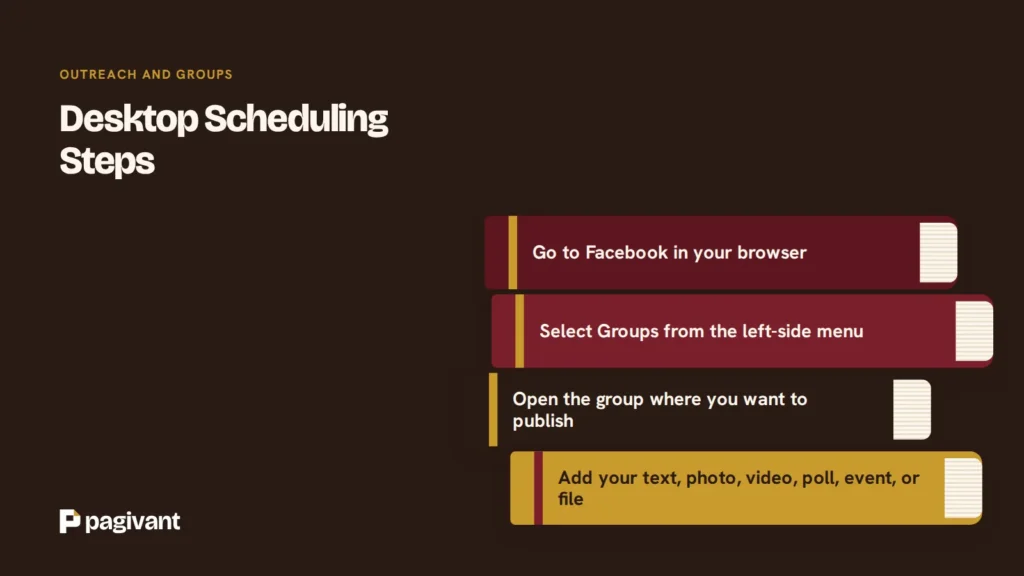
- Go to Facebook in your browser.
- Select Groups from the left-side menu.
- Open the group where you want to publish.
- Select Write something, Create a post, or the equivalent composer.
- Add your text, photo, video, poll, event, or file.
- Review the post as if it were already public.
The composer may show additional formats beneath the text box. Available choices can include a poll, question, recommendation, fundraiser, or event. Not every group has every format.
Open scheduling controls
Look near the publishing button for a down arrow, calendar icon, or Post options menu. Select Schedule post. If you see only Post, Save draft, or Post now, scheduling may not be enabled for your role or group.
Choose a date and time in the scheduling window. Facebook may display the time according to your account, device, browser, or group settings. Read the displayed date carefully instead of assuming it uses the time zone you intended.
Confirm the schedule
Select Schedule or Schedule post again to finish. Don’t close the tab until Facebook confirms that the post was scheduled.
| Desktop control | Likely purpose | Recommended action |
|---|---|---|
| Post | Publish immediately | Use only after final review |
| Save draft | Keep an unfinished version | Return later and complete manually |
| Schedule post | Publish at a future time | Choose date, time, and confirmation |
| Post options | Open additional controls | Look here when no calendar is visible |
| Manage posts | Review existing content | Find scheduled, pending, or published posts |
After confirmation, open the group’s admin or management area and verify that the post appears in Scheduled posts. This second check is especially helpful for important announcements, such as registration deadlines or policy changes.
Mobile App Steps
The Facebook mobile app may place the scheduling feature behind a different menu than the desktop site. The process is broadly the same on an iPhone or Android phone, although button labels can change after app updates.
Use the group composer
- Open the Facebook app.
- Tap the menu button, then choose Groups.
- Select the relevant group.
- Tap Write something or Create a post.
- Enter the message and add any media.
- Tap the options button near Post.
- Select Schedule post if it’s available.
In some app versions, the scheduling option appears as a small calendar icon. In others, it’s inside a three-dot menu or under a button labeled Post settings.
Select the date and time
Use the date picker and time picker to choose when the post should go live. Check whether the app shows AM or PM, especially for early-morning posts. A scheduling mistake of twelve hours can place an announcement in the middle of the night.
The app may ask you to confirm the selected time. Tap Schedule, Save, or the equivalent confirmation control. Wait for a success message before switching to another app.
Verify from the group
Return to the group’s admin tools or post-management area and look for the item under upcoming posts. If you can’t find it, the post may have been saved as a draft rather than scheduled.
Mobile scheduling is convenient for quick reminders, but desktop is often easier for:
- Long announcements with several paragraphs.
- Multiple attachments that need careful ordering.
- Calendar planning across several dates.
- Link review on a larger screen.
- Editing scheduled posts with detailed formatting.
What Can You Schedule?
Most groups support ordinary text posts with common attachments, but the available formats depend on the group, your role, and Facebook’s current features. Scheduling doesn’t guarantee that every interactive element will function exactly as it does in a live post.
| Post type | Usually suitable for scheduling? | Best use |
|---|---|---|
| Text announcement | Yes | Rules, reminders, and updates |
| Photo post | Usually | Prompts, examples, and event graphics |
| Video post | Usually | Tutorials, introductions, and recaps |
| Link post | Usually | Articles, registration pages, and resources |
| Poll | Depends on group settings | Member feedback and quick choices |
| Event post | Depends on interface | Meetings, classes, and live sessions |
| File or document | Depends on permissions | Guides, agendas, and worksheets |
| Live video | Not the same as a scheduled post | Use the appropriate live-event tools |
A scheduled post can include a call to action, but keep it specific. “Tell us what you think” is less useful than “Reply with one challenge you want covered in Thursday’s discussion.”
Use clear labels when a post is part of a series:
- Week 1: Introduce the topic.
- Week 2: Share an example.
- Week 3: Ask for member questions.
- Week 4: Summarize useful replies.
Don’t schedule content that depends on information likely to change before publication. Weather alerts, inventory counts, breaking news, and time-sensitive prices should be checked shortly before posting.
Build a Reliable Posting Schedule
Scheduling works best when it supports a realistic publishing rhythm rather than filling the group with automatic messages. Start with the group’s purpose, member activity, and moderation capacity.
A simple weekly plan might look like this:
| Day | Content | Member action |
|---|---|---|
| Monday | Weekly prompt | Share a goal or question |
| Tuesday | Practical tip | Try one suggested method |
| Wednesday | Resource or link | Read, watch, or download |
| Thursday | Discussion thread | Respond to another member |
| Friday | Recap or celebration | Share a result or takeaway |
The schedule should leave space for live conversations. If every post is automated, members may feel that no one is watching the group. Review comments and respond to useful questions, especially on posts that invite discussion.
Match content to timing
Use the group’s Insights or activity information when available, but treat it as guidance rather than a guarantee. A large audience online doesn’t always mean members will respond to a particular topic.
Consider:
- Morning posts for planning prompts and daily reminders.
- Midday posts for short tips and quick polls.
- Evening posts for reflective discussions and community questions.
- Weekend posts only when the group’s topic naturally fits weekend activity.
- Event reminders one week, one day, and one hour before an event, if appropriate.
Avoid publishing several posts within minutes of one another. Even if the information is valuable, members may see one item push the others down the feed.
Use a content calendar
A spreadsheet, calendar app, or project board can record the topic, copy, media, destination URL, owner, and status. Useful status labels include:
- Idea
- Drafting
- Ready for review
- Scheduled
- Published
- Needs update
A content calendar also helps prevent repeated questions, expired links, and conflicting announcements. Assign one person to review the queue before publication when the group represents a company, school, nonprofit, or professional organization.
Pro Tip: Schedule important announcements at least one day early, then verify them in the group’s management area. You’ll have time to correct the date, attachment, link, or wording before members see it.
Can’t Schedule a Group Post?

When the scheduling button is missing, the cause is usually permissions, the group’s configuration, the selected post type, or a temporary interface issue. Check the simplest explanations first.
Common causes
- Member role: Ordinary members may be allowed to post but not schedule.
- Admin permissions: Your admin role may not include content-management access.
- Group approval: Posts may require review before publication.
- Post format: Polls, events, files, or special formats may not support scheduling.
- App version: An outdated app can hide or misplace controls.
- Browser problem: Cached data, extensions, or a blocked script can affect the composer.
- Account restriction: Facebook may temporarily limit posting or scheduling activity.
- Feature rollout: The feature may not be available to every group or account.
- Incorrect identity: You may be composing as a profile that lacks the required role.
Use this troubleshooting sequence:
| Check | What to do | Expected result |
|---|---|---|
| Permission | Ask an admin to confirm your role | Scheduling access is clarified |
| Post type | Test a plain text post | You learn whether format is the issue |
| Platform | Try desktop and mobile | One interface may show the control |
| App or browser | Update, restart, or clear cache | Display problems may disappear |
| Group settings | Review approval and posting rules | Restrictions become visible |
| Status | Check account notifications | Temporary limits may be explained |
| Support | Report a persistent issue | Meta receives technical details |
Don’t repeatedly create and delete identical test posts in an active group. Members may receive notifications, and repeated activity can look like spam.
If scheduling works for text but not for a video, poll, or file, use a normal scheduled text post with the relevant link or attachment only if the group’s rules permit it. Otherwise, publish that format manually.
Warning: Never assume a post failed simply because it isn’t visible in the main feed. It may be waiting for approval, hidden in scheduled content, or filtered by a group setting.
Edit, Reschedule, or Delete
Scheduled content is usually managed from the group’s admin tools, post-management area, or a section labeled Scheduled posts. The exact route depends on whether you’re using the website or app.
Look for the post, then open its menu. Common actions include:
- Edit post: Change text, links, or certain attachments.
- Reschedule: Choose a different date or time.
- Publish now: Release the post immediately.
- Delete schedule: Remove it without publishing.
- Duplicate: Create a new version, if Facebook offers that option.
- View details: Check the scheduled date and publishing status.
Some changes may not be available after a post enters a final processing stage. If an edit option is missing, copy the text into a new post, delete the scheduled version, and schedule the corrected one.
| Situation | Safest action |
|---|---|
| Minor wording error | Edit the scheduled post |
| Wrong publication time | Reschedule and verify the time zone |
| Expired announcement | Delete the schedule |
| Urgent update | Publish now after reviewing it |
| Broken link | Replace the link or create a corrected post |
| Duplicate schedule | Keep one version and remove the other |
Check every recurring post for dates, names, prices, meeting links, and deadlines. A message that was accurate last month may be wrong today.
Admin Approval and Permissions
Scheduling and publishing are separate stages in some groups. A scheduled post may publish into an approval queue rather than appear immediately to members. If that happens, an admin or moderator must approve it.
Group owners should review:
- Admin roles: Who can create, edit, schedule, and delete posts?
- Approval settings: Are all posts, new-member posts, or certain formats reviewed?
- Moderation alerts: Who receives notifications about pending content?
- Posting frequency: Are there limits on repeated promotional posts?
- Community rules: Does the content meet the group’s stated standards?
- Emergency access: Who can cancel a post if circumstances change?
An admin can also remove or restrict a scheduled post if it violates group rules. Scheduling isn’t a way to bypass moderation, member reports, or Facebook enforcement.
For a team, create a basic approval workflow:
- Writer prepares the draft copy.
- Reviewer checks facts, links, tone, and timing.
- Admin schedules the approved version.
- Owner monitors comments after publication.
- Team records changes in the content calendar.
Keep sensitive information out of scheduled posts. Don’t include private customer details, unpublished business information, passwords, or personal data that members don’t need.
What Happens After Publishing?
After the scheduled time arrives, Facebook attempts to publish the post according to the group’s rules and your permissions. A post may appear later than expected if the service is experiencing an issue or if it enters an approval process.
Check the post after publication, especially when it contains:
- External links that require a sign-in.
- Videos that need captions or thumbnails.
- Images containing dates or prices.
- Events with changing locations or times.
- Promotions with deadlines or eligibility conditions.
Review the first comments and member reactions. A scheduled announcement can start a useful discussion, but it can’t answer follow-up questions automatically.
If the post doesn’t appear, inspect the scheduled and pending areas before creating another copy. Duplicate posts can confuse members and make moderation more difficult.
Related guides
- How to Create an Facebook Event in a Group Step by Step
- How to Pin a Post in a Facebook Group: Quick Steps
- How to Post an Announcement in a Facebook Group: Step-by-Step
If you would rather have this handled for you, our Facebook Accounts Setup service covers it end to end.
Frequently Asked Questions
Can any group member schedule a post?
Usually, scheduling is more restricted than ordinary posting. Group admins or members with appropriate content permissions are most likely to see the feature. If you can post but can’t schedule, ask an admin to check your role and the group’s approval settings.
Can I schedule a post from my phone?
Yes, the Facebook app may provide scheduling through the group composer, a calendar icon, or a post-options menu. The control isn’t identical on every device or account. Update the app, try a plain text post, and verify the scheduled item in the group’s management area.
How far ahead can I schedule a group post?
Facebook’s available scheduling window can vary by account, group, post type, and interface. Choose a practical future date, then check the confirmation screen. For important announcements, schedule only as far ahead as the information remains accurate.
Why did my scheduled post not publish?
Possible causes include missing permissions, group approval, a deleted attachment, an account restriction, a temporary platform issue, or an incorrect time-zone assumption. Check scheduled and pending posts, review account notifications, and confirm that the group still permits your role to publish.
Can I edit a scheduled Facebook Group post?
In many cases, you can open the scheduled post and choose Edit, Reschedule, or Delete. Options vary by post format and interface. If editing is unavailable, copy the content into a corrected post, remove the original schedule, and verify the replacement.
Do scheduled posts need admin approval?
They may. A group can require approval for all posts, posts from certain members, or specific content types. Scheduling determines when Facebook submits or publishes the content; it doesn’t automatically override the group’s moderation rules.
Conclusion
Start by creating one plain-text test post for a low-risk time, confirm that it appears under scheduled content, and then build a small weekly calendar. Once the process works, add images, links, reminders, and recurring discussion prompts while checking permissions and approval settings regularly.

Derek Campbell writes about Facebook features, tools, and account management, covering topics such as account troubleshooting, Business Manager, Facebook Marketplace, and outreach strategies. His content also explores Facebook Groups, community engagement, and ways to connect with relevant audiences. His writing emphasizes practical Facebook know-how, from navigating Marketplace and managing business communities to building meaningful connections through Groups and outreach.
Checked against Facebook’s own help and policy pages on the date shown above.