How to Post an Announcement in a Facebook Group

To post an announcement in a Facebook group, create a group post, open its three-dot menu, and choose the announcement or feature option available to your group. You’ll need to be an admin or moderator, and the exact label can change between Facebook’s website and app.
Your result depends on your role, the group’s settings, and the Facebook version you’re using. The post’s audience, format, and position in the group also decide whether members notice it.
Who needs a Facebook announcement
Group admins usually search this because they need to share rules, event details, schedule changes, or an urgent update. They already have access to the group, but they need the post to stay easy for members to find.
Moderators may also need this option. They can often manage posts and help members, but their exact permission depends on the group’s settings and their assigned role.
A regular group member may want to highlight their own post. This page serves admins and moderators best because they’re the people most likely to see the announcement controls. A regular member should ask an admin instead of trying to bypass the group’s permissions.
The steps assume you’re posting in a group you manage or moderate. They also assume you’re using the current Facebook app or website, where button names may differ slightly by device.
What controls the announcement
Your role matters most. If you’re an admin or moderator, open the group’s member or admin tools to confirm your role; if you’re a regular member, the announcement option may not appear at all.
A normal text post is the simplest choice for a rule or update, while a poll, photo post, or event may show different menu options. Create the main post first, then check its menu.
The group’s settings also affect visibility. A private group limits the announcement to members, while a public group may show the post to a wider audience. Check the group name and privacy label before publishing.
Facebook’s layout is the part people get wrong most often. The same control may appear under a three-dot menu, an admin tools area, or a featured-post area. Compare the options on the post itself rather than relying on an old screenshot.
Finally, the message’s position matters. An announcement can be marked correctly but still get missed if the first line is vague. Put the action, date, deadline, or rule near the beginning.
How to post an announcement
-
Open Facebook and select the group you manage or moderate. Confirm the group name before posting; the correct group title should appear at the top.
-
Select the box for creating a new post. The composer should show the group name and the audience before you type.
-
Write the announcement in the post box. Put the main update in the first 1-2 sentences, and include dates, times, locations, or links in the same post.
-
Add one relevant photo, file, poll, or event only if members need it. The preview should show the attachment without hiding the main message.
-
Read the audience and privacy information beside the post controls. It should match the group where you intend to publish.
-
Select Post or Publish. The new post should appear in the group feed with your name and the group name attached.
-
Open the post’s three-dot menu. Look for Mark as announcement, Feature, Pin, or a similar admin option.
-
Choose the announcement or feature option, then confirm it if Facebook asks. A label, changed position, or admin notice should show that the setting worked.
-
Return to the group’s featured, pinned, or announcement area. Your post should appear there or show the matching control as active.
If the option is missing, stop before changing group settings or assigning roles. Ask the group owner or use Meta’s group announcement help, because permission and interface changes need an admin-level check.
The key judgment is whether members can understand the action without opening several screens. A post that’s technically featured but has no clear date, request, or next step only looks finished.
Announcement options by situation
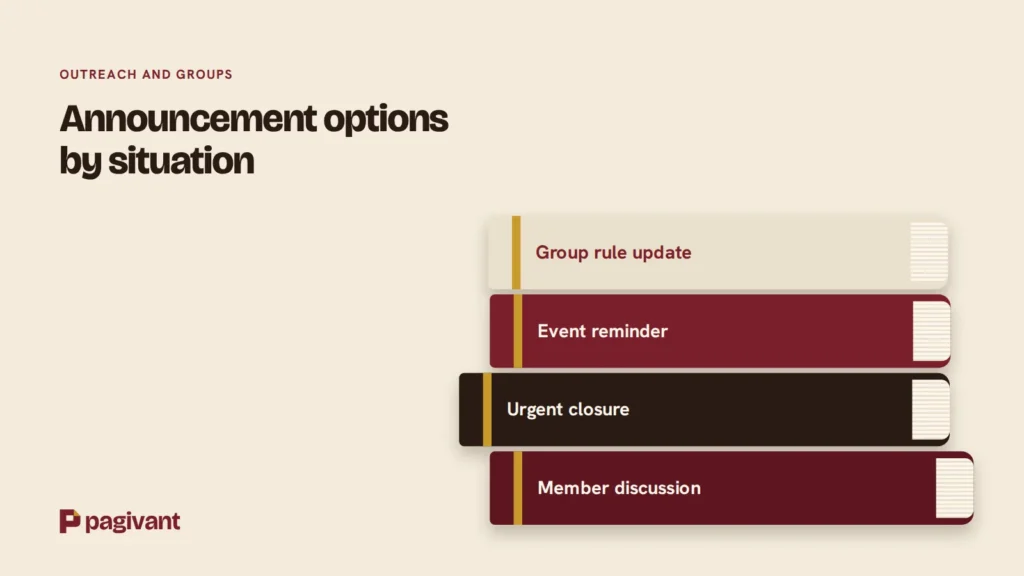
Choose the simplest format that carries the message clearly. Extra media can help, but it can also push the important words below the first screen.
| Situation | What to do | What it takes | What to watch for |
|---|---|---|---|
| Group rule update | Use a clear text post | Low writing effort | Include the effective date |
| Event reminder | Attach the event details | Moderate preparation | Check time zone |
| Urgent closure | Put action first | Quick publishing | Confirm the correct group |
| Member discussion | Use a normal post | Moderate moderation | Avoid forced announcement status |
| Repeated resource | Feature the useful post | Low setup effort | Review outdated details |
| Poll or decision | Create a poll post | More member effort | State the closing date |
Details that improve Facebook group announcements
Prepare the message first
Write the headline in plain language before opening Facebook. “Meeting moved to Thursday” gives members more useful information than “Important update,” especially when the post appears in a busy feed.
Check every date, time, location, and link before publishing. If the announcement changes a rule, quote the new rule directly and say when it starts. Don’t make members search through comments for the part that affects them.
Check what members see
Open the published post as it appears in the group, not only in the composer. Look for the group name, announcement or feature label, first-line wording, and any cut-off text on a phone screen.
Leave comments open only when replies help members ask questions. If replies could bury the instruction, put common answers in the post itself and moderate the comments instead of adding several separate announcements.
Facebook announcement problems

The notice you see often points to a permission, menu, or publishing issue. Check the post and your role before deleting it and starting again.
| What you notice | What it usually means | What to do first | How to stop it happening again |
|---|---|---|---|
| No announcement option | Role lacks permission | Ask an admin | Confirm roles first |
| Post disappeared | Group review is active | Check pending posts | Review approval settings |
| Members miss the post | Weak opening line | Edit first sentence | Put action first |
| Wrong group appears | Group selector changed | Cancel and recheck | Verify before publishing |
| Feature control vanished | Facebook layout changed | Open three-dot menu | Check current app version |
| Old details remain | Announcement wasn’t updated | Edit the original post | Add review dates |
Deleting the post can cost you its comments, reactions, and any history members use to understand the update. Edit the original when the message is still valid; if the information is wrong or unsafe, remove it and publish a corrected announcement.
Facebook group rules
Facebook’s own group tools decide which members can create, edit, feature, or remove announcements. The available control can differ by role, group type, device, and current product version.
Your group’s written rules still apply to announcement posts. An admin can set requirements for approved topics, links, promotions, event notices, or member conduct. Read the group rules before posting, even if you have moderator access.
Privacy also controls the audience. A private group’s post isn’t a public notice, and a public group may still apply moderation rules before members see it. Check Facebook’s current help page for the group feature that matches your account and device.
Don’t change roles, privacy settings, or approval controls just to force an announcement through. Those changes can affect every member and may need the group owner’s approval. If the post involves threats, harassment, personal data, or legal rights, send it to the group owner or Facebook’s reporting tools instead.
The real cost of an announcement
The writing usually takes less effort than checking the message. The time cost rises when the post includes several dates, a file, a poll, an event, or a rule that needs approval from other admins.
The main risk is confusion. A vague announcement can create repeated questions, conflicting comments, and later corrections. A short message with a clear action may take less space but requires you to choose the most important detail first.
Your role can also change the cost. If you lack permission, you’ll spend time waiting for an admin rather than fixing the post yourself. Check your role before drafting a long message.
Facebook’s current layout and any group-specific tools can change. Read the labels on the post, compare the group’s rules, and check Meta’s help information instead of budgeting around a fixed number of clicks.
Keep announcements useful
Review old announcements when the date, policy, event, or link no longer applies. The sign that an announcement needs attention is a changed fact, a broken link, or members asking for information the post already should explain. Check scheduled announcements before each event or deadline, not after a complaint.
Edit the original post when the update is small and the main message remains correct. Add a short note such as “Updated on [date]” so readers can see what changed. If the change affects eligibility, required steps, or timing, put it in the main text instead of a comment.
Remove or unfeature an announcement when it no longer deserves priority. If Facebook doesn’t show an unfeature control, open the post’s menu or ask another admin; don’t delete a useful discussion just to remove its highlighted position. Save essential wording first if members may need the record later.
Keep one current announcement for one topic where possible. Several overlapping notices make members compare old and new information, which increases the chance they follow the wrong version. When a new post replaces an old one, identify the replacement in the old post and add its date.
When announcements aren’t the right choice
A private message is better when information belongs to one member. Posting personal details in a group announcement can expose information that doesn’t need a public audience. If several people need notice, share only the minimum necessary and ask members to reply privately rather than posting sensitive details.
A normal discussion post is better when you need ideas, debate, or member stories. An announcement can make an open conversation feel like a final instruction, so use the regular feed when replies are the main purpose. State the question clearly and say what kind of response would help.
A Facebook Event is better for invitations, attendance, and schedule changes. Use the event tool when members need reminders or RSVP information rather than a one-time notice. It fits best when the date, time, or location matters; if members only need to read an update, an announcement is simpler.
If the issue involves threats, suspected fraud, personal data, or a legal dispute, don’t investigate it through an announcement. Preserve relevant information, such as original messages, screenshots, and dates, without reposting it to the group. Contact the group owner, Facebook support, or the appropriate authority.
For hands-on help with this, our team offers Facebook Accounts Setup.
Frequently asked questions
Can a regular member post an announcement in a Facebook group?
Usually no. Announcement controls are generally limited to admins or moderators, although the exact permission depends on the group and Facebook’s current tools. A regular member can publish a normal post if allowed, then ask an admin to feature or mark it.
Why can’t I mark my Facebook post as an announcement?
Your role, group settings, post type, or Facebook’s current interface may remove that option. Check whether you’re an admin or moderator, open the post menu, and ask the group owner if the control still doesn’t appear.
How long does a Facebook group announcement stay visible?
There’s no single guaranteed duration for every group. It can remain featured until an admin removes it, replaces it, or changes the group’s tools. Check the announcement or featured area after publishing to see its current status.
Is it safe to post personal information in an announcement?
No, not by default. A group announcement can be visible to every member who can access that group, and its audience depends on the group’s privacy settings. Leave out addresses, phone numbers, account details, and other sensitive information.
What happens if I delete a Facebook announcement?
The post and its discussion may disappear from the group, depending on Facebook’s current controls. If the information is still correct, edit or unfeature it instead. Delete it when the message is wrong, unsafe, or no longer suitable.
Does it matter if I use the Facebook app or website?
Yes. The wording and location of the controls can differ between the app and website. Check the post’s three-dot menu on the device you’re using, then confirm the announcement or feature label appears.
Can a Facebook group have more than one announcement?
Possibly, depending on the group’s current tools and admin settings. Multiple announcements can compete for attention, so keep only the notices members need now and unfeature older information.
What to do first
Open the specific Facebook group, then check that your profile shows the admin or moderator role before you begin. Write the requested action in the first sentence so members understand the purpose without opening the full post. Review the audience, attachments, mentions, and scheduling settings before publishing. Remove details that shouldn’t be visible to the group.
After posting, open the post menu and use the available feature for an announcement, featured post, or similar prominence. Confirm that the post displays the expected announcement or featured label. If possible, check the feed from a member’s view. If the control is missing, your role has changed, or the post contains sensitive information, don’t improvise. Ask the group owner or contact Facebook support.

Derek Campbell writes about Facebook features, tools, and account management, covering topics such as account troubleshooting, Business Manager, Facebook Marketplace, and outreach strategies. His content also explores Facebook Groups, community engagement, and ways to connect with relevant audiences. His writing emphasizes practical Facebook know-how, from navigating Marketplace and managing business communities to building meaningful connections through Groups and outreach.
Checked against Facebook’s own help and policy pages on the date shown above.