How to Add Threads to Your Meta Business Portfolio

Add a Threads profile to your Meta Business Portfolio by opening Meta Business Settings, choosing the correct portfolio, selecting Business assets, choosing Add assets, and connecting the Threads account when prompted. You must have full control of the portfolio and access to the Threads account, and the account must be set to public. Threads accounts are tied to an Instagram account, so keep the usernames matching.
Key Takeaways
- Use a desktop browser when possible; the relevant controls are usually easier to find in Meta Business Settings.
- Select the correct business portfolio before adding the Threads profile; assets can’t be moved casually between portfolios.
- The Threads account must be available to the Meta login you use, and Instagram or Threads authentication may be required.
- After connecting it, assign people and partners separately; adding an asset doesn’t automatically give everyone access.
- If the Threads option is missing, check that the account is public, then check account ownership, portfolio permissions, and Instagram linking.
- Verify the connection by checking that the account appears under Threads accounts and that its username matches the linked Instagram account.
Before You Start
Prepare the accounts and permissions before opening Business Settings. Most failed connections happen because the person attempting the setup can see a Threads profile but doesn’t actually control the business portfolio or own the account.
You should have:
- A personal Facebook login with full control of the business portfolio
- Access to the Threads account you want to add, set to public (private accounts can't be added)
- Access to the Instagram account associated with that Threads profile, if one is connected
- The correct business portfolio selected in Meta Business Suite
- Current login credentials and access to two-factor authentication
- The Threads username written down, especially if several profiles have similar names
A business portfolio is Meta’s container for business assets, people, permissions, and connected accounts. Meta Business Suite is designed to manage business activity across Meta platforms, including publishing, messaging, and account administration; Meta’s Meta Business Suite overview describes those management functions.
Check portfolio ownership
Go to Meta Business Suite or Business Settings and inspect the portfolio name in the account selector. Agencies often have several portfolios, such as a client portfolio, an agency portfolio, and a test portfolio.
You need to identify:
- The portfolio that owns your brand assets
- The Facebook Page, if one is connected to the business
- The Instagram account associated with Threads
- The people who should receive access after setup
If you’re working for a client, don’t automatically add the client’s Threads profile to your agency’s portfolio. The client should normally own the asset, while the agency receives partner access. This keeps ownership, billing, and employee access easier to manage.
Check Threads and Instagram
Threads profiles are commonly created through an Instagram identity, so make sure you can open both accounts before starting. If the Threads profile has recently changed usernames, wait until the new name appears consistently across Meta’s account tools.
Don’t use a browser profile that’s signed into several unrelated Meta accounts unless you can clearly identify which login is active. Conflicting sessions can make the wrong Instagram or Threads profile appear during authorization.
Add Threads to Meta Business Portfolio
The menu labels can vary slightly by account, region, and Meta interface version. The usual desktop route is Business Settings, then Business assets, followed by an option to add or connect a Threads account.
Use these steps:
- Open Meta Business Suite in a desktop browser.
- Select the correct business portfolio from the portfolio switcher.
- Open Settings.
- Choose Business settings or Business assets, depending on the interface.
- Select Add assets or Add an asset.
- Look for Threads account, Threads profile, or a similar option.
- Choose Connect or Claim.
- Approve the connection if Meta asks you to authorize Meta Business Suite.
- Sign in with the account that controls the Threads profile.
- Select the correct profile if more than one is shown.
- Accept the requested permissions.
- Return to Threads accounts in Settings and confirm that the account appears in the list.
The exact wording may not be identical for every portfolio. Meta frequently tests different navigation layouts, so Business assets may appear under Settings while older accounts may still show separate asset categories.
Desktop setup path
The following table gives the most practical route and the result you should expect at each stage.
| Step | Where to go | What to select | Expected result |
|---|---|---|---|
| 1 | Meta Business Suite | Portfolio switcher | Correct business portfolio is active |
| 2 | Settings | Accounts | Account options appear |
| 3 | Assets | Add assets | List of Threads accounts opens |
| 4 | Account types | Add Threads account | Threads connection flow starts |
| 5 | Authorization | Continue, log in, or approve | Meta verifies account access |
| 6 | Asset list | Threads profile name | Profile appears in the portfolio |
| 7 | Permissions | Manage access via the linked Instagram account | Selected users get the permissions you set |
If you see Claim rather than Connect, Meta may be treating the Threads profile as an existing asset that can be claimed by the current portfolio. Make sure you are adding the account to the portfolio that should own it. Adding an account to a portfolio affects who controls it.
Mobile setup path
The Meta Business Suite mobile app may not display every asset-management control. If you can’t find Threads in the app, switch to a desktop browser instead of assuming the profile can’t be added.
On mobile, you may be able to:
- Open the portfolio’s Settings
- Review connected accounts
- See existing Threads access
- Manage some people or notification settings
However, initial ownership and asset connections are more likely to require the full Business Settings experience. A desktop browser also makes it easier to compare the selected portfolio, connected Instagram account, and Threads username before confirming.
Pro Tip: Take a screenshot of the Threads username and the selected portfolio before authorizing. This simple record helps identify whether a later problem came from the wrong account, the wrong portfolio, or a failed connection.
Can I add Threads to Meta Business Suite?
Yes. Meta lets you add a Threads account to a business portfolio, and you manage that portfolio from Settings in Meta Business Suite. You need full control of the portfolio, and the Threads account must be public.
Existing and new Threads accounts
An existing Threads account is added automatically to the same portfolio as its associated Instagram account. New Threads accounts created after 29 January 2026 must be added by hand, even if the username matches the Instagram username. Keep the Threads and Instagram usernames the same. Meta says matching names are needed to cross-post to Threads in Meta Business Suite, run ads on Threads in Ads Manager, and manage access and permissions.
Connect the Correct Account
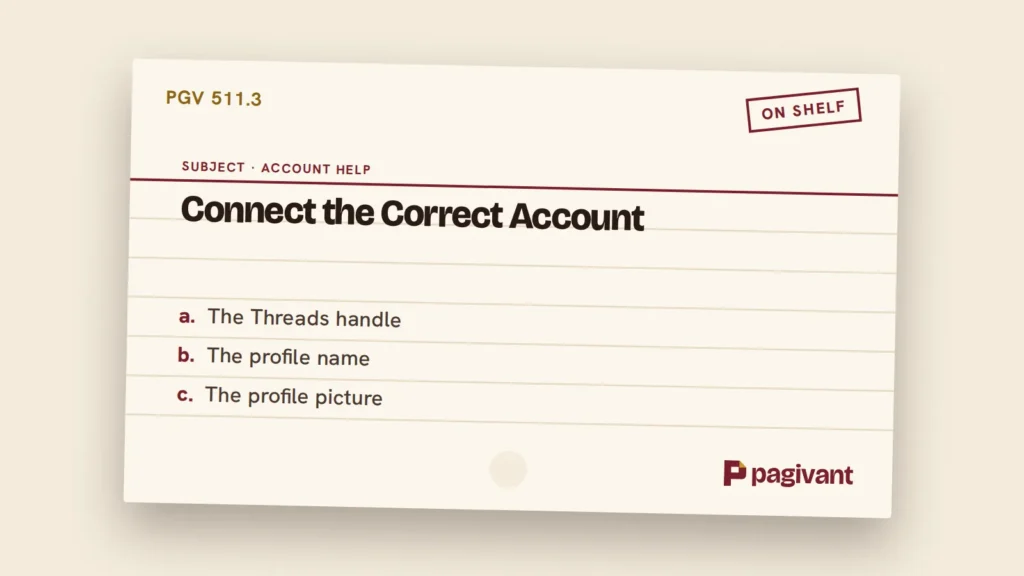
The authorization screen is the most important part of the process. Meta may show several Instagram or Threads identities if your login manages multiple brands, creators, or client accounts.
Before clicking Allow, compare:
- The Threads handle
- The profile name
- The profile picture
- The linked Instagram username
- The destination business portfolio
If any of these details are wrong, cancel and return to the account selector. Don’t authorize an account merely because its display name looks familiar.
If Threads opens Instagram
A Threads connection may redirect you to Instagram for confirmation because the accounts share account infrastructure. This doesn’t necessarily mean you’re adding only Instagram. Read the authorization screen and confirm that the intended Threads profile is named.
If Instagram asks you to switch accounts, choose the Instagram identity that originally created or controls the Threads profile. Using a different Instagram login can produce an empty list, a different Threads profile, or an authorization error.
If the profile isn’t listed
A missing profile usually indicates one of these conditions:
- You’re signed into the wrong Instagram account
- The Threads profile is controlled by another person
- The profile is already attached to another business portfolio
- The Threads account is private (only public accounts can be added)
- The authorization session has expired
- Meta hasn’t made the asset connection available to that account
Sign out of unrelated Meta accounts, use a private browser window, and try again. If the profile still doesn’t appear, ask the current owner to perform the connection or grant the appropriate access.
Assign People and Partners
Adding a Threads profile to a portfolio doesn’t automatically give every employee, contractor, or agency access. Access to a Threads account is managed through the associated Instagram account in the same portfolio, so assign access there.
Open the Threads asset in Business Settings and look for People, Partners, or Assign people. The labels depend on the type of portfolio and the role of the person managing it.
Typical access choices include:
- Partial access for routine publishing or moderation
- Full control for an owner or senior administrator
- Messaging or community permissions, where available
- Content or publishing permissions, where available
- Reporting or insights permissions, where available
Give each person only the access needed for the job. A community manager may need to publish and respond to messages but not change ownership. An agency may need partner access without becoming the asset owner.
| User or organization | Suitable access | Avoid giving by default |
|---|---|---|
| Brand owner | Full control | Nothing essential, if they own the business |
| Social media manager | Content and messaging access | Ownership changes |
| Freelance designer | Content access, if needed | Full control |
| Marketing agency | Partner access | Permanent ownership |
| Customer support team | Messaging access | Asset deletion rights |
| Bookkeeper or analyst | Reporting access | Publishing permissions |
Add an agency partner
If an agency manages the account, the business owner should usually add the agency by its Business ID. The agency can then assign work internally without requiring the client to add every employee one by one.
The client should:
- Open the access settings of the Instagram account linked to the Threads account.
- Choose Assign partner or Add partner.
- Enter the agency’s Business ID.
- Select the requested permissions.
- Review the partner name carefully.
- Confirm the invitation or assignment.
The agency shouldn’t request full ownership merely to publish content. Partner access is generally the cleaner arrangement because the client keeps control if the contract ends.
Warning: Never approve an unfamiliar Business ID. Ask the agency or contractor to send its ID through a verified channel, such as an existing company email address or an established client contact.
What You Can Do Afterward
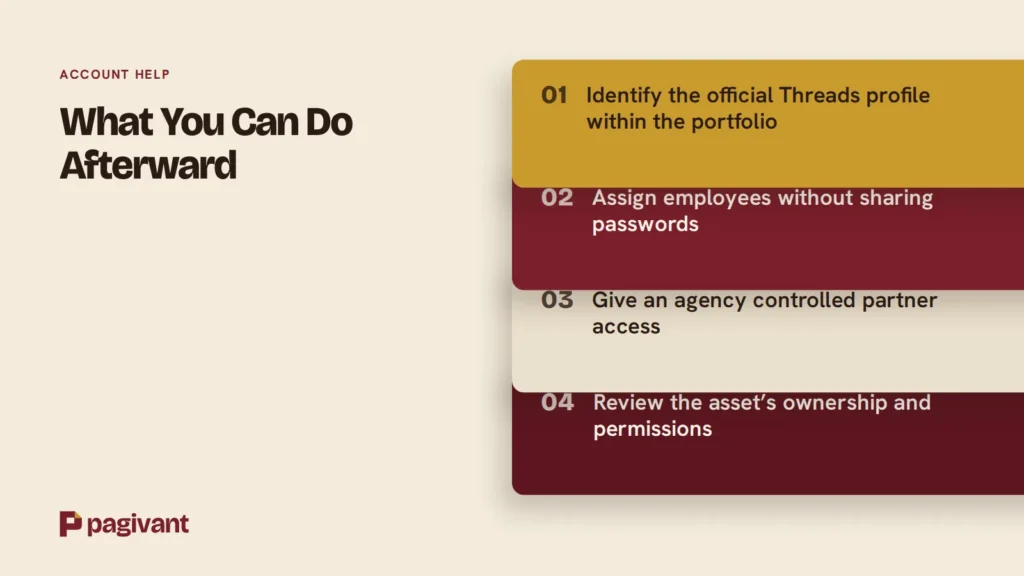
The value of adding Threads to the portfolio is centralized management. Available features vary, but a connected asset can make it easier to coordinate people, permissions, publishing workflows, and account visibility.
Depending on Meta’s current tools, you may be able to:
- Identify the official Threads profile within the portfolio
- Assign employees without sharing passwords
- Give an agency controlled partner access
- Review the asset’s ownership and permissions
- Coordinate Threads activity with Instagram workflows
- Monitor available account information from one business administration area
- Remove former employees without changing the account password
A connection doesn’t guarantee that every Facebook, Instagram, or Meta Business Suite feature works identically on Threads. Publishing, inbox, advertising, analytics, and moderation capabilities may differ by country, account type, and rollout status.
Confirm the connection
After setup, open the Threads asset and check:
- The exact profile handle
- The portfolio name
- The owner or owning business
- Assigned people
- Assigned partners
- Available permissions
- Any pending invitations or warnings
Then ask an assigned user to sign in independently and verify that the expected tools appear. This catches permission problems before a scheduled campaign or customer-support shift begins.
Cross-posting and ads
Once the Threads account is in the same portfolio and the usernames match, you can cross-post from Meta Business Suite to Threads. Meta also lists running ads across Facebook, Instagram and Threads as a use of the portfolio. Ads are built in Ads Manager, and Meta Business Suite offers simpler boosting. Features can vary by account and rollout, so check what appears for your account.
Why Can’t I Add Threads?
The most common problem isn’t a technical failure. It’s a mismatch between the Threads profile, Instagram login, business portfolio, or ownership status.
Use this diagnostic table before contacting Meta support.
| Symptom | Likely cause | What to try |
|---|---|---|
| Threads isn’t an asset option | Private Threads account, or an eligibility issue | Switch the Threads account to public, use desktop Settings in Meta Business Suite, and check again later |
| Profile list is empty | Wrong Instagram login | Sign out and use the controlling Instagram account |
| “You don’t have permission” | Insufficient portfolio control | Ask an owner to connect or upgrade your access |
| Profile belongs to another portfolio | Existing ownership | Ask the current owner to grant partner access |
| Authorization loops repeatedly | Stale browser session | Use private browsing, clear cookies, and retry |
| Connection completes but asset disappears | Sync or interface delay | Refresh, reopen the portfolio, and wait before retrying |
| Wrong profile appears | Multiple linked accounts | Cancel and verify the Threads handle before approval |
| Invite can’t be accepted | Recipient has wrong login | Accept with the email or Meta account intended by the owner |
The Threads option is missing
First, confirm that you’re in the correct portfolio and using Business Settings rather than a personal account center. Search the available asset categories and inspect the account-management area.
If Threads still doesn’t appear:
- Try a desktop browser
- Disable browser extensions that block pop-ups
- Sign out of other Meta accounts
- Use a private browsing window
- Confirm that the Threads profile is active and set to public
- Check whether the Instagram account is connected
- Ask the portfolio owner to repeat the process
- Wait and retry if Meta recently changed the account
Don’t create a duplicate Threads profile just to make the option appear. A duplicate can split followers, confuse customers, and create an ownership problem.
The profile is owned elsewhere
If Meta says the profile is already connected to another business, identify that owner before taking action. A former agency, employee, parent company, or regional team may control the portfolio.
The cleanest solutions are:
- Have the existing owner assign your business as a partner
- Ask the owner to remove the asset after confirming the transfer is appropriate
- Move the account through an authorized ownership process
- Contact Meta support if the listed owner is unknown or inaccessible
Avoid attempting repeated claims. Ownership disputes can become harder to resolve when several administrators submit conflicting requests.
Verify Security and Ownership
A successful connection is only complete when the ownership and access model are documented. Record the portfolio name, Threads handle, owning business, assigned partners, and the date the connection was made.
Review access whenever someone:
- Leaves the company
- Changes departments
- Ends an agency contract
- Loses access to the related Instagram account
- No longer needs publishing privileges
- Is replaced by a new contractor
Use individual Meta accounts rather than shared passwords. Turn on two-factor authentication for administrators and keep recovery methods current. Remove inactive people promptly, especially those with full control.
Pro Tip: Schedule a quarterly permissions review. Compare every listed person and partner with your current staff roster, agency contracts, and brand ownership records.
If the Threads profile is a company asset, keep ownership with the company portfolio rather than an employee’s personal portfolio. Employees can change jobs; the brand’s account should remain with the organization.
Manage Multiple Threads Profiles
Businesses with several locations, brands, or languages should decide whether to use one portfolio or multiple portfolios before connecting accounts. The correct structure depends on legal ownership and who needs access.
Use one portfolio when:
- One company owns all profiles
- The same central team manages every profile
- Billing and administration are centralized
- Regional teams can work through assigned permissions
Consider separate portfolios when:
- Different legal entities own the accounts
- Brands operate independently
- A franchisee owns a local profile
- Access must be isolated for compliance or confidentiality
| Business situation | Recommended structure | Access approach |
|---|---|---|
| One national brand | One portfolio | Assign regional employees |
| Parent company with subsidiaries | Separate portfolios where ownership differs | Use partner access |
| Marketing agency with clients | Client-owned portfolios | Agency receives partner access |
| Franchise system | Portfolio per owner or approved central structure | Limit local permissions |
| Temporary campaign team | Existing brand portfolio | Time-limited employee access |
Name assets consistently, such as Brand - US Threads, Brand - Canada Threads, or Brand - Support Threads. Clear names reduce the risk of publishing from the wrong profile.
For hands-on help with this, our team offers Facebook Page Setup.
Frequently Asked Questions
Can I add Threads without Instagram?
Threads accounts are tied to an Instagram account, and Meta manages Threads permissions through the Instagram account in the portfolio. If the Threads profile isn’t connected to the Instagram identity you control, link or verify those accounts first. The exact eligibility and available business controls can vary by account and region.
Do I need a business Threads account?
Not necessarily. The important requirements are account control, portfolio permissions, and eligibility for the available Meta business tools. Some features may require a professional or business setup, while basic account connections may appear for other profiles. Check the authorization screen rather than assuming every Threads profile has identical options.
Can an agency add my Threads account?
An agency can help, but the brand should normally own the Threads asset in its own business portfolio. Give the agency partner access through its Business ID and assign only the permissions required. This preserves the brand’s control if the agency relationship ends.
Why does my Threads profile not appear?
The usual causes are a private Threads account, a wrong Instagram login, insufficient portfolio access, existing ownership by another business, or an expired authorization session. Try a private browser window, confirm the controlling account, and ask the current portfolio owner to check the asset list.
Can I remove Threads from a portfolio?
Open Settings in Meta Business Suite, click Threads accounts under Accounts, and select the account you want to remove. Then use the remove option for that account. Switching the Threads account to private also disconnects it. Don’t remove an asset until you understand whether another portfolio or owner must retain control.
Conclusion
Open Meta Business Settings now, switch to the portfolio that should own the brand, and verify the controlling Instagram and Threads login before selecting Add assets. Once the profile appears, assign one trusted administrator and the minimum working access for everyone else, then record the ownership details for future audits.

Derek Campbell writes about Facebook features, tools, and account management, covering topics such as account troubleshooting, Business Manager, Facebook Marketplace, and outreach strategies. His content also explores Facebook Groups, community engagement, and ways to connect with relevant audiences. His writing emphasizes practical Facebook know-how, from navigating Marketplace and managing business communities to building meaningful connections through Groups and outreach.
Checked against Facebook’s own help and policy pages on the date shown above.