Facebook Marketplace Payout Delayed: Why

The reason a facebook marketplace payout is delayed is usually a review of your payout account, bank details, or order status. The fastest check is to open your Marketplace selling tools and read the payout status beside the order. If it says pending, Meta may still be processing the sale. If it says failed, check the bank or payment details before contacting support.
A delay can also start when the buyer hasn’t completed the order, a refund is open, or Meta asks for identity or tax information. Don’t send extra information through a message from a stranger. Use only the payout settings inside Facebook.
Why Facebook Marketplace payouts get delayed
The most common causes are listed first. “How common” is a practical guide, not a published Meta percentage, because Meta doesn’t give one public breakdown for Marketplace payout delays.
| Cause | How common | How to confirm it | Fix it yourself? |
|---|---|---|---|
| Payout still processing | Very common | Check payout status | Yes |
| Bank details need review | Common | Review payout account | Yes with care |
| Buyer order isn’t complete | Common | Check order status | Yes |
| Identity or tax review | Less common | Read account notice | Yes with care |
| Refund or dispute opened | Less common | Check order messages | Yes with care |
| Bank rejected the transfer | Uncommon | Ask your bank | Yes with care |
| Account or policy restriction | Rare | Look for restriction notice | No |
A payout can look late even when no payment failure has happened. The order may still be inside Meta’s processing flow, or the payout date may depend on the payment method and account review.
Check the exact status first. If it says processing, look for an open order, identity, or tax task and follow the displayed payout date. If it says completed but the money is missing, confirm the payout account and ask the bank whether it rejected or is holding the transfer.
Repeatedly changing bank details during review can trigger another review. Contact Meta if a restriction or unresolved dispute blocks the payout.
The payout is still processing
A pending payout usually means the transfer hasn’t been released yet. The sale may be complete in Marketplace, but the money can still be waiting for order confirmation, payment review, or the payout schedule connected to your account.
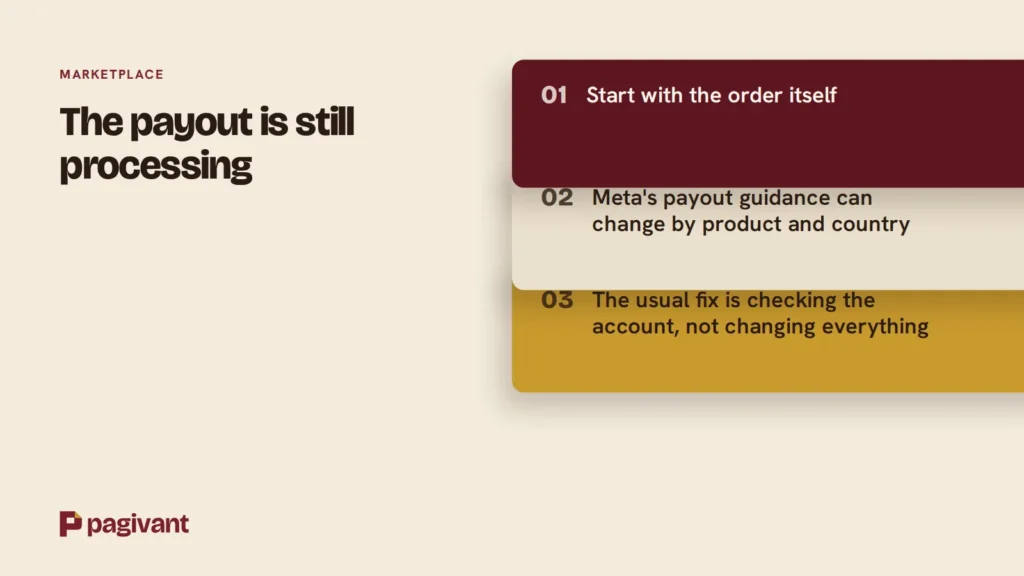
Start with the order itself. Open Facebook, go to Marketplace, select your selling activity, and open the affected order. Look for words such as Pending, Processing, Paid, Failed, Refunded, or Canceled.
Next, open your payout or payment settings. Compare the payout status, the expected date, and the last four digits of the bank account or other payout method. Don’t rely on an email alone; the account page is the better place to confirm the status.
Meta’s payout guidance can change by product and country. Check the official Meta payout help page and the instructions shown in your own payout settings.
If the status is still pending, wait for the date shown there unless the account also displays an error. If the date has passed, save a screenshot of the order ID, status, and date before contacting Meta support.
The usual fix is checking the account, not changing everything. A common mistake is removing and re-adding the bank account while a transfer is already moving. That can create a second review and cost you more time.
This fix normally takes only a few minutes to check, but the release itself isn’t controlled by a setting you can force. If the payout details are correct and the displayed date has passed, support is the right next step.
Incorrect bank details stop the transfer
A rejected or incomplete bank account can hold a payout even when the Marketplace order shows as paid. The problem may be a wrong account number, a name mismatch, an unsupported account type, or details that need verification.
You can tell this cause apart from a normal pending payout by the wording. A normal delay usually shows Pending or Processing, while a bank problem often shows Failed, Returned, Action required, or a request to update payment details.
Open the payout settings from the same Facebook account that made the sale. Check the account holder name, bank routing details, account number, country, and currency. Compare them with your bank records, but don’t post those details in a Marketplace chat or support comment.
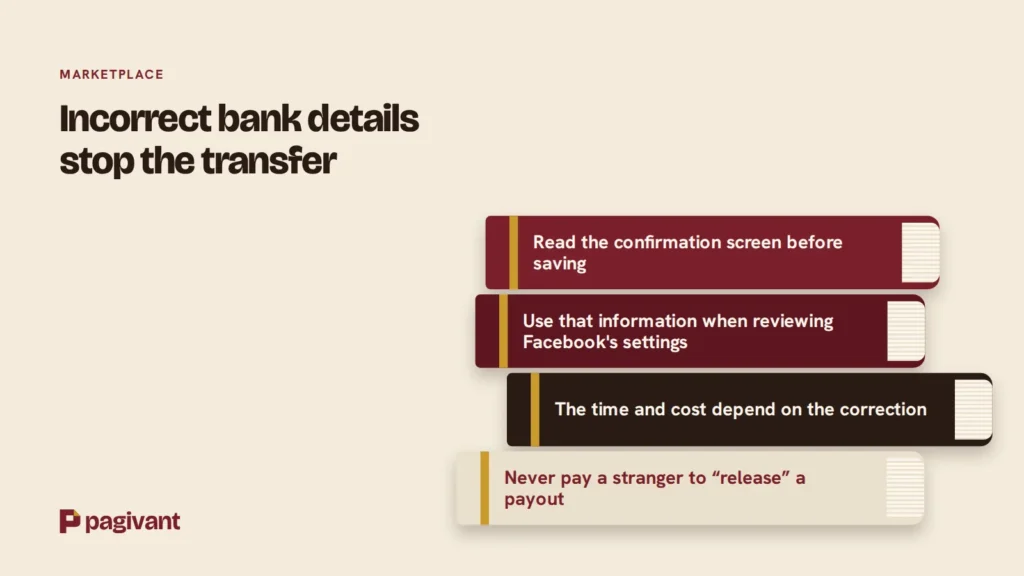
If one field is wrong, correct only that field through Facebook’s official settings. Read the confirmation screen before saving. If the account is shared, prepaid, business, or outside the supported country for that payout setup, check the on-screen eligibility message rather than guessing.
If a bank returned the transfer, ask whether it rejected the payment and what information it needs for an incoming payout. Use that information when reviewing Facebook’s settings.
The time and cost depend on the correction. A simple typo may take a short account update, while a returned payment can require another processing cycle. You won’t know the real timing until Facebook shows a new payout date.
Never pay a stranger to “release” a payout. A request for gift cards, cryptocurrency, a login code, or an off-platform fee is a scam warning, not a normal bank correction.
The buyer’s order isn’t complete
A payout may wait because the order itself hasn’t reached the stage that releases seller funds. This can happen when delivery, pickup, payment confirmation, cancellation, or a buyer complaint is still open.
Check the order timeline, not just your inbox. Look for a completed payment, delivery or pickup status, refund notice, cancellation, or dispute message. If the buyer says they paid but your Marketplace order doesn’t show the payment, treat the order as unconfirmed.
Ask the buyer to use the order page and Facebook’s own payment flow. Don’t accept a screenshot as final proof, because screenshots can be edited. If the order was arranged outside Marketplace, the payout may not be connected to the sale at all.
This cause differs from a bank problem in one clear way: the order status is incomplete before you investigate the payout account. If the order is complete but the payout has failed, focus on payment details instead.
For a shipped item, keep the tracking number and proof of shipment. For a pickup, keep the agreed messages and confirmation that the item changed hands. Don’t mark an order complete just to make the payout appear, and don’t ship again because a buyer claims the first payment is stuck.
If the order is canceled or refunded, the payout may not arrive as expected. The trade-off is simple: waiting protects you from sending an item into a disputed transaction, while pushing for a quick release can leave you without the item or the money.
Reviews, refunds, and account restrictions
Less common causes still matter when the basic payout status doesn’t explain the delay. These problems often leave a notice in Account Quality, Support Inbox, the order page, or payout settings. Check those locations before changing bank details or submitting another payout request.
- Identity review: A request for identity information points to account verification, not a bank typo. Complete the requested steps and check whether the review has a separate status or deadline.
- Tax information review: A tax form notice means the payout account needs information before release. Confirm that the form is submitted under the same account receiving the payout.
- Refund or dispute: A refund, chargeback, or buyer complaint points to an order issue. The affected amount may remain tied to that order while the case is handled.
- Policy restriction: A disabled selling feature or account warning points to an enforcement decision. Fixing bank information won’t remove a restriction that applies to selling or payouts.
If the notice names an order, investigate that order first. If it names your account, review Account Quality and Support Inbox instead of treating every delayed payout as a payment error. A missing notice doesn’t prove that no review exists; it may mean only that Facebook hasn’t exposed the internal reason.
Don’t send identity documents through a buyer’s chat or a random email address. If Facebook asks for documents, use the upload path inside your account. Save the notice and submission confirmation, but don’t send duplicate documents unless Facebook requests them.
If the next step involves a legal dispute, suspected fraud, account access, or a bank investigation, stop DIY troubleshooting and contact Meta support, your bank, or a qualified adviser.
The visible status tells you what stage the payout has reached, but it doesn’t always show the internal reason for a review. Check the order status, account notice, and payout date shown in Facebook.
What fixing a delayed payout involves
A simple pending status usually needs an account check and the order ID. Compare the payout status with the order details before contacting support. That costs a few minutes of your time and no special tool. You may also need screenshots, but hide full bank numbers, tax details, passwords, and security codes. A pending label alone doesn’t prove the payout failed; if it changes to returned, failed, or restricted, use that message as the starting point.
A bank-detail problem needs careful comparison with your bank record. Check the account and routing information character by character. Correcting one field is smaller than opening a new payout account, but a returned transfer can take longer because the money may need to be sent again. Save confirmation of the final correction instead of repeatedly editing the details.
An order problem needs records: the order page, buyer messages, tracking details, and any refund notice. Keep the evidence together before contacting support. Include the order ID and the exact status shown when you report it. It can save repeated explanations and help separate a delivery or refund issue from a payout issue.
A verification or restriction problem may need Meta support. It can demand more time than a normal settings fix, and you shouldn’t try to bypass it with a second account. Follow the requested review steps in the account that received the notice, and keep copies of anything submitted. The real cost depends on the reason, country, payout method, and account status.
For a real quote or bank answer, ask the bank handling the account and use Facebook’s own support route for platform questions. Neither a buyer nor an outside “agent” can legitimately charge you to release Meta’s payout.
For hands-on help with this, our team offers Facebook Marketplace Account Setup.
Frequently asked questions
Why is my Facebook Marketplace payout pending?
A pending Facebook Marketplace payout usually means Meta hasn’t released the transfer yet. Check the order page and payout settings for the expected date, payment status, and review notices. If the date has passed, save the order ID and screenshots before contacting Meta support through Facebook. Don’t pay fees or share login codes to speed it up.
How long does Facebook Marketplace payout take?
There isn’t one fixed number of days for every Marketplace payout. The time depends on the order status, payout method, country, bank, and any identity or tax review. Use the expected date shown in your Facebook payout settings as the useful number for your account. If Facebook doesn’t show a date, check the order status first. A bank can also confirm whether it rejected or returned an incoming transfer.
Can Facebook Marketplace hold my money?
Yes, a payout can remain on hold while an order, account, identity check, refund, or dispute is reviewed. The hold should appear through an order status, account notice, or payout message. Read the exact wording before taking action. If Facebook asks for information, submit it only through the account’s official review path. A buyer can’t remove a platform hold by sending you a private payment or asking for an extra fee.
What happens if my bank rejects a Marketplace payout?
A Facebook payout may show as failed, returned, or needing action after the bank rejects it. Update only incorrect information through Facebook. Don’t create several new payout accounts while the first transfer is being checked. The correction may require a new release date, so keep the original order and transaction records.
Is it safe to send my ID for a Facebook payout?
A verification request is safe only when it appears inside Facebook’s official account or verification flow. Before uploading anything, check the account notice and web address, and never send an ID, password, security code, or bank login to a buyer, social-media contact, or unexpected email address. If it looks unusual, stop and contact Meta through its support tools.
Does it matter if the buyer says they paid?
Yes, it matters because a buyer’s message isn’t proof that a Marketplace payment completed. Confirm the payment on the order page and in your payout activity. If Facebook shows no matching order or payment, don’t ship an item or refund the buyer based on a screenshot. Ask the buyer to resolve the issue through Facebook’s order flow. Keep communication on the platform so the transaction record stays connected to the sale.
What should I do if my payout date has passed?
Contact Meta support after checking the order status, payout method, account notices, and bank records. Include the order ID, displayed payout date, current status, and a short description of what you already checked. Remove sensitive numbers from screenshots. If the bank says it returned the payment, include that information too. Don’t pay anyone who promises faster release, and don’t open a second account to bypass a review.
Conclusion
A delayed payout is usually solved by identifying the stage that stopped: order processing, account review, bank rejection, or a dispute. Check the status shown inside Facebook first, then use the matching fix instead of changing every payout detail at once.

Derek Campbell writes about Facebook features, tools, and account management, covering topics such as account troubleshooting, Business Manager, Facebook Marketplace, and outreach strategies. His content also explores Facebook Groups, community engagement, and ways to connect with relevant audiences. His writing emphasizes practical Facebook know-how, from navigating Marketplace and managing business communities to building meaningful connections through Groups and outreach.
Checked against Facebook’s own help and policy pages on the date shown above.