How to Change Your Facebook Marketplace Radius


You can change your Facebook Marketplace radius by opening Marketplace, selecting the location control, entering a new city or ZIP code, choosing a distance, and saving the change. The exact labels vary by device and Facebook version, but the setting is usually near the current Marketplace location or inside the search filters.
Key Takeaways
- Change the Marketplace location first, then choose a larger or smaller radius.
- On the Facebook app, open Marketplace, tap the location or filter button, adjust the distance, and apply it.
- On a computer, use Marketplace’s location control or search filters; the desktop layout may differ from the mobile app.
- A radius changes where Facebook looks for listings, not necessarily the seller’s exact pickup distance.
- If the setting keeps reverting, check location permissions, saved searches, account settings, and whether the listing category supports distance filtering.
- Search several nearby ZIP codes when a single radius doesn’t show enough reliable results.
Change Facebook Marketplace Radius
Facebook Marketplace may call the setting distance, radius, or location range. These labels can change after an app update, and some accounts display a map rather than a mileage slider. The basic process remains the same:
- Open Facebook and select Marketplace.
- Tap or click the current location shown near the top of Marketplace.
- Enter a city, ZIP code, or neighborhood.
- Select the available distance or radius.
- Tap Apply, Save, or Update location.
- Return to the results and confirm that the location and distance now match what you want.
Common radius choices include 5, 10, 20, 40, 60, or 100 miles, although Facebook can show different increments. Some users see kilometers instead of miles based on their regional settings.
| Setting | What it controls | What it doesn’t guarantee |
|---|---|---|
| Location | The center point for results | That every seller is located at that point |
| Radius or distance | How far Facebook searches from the center | A specific delivery or pickup distance |
| Sort order | How listings are arranged | That the closest item appears first |
| Shipping filter | Whether shipped items appear | That local pickup is available |
| Category | Which type of listings appear | That every listing uses accurate categories |
The distance is best understood as a search boundary, not a promise. A seller may list a nearby suburb, use an imprecise map pin, or agree to meet outside the displayed area. Before arranging pickup, confirm the actual town and meeting location through Messenger.
If you see a map
When Facebook shows a map instead of a slider, drag the map or move the location pin to the desired area. Look for a control labeled Update results, Search this area, or something similar. Facebook may not refresh listings until you deliberately confirm the new map position.
Before You Start
Decide what the radius needs to accomplish before changing it. A short range works well for bulky furniture, appliances, and low-value items where a long drive defeats the savings. A wider range helps with rare tools, vehicles, collectibles, and specific replacement parts.
Prepare these details:
- Your preferred ZIP code or city
- The maximum practical driving distance
- Whether you want local pickup, shipping, or both
- The exact category, brand, model, or size
- A second nearby location to use if results are sparse
Don’t rely only on Facebook’s automatic location. It may use your phone’s approximate location, an old address, a manually selected city, or the location associated with account activity. A location can also be correct geographically but still be inconvenient because of bridges, mountain roads, tolls, ferry routes, or traffic.
Your phone’s operating system can affect location suggestions. On an iPhone, location access is managed through Location Services, and Apple explains how to review app-specific permissions in its Location Services settings guide. You can still enter a location manually if you don’t want Facebook using your device location.
Choose a realistic distance
Use the table below as a starting point rather than a rule. The best radius depends on the item, traffic, and whether the seller will meet nearby.
| Purchase type | Useful starting radius | Why |
|---|---|---|
| Small household items | 5–15 miles | Easy to collect and often widely available |
| Furniture | 10–25 miles | Transport time and vehicle size matter |
| Cars and motorcycles | 25–75 miles | More choice may justify a longer trip |
| Musical instruments | 20–50 miles | Condition and model can matter more than distance |
| Rare collectibles | 50–100 miles | A broader search may be necessary |
| Firewood or building materials | 5–20 miles | Fuel and hauling costs can erase savings |
Pro Tip: Set the radius slightly below your true maximum at first. Expand it only after checking the closest results, because a wider search can make a feed look better while adding many listings that aren’t practical to collect.
Phone App Steps
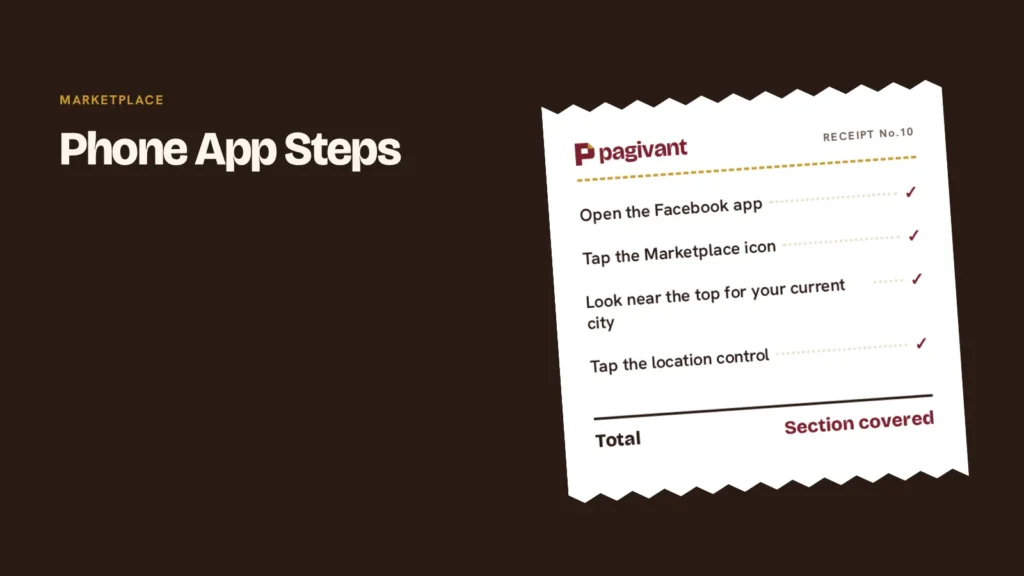
The Facebook app is usually the fastest way to change the setting. The buttons can appear in different places on iPhone and Android, but the workflow is similar.
Method one: Change location directly
- Open the Facebook app.
- Tap the Marketplace icon. If it isn’t visible, tap the menu button and select Marketplace.
- Look near the top for your current city, ZIP code, or a small location-pin icon.
- Tap the location control.
- Enter a new city or ZIP code.
- Choose a radius from the available distance options.
- Tap Apply, Save, or Confirm.
- Scroll through the refreshed results and verify the location shown at the top.
Some versions place the distance option immediately below the location. Others require you to tap Filters first. If you see only a map, select the area you want and then tap Search this area.
Method two: Change it through filters
Use this route when no separate location button is visible:
- Open Marketplace and run a search, such as “dresser” or “Honda Civic.”
- Tap Filters.
- Find Location, Distance, or Within.
- Replace the current city or ZIP code if necessary.
- Select the desired mileage.
- Tap Show listings, Apply, or the equivalent button.
- Check whether the filter remains active after results load.
A filter may apply only to the current search rather than to all Marketplace browsing. If the radius disappears when you start a new search, repeat the process from the new search screen or change the main Marketplace location first.
Method three: Use a saved search
If you repeatedly search for the same item, save the search after setting the correct area. Saved searches can retain terms and filters, but Facebook doesn’t always preserve every setting. Reopen the saved search and inspect the location filter before relying on its notifications.
Desktop Steps
Facebook Marketplace on a computer usually offers more room for the location panel, but the control may be on the left side rather than at the top.
- Sign in to Facebook in a desktop browser.
- Select Marketplace from the left navigation.
- Find the location, map-pin, or Filters control.
- Enter a city, ZIP code, or neighborhood.
- Choose a distance from the available options.
- Select Apply, Update, or See listings.
- Refresh the page if the results still show the old area.
On some desktop layouts, you must first select a category or type a search term before the full filter panel appears. If the left panel is collapsed, expand it with the menu or filter icon.
| Where you use Marketplace | Usual place to edit radius | What to check afterward |
|---|---|---|
| Facebook app | Top location control or Filters | Location text and distance |
| Mobile browser | Filters near search results | Whether the map refreshed |
| Desktop browser | Left-side filter panel | Whether results changed after Apply |
| Saved search | Search settings or saved-search menu | Whether distance was retained |
| Marketplace shortcut | Location pin near the header | Whether it affects all searches |
Warning: Don’t assume that changing a search term changes your general Marketplace radius. A search for “desk” can show a different area if it includes a separate location filter or a saved-search setting.
Pick A Better Location
Changing the center point can be more useful than simply increasing the radius. If you live near a state line, a large city, or a coastal area, a ZIP code may produce more relevant results than automatic GPS.
Try these options:
- Use your home ZIP code for ordinary local purchases.
- Use the seller’s likely city when searching for a rare item.
- Try a nearby urban ZIP code if your suburb has few listings.
- Use a ZIP code near a highway interchange when pickup routes matter.
- Search a neighboring state only when you understand registration, tax, or transport issues.
- Use separate searches for north, south, east, and west suburbs instead of one very large circle.
A radius is normally circular or approximately circular, while real travel is not. A location 30 miles away may take 90 minutes by road. Conversely, a listing slightly outside the circle could be a quick trip on a major highway.
For bulky purchases, compare the total trip cost, including fuel, tolls, trailer rental, parking, and time. A cheaper sofa 40 miles away may cost more than a slightly pricier sofa nearby. For vehicles, add inspection, temporary tags, insurance, and transportation before deciding that a distant result is worthwhile.
Search by landmarks carefully
Landmarks and neighborhood names can produce inconsistent results. Use a ZIP code when Facebook doesn’t recognize a neighborhood or places the pin in the wrong county. After saving the location, open one or two listings and inspect the displayed town rather than trusting only the map.
What The Radius Changes
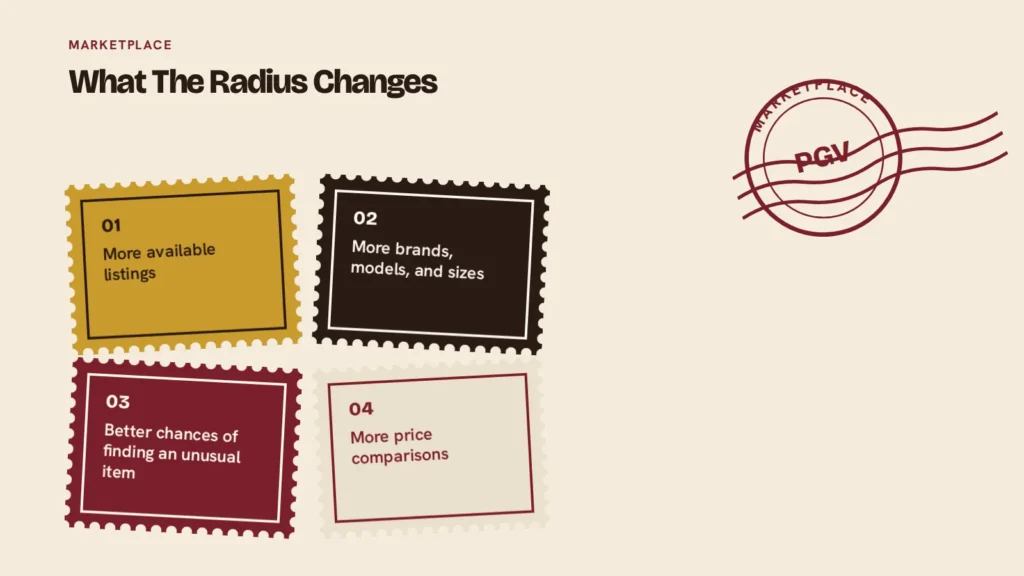
The radius affects the listings Facebook includes in your search. It doesn’t rewrite listing descriptions, correct seller-provided locations, or force Facebook to show every item inside a perfect circle.
A wider radius can provide:
- More available listings
- More brands, models, and sizes
- Better chances of finding an unusual item
- More price comparisons
- More seller competition
A narrower radius can provide:
- Less scrolling
- Easier pickup planning
- Lower fuel expense
- Faster inspection and collection
- Better results for urgent purchases
The radius may not affect every Marketplace surface equally. Recommendations, sponsored listings, shipping items, recently viewed products, and category pages can use additional signals. A listing may appear because it’s eligible for shipping or because Facebook considers it relevant, even if it isn’t close to your selected center.
Radius versus delivery
Marketplace distance isn’t a delivery calculator. Sellers may offer:
- Local pickup only
- Paid delivery
- Free delivery within a limited area
- Shipping through Facebook or an independent carrier
- No transportation at all
Ask for the exact pickup town before sharing a meeting time. For furniture and appliances, confirm whether the seller can help load the item, whether stairs are involved, and whether the listed dimensions fit your vehicle.
Why Won’t My Radius Change?
Several issues can make the setting appear stuck. The most common is that Facebook saved the location but not the distance, or applied the distance only to one search.
Check these causes:
- The app is using an old cached location.
- A saved search has its own filter.
- The browser blocked or reset location permissions.
- Facebook displayed shipping or recommended listings.
- The selected ZIP code wasn’t recognized correctly.
- The app needs an update.
- The account has limited Marketplace access.
- The listing category has different filter behavior.
- A temporary Facebook service issue prevented the refresh.
- The map changed but the results page didn’t reload.
To test the setting, search for a common item with many listings, such as “chair” or “table.” Change the location dramatically, apply a narrow radius, and compare the results. If nothing changes, the filter may not have saved or the page may be showing recommendations rather than distance-filtered results.
Pro Tip: Take a screenshot of the location and radius before leaving the filter screen. If the results later revert, you can compare the displayed setting and identify whether the problem is saving, refreshing, or listing relevance.
Troubleshooting By Device
Use the smallest fix that matches the problem. Reinstalling Facebook should be a last resort because it doesn’t correct an account-side setting.
| Problem | Phone fix | Computer fix |
|---|---|---|
| Old city appears | Edit Marketplace location manually | Clear the location field and re-enter ZIP code |
| Distance won’t save | Update app, reopen Marketplace | Refresh page and retry in a private window |
| Map is blank | Check internet and location permission | Disable conflicting extensions temporarily |
| Results ignore radius | Remove shipping or recommendation filters | Check all active filters in the left panel |
| Search resets | Start a new search and reapply distance | Open Marketplace directly, not an old bookmark |
| No nearby listings | Expand radius gradually | Try another ZIP code or category |
| Marketplace missing | Use the menu and confirm account access | Sign out, then sign in again |
Refresh the app
Close Facebook completely and reopen it. Then:
- Check for an app update.
- Sign out and back in if the location still reverts.
- Confirm that your phone has a stable connection.
- Review Facebook’s location permission.
- Remove and reinstall the app only if other steps fail.
On Android, the exact menu for clearing an app cache varies by phone manufacturer. Clearing cache is different from clearing storage; the latter can remove local app data and require another sign-in.
Refresh the browser
On a computer, open Marketplace in a current browser window. If the radius behaves incorrectly:
- Refresh the page.
- Disable a browser extension that modifies page content.
- Try a private or incognito window.
- Clear site data for Facebook if the problem persists.
- Test another current browser.
- Sign out and back in.
Don’t repeatedly change the radius while the page is still loading. Wait for the results to finish updating, then check the displayed location.
Get Better Local Results
A radius is only one part of an effective Marketplace search. Combine it with precise terms and a realistic pickup plan.
Use concrete search terms such as:
- “IKEA KALLAX 2×4”
- “KitchenAid mixer”
- “DeWalt 20V drill”
- “Nintendo Switch OLED”
- “Herman Miller Aeron”
- “twin mattress”
- “Toyota RAV4 roof rack”
- “solid wood dining table”
Include model numbers, sizes, colors, generation names, and conditions when those details matter. Search spelling variations, because sellers may write “PlayStation 5,” “PS5,” or “Sony console.”
Narrow the results with category filters, price, condition, and listing date. Then sort by newest when an item sells quickly. A broad radius with a narrow keyword can be more effective than a small radius with a vague term.
Compare nearby areas
When a search is important, run three versions:
- Your home location with a short radius.
- A nearby city with the same radius.
- Your home location with a wider radius.
Record the useful listings in a simple note. Include seller town, asking price, condition, and pickup requirements. This prevents repeatedly opening the same results and reveals whether the extra driving creates real value.
Confirm before traveling
Message the seller before leaving. Ask:
- Is the item still available?
- What city and cross streets are pickup near?
- Is the listed price current?
- Are there defects not shown in the photos?
- Does the item work, and can you test it?
- Is cash, a payment app, or another method accepted?
- Can the seller help load it?
Never treat the Marketplace map as a substitute for a confirmed address or meeting point. Choose a safe public location when appropriate, avoid sending deposits for ordinary local items, and don’t share unnecessary personal information.
Need it done properly the first time? See our Facebook Marketplace Account Setup service.
Frequently Asked Questions
Can I set a custom Facebook Marketplace radius?
Usually, you can choose only the distance options Facebook provides. If your preferred number is unavailable, select the closest available radius and use a more precise ZIP code. Searching separate nearby areas can approximate a custom boundary better than choosing the next much larger option.
Why does Facebook Marketplace show listings outside my radius?
Facebook may include shipping items, recommended listings, inaccurate seller locations, or results affected by a saved search. Check active filters and remove shipping or recommendation options where available. Open the listing details to verify the seller’s stated town before assuming the radius failed.
Does changing Marketplace location change my Facebook location?
No. Changing the Marketplace search location normally changes where Marketplace searches for listings; it doesn’t change your profile’s hometown, current city, mailing address, or phone location settings. You can manually select a Marketplace location without making it your permanent personal location.
How do I increase my Marketplace search distance?
Open Marketplace, select the location or filter control, choose a larger distance, and apply it. If the option is missing, start a search first and open Filters. On a desktop, look in the left-side filter panel; on a phone, check the Marketplace header or Filters button.
Why does my Marketplace radius keep resetting?
The app may be saving the location but not the distance, or a saved search may be overriding the general setting. Update Facebook, re-enter the location manually, apply the radius, and test a fresh search. If it still resets, compare the app with a desktop browser to identify whether the problem is device-specific.
Conclusion
The quickest next step is to open Marketplace now, enter the ZIP code that best represents your pickup area, select a practical distance, and apply it. Run one test search for a common item, verify the seller towns, and then save the setup only after the results match the distance you can genuinely travel.

Derek Campbell writes about Facebook features, tools, and account management, covering topics such as account troubleshooting, Business Manager, Facebook Marketplace, and outreach strategies. His content also explores Facebook Groups, community engagement, and ways to connect with relevant audiences. His writing emphasizes practical Facebook know-how, from navigating Marketplace and managing business communities to building meaningful connections through Groups and outreach.
Checked against Facebook’s own help and policy pages on the date shown above.