How to Transfer Facebook Page Ownership

Transferring a Facebook Page means giving another person or business full control of the Page, then removing or reducing your own access after the recipient accepts it. The exact menu names vary by device, Page type, and whether the Page belongs to a Meta business portfolio, so check the Page’s access settings before starting.
Key Takeaways
- Full control is the permission level needed to manage access and effectively hand over a Page.
- Add the recipient before removing yourself; otherwise, you may lock both parties out of important settings.
- A Page connected to a business portfolio may require a portfolio-level transfer or release request.
- Keep the recipient’s email address, Facebook profile, and business details accurate so the invitation reaches the right person.
- Download invoices, ad records, messages, and important content before completing the handoff.
- Never share your password; use Facebook’s built-in access controls instead.
What Ownership Means
Facebook doesn’t always use one simple “owner” label. In practice, control can involve three separate things: your personal Facebook profile, the Page itself, and a Meta business portfolio that owns or manages the Page.
A person with Facebook access can usually switch into the Page and perform actions such as publishing posts, replying to comments, viewing insights, or managing ads. However, not every person with Page access can change other people’s permissions.
The important distinction is between:
- Task access — Allows assigned work such as content, messages, ads, or insights, usually without allowing the person to switch into the Page.
- Partial control — Allows broader Page work but may restrict access management and other sensitive changes.
- Full control — Allows the person to manage Page settings, assign access, remove users, and often make the changes needed for a complete handoff.
A Page may also be connected to specific assets, including:
- An Instagram professional account
- A Meta Pixel
- An advertising account
- A catalog in Commerce Manager
- A WhatsApp business number
- A domain or verified business
- A business portfolio
Giving someone full control of the Page doesn’t automatically transfer every connected asset. For example, the person may receive Page management rights but not ownership of your advertising account, Instagram account, payment method, or customer data.
The safest interpretation is this: you’re transferring administrative control of the Page, unless you separately transfer the business, brand, or connected assets.
Before You Transfer
Prepare both sides before opening Facebook’s settings. A transfer can become difficult when the recipient has an unverified profile, the Page is restricted, or the current administrator removes access too early.
Confirm the recipient
Ask the new administrator for the email address associated with their Facebook account, or identify their profile directly in the access screen. Confirm that the profile is the real person or authorized representative, not a similarly named account.
Use these checks:
- Confirm the recipient’s full name and profile photo.
- Ask whether they can receive an invitation notification.
- Verify the recipient represents the correct company, such as Acme LLC rather than a similarly named agency.
- Check that a contractor, employee, or agency isn’t being added to the wrong Page.
- Agree on whether they should receive full control or only task access.
Make a backup
Before the handoff, save information that may become inaccessible after your permissions change. Useful items include:
- Page posts and videos
- Audience and insights reports
- Ad campaign results
- Invoices and payment records
- Saved replies and message templates
- Moderation lists and blocked accounts
- Brand images, logos, and cover designs
- Business verification documents
- Important customer messages
If the Page receives leads, export or securely transfer those leads according to your privacy obligations. Don’t casually download or email customer information to a personal account.
Check restrictions
Look for problems that could block access changes:
- An unpublished Page
- A disabled advertising account
- A pending name or username change
- A security checkpoint
- A compromised administrator account
- An unresolved copyright or policy restriction
- A Page owned by another business portfolio
Warning: Don’t remove your own access until the new person has accepted the invitation and successfully opened the Page. An invitation that merely says “sent” isn’t proof that the transfer is complete.
Transfer Facebook Page Ownership
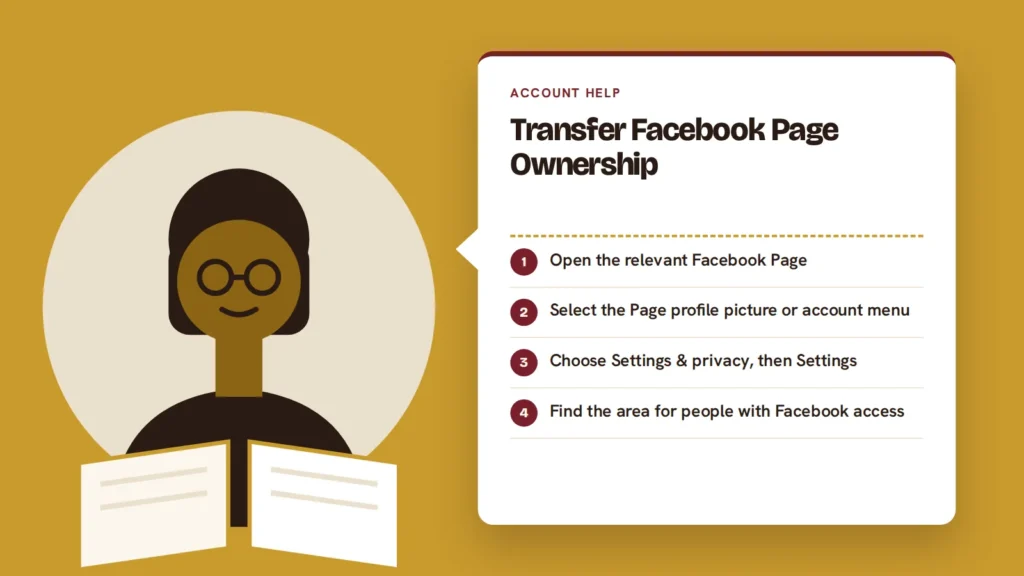
The current interface generally handles ownership as a transfer of full control. The steps below apply to the newer Pages experience, although labels can differ slightly between desktop and mobile.
Add the new administrator
- Log in to the Facebook profile that currently has full control.
- Open the relevant Facebook Page.
- Select the Page profile picture or account menu.
- Choose Settings & privacy, then Settings.
- Open Page setup, Page access, or a similarly named access section.
- Find the area for people with Facebook access.
- Select Add New or Add person.
- Search for the recipient by name or enter the email connected to their Facebook account.
- Choose Full control.
- Review the warning about access and select the confirmation button.
- Enter your Facebook password if Facebook requests reauthentication.
- Tell the recipient to accept the invitation.
The recipient may need to open the notification, email, or Page access area and accept the invitation before they can manage the Page. If the invitation expires, the existing administrator can usually send a new one.
Verify the invitation
Ask the recipient to confirm all of the following:
- The Page appears in their account switcher.
- They can open Page access.
- Their permission level says full control.
- They can view relevant settings without receiving an error.
- The Page name, username, profile image, and category are correct.
- Any required business portfolio invitation has also been accepted.
Don’t rely on a screenshot alone if the handoff is important. Have the recipient confirm through a live call or another trusted channel that they can access the correct Page.
Remove or reduce your access
After the recipient confirms control, return to the Page access list. Find your own profile and select the option to remove access or change your permission level.
Choose the result that matches your agreement:
| Handoff goal | Your final permission | Recipient’s permission |
|---|---|---|
| Complete sale or departure | Remove yourself | Full control |
| Ongoing consultant role | Partial or task access | Full control |
| Temporary management | Keep appropriate access | Full control |
| Employee promotion | Keep or remove as agreed | Full control |
| Agency arrangement | Task access only | Client retains full control |
You may need to enter your password again. If Facebook won’t let you remove yourself, confirm that the recipient accepted full control and that no business portfolio ownership issue is blocking the change.
Classic Page setup
Some Pages still display older settings. In that case, look for Page roles rather than Page access.
- Open the Page and select Settings.
- Choose Page roles.
- Find the section for assigning a new Page role.
- Add the recipient by name or email.
- Select Admin.
- Select Add and complete the password confirmation.
- Wait for the recipient to accept.
- Remove your own administrator role only after verification.
“Admin” in the older system is broadly comparable to full control, but the exact capabilities can differ as Facebook migrates Pages to the newer experience.
Business Portfolio Transfers
If the Page belongs to a Meta business portfolio, adding a person to the Page may not transfer business ownership. A portfolio is a business container that can hold Pages, Instagram accounts, ad accounts, pixels, catalogs, domains, and other assets.
First determine which situation applies:
- Your personal profile controls the Page, and no portfolio owns it.
- Your business portfolio owns the Page.
- Another company’s portfolio owns the Page.
- The Page is shared with a portfolio but ownership is unclear.
- The Page is attached to a former employee’s or agency’s portfolio.
Open Business settings or Business portfolio settings, then inspect Accounts, Pages, and the people or partners connected to the asset. The labels may include “Business portfolio,” “Business settings,” “People,” “Partners,” or “Page access.”
Portfolio-to-portfolio handoff
A business-to-business transfer usually involves one of these actions:
- Add the recipient’s company as a person or partner.
- Give the appropriate Page permission.
- If ownership must change, remove or release the Page from the old portfolio.
- Have the new portfolio claim or request access to the Page.
- Approve any release or ownership request.
- Reconnect associated Instagram, advertising, catalog, and pixel assets separately.
A release request can be delayed or blocked when the Page has an existing ownership claim, a restriction, an unresolved business verification issue, or a pending request from another portfolio.
The Meta Business Help Center explains how people and business assets can be assigned within a business setting. Use the current instructions shown in your account because Meta frequently changes the names and locations of these controls.
What doesn’t transfer automatically?
Changing Page control generally doesn’t move these items automatically:
| Connected item | Usually separate? | What to check |
|---|---|---|
| Instagram account | Yes | Account ownership and linked access |
| Ad account | Yes | Advertiser, admin, and payment permissions |
| Pixel or dataset | Yes | Business portfolio ownership |
| Product catalog | Yes | Commerce Manager access |
| Domain | Yes | Verification and business ownership |
| WhatsApp number | Yes | Business account administrator |
| Payment method | Yes | Billing owner and authorized users |
Don’t assume the new Page administrator can use your ad account or payment card. Give only the asset permissions required for the recipient’s job.
What the New Owner Receives
Someone with full control can generally manage the Page’s settings, content, messages, comments, insights, and access permissions. They may also be able to connect or disconnect certain accounts and change important business settings.
The new administrator may receive access to:
- Published and scheduled posts
- Page messages and comment history
- Audience and performance insights
- Reviews and recommendations
- Page settings and notifications
- Connected Instagram features, depending on permissions
- Existing Page roles or access assignments
- Lead information that remains inside the Page
They may not automatically receive:
- Your personal Facebook profile
- Your personal ad account
- Your personal payment cards
- Every business portfolio asset
- Private files stored outside Facebook
- Administrator rights to a connected Instagram account
- Historical information you downloaded before the transfer
Pro Tip: Write a short handoff inventory naming every asset, login-free permission, billing arrangement, and outstanding issue. A one-page checklist prevents confusion better than sending the recipient your password.
If the Transfer Fails
Most failed transfers come from the wrong account, an invitation problem, a business portfolio conflict, or a security restriction. Use the symptom to narrow the cause.
| Problem | Likely cause | Practical fix |
|---|---|---|
| Recipient can’t be found | Wrong profile or email | Search by profile URL or confirm the account email |
| Invitation never arrives | Notification or email issue | Check Page access, spam folders, and Facebook notifications |
| Recipient can’t accept | Account restriction or expired invite | Cancel and resend after checking account status |
| Full control is unavailable | You lack full control | Ask an existing full-control user to make the change |
| Page is missing from portfolio | Ownership belongs elsewhere | Review business settings and existing claims |
| Remove option is disabled | Transfer is incomplete | Have the recipient accept and verify access first |
| Access works but ads do not | Ad account is separate | Assign the ad account independently |
| Page opens incorrectly | Wrong Page selected | Confirm the Page ID, name, and profile image |
Invitation problems
If the recipient can’t accept, cancel the pending invitation and send a new one. Avoid sending several invitations at once because that can create confusion about which request is current.
Try these concrete fixes:
- Use the recipient’s Facebook profile instead of an email address.
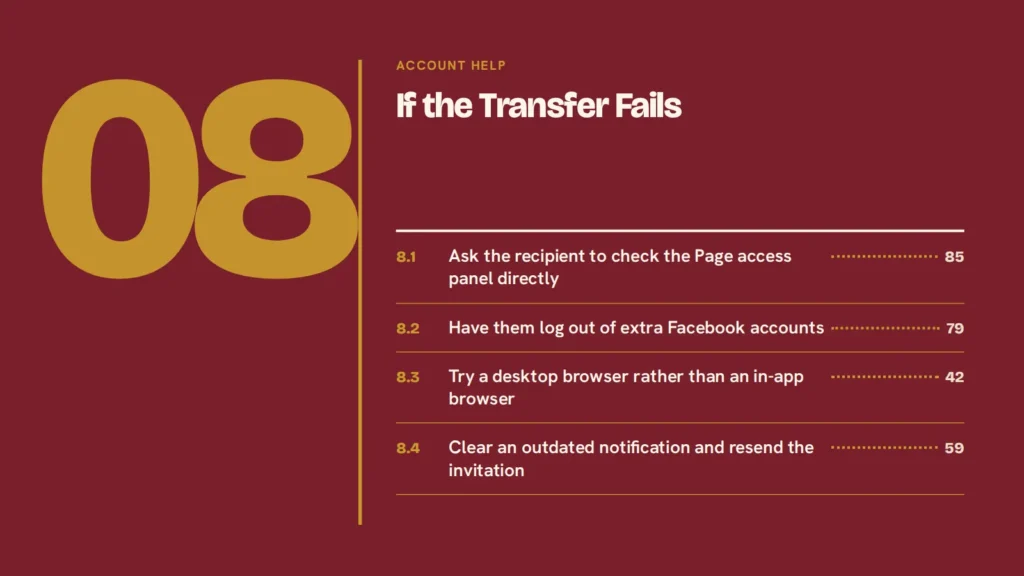
- Ask the recipient to check the Page access panel directly.
- Have them log out of extra Facebook accounts.
- Try a desktop browser rather than an in-app browser.
- Clear an outdated notification and resend the invitation.
- Confirm the Page isn’t restricted or unpublished.
- Check whether the recipient already has a lower access level.
Business ownership problems
If Facebook says another business owns the Page, identify that business before making changes. It may be a former employer, marketing agency, franchise company, parent corporation, or previous owner.
Gather:
- The Page URL and Page ID
- The current portfolio name
- The recipient’s portfolio name
- Purchase or sale documentation
- Business registration details
- Screenshots of ownership messages
- Dates of prior access requests
Don’t create duplicate Pages just to avoid an ownership dispute. Duplicates split followers, reviews, messages, and search visibility.
Security problems
Facebook may require additional verification after a password change, unusual login, account recovery, or sensitive permission change. Complete the security prompts from a trusted device and avoid repeated attempts that could trigger more restrictions.
If the current administrator’s account is hacked, secure that profile first. Change the password, enable two-factor authentication, review active sessions, and remove unknown administrators. If you can’t regain control, use Facebook’s account recovery and compromised-Page reporting processes rather than paying an unknown “recovery” service.
Security And Legal Handoff
A Page can contain customer conversations, employee information, advertising data, and intellectual property. Treat the transfer as a business transaction, not merely a settings change.
Before removing yourself, document:
- The transfer date and time
- The recipient’s legal name or company
- The Page name and Page ID
- The agreed access level
- Connected accounts and assets
- Pending campaigns and scheduled posts
- Outstanding customer complaints
- Billing responsibilities
- Any content license restrictions
Use a written agreement for a sale, merger, franchise change, or agency departure. It should address the Page, brand name, logos, photographs, videos, customer data, ad accounts, domains, Instagram, and future use of the brand.
Use these security controls during the handoff:
- Enable two-factor authentication on both profiles.
- Remove former employees and contractors.
- Review business partners and agencies.
- Replace outdated recovery email addresses.
- Check active sessions and connected apps.
- Remove old payment methods where appropriate.
- Store backup codes securely.
- Avoid shared passwords and generic personal profiles.
Warning: Don’t transfer a Page by giving someone your personal Facebook password. That exposes your private profile, messages, payment information, and every other account connected to it.
After The Transfer
The transfer isn’t finished until the new administrator audits the Page and connected business tools. Complete this review within the first day or two.
New owner checklist
The recipient should confirm:
- Full control appears under Page access.
- The Page can publish, reply, and manage settings.
- The correct Instagram account is connected.
- Ad accounts and pixels show the intended permissions.
- Billing details belong to the correct company.
- Two-factor authentication is enabled.
- Old administrators and agencies are removed.
- Business portfolio ownership is accurate.
- Scheduled posts and automated replies still work.
- Contact details, website links, and call-to-action buttons are correct.
Former owner checklist
The departing administrator should:
- Remove personal access if the agreement requires it.
- Confirm personal payment methods aren’t still attached.
- Export final records before losing access.
- Delete locally stored customer data that’s no longer needed.
- Notify staff and agencies of the new administrator.
- Cancel unnecessary software integrations.
- Keep a signed record of the transfer.
Don’t immediately change the Page name, username, category, or description unless the transfer agreement permits it. Sudden changes can confuse followers and may trigger additional review.
When Can’t Ownership Transfer?
Some Pages can’t be transferred immediately because Facebook treats them as restricted, disputed, or connected to a different business. Common examples include Pages involved in legal disputes, Pages claimed by another portfolio, or Pages controlled by a disabled account.
A transfer may also be inappropriate when:
- The Page represents a regulated organization.
- The Page is part of a franchise agreement.
- The brand’s intellectual property belongs to another company.
- A court order or contract limits administrative changes.
- The Page contains regulated customer records.
- The recipient isn’t authorized to represent the business.
- The Page is being sold without its associated brand rights.
- The current administrator isn’t the legal owner.
In these cases, separate Page control from legal ownership. Facebook access doesn’t prove trademark ownership, copyright ownership, company ownership, or the right to use customer data.
For a company sale, merger, or dissolution, involve the business owner, attorney, privacy officer, or authorized corporate representative. Facebook can change access permissions, but it can’t resolve every underlying contract or intellectual-property dispute.
When you want it set up without the guesswork, Facebook Page Setup is the place to start.
Frequently Asked Questions
Can I transfer a Facebook Page to another person?
Yes. Add the person under Page access and give them full control, then have them accept the invitation. After confirming that they can open the Page and manage settings, remove your own access or reduce it to a lower level.
Does giving full control transfer the business?
No. Full control generally transfers administrative control of the Page, not the company, trademark, domain, ad account, Instagram account, payment method, or every connected business asset. Transfer each asset separately and document the arrangement.
Can I transfer a Page without being an admin?
Usually not. You generally need full control or an equivalent administrator permission to add another person with full control. If you only have task access, ask an existing full-control administrator to perform the transfer.
Why can’t I find the Page access setting?
Facebook may show different menus based on the Page experience, device, or business setup. Look under Settings for Page access, Page setup, Page roles, Business settings, or Business portfolio settings. If the Page belongs to another portfolio, the relevant control may be outside the Page itself.
Can I undo a Page ownership transfer?
You can often add yourself again if the new administrator agrees and gives you full control. If you were removed and no cooperative administrator remains, recovery may require account verification, business documentation, or Facebook’s support and recovery process. Keep transfer records before giving up access.
Conclusion
The safest next step is to open the Page’s access settings, identify whether a business portfolio owns it, and make a written inventory of connected assets. Add the new administrator with full control, verify acceptance, and only then remove or reduce your own access.

Derek Campbell writes about Facebook features, tools, and account management, covering topics such as account troubleshooting, Business Manager, Facebook Marketplace, and outreach strategies. His content also explores Facebook Groups, community engagement, and ways to connect with relevant audiences. His writing emphasizes practical Facebook know-how, from navigating Marketplace and managing business communities to building meaningful connections through Groups and outreach.
Checked against Facebook’s own help and policy pages on the date shown above.