How to Give Someone Access to Your Facebook Page


How to give someone access to your Facebook Page depends on the access level you choose. Give full control only to a trusted person who must manage settings and other people. Give task access or partial access when they only need to create posts, answer messages, view insights, or manage ads.
The result can change with your Page experience, your own access level, and the work the person needs to do. The person may also need a Facebook account, and Meta can change the names or location of these settings.
Facebook Page access basics
A Page owner usually asks this question for one of three reasons. A business owner may need an employee to publish posts. A marketing worker may need access to ads and insights without control of the whole Page. A former partner may need to be removed without affecting current staff.
The safest choice is the lowest access level that completes the job. If the person only creates content, use content-related access; if they answer customer messages, add messaging access; if they manage the Page itself, consider full control.
This page serves Page owners and trusted administrators using Facebook’s current Page experience. It assumes you can already open the Page and have full control, not just task access. If you only have limited access, ask an existing full-control administrator to make the change.
Access isn’t the same as sharing a password. The person should use their own Facebook account, so you can remove their permission later and see who performed Page actions. They shouldn’t need your personal login.
What changes the access level
The required work matters most. A person who needs to publish posts doesn’t automatically need permission to change Page settings, remove other users, or delete the Page. Read the task list first, then choose only the matching permissions.
Your own permission level also decides what you can do. If Page access doesn’t show an option to add someone, check whether your account has full control. You can review this under the Page’s access settings; a task-only user can’t promote themselves.
The Page’s setup changes the labels. A Page using the newer experience may show Facebook access, task access, and full control, while older screens may use different wording. Compare the labels on your screen with Meta’s current help guidance rather than relying on an old tutorial.
The person’s Facebook account is another condition. You need the correct account or email invitation target, and the person must accept the invitation before access becomes active. The most common error is selecting the wrong profile, which can give a stranger access or leave the intended worker waiting.
Your business structure can matter too. If the Page is connected to a business portfolio, access may be managed through Meta Business Suite or Business Settings instead of the Page screen. If the Page appears there, check the portfolio’s people and asset permissions before adding a duplicate invitation.
Steps to add Page access
Use these steps from a desktop browser if your phone app hides an option. The exact button names can vary, but the path normally starts from the Page itself.
- Open Facebook and switch into the Page. Use the profile menu to select the Page, then confirm that the Page name appears as the active profile.
- Open Settings and privacy. Select the Page’s settings area, not your personal account settings. The Page settings screen should show Page-related options.
- Open Page setup or Page access. Look for Page access, New Pages experience, or a similar access heading. You should see people who already have permissions.
- Select Add new or Add person. Choose the option for adding a person, not the option for managing connected business accounts.
- Enter the person’s Facebook name or email. Check the profile photo and account details before continuing. The result should match the person you intend to invite.
- Choose the access level. Select full control only when the person must manage settings or other people; otherwise choose the specific task permissions they need.
- Review the permissions and send the invitation. Check the name, Page, and access type before confirming. A confirmation or pending invitation should appear after you submit it.
- Ask the person to accept the invitation. They should open the Facebook notification or email while signed into the correct account. Their name should move from pending to active access.
If the Page is in a business portfolio, stop before changing business ownership or financial permissions unless you understand those settings. Ask a Meta Business Suite administrator or qualified business account manager to handle that part.
The key judgment is the difference between can do the work and can control the Page. If the task works with a narrow permission, use it; if the person must change access or settings, full control may be necessary, but the security risk is higher.
Access choices at a glance
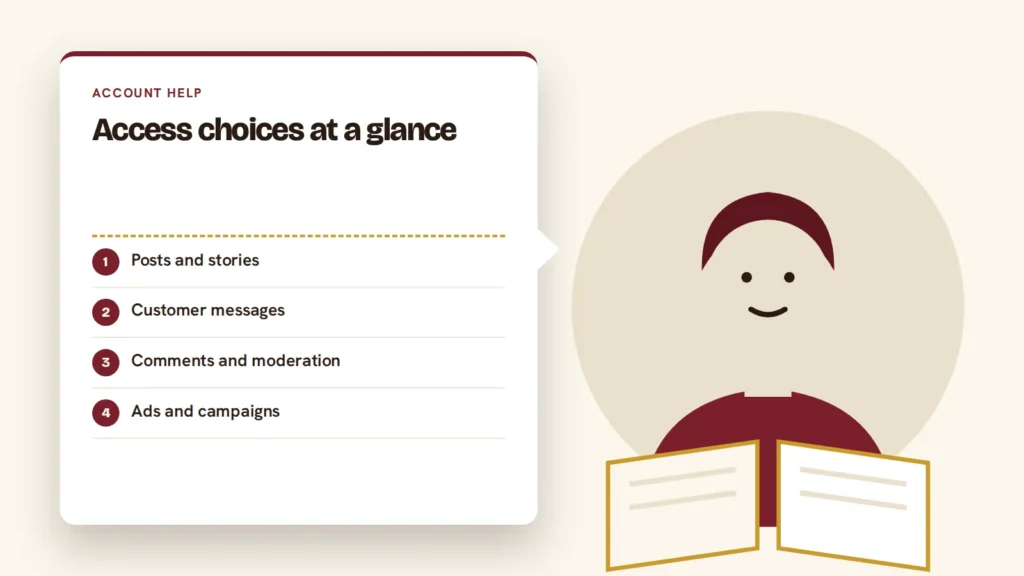
Choose the narrowest option that supports the person’s real job. Full control saves time for a senior administrator, while task access limits damage if an account is compromised.
| Situation | What to do | What it takes | What to watch for |
|---|---|---|---|
| Posts and stories | Give content access | Page invitation | Publishing rights |
| Customer messages | Give messaging access | Page invitation | Inbox visibility |
| Comments and moderation | Give moderation access | Page invitation | Public replies |
| Ads and campaigns | Give ads access | Ad account setup | Billing separation |
| Insights and reports | Give insights access | Page invitation | Data visibility |
| Settings and users | Give full control | Trusted administrator | Highest risk |
| One short project | Use limited tasks | Remove afterward | Pending access |
Better results from Page permissions
Match access to the job
Write the person’s tasks before opening settings. “Publish three posts,” “reply to messages,” and “check weekly insights” need different permissions from “change the Page name” or “add administrators.”
Keep business ownership separate from daily work when possible. Someone may need to manage ads without controlling the Page, especially when an outside agency is involved. The trade-off is that narrower access can require more setup when the person needs a new task later.
Check the invitation target twice. Compare the profile photo, name, and email with a channel you already trust. A wrong selection can expose Page information to the wrong account, while an incorrect email can leave the real worker unable to accept the invitation.
Check before and after
Before sending access, record the current administrator list and the permissions you intend to change. After acceptance, open the access screen again and confirm that the person appears under the correct category.
Leave billing, ownership, and security settings alone unless that’s part of the person’s role. A person can often complete marketing work without seeing payment details or changing who controls the Page.
Page access problems and fixes

The quickest fix depends on what you see. Check the account, access level, and invitation status before sending another invitation.
| What you notice | What it usually means | What to do first | How to stop it happening again |
|---|---|---|---|
| Add option missing | Insufficient access | Ask full-control admin | Keep admin records |
| Invitation never arrives | Wrong account selected | Check email and profile | Confirm details first |
| Person can’t accept | Wrong account active | Switch Facebook account | Use one account |
| Tasks remain unavailable | Permission too narrow | Add needed task access | Map tasks first |
| Person sees too much | Access too broad | Reduce permissions | Use least access |
| Old worker remains listed | Access wasn’t removed | Remove their access | Review after departures |
| Business settings conflict | Portfolio controls Page | Check Business Settings | Keep ownership documented |
A common mistake is giving full control because it looks faster. That can let the person change Page access, remove administrators, or alter important settings, so the cost is a larger security and recovery problem later.
Meta’s access and security rules
Meta controls the permission names and the screens used for Facebook Pages. Its guidance separates full Facebook access from task-based access, and it may show different options when a Page is connected to a business portfolio.
Your country, account type, and business setup can change what appears. If the Page belongs to a business portfolio, check the people and asset permissions in Meta Business Suite; if it’s not there, use the Page’s own access settings.
Don’t give access by sharing your password. It removes the normal audit trail and can expose your personal Facebook account. If a person needs ownership, payment, or legal business changes, stop and ask the business owner or an authorized Meta administrator to handle it.
The real cost of Page access
The direct setup normally takes only the time needed to find the right account, choose permissions, and wait for acceptance. The harder cost is deciding what the person can see and change. Full control is quicker for broad work, but limited access reduces the damage from a mistake or compromised account.
Time increases when the Page is linked to a business portfolio, an ad account, or several employees. Compare the Page access list with Meta Business Suite’s people and asset lists before changing anything. Duplicate permissions can make it unclear which account controls advertising, messages, or publishing.
The cost also rises when staff leave. Remove their Page and business permissions, then check connected ad accounts and tools separately. A person removed from the Page may still have access through another connected asset.
Keep Page access under control
Review the access list whenever a person changes role or leaves the business. Don’t wait for a fixed schedule if your team changes often; the right interval depends on staff turnover and the number of connected business assets.
After an invitation is accepted, confirm the person’s name, access type, and assigned tasks. If the person can’t perform the intended job, adjust only the missing permission instead of switching straight to full control.
Keep a private record of who has full control and why. If the list contains an unknown person, a former worker, or an account nobody recognizes, remove access if you’re authorized and ask a full-control administrator to review connected business settings.
When Page access is the wrong choice
Page access is the wrong tool when someone only needs to boost a post or run a campaign from an ad account. Give the person access to the relevant ad account instead, and keep Page permissions separate.
It’s also unsuitable when you’re trying to share a personal Facebook profile. A personal profile doesn’t work like a business Page; use the correct professional or business setup rather than adding a stranger to your account.
If the Page is owned by a business portfolio you don’t control, don’t try to fix ownership by guessing through settings. Ask the portfolio owner or an authorized Meta Business Suite administrator to make the change. Stop if the change could affect billing, ownership, or legal business access.
Prefer a done-for-you option? Read about Facebook Page Setup.
Frequently asked questions
Can I give someone access without sharing my password?
Yes, you can invite their own Facebook account through Page access. They’ll use their own login and accept the invitation, while you keep your password private. This also makes it easier to remove their permission later and review who performed Page actions.
Why can’t I add someone to my Facebook Page?
You may not have full control, the Page may be managed through a business portfolio, or Facebook may not identify the person’s account correctly. Check your access level, confirm the profile, and look in Meta Business Suite if the Page is connected there.
How long does Facebook Page access take?
Access can become active after the person accepts the invitation, but the exact time depends on notification delivery and account setup. Ask them to check Facebook notifications, email, spam folders, and the account that received the invitation.
Is it safe to give someone full control of a Facebook Page?
No access level is risk-free, and full control is the highest-risk option because it can include settings and user management. Give it only to a trusted administrator. Use task-based permissions when the person doesn’t need control of the Page.
What happens if someone doesn’t accept Page access?
The invitation stays pending and the person won’t have the assigned access. Confirm that you selected the right account, then ask them to open the invitation while signed into that account. Send a new invitation only after checking the first one.
Does task access let someone change Page settings?
Usually, no. Task access is designed for assigned work such as content, messages, comments, ads, or insights, while broader Page settings require broader access. Check the permission labels shown on your Page because available tasks can vary.
How often should I review Facebook Page access?
Review it whenever someone joins, leaves, or changes role. There isn’t one useful schedule for every Page because staff turnover and connected assets differ. Compare the access list with your current team and remove accounts that no longer need permission.
Give Facebook Page access safely
Start by listing the person’s exact tasks, then add their own Facebook account with the narrowest permission that completes the work. You should see the invitation pending and later the person listed with the selected access. Stop and get a full-control administrator if ownership, billing, or an unknown account appears.

Derek Campbell writes about Facebook features, tools, and account management, covering topics such as account troubleshooting, Business Manager, Facebook Marketplace, and outreach strategies. His content also explores Facebook Groups, community engagement, and ways to connect with relevant audiences. His writing emphasizes practical Facebook know-how, from navigating Marketplace and managing business communities to building meaningful connections through Groups and outreach.
Checked against Facebook’s own help and policy pages on the date shown above.