Saving Message Templates for Outreach on Facebook

If you’re saving message templates for outreach on Facebook, the best approach depends on where you send messages: a personal Messenger account, a Facebook Page, or Meta Business Suite. Personal accounts usually need a manual copy-and-paste system, while Page messaging can use saved replies, automations, labels, and a small template library.
Key Takeaways
- Use Meta Business Suite to organize reusable replies for a Facebook Page.
- Keep a personal swipe file in Notes, Google Docs, or a text-expansion tool when saved replies are unavailable.
- Write templates with a personal opening, one relevant detail, and one simple next step.
- Create separate versions for first contact, follow-up, qualification, objections, and closing.
- Track reply rate, positive responses, booked calls, and opt-outs instead of sending more messages blindly.
- Avoid bulk unsolicited messages, misleading claims, repeated copy, and contact methods that violate Facebook’s rules.
Choose Your Outreach Location
The first decision is identifying the Facebook surface where outreach happens. Features differ between a personal Messenger account, a Facebook Page inbox, and a team workflow inside Meta Business Suite.
A personal profile generally doesn’t provide the same saved-reply tools available to Pages. You can still create templates in a document, notes app, keyboard shortcut system, or customer relationship management tool, then paste and personalize them manually.
A Facebook Page can often manage customer conversations through Meta’s business inbox. Depending on the account, region, permissions, and current interface, you may see saved replies, automated responses, labels, assignments, and other inbox tools.
Meta Business Suite is most useful when several people answer messages or when Facebook and Instagram conversations need to be managed together. Menu names and available features can change, so treat the following workflow as a practical structure rather than a promise that every account shows identical buttons.
| Where you message | Best template method | Useful for |
|---|---|---|
| Personal Messenger | Notes app, document, or text replacement | Networking and individual outreach |
| Facebook Page inbox | Saved replies and manual personalization | Customer inquiries and prospect conversations |
| Meta Business Suite | Saved replies, labels, assignments, and automations | Teams, lead handling, and follow-up |
| CRM connected to Facebook | Approved snippets and contact records | Larger sales operations |
Before building anything, confirm that you have permission to manage the Page or inbox. A template system is only useful if the right person can access it without sharing passwords or exposing private customer information.
Save Message Templates for Facebook Outreach in Business Suite
For a Facebook Page, start by opening the Page’s inbox through Meta Business Suite. Look for the inbox, messaging, or saved-reply area. The exact wording may differ, but the goal is to create reusable responses that an authorized team member can insert into a conversation.
A practical setup looks like this:
- Open the Page in Meta Business Suite.
- Select Inbox or the messaging workspace.
- Choose a conversation or open the saved-reply settings.
- Find the option for a new saved reply, quick reply, or template.
- Give the reply a short internal name.
- Write the message in the response field.
- Add personalization fields manually if the interface doesn’t support variables.
- Save the reply.
- Open a test conversation or preview before using it with prospects.
- Review the library monthly and remove outdated offers.
Use names that help a person choose the right response quickly. “Initial—local retailer” is more useful than “Message 4.” A naming pattern such as Stage—Audience—Purpose keeps a library searchable.
Examples include:
- First—Referral—Intro
- First—Local business—Question
- Follow-up—No reply—Two days
- Qualify—Budget—Question
- Objection—Timing—Reply
- Close—Call—Booking link
- Support—Hours—Information
- Opt-out—Stop—Confirmation
Templates should be starting points, not automatic blasts. Read the conversation, replace placeholders, and delete anything that doesn’t fit. A saved reply that mentions the wrong city, product, or customer name can make an otherwise professional business look careless.
Pro Tip: Keep the first line outside the template whenever possible. Writing a fresh opening based on the person’s post, business, or question makes the rest of the reusable message feel more relevant.
Build a Personal Template Library
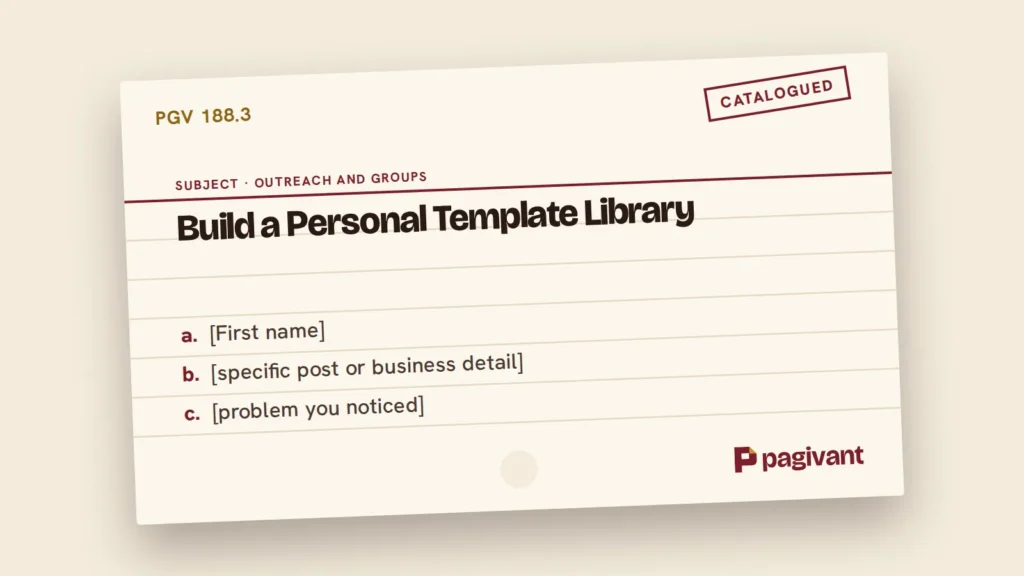
If you’re messaging from a personal profile, create a simple library outside Facebook. A plain text document is enough. You can also use Apple Notes, Google Keep, Microsoft OneNote, Google Docs, or a password-protected workspace approved by your organization.
Organize the library by conversation stage rather than by clever copywriting theme. This makes it easier to find a suitable message while talking to someone.
| Folder | Template purpose | Suggested number |
|---|---|---|
| First contact | Start a relevant conversation | 3–5 |
| Follow-up | Reopen a conversation respectfully | 3–4 |
| Qualification | Learn need, timing, or fit | 4–6 |
| Objections | Address common concerns | 4–6 |
| Next step | Offer a call, demo, or resource | 3–5 |
| Closing | Confirm the decision or handoff | 2–4 |
| Opt-out | Respect a request to stop | 1–2 |
A text replacement tool can speed up repetitive typing. For example, typing ;fbintro could expand into a draft introduction. Keep shortcuts unusual enough that they don’t trigger accidentally in ordinary conversations.
A clipboard manager can also store snippets, but check your company’s privacy rules before placing customer information into a third-party application. Never save passwords, payment details, private health information, or sensitive personal data in a general-purpose template file.
Use placeholders consistently:
[First name][specific post or business detail][problem you noticed][relevant resource][your name][calendar or contact method]
Placeholders should be obvious. Brackets are safer than vague blanks because they remind you to edit before sending. Search the final message for [ before pressing send; any remaining bracket usually signals unfinished personalization.
Write a Strong First Message
The first message has one job: earn a reasonable reply. It doesn’t need to explain your entire company, list every service, or force a meeting immediately.
A useful opening contains four parts:
- Context: Explain why you’re contacting this person.
- Relevance: Mention a specific detail that connects to your reason.
- Value: Offer a useful observation, answer, or resource.
- Low-pressure question: Give the person an easy way to respond.
A reusable structure is:
Hi [First name]—I noticed [specific detail] while looking at [Page, post, or project]. We help [type of business] with [specific outcome]. I have one idea that may help with [relevant issue]. Would it be useful if I sent it here?
Example for a local service provider:
Hi Maya—I saw your post about expanding your residential landscaping work in Austin. We help local service businesses turn more website visitors into quote requests. I noticed one small opportunity on your contact page. Would you like me to explain it here?
Example for a professional referral:
Hi Daniel—[Name] suggested I contact you because you work with independent restaurants in Chicago. I create short menu and offer campaigns for restaurant Pages. Are you currently handling that in-house?
Avoid opening with a pitch that could have been sent to anyone. Weak openers include “I have an amazing opportunity,” “Can I pick your brain?” And “We can transform your business.” They provide no reason for the recipient to trust or answer you.
A good template leaves room for specific context. If you can’t add a genuine detail, reconsider whether the person is an appropriate contact.
Create Follow-Up Templates
Follow-ups should make it easy for the recipient to ignore, decline, or continue. They shouldn’t imply that silence equals agreement.
Use a short sequence with a clear stopping point:
| Timing | Purpose | Example |
|---|---|---|
| After 2–4 days | Brief reminder | “Hi [Name]—wanted to make sure my note about [topic] reached you. Is this relevant right now?” |
| After 5–7 more days | Add useful value | “I found a short checklist for [issue] that may help. Would you like me to send it?” |
| Final follow-up | Close respectfully | “I’ll close the loop for now. If [topic] becomes a priority, feel free to message me.” |
Don’t send the same paragraph three times. Change the purpose of each follow-up, or stop. A follow-up can also acknowledge that the person may not be the right contact:
Hi [Name]—if [topic] is handled by someone else, would you point me toward the right person? No problem if this isn’t a current priority.
For a conversation that began positively but stalled:
Thanks again for discussing [topic]. You mentioned [specific need]. Would [day] or [day] work for a short conversation, or would a written outline be more useful?
For a lead who asked for information:
Hi [Name]—following up on your question about [product or service]. The relevant detail is [short answer]. What would you like to know next?
Warning: Don’t create a follow-up schedule that continues indefinitely. Three thoughtful messages are usually more professional than ten increasingly urgent reminders.
Add Qualification and Objection Replies
Templates are especially helpful after someone responds. Your goal is to understand the situation before recommending a product, service, or meeting.
Useful qualification questions include:
- “What are you trying to improve: more inquiries, faster replies, or something else?”
- “Is this for your Facebook Page, website, or another channel?”
- “What have you tried so far?”
- “Is there a deadline or seasonal date involved?”
- “Who else needs to be involved in the decision?”
- “Would you prefer a quick explanation here or a scheduled conversation?”
Avoid sending all questions at once. Ask one or two, respond to the answer, and then continue. A natural exchange is more effective than a form disguised as a chat.
Common objections
“Send me information.”
Absolutely. To send the most relevant version, are you mainly interested in [option A] or [option B]?
“We already have someone.”
That makes sense. I’m not trying to disrupt a working arrangement. If useful, I can share one outside idea for comparison, and you can decide whether it’s worth discussing.
“Not right now.”
Understood. Is there a better month to revisit this, or should I leave it with you to contact me if priorities change?
“How much does it cost?”
It depends on [scope variable]. If you tell me [one qualifying detail], I can give you a useful range rather than a vague estimate.
“I’m not interested.”
Understood—thanks for letting me know. I won’t follow up about this.
The last response matters. Respecting a clear decline protects the relationship and prevents your template system from becoming a spam machine.
Personalize Without Losing Speed

Personalization isn’t inserting a first name into a generic sales pitch. It means connecting the message to something the recipient could reasonably recognize.
Use three levels:
- Basic: Correct name, business, and service.
- Relevant: Reference a recent post, launch, role, location, or stated problem.
- Useful: Offer an observation or resource related to that detail.
A template can contain the repeatable middle while you write the opening and closing fresh.
| Message element | Reusable? | Personalize how |
|---|---|---|
| Greeting | Partly | Use the name the person publicly uses |
| Reason for contact | Rarely | Mention the actual post, referral, or need |
| Value statement | Partly | Match the recipient’s business or role |
| Qualification question | Often | Choose the question that fits the context |
| Call to action | Often | Offer chat, resource, or appointment |
| Signature | Usually | Use your real name and organization |
Check the following before sending:
- Correct identity: You addressed the right person.
- Correct context: Your reference is still current.
- Correct offer: The recipient could actually use it.
- Correct tone: The message sounds like a person, not an automation.
- Correct link: Any destination is relevant and safe.
- Correct permission: You aren’t assuming a prior relationship that doesn’t exist.
Don’t scrape personal details from unrelated posts to create an artificial sense of familiarity. A public fact may still be inappropriate to mention in a sales message.
Manage Templates as a Team
A team needs governance, not just a shared folder. Assign one person to own the library, review performance, and retire templates that generate confusion or complaints.
Create a lightweight approval process:
- Draft the message.
- Identify the audience and use case.
- Check that claims are accurate.
- Remove unsupported guarantees.
- Test the message with an internal reviewer.
- Add a version date.
- Record the approved template.
- Review it after a campaign or policy change.
A template record can include:
| Field | Example |
|---|---|
| Template ID | FIRST-LOCAL-01 |
| Internal name | Local business introduction |
| Audience | Owners of local service businesses |
| Trigger | Relevant post or referral |
| Owner | Marketing team |
| Version date | March 2025 |
| Don’t use when | Person has declined contact |
| Next step | Ask one qualifying question |
Use role permissions so team members access only the inboxes and tools they need. Keep a handoff note when a conversation moves from marketing to sales or customer support. The note should state what the person asked, what was promised, and what happens next.
Don’t put sensitive customer details into a generic template. Templates should contain reusable language, not private case information.
Measure What Gets Replies
A template library should improve relevance and consistency, not merely increase the number of messages sent. Track results by template and audience.
Useful measures include:
- Reply rate: Conversations receiving any response.
- Positive reply rate: Responses showing interest or a relevant need.
- Qualified rate: Replies matching your target criteria.
- Booked rate: Qualified conversations leading to a scheduled next step.
- Opt-out rate: People asking not to be contacted.
- Complaint rate: Reports, blocks, or negative reactions.
- Time to reply: How quickly your team responds to inbound interest.
A basic spreadsheet can include date, template ID, audience, personalization completed, response, next step, and outcome. Don’t judge a template by one conversation. Review a meaningful batch while comparing similar audiences and message purposes.
If replies are low, diagnose the message:
- Is the audience too broad?
- Is the opening genuinely relevant?
- Is the benefit clear?
- Is the question easy to answer?
- Is the message too long?
- Are you asking for a meeting too soon?
- Does the profile look trustworthy?
- Are follow-ups too frequent?
Pro Tip: Test one change at a time. Compare a shorter opening with a longer opening, or a question with a resource offer, rather than changing the audience, offer, and call to action simultaneously.
Commercial messaging also needs legal and platform awareness. For email campaigns, the US Federal Trade Commission explains the requirements in its CAN-SPAM compliance guide; Facebook messages are a different channel, so don’t assume email compliance alone authorizes unsolicited Messenger outreach.
Troubleshoot Missing Features
A saved-reply option may be unavailable for several ordinary reasons. The Page may be using a different inbox, your account may lack the necessary permission, the interface may have changed, or the feature may not be available for that account or region.
Try these steps:
- Confirm you’re acting as the correct Page identity.
- Open the inbox through Meta Business Suite instead of a personal Messenger view.
- Check your Page access and assigned task permissions.
- Update the mobile app or try a desktop browser.
- Search the inbox settings for saved replies, quick replies, or automations.
- Ask another authorized Page manager whether the option appears.
- Use an external template library temporarily.
- Avoid installing unofficial browser extensions that request unnecessary account access.
If a template inserts incorrectly, check for unsupported variables, curly quotation marks, line breaks, emojis, and copied formatting. Plain text is usually easier to maintain than a heavily formatted block.
If messages are being restricted, don’t attempt to bypass the restriction with new accounts, duplicate profiles, or rapid repeated sends. Pause, review your activity, and use Facebook’s account and Page support channels.
Our team handles exactly this through Facebook Accounts Setup.
Frequently Asked Questions
Can I save replies in personal Messenger?
Usually, personal Messenger doesn’t offer the same saved-reply library available to business Pages. Store drafts in Notes, Google Docs, a text-replacement tool, or an approved CRM, then personalize and paste each message manually.
Where are saved replies in Meta Business Suite?
Open the relevant Page’s inbox and look for saved replies, quick replies, or response settings. Meta changes labels and layouts, and availability can depend on Page permissions, account type, region, and current product version.
How many outreach templates should I create?
Start with about 15–25 templates covering first contact, follow-up, qualification, objections, next steps, and opt-outs. A small, well-labeled library is easier to personalize and maintain than dozens of nearly identical scripts.
Should Facebook outreach be automated?
Automate organization and reminders before automating conversations. Use saved replies to support human responses, but avoid sending identical unsolicited messages at scale. Relevance, permission, platform rules, and a clear stopping point matter more than volume.
What makes a Facebook message feel personal?
Mention a real reason for contacting the person, connect it to a specific detail, and ask one easy question. Correct names alone aren’t personalization. Remove any sentence that could be sent unchanged to hundreds of unrelated people.
How often should I update templates?
Review templates monthly during active outreach and whenever your offer, pricing, team, links, or policies change. Retire messages that create confusion, attract poor-fit leads, receive opt-outs, or contain outdated claims.
Conclusion
Start today by creating six drafts: one first-contact message, two follow-ups, one qualification question, one objection reply, and one opt-out confirmation. Save them in the tool your team actually uses, then personalize every send and review the results after your first small batch.

Derek Campbell writes about Facebook features, tools, and account management, covering topics such as account troubleshooting, Business Manager, Facebook Marketplace, and outreach strategies. His content also explores Facebook Groups, community engagement, and ways to connect with relevant audiences. His writing emphasizes practical Facebook know-how, from navigating Marketplace and managing business communities to building meaningful connections through Groups and outreach.
Checked against Facebook’s own help and policy pages on the date shown above.