How to Save Items on Facebook Marketplace on a Computer


How to save items on facebook marketplace on a computer takes only a few clicks: open the listing, select the Save option, and choose a collection if Facebook offers one. You can later find it under Saved in your Facebook menu.
The result can change with Facebook’s layout, your account type, and whether the listing is still active. The seller may also remove the item, so saving it doesn’t reserve it or guarantee that you’ll still be able to contact the seller later.
Who Marketplace saving helps
A buyer comparing several cars, phones, or pieces of furniture can save listings instead of keeping many browser tabs open. This reader needs a quick way to return to items and compare them later.
A buyer who wants to contact a seller soon may only need the listing’s URL, seller name, and current price. Saving helps, but it shouldn’t replace a note with those details because listings can change or disappear.
A seller or researcher may save listings to compare local prices. That reader needs a simple collection system and should record the date, location, condition, and asking price separately.
This page serves computer users who already have a Facebook account and can open Facebook Marketplace in a web browser. It assumes you’re using the normal desktop website, not a work account, parental-control setup, or browser extension that changes Facebook’s buttons.
What changes saved listings
The listing’s current status matters most. An active item usually opens normally from your saved list, while a sold, deleted, or removed item may show limited information or stop opening. Check the listing’s message button and current price before relying on it.
Your Facebook layout can move the Save control. Facebook tests designs and changes menus, so the button may appear near the listing title, under a three-dot menu, or beside other action buttons. If you don’t see it, check the full listing rather than only the search card.
The collection choice affects how useful your saved list becomes. Saving everything in one place is quick, but separate collections such as “Used laptops” and “Living room” make comparison easier. You can usually add a listing to a collection while saving it or edit the collection afterward.
Your browser session also matters. If you’re signed out, using a private window, or blocking site data, Facebook may not keep the action visible. Confirm that your profile picture or account menu appears before saving.
The mistake people get wrong most often is treating a saved listing like a purchase hold. It isn’t. Saving marks a listing for your account, but it doesn’t stop another buyer from purchasing it.
Save Marketplace items on desktop
Start with the listing open in Facebook Marketplace. The search-result card may show a save icon, but the full listing gives you more room to confirm that you’re saving the correct item.
- Open Facebook in your computer browser. Go to Facebook.com and sign in. You’ll know it worked when your account menu or profile picture appears.
- Open Marketplace. Select Marketplace from the left menu or the main Facebook menu. The Marketplace feed or search page should load.
- Find the item. Use the search box, category, location, and filters that match your needs. Confirm the photo, title, price, and location before continuing.
- Open the full listing. Click the item’s photo or title. The listing page should show the seller details, description, and available actions.
- Select Save. Click the Save button or the bookmark-shaped control near the listing actions. A confirmation message, changed icon, or saved label should appear.
- Choose a collection. If Facebook shows collection choices, select an existing collection or create one with a clear name. The collection name should match the items you’ll put there.
- Check the saved list. Open Facebook’s menu, select Saved, and look for the Marketplace item. It should appear with its image or listing title.
- Open it again later. Click the saved item and check that the listing still loads. Compare the current price and description with any notes you made.
If Save is missing after you open the full listing, don’t use browser developer tools or change account settings to force it. Try the normal Facebook menu, refresh once, or contact Meta support if the control remains unavailable.
The key judgment is saving the correct listing, not merely seeing a confirmation. Match the saved photo and title with the item you intended to track before closing the page.
Two ways to find saved Marketplace items
Facebook keeps more than one route to your saved listings, and menu names can differ by account and layout. Try both before you decide an item is missing.
- From Marketplace: Click Marketplace in the left menu of your Feed, then Buying, then Saved.
- From the main Saved page: Go to facebook.com/saved, or click See more in the left menu and then Saved. Listings you save should also appear here, and you can sort them into collections.
Use the same Facebook account and profile you saved from. If you use more than one profile, switch to the right one first. Meta’s help pages describe these paths only in general terms, so your screen may look a little different.
Saving options by situation
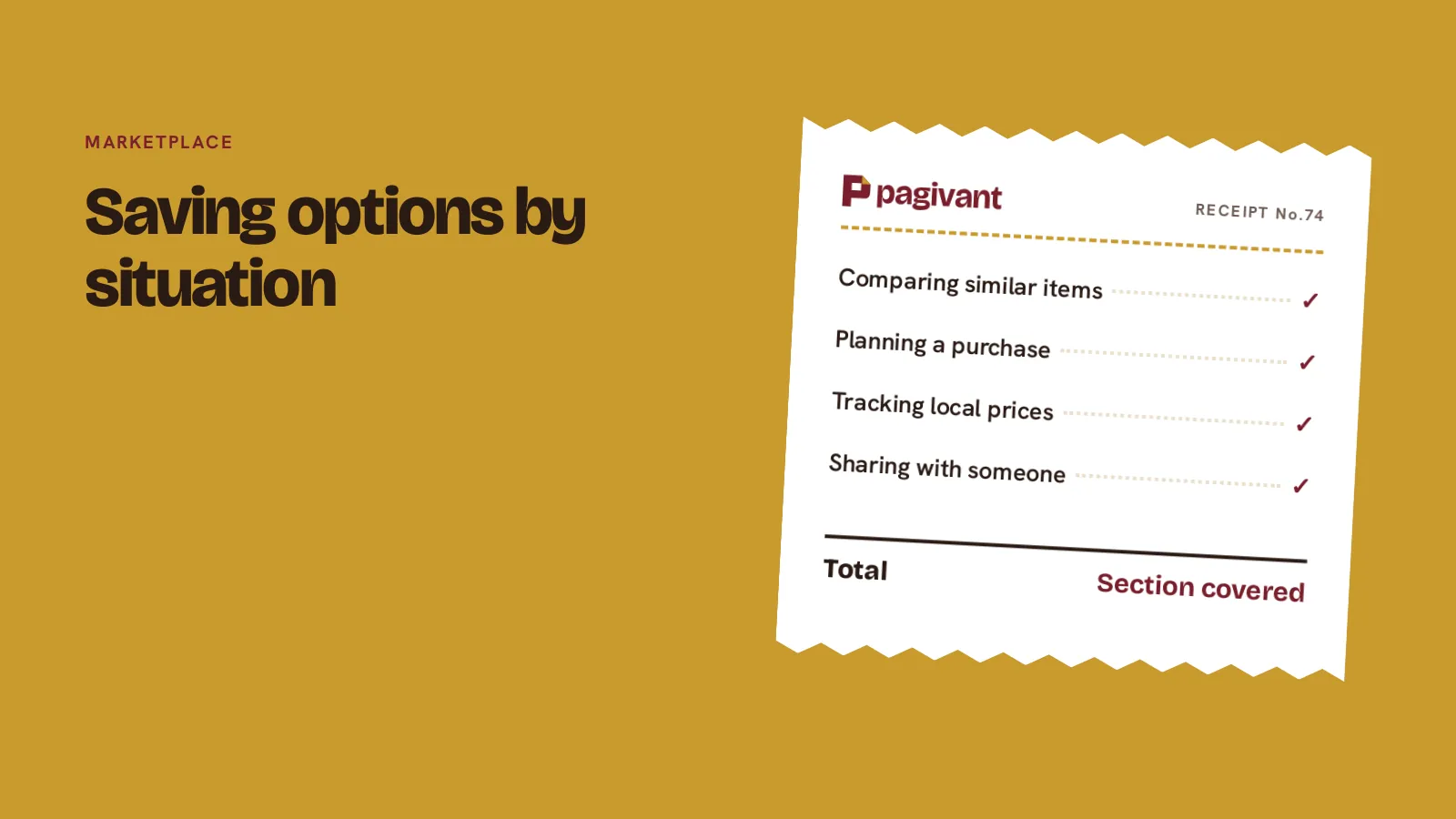
The best choice depends on whether you need speed, organization, or a record that survives a listing change.
| Situation | What to do in it | What it takes | What to watch for |
|---|---|---|---|
| Comparing similar items | Use separate collections | Low effort | Prices can change |
| One item to revisit | Save without sorting | Few clicks | Listing may disappear |
| Planning a purchase | Save and take notes | Extra minute | Saved isn’t reserved |
| Tracking local prices | Add location notes | Moderate effort | Areas affect value |
| Sharing with someone | Copy listing link | Quick browser action | Access may change |
| Seller removed listing | Check saved item | No extra setup | Details may be limited |
Details that improve saved lists
Use clear collections
Create names that describe the buying decision, not vague labels such as “Stuff.” “Affordable office chairs” or “Possible family cars” makes the list easier to scan later. If you’re comparing prices, keep items with similar condition and location together.
Record the listing price, seller location, and date in a separate note when the purchase matters. Facebook can update the listing, while your note gives you a simple comparison point.
Check before acting
Open the saved listing again before messaging the seller. Confirm that the price, condition, location, and description still match what you saw earlier.
Leave the listing alone when it contains warning signs such as a changed price, a different description, or a request to move payment outside safe channels. A saved item is a reference, not proof that the offer is genuine.
The trade-off is simple: sorting takes longer now, but it reduces searching later. If you’re saving one item, skip collection work; if you’re tracking several similar items, organize them immediately.
Saved items not showing up
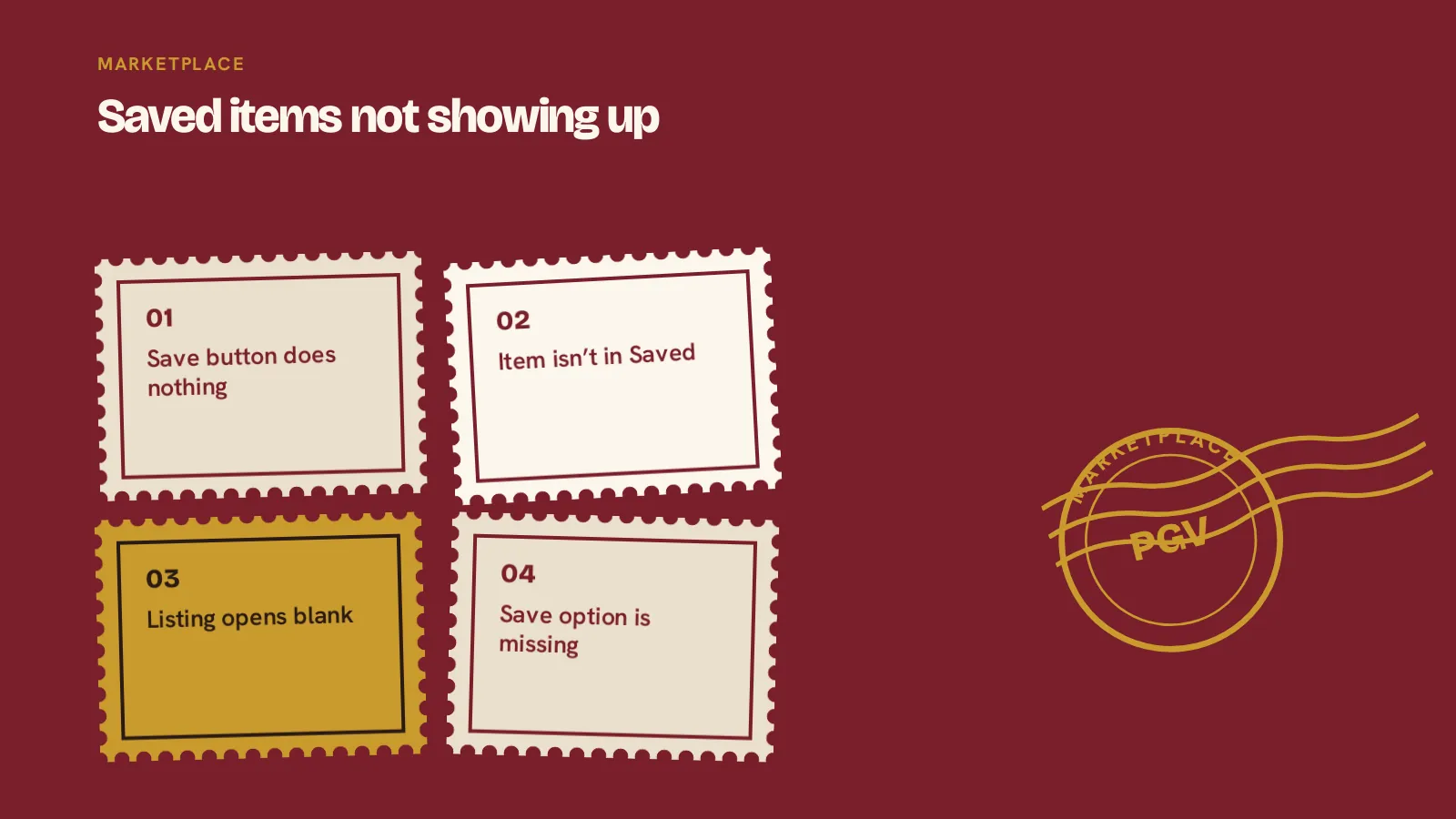
A missing item usually needs a basic account or listing check before anything more advanced. Use this table to match the visible problem with a safe first action.
| What you notice | What it usually means | What to do first | How to stop it happening again |
|---|---|---|---|
| Save button does nothing | Page didn’t finish loading | Refresh the listing | Wait for full page load |
| Item isn’t in Saved | Different account is open | Check profile menu | Use one signed-in account |
| Listing opens blank | Seller removed listing | Search the item again | Record key details |
| Save option is missing | Layout changed | Open full listing | Check action menus |
| Collection looks empty | Wrong collection selected | Review collection names | Use specific labels |
| Old price still appears | Saved view is outdated | Open current listing | Recheck before messaging |
If the same control fails across several listings, stop changing browser settings and use Facebook’s account or help options. Don’t install an extension that claims it can recover deleted Marketplace listings.
Facebook rules and account limits
Facebook’s saved-list feature is controlled by Meta, and exact menu names can differ by account, browser, country, and site design. Check Meta’s saved items help page if the Saved menu or collection controls don’t match your screen. If a saved item seems missing, first check that you’re signed into the same Facebook account and that the listing itself is still available.
Saving an item doesn’t create a purchase agreement, hold the item, or guarantee access to the seller. Marketplace listings can be edited, marked sold, or removed by the seller or by Facebook. Save a listing as a reminder, but keep important details—such as the price, description, and seller messages—somewhere else if you may need them later.
If a listing involves regulated goods, restricted products, or suspected fraud, don’t try to work around Facebook’s controls. Use Facebook’s reporting tools, and contact the relevant local authority when there’s a safety, financial, or legal risk. Stop communicating and avoid sending money if the seller pressures you to move off-platform or pay before you can verify the transaction.
The real cost of saving items
Saving a listing costs no separate fee through Facebook, but organizing a serious shortlist takes attention. You’ll spend more time when you create collections, write notes, compare locations, or reopen listings before contacting sellers.
The bigger cost is relying on an old listing. A seller may change the price, mark the item sold, remove the description, or stop replying. For an important purchase, copy the listing URL and record the price, location, condition, and date in your own note.
Your browser and account also affect the effort. A slow connection, blocked cookies, or repeated sign-outs can make saving less reliable. Check whether Facebook’s Saved page works normally before building a large shortlist.
Keep saved listings useful
Review important saved items before you message the seller. Check the current price, description, photos, location, and availability because the saved entry may not reflect every later change. Use the live listing rather than earlier notes if any detail has changed.
Delete listings that are sold, too expensive, too far away, or no longer match your needs. Smaller collections are easier to compare than a long list filled with outdated items. Keep only items you could realistically buy. A saved listing isn’t a reservation, so confirm that it’s still available before arranging a meeting or sending payment.
Keep a separate record for purchases or research that matters. Include the listing link, seller name, asking price, condition, and date. Add the questions you asked and the seller’s answers when those details affect your decision. If the saved item stops opening, your record may still help you search for the seller or a similar listing.
When saving Marketplace isn’t enough
Saving is the wrong approach when you need proof of a price, condition, or agreement. Take dated screenshots that show the listing, seller information, and relevant messages. Keep written messages in the original platform when possible, and follow local rules for recording calls or other communication. A saved listing can change, disappear, or show a different price later.
It’s also a poor choice when you need to watch a fast-moving item. Contact the seller through Facebook and ask whether it’s still available. Ask about pickup timing and payment before making plans. Saving alone doesn’t reserve the item, notify the seller, or prevent someone else from buying it.
For suspected scams, unsafe products, or payment disputes, stop treating the listing as a normal purchase. Don’t send money simply because the listing is saved. Preserve the listing, messages, receipts, and transaction details before reporting the account or listing to Facebook. Contact your bank, payment provider, or local consumer-protection agency promptly when appropriate, since the available help can depend on how you paid.
Related guides
- How to See Your Facebook Marketplace Listings on a Computer
- Shipping Large Items Sold on Facebook Marketplace: Best Options
- How to Change Your Facebook Marketplace Location on a Computer
Short on time? Our Facebook Marketplace Account Setup service takes care of the whole process.
Frequently asked questions
Can I save Marketplace items on a computer?
Yes, you can save them from the full Marketplace listing. Open the item, select Save or the bookmark control, and check Facebook’s Saved area afterward. If the button isn’t visible, look in the listing’s action menu or refresh the page once.
Why can’t I find my saved Marketplace item?
The item may be under a different collection, saved to another Facebook account, or removed by the seller. Open the Facebook profile menu first, then check Saved and each relevant collection. A deleted listing may remain visible without opening normally.
How long do saved Marketplace items stay saved?
There’s no reliable fixed period to promise for every listing. A saved entry can remain in your account while the listing is available, but the seller or Facebook may remove the listing sooner. Reopen important items before you act.
Is it safe to save items on Facebook Marketplace?
Yes, saving a listing is generally a low-risk account action, but it doesn’t make the seller trustworthy. Don’t share payment details or send money based only on a saved listing. Check the item, seller, messages, and payment method separately.
What happens if a seller deletes a saved listing?
The saved entry may become unavailable or show only limited details. Saving doesn’t create a copy of the listing. Record the URL, price, location, and condition yourself when the item matters.
Does it matter which browser I use?
Usually, the main issue is whether you’re signed in and Facebook can save account changes. If saving fails, try a current browser, confirm the correct account, and open the listing directly. Don’t install unknown tools that promise extra Marketplace features.
Can I organize saved Marketplace items into folders?
Yes, Facebook may let you use collections for saved items. Choose a clear collection name when the option appears, then check the Saved area to confirm the item went into the intended group. The exact controls can change with Facebook’s layout.
Save Marketplace items first
Open the exact Marketplace listing, confirm its title and price, then select Save. Return to the Saved area and check that the item appears there to verify it worked. If the listing has disappeared, been marked sold, or changed price, open the current listing again before relying on its saved entry.
Save the item while signed in to the same Facebook account you use for Marketplace. If you can save some listings but not this one, the problem may be specific to that listing; try another item to compare. If Facebook won’t save any listing, stop repeating the action and use Meta’s help options instead.

Derek Campbell writes about Facebook features, tools, and account management, covering topics such as account troubleshooting, Business Manager, Facebook Marketplace, and outreach strategies. His content also explores Facebook Groups, community engagement, and ways to connect with relevant audiences. His writing emphasizes practical Facebook know-how, from navigating Marketplace and managing business communities to building meaningful connections through Groups and outreach.
Checked against Facebook’s own help and policy pages on the date shown above.