Organizing Facebook Messenger for Sales


A simple system for organizing facebook messenger for sales is to sort chats by buyer stage, reply from one shared inbox, and record the next action for every lead. Use labels such as New lead, Qualified, Waiting, and Won/Lost. Review new messages twice a day, answer urgent questions first, and move each chat forward with one clear next step. The right setup also depends on your team size, message volume, privacy duties, and whether Messenger is your main sales channel.
How Messenger supports sales
Facebook Messenger is a chat channel where people can ask questions, compare options, and decide whether to buy. A sales system adds order to those chats, so leads don’t get lost between personal inboxes, unread messages, and old conversations.
You can use Messenger for first contact, product questions, appointment requests, follow-ups, and customer handoffs. It works best for businesses that already receive interest through a Facebook Page, ads, Marketplace activity, or a connected Instagram account.
The main misconception is that good organization means sending more automated messages. It doesn’t. A clean process helps you answer the right person at the right time, while still keeping the conversation useful and human.
For a small team, Meta Business Suite can bring Page messages into a shared workspace. It can also support labels, saved replies, assignments, and basic follow-up notes, depending on the account and feature available in your region. Meta changes its tools often, so check the current Meta Business Suite features before building a process around one button.
Messenger itself doesn’t decide which lead will buy. Your team still needs to check the person’s need, budget, timing, and fit. The system only makes that judgment easier to see and repeat.
A practical sales flow is simple: new message → qualification → offer or next step → follow-up → closed or archived. Each chat should have one visible stage and one owner.
Set up a Facebook Messenger workflow for sales
The method below suits a small sales team using a Facebook Page inbox. The exact buttons may differ in Meta Business Suite, but the order of work stays useful.
-
Create five clear labels. Start with New lead, Qualified, Waiting for customer, Follow-up due, and Won/Lost. Keep the list short enough that a teammate can understand it without asking what each label means.
-
Choose one inbox and one owner. Use the Page inbox or Meta Business Suite as the main work area. Don’t split active sales chats between personal Messenger accounts. Assign each new conversation to one person before the end of the work period.
-
Send a useful first reply. Answer the question first, then ask no more than 2 qualification questions in the same message. Ask about the product needed, the timing, or the customer’s location when those details affect the offer.
-
Label the chat after the first real reply. Use New lead while you still need basic facts. Change it to Qualified when the customer’s need and next step are clear. Don’t mark a person as qualified just because they sent a greeting or clicked an ad.
-
Write the next action in a note or team field. Make it specific, such as “Send size options on Thursday” or “Call after customer confirms delivery address.” A note that only says “follow up” isn’t enough for another person to act on.
-
Send one clear offer or action. Give the price only when you know the product, quantity, location, and any other factor that changes it. If the customer needs a quote, collect the missing details instead of guessing.
-
Set a follow-up point. If the customer asks for time, mark Follow-up due and record the agreed day. If no day was agreed, send one helpful follow-up after a reasonable pause, then stop or archive the chat if there’s no response.
-
Close or hand off the conversation. Mark the chat Won after payment or a confirmed booking. Mark it Lost when the person chooses another option or clearly declines. If the issue is support, billing, or a complaint, hand it to the correct team instead of forcing a sales reply.
The key judgment is the label’s timing. If the customer has a clear need and a realistic next step, move the chat to Qualified; if either is missing, keep it in New lead and ask for the missing detail. Don’t use automation to make that judgment when a mistake could create a false promise, payment error, or privacy problem—send it to a trained sales or support manager.
Messenger sales settings at a glance
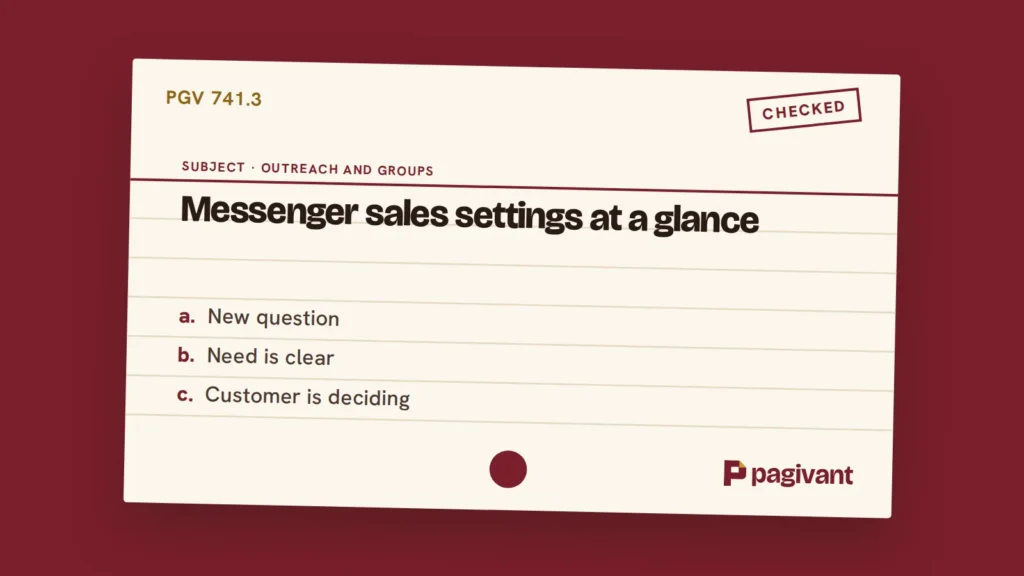
Use this table as a quick reference, then adjust it to your product, team, and customer expectations.
| Situation | What to use | How long | What to watch for |
|---|---|---|---|
| New question | New lead label and a saved reply | First reply during your stated business hours | Personalize the first line; don’t paste a full script |
| Need is clear | Qualified label and one next action | During the same conversation | Confirm product, timing, and location before quoting |
| Customer is deciding | Waiting for customer label | Until the agreed follow-up day | Record what the customer still needs |
| Follow-up promised | Follow-up due label and a dated note | On the agreed day | Send one useful update, not repeated pressure |
| Purchase confirmed | Won label and order or booking record | When payment or booking is confirmed | Keep payment details in the approved system |
| No fit or no reply | Lost label or archive | After the agreed process ends | Don’t keep messaging without a useful reason |
| Support issue | Team assignment or handoff | As soon as the issue is clear | Tell the customer who owns the next step |
The time shown here assumes a normal business inbox with one active sales team. A high-volume operation may need routing rules, a CRM, or a customer service platform instead of labels alone.
Details that improve sales chats
Prepare before the inbox gets busy. Write short saved replies for opening hours, product availability, delivery areas, appointment requests, and the most common qualification questions. Leave a blank space for the customer’s name, product, or situation so the message doesn’t look copied.
Work in a fixed order: scan new chats, handle urgent customer problems, qualify sales leads, complete promised follow-ups, then archive or hand off finished conversations. Don’t start with the oldest chat automatically. A delivery problem or payment issue may need attention before a new product question.
Check each active chat partway through the conversation. Confirm that the product, quantity, location, timing, and next action are visible in the thread or note. If one of those details changes the price or delivery promise, ask before making a commitment.
A mistake that costs sales is leaving chats labeled only by topic, such as “shoes” or “booking.” That label may describe the product, but it doesn’t show whether the person is new, ready to buy, waiting, or already served. The cost is repeated questions, missed follow-ups, and leads who assume nobody owns the conversation.
Leave some things alone. Don’t edit customer messages, delete a difficult chat to make the inbox look clean, or send a long product catalog when one answer would do. Keep the conversation record, follow your business retention policy, and move sensitive payment or identity details into the approved secure system.
Messenger sales problems and fixes
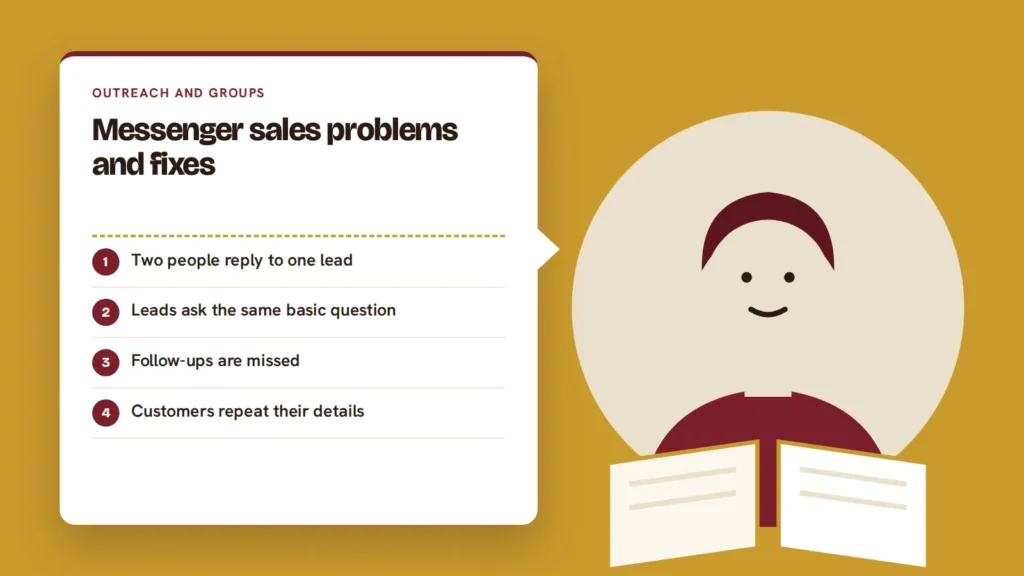
The table below matches common inbox signals with a safe first move. The cause won’t always be the same, so check the thread before changing the whole process.
| What you notice | What it usually means | What to do first |
|---|---|---|
| Two people reply to one lead | The conversation has no clear owner | Assign one person and add a short handoff note |
| Leads ask the same basic question | The saved reply or product information is incomplete | Rewrite the reply with the answer and one useful next question |
| Follow-ups are missed | The next action isn’t dated or visible | Add a due date and name the person responsible |
| Customers repeat their details | Notes aren’t being updated after each stage | Record the product, timing, and last agreed action |
| Many chats stay “new” | Labels are applied too late | Label the chat after the first useful customer reply |
| A customer becomes angry after a quote | The offer was made before key details were confirmed | Acknowledge the issue, check the facts, and hand it to a manager if needed |
If a message involves a refund, charge dispute, personal data, or a threat, stop treating it as a normal sales chat. Follow your company’s support and escalation process instead of trying to solve a sensitive issue with a quick template.
Messenger rules and permissions
Messenger sales work must follow Meta’s current Page and messaging rules, plus the laws that apply where you and the customer are located. Review Meta’s Business Messaging policies before using automated replies, promotional campaigns, lead data, or third-party integrations.
Don’t promise that Messenger messages can be sent forever after a customer’s first contact. Platform permissions and available messaging windows can change. If a tool displays a permitted messaging period, follow that limit; if it doesn’t, ask Meta or your platform provider before sending promotional follow-ups.
Collect only the information needed for the sale. Don’t ask customers to send full payment card numbers, passwords, government identification, or other sensitive details in chat. Use the approved payment or customer-data system instead.
If you connect a CRM, chatbot, or automation tool, check what access it receives and who can view the messages. A person handling paid ads, customer support, or data security should review the setup before launch. If you’re unsure about privacy, consent, or regulated information, ask a qualified privacy adviser or attorney.
Keep the inbox useful
Review labels and saved replies whenever your products, prices, delivery rules, or business hours change. A saved reply with old information can create more work than no reply because the customer may rely on it.
Keep a short record of the last customer request and the next action. Remove outdated internal notes, but follow your company’s retention policy before deleting customer records. The sign that your system needs attention is simple: teammates can’t tell who owns a chat or what should happen next.
Bring old chats back only when you have a relevant reason. A new product update, an answer to an earlier question, or a customer-requested follow-up is useful. Repeated “just checking in” messages without new value can feel like pressure and may reduce trust.
Check access when a staff member joins or leaves. Remove people who no longer need inbox access, and review connected apps when the team changes. Messenger organization isn’t finished when labels are created; it needs a small review whenever the business or platform changes.
When Messenger isn’t the right choice
Messenger isn’t the best sales channel when customers need formal quotes, complex product configuration, or a long approval trail. Use a quote form, CRM, or sales pipeline that records versions, owners, and approvals more clearly.
It’s also a poor fit for sensitive health, financial, identity, or payment information. Move that part of the conversation to the approved secure system, and keep Messenger limited to a simple handoff.
If one person receives more chats than the team can answer reliably, labels alone won’t solve the problem. Add routing, a help desk, or trained coverage; if you can’t provide timely human replies, use a clear contact form or booking flow instead.
This approach isn’t for a business that wants to send the same promotion to every contact. Use an approved marketing channel with the correct consent and unsubscribe controls. If the customer asks not to be contacted, record that request and stop promotional follow-ups.
Our team handles exactly this through Facebook Accounts Setup.
Frequently asked questions
Can Messenger be used for sales?
Yes, Messenger can support sales when customers already want information and your team can answer clearly. It works well for product questions, appointment requests, availability checks, and simple follow-ups. It’s less suitable for complex quotes or sensitive data. Keep the sales stage, owner, and next action visible so a second team member can continue the conversation without making the customer repeat everything.
How many labels should a sales inbox have?
Five labels are enough for a small sales inbox: New lead, Qualified, Waiting for customer, Follow-up due, and Won/Lost. Add another label only when it changes the next action. Labels for every product, color, or marketing source can make the inbox harder to manage unless your team truly needs those details for routing or reporting.
How long should a Messenger sales follow-up be?
A Messenger sales follow-up should usually be short enough to read in one screen, with one clear question or action. The right length depends on the customer’s request. A simple availability check may need one sentence, while a quote may need product, quantity, delivery, and timing details. Split complex information into short messages instead of sending one dense block.
Is it safe to take payment through Messenger?
No, don’t ask customers to send full payment card numbers, passwords, or identity documents in a normal Messenger chat. Use your approved checkout or payment provider. You can use Messenger to explain the next step or send the customer to that secure process. If a customer has already shared sensitive information, restrict access and follow your company’s data-incident process.
What happens if a customer stops replying?
If a customer stops replying, send one useful follow-up tied to the last question or offer, then mark the chat for review or archive it under your process. Don’t keep sending pressure messages. If the person asked you to stop, or they opted out of promotional contact, record that request and don’t send further marketing messages.
Can multiple people manage one Messenger inbox?
Yes, multiple team members can manage a Page inbox when each conversation has one owner and clear handoff notes. Without those controls, customers may receive duplicate replies or conflicting prices. Give staff access based on their role, remove access when it’s no longer needed, and keep payment or sensitive customer information in the approved system rather than in shared chat notes.
Conclusion
As your team grows, review your Messenger setup every few weeks and adjust it to match how customers actually buy. Ask salespeople what’s slowing them down, remove labels nobody uses, and connect useful conversations to your customer records. Small improvements will help your team respond with confidence and give buyers a smoother path forward.

Derek Campbell writes about Facebook features, tools, and account management, covering topics such as account troubleshooting, Business Manager, Facebook Marketplace, and outreach strategies. His content also explores Facebook Groups, community engagement, and ways to connect with relevant audiences. His writing emphasizes practical Facebook know-how, from navigating Marketplace and managing business communities to building meaningful connections through Groups and outreach.
Checked against Facebook’s own help and policy pages on the date shown above.