How to Clear Facebook Marketplace Search History on iPhone


How to clear facebook marketplace search history on iphone takes about 1–3 minutes: open Facebook, tap Menu, choose Marketplace, tap the search bar, select See all, then tap Clear all and confirm. The option can appear as an X beside each search instead.
The answer changes with your Facebook app version, account layout, and whether you want to remove one search or every saved search. Your app may also keep recent activity separate from searches, so check both places before stopping.
Who needs these search steps
This guide serves iPhone users who searched for products on Facebook Marketplace and want those searches removed. You may want a clean search list, fewer suggestions, or better privacy on a shared phone.
A second reader may have found the search list but only wants to delete one item. That person should use the small X beside the search instead of clearing the whole list. A third reader may be trying to remove recommendations from Marketplace; search history alone won’t control every recommendation.
This page assumes you’re using the Facebook iPhone app and can sign in to the correct account. If you’re using Facebook in Safari, the buttons may look different. If you can’t find Marketplace, check the Menu or Facebook’s app search, then update the app through the App Store if needed.
What changes the result
Your Facebook app version
Facebook moves buttons between app versions. The search bar may show See all, a trash icon, or an X beside each search. Check the label under Marketplace before following the next step.
One search or every search
Deleting one search keeps the rest of your list. Clearing all searches removes the visible Marketplace search list for that account. If you only need privacy for one item, choose the single-item option.
The account you’re using
Search history belongs to the Facebook account, not just the iPhone. If another account is active, you may clear the wrong list. Tap your profile picture and check the account name before you begin.
Marketplace or Facebook search
Marketplace searches and general Facebook searches can use different history areas. An old phrase may still appear in Facebook’s main search bar if you only cleared the Marketplace list. Clear the matching history area for the search you actually used.
The app’s current layout
A missing button doesn’t always mean the feature is unavailable. Close and reopen Facebook, then check Marketplace again. For current account and privacy controls, Meta’s Facebook Help Center is the safest place to compare the labels shown on your app.
Clear Marketplace searches on iPhone
- Open the Facebook app on your iPhone. You’ll see your normal Facebook feed or the last page you used.
- Tap Menu in the lower-right corner. The menu should show Marketplace or a Marketplace shortcut.
- Tap Marketplace. Wait for product listings and the Marketplace search bar to load.
- Tap the search bar at the top. Your recent Marketplace searches should appear below it.
- Tap See all if Facebook shows that option. You’ll see the full visible search list.
- Find the search you want to remove. Confirm that the text is the correct item before deleting it.
- Tap the X, trash icon, or remove control beside that search. The item should disappear from the list.
- To remove every visible search, tap Clear all instead. Confirm the prompt only if you want the complete list removed.
- Tap the search bar again and check the list. The deleted phrase should no longer appear as a recent Marketplace search.
If Facebook shows no clear button, don’t delete the app or change account settings first. Update Facebook, reopen Marketplace, and check the search list again. If the control still doesn’t appear, Meta Support is the right place to handle an account-specific problem.
The important judgment call is choosing one item versus Clear all. If you want to keep useful searches, remove them one at a time; if privacy matters more than saved convenience, clear the entire visible list.
Recent searches are not saved searches
Recent searches are your search history. A saved search is different. Facebook keeps it so it can tell you about new matches.
Clearing recent searches does not necessarily remove a saved search or its alerts. If you still get Marketplace alerts, look for the saved search in Marketplace and remove it there. You can also turn off Marketplace notifications in your notification settings.
Facebook may also let you review search history in Accounts Center or the Activity log. Menu names change between app versions, so compare them with Meta’s Facebook Help Center.
Search-history options at a glance

Facebook gives you different results depending on what you remove and where you search.
| Situation | What to do | What it takes | What to watch for |
|---|---|---|---|
| Remove one Marketplace search | Tap its X | One quick action | Other searches remain |
| Remove all Marketplace searches | Tap Clear all | Confirmation required | Saved list disappears |
| Search list looks unchanged | Reopen Marketplace | App refresh | Wrong account may be active |
| General search still appears | Check Facebook search | Separate history area | Marketplace history differs |
| Marketplace is missing | Open Menu | Navigation change | App layout may differ |
| You use Safari | Open Facebook there | Different buttons | Desktop-style layout |
| Suggestions remain | Review account settings | Extra checking | Suggestions aren’t history |
Details that improve the result
Check before deleting
Look at the account name and the search wording before tapping a remove button. Facebook can show different Marketplace results after a search, but that doesn’t mean the search itself was deleted.
If the list contains several similar phrases, remove the exact line you don’t want. Clearing all is faster, but it also removes searches you may still need for product research.
Confirm after deleting
Close the search list, open it again, and check whether the removed phrase returns. If it returns immediately, check your connection and account first rather than repeating the same tap.
Leave product recommendations alone unless they’re your actual problem. A search-history deletion can remove the phrase from the list, but it may not change every listing or recommendation Facebook displays.
Marketplace history problems and fixes
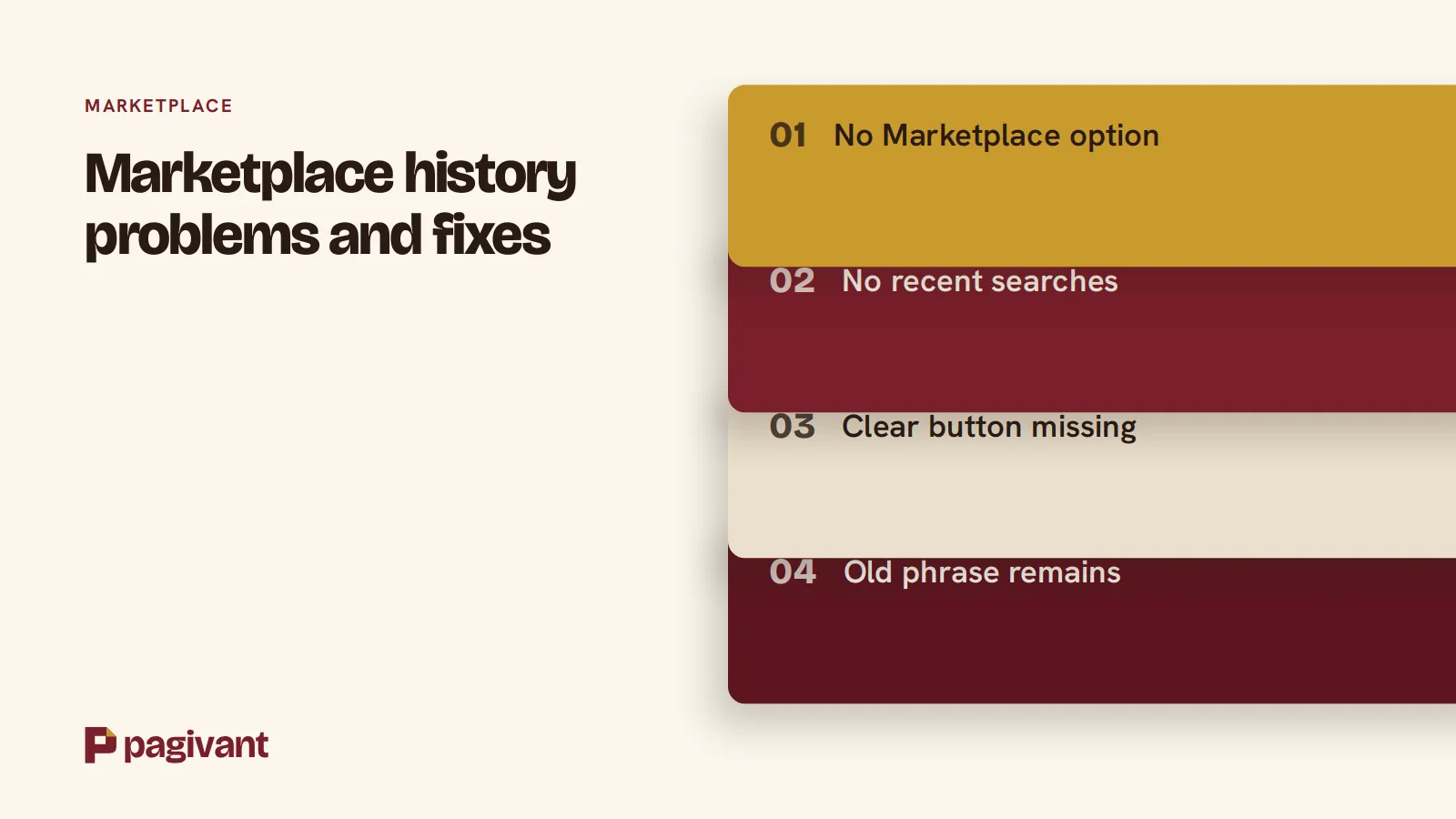
The symptom usually tells you which check to make first.
| What you notice | What it usually means | What to do first | How to stop it happening again |
|---|---|---|---|
| No Marketplace option | Layout changed | Open Menu and search | Keep app updated |
| No recent searches | List already cleared | Search once, reopen | Check correct account |
| Clear button missing | Different app version | Update and reopen | Note current button labels |
| Old phrase remains | Wrong history area | Check Facebook search | Delete matching history |
| Search returns later | It was searched again | Remove it again | Avoid shared account use |
| Marketplace won’t load | Connection or app issue | Switch networks | Reopen before deleting |
| Wrong list disappeared | Account was different | Check profile account | Verify before confirming |
Rules about Facebook search data
Facebook’s controls can differ by app version, account type, and location. Meta’s own help pages are the correct source for the controls currently available on your account. Don’t rely on an old screenshot or a button name from another phone.
Deleting a visible search doesn’t promise that Facebook stops using every signal for Marketplace recommendations. Search history, activity, listings, messages, and account settings can be separate areas. Review the relevant privacy controls if your goal is broader account privacy.
Clearing your browser history or reinstalling the app isn’t the same as deleting search activity saved to your Facebook account. On a shared device, sign out when you finish. Removing searches alone doesn’t prevent the next person from opening an account left signed in.
If the issue involves another person’s account, impersonation, harassment, or access to private data, stop using device-level workarounds. Report the issue through Facebook’s account and privacy support tools instead. Never give a third-party “search cleanup” service your Facebook password or login codes.
What clearing history costs
The direct cost is usually no money, but you’ll lose the convenience of saved recent searches. Clearing one item takes less work than clearing the full list, while clearing everything gives a cleaner result.
Before clearing the full list, save any useful search terms somewhere private. Include model names, sizes, or unusual spellings you may struggle to remember. Deleting recent searches doesn’t delete your Marketplace listings, purchases, or seller conversations.
Your time can increase if the app layout has changed or Marketplace fails to load. Compare the Facebook app version, the account currently signed in, and whether you searched in Marketplace or in Facebook’s main search bar.
The biggest cost comes from deleting the wrong list. A common mistake is tapping Clear all when only one private search needed removal. The cost is losing every other recent search and having to type them again.
If privacy is the goal on a shared device, sign out afterward. Clearing searches alone doesn’t prevent someone from reopening your account.
Keep the list under control
After clearing a search, open the Marketplace search bar once more and confirm the result. If the phrase is gone, you don’t need to delete Facebook or erase your iPhone’s browser data for that Marketplace list. Close and reopen Marketplace only if the cleared list still appears on screen; an old page can remain visible until it refreshes.
If the phrase appears again, check whether you searched for it after clearing the list. Also check the active Facebook account and the main Facebook search area. Those checks usually explain why the visible phrase returned. A search made in the main Facebook search box is separate from a Marketplace search, so clearing one doesn’t necessarily remove the other. If you use more than one account on the phone, switch accounts and check each one before repeating the removal.
Don’t remove the app just to clear Marketplace history. Reinstalling Facebook can affect saved login details and offline data, but it isn’t the normal first step for removing a search. Use reinstalling only for a broader app problem that persists after confirming the correct account and refreshing Marketplace.
When these Marketplace steps aren’t right
These steps aren’t the best choice if you want to remove all Facebook activity, not just Marketplace searches. Use Facebook’s Activity log and privacy controls instead, because posts, comments, searches, and other actions may be stored separately. Check each activity category rather than assuming one Marketplace setting covers the account.
They also aren’t enough if Marketplace recommendations are the problem. Review ad and activity preferences, and check whether recommendations are based on recent activity or saved interests. If a recommendation violates Facebook’s rules, report it from the recommendation itself; clearing search history won’t necessarily change what Facebook shows you.
If you can’t access the account, don’t try to bypass its security or use someone else’s login. Use Facebook’s account-recovery process, and follow the prompts for the email address or phone number connected to the account. A person who manages the account or handles privacy support should deal with access problems. If the account belongs to someone else, ask that person to make the changes rather than sharing credentials.
Related guides
- How to See Your Facebook Marketplace Listings on iPhone
- How to See Your Facebook Marketplace Messages on iPhone
- How to Use Facebook Marketplace on iPhone: Search and Sell
Short on time? Our Facebook Marketplace Account Setup service takes care of the whole process.
Frequently asked questions
Can I clear one Marketplace search on iPhone?
Yes, tap the Marketplace search bar and use the X beside the individual search. This removes that visible search while leaving the other recent searches in place. If there’s no X, tap See all first or update and reopen the Facebook app.
Why can’t I find Marketplace search history?
The Marketplace layout may have changed, or you may be using a different Facebook account. Open Menu, choose Marketplace, and tap its search bar. If the list is empty, search once and reopen the bar to check the account’s current list.
How long does it take to clear Facebook Marketplace searches?
It usually takes 1–3 minutes when Marketplace loads normally and you’re already signed in. The time can be longer when Facebook needs an app update, the account is wrong, or the Marketplace page doesn’t load.
Is it safe to clear Marketplace search history?
Yes, clearing the visible search list is normally a basic Facebook account action. It doesn’t delete a purchase, listing, message, or seller account. Check the confirmation wording before tapping Clear all, because that choice removes the whole visible list.
What happens if I tap Clear all?
The visible Marketplace recent-search list is removed for the Facebook account you’re using. Your listings, messages, and saved items aren’t automatically deleted by that button. Check the account name first so you don’t clear a different account’s list.
Does clearing searches remove Marketplace suggestions?
No, not always. Marketplace suggestions can use more than the visible search list, including other activity and account signals. Clear the search first, then review Facebook’s privacy and activity controls if the same type of listing continues to appear.
Can I clear Marketplace history without deleting Facebook?
Yes. Open Marketplace, use the search bar, and remove one search or choose Clear all. Deleting the Facebook app isn’t needed for this task and may create extra login or setup work.
Clear Facebook Marketplace history first
Open Facebook and verify that you’re signed in to the account whose Marketplace history you want to change. Go to Marketplace, select the search bar, and find the unwanted search in the recent-search list. Remove that entry using the control shown beside it. Don’t delete a different query just because it appears nearby; check the wording first.
Close and reopen the search bar, then confirm that the list is shorter or empty. If the entry remains, repeat the removal once after checking that the app has finished loading. Stop if the wrong account is affected, the removal changes another search, or the control keeps failing. Contact Facebook support rather than repeatedly trying a setting that isn’t responding.

Derek Campbell writes about Facebook features, tools, and account management, covering topics such as account troubleshooting, Business Manager, Facebook Marketplace, and outreach strategies. His content also explores Facebook Groups, community engagement, and ways to connect with relevant audiences. His writing emphasizes practical Facebook know-how, from navigating Marketplace and managing business communities to building meaningful connections through Groups and outreach.
Checked against Facebook’s own help and policy pages on the date shown above.