How to Find Marketplace on Facebook on iPhone

To find Facebook Marketplace on an iPhone, open the Facebook app, tap Menu in the lower-right corner, then choose Marketplace. If you don’t see it, use Facebook’s search box for “Marketplace” and check whether your account, app version, or location affects access.
The path can change after an app update. Your result also depends on whether you’re using the main Facebook app, whether Marketplace is available in your country, and whether Facebook has limited your account. The steps below cover each case.
Find Marketplace on iPhone
People usually search this because the Marketplace shortcut has moved, disappeared, or never appeared in the first place. One reader may already use Facebook but can’t find the shopping icon. Another may have installed Facebook recently and needs the correct menu path.
A third reader may see Marketplace on a computer but not on an iPhone. That person needs checks for the mobile app, account access, and app updates—not instructions for creating a listing.
This page serves iPhone users who have the official Facebook app installed and can sign in to their account. It assumes your iPhone has an internet connection and runs a supported iOS version. If you’re trying to use Marketplace without a Facebook account, read Facebook’s account guidance instead.
You might also be looking for a specific listing, not the Marketplace section. In that case, tap the search icon inside Marketplace and enter the item name, brand, or location. If you’re trying to sell something, first confirm that Marketplace opens normally.
What changes the Marketplace shortcut
The Facebook app layout matters most. On some iPhones, Marketplace appears as a shortcut in the bottom navigation bar. On others, it sits inside the Menu screen, and Facebook can change the visible shortcuts after an update.
Start by checking the lower-right corner for Menu. If Marketplace isn’t shown there, look under See more or use the search field at the top of the menu. The shortcut’s position can differ between Facebook accounts.
Your account access is the next major factor. Marketplace may not appear if Facebook has restricted your access, your account is very new, or the feature isn’t available in your location. You can check for alerts in Menu > Help & support > Support inbox.
The app version also affects what you see. Open the App Store, search for Facebook, and check whether the button says Update. If it does, update the app, reopen it, and check Menu again.
People often check the wrong place first. They search iPhone Settings for Marketplace, but Marketplace is a Facebook feature, so its shortcut is normally controlled inside the Facebook app.
Finally, confirm that you’re using the main Facebook app. A mobile browser, Facebook Lite, or an in-app link may show a different layout. If one account sees Marketplace and another doesn’t on the same iPhone, the account—not the phone—is likely the deciding factor.
Steps to open Marketplace
Use these steps in order. Stop at the first point where Marketplace opens, because extra troubleshooting can sign you out or change app settings unnecessarily.
-
Unlock your iPhone and open Facebook. Wait until the home feed loads fully. A loaded feed, rather than a spinning circle, shows that the app has connected.
-
Tap Menu in the lower-right corner. On some Facebook layouts, this button shows your profile picture instead of the word Menu. The menu page should open with account shortcuts.
-
Look for Marketplace in the shortcut list. Its icon usually looks like a small storefront. Tap it once, and wait for the Marketplace feed to load.
-
Tap See more if Marketplace isn’t visible. Scroll through the expanded shortcuts and select Marketplace when it appears. Don’t tap a similarly named shopping result from an advertisement.
-
Use Facebook’s search field if the shortcut still isn’t listed. Search for Marketplace, then choose the result marked as Facebook Marketplace. The result should open listings, categories, or a location prompt.
-
Set or confirm your location when Facebook asks. Enter your city or ZIP code, then review the distance and location shown on the Marketplace screen. Your local listings should replace the general search page.
-
Update Facebook if the result is missing. Open the App Store, search for Facebook, and tap Update only if that button appears. Reopen Facebook after the update finishes.
-
Check Support inbox if Facebook shows a restriction message. Open Menu > Help & support > Support inbox and read the notice before trying to buy or sell again.
If the app remains frozen, force-close it only when it isn’t responding, then reopen it. Apple’s official iPhone app guidance explains how to close an unresponsive app. Don’t delete the app or reset your iPhone until you’ve checked your account and app version.
The key judgment is the screen you reach. A working Marketplace page shows listings or a location prompt; a search result, help page, or blank error screen means access still hasn’t been restored.
Marketplace paths by situation
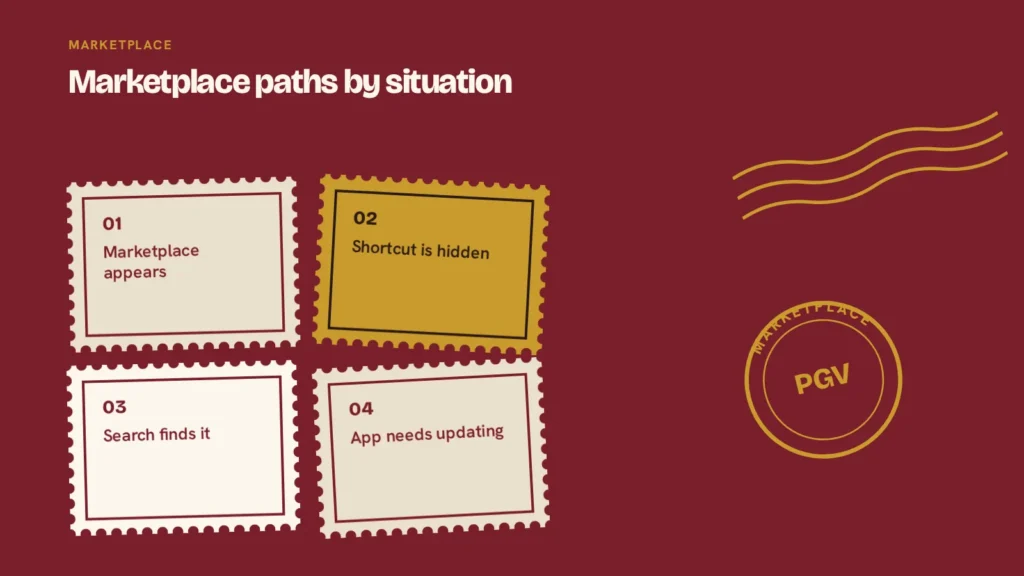
The right route depends on what you can already see. Use the shortest option that matches your screen.
| Your situation | What to do | What it takes | What to watch for |
|---|---|---|---|
| Marketplace appears | Tap the shortcut | Less than one minute | Confirm location |
| Shortcut is hidden | Open Menu, then See more | One to two minutes | Layout may differ |
| Search finds it | Tap Facebook’s result | About two minutes | Avoid paid results |
| App needs updating | Update through App Store | Several minutes | Keep Wi-Fi stable |
| Account shows restriction | Read Support inbox | Five to ten minutes | Follow Facebook’s notice |
| App won’t load | Reopen after force-close | A few minutes | Don’t reset iPhone |
Details that improve the result
Check the screen, not just the icon
The Marketplace shortcut can move, so focus on the page it opens. A proper result has listings, categories, a location, or a prompt to set your location. If you only see a web search result, you haven’t opened Facebook’s Marketplace area.
Check the account shown in Facebook’s menu before troubleshooting. Tap your profile picture and confirm you’re using the account that normally has access. Switching accounts can explain why Marketplace appears on one login but not another.
Leave account settings alone
The safer order is to check the shortcut, expand the menu, search inside Facebook, update the app, and then inspect Support inbox. This order keeps the problem narrow and avoids changing several things at once.
Don’t repeatedly tap a missing shortcut or create a second account to test it. The trade-off is simple: an app update may restore a missing feature, but account restrictions won’t be fixed by reinstalling the app.
If Facebook asks you to verify information, follow only the prompt inside Facebook or its official Help Center. Don’t send passwords, login codes, or payment details to anyone claiming they can restore Marketplace.
Marketplace problems and quick fixes
A missing shortcut doesn’t always mean the same thing. Match the screen you see with the safest first action.
| What you notice | What it usually means | What to do first | How to stop it happening again |
|---|---|---|---|
| No Marketplace shortcut | Menu layout changed | Open See more | Check after updates |
| Search shows unrelated results | Wrong search area | Search inside Facebook | Use the app menu |
| Marketplace opens blank | Connection or loading issue | Reopen Facebook | Use a stable connection |
| Restriction message appears | Account access changed | Read Support inbox | Follow Facebook’s notice |
| Old listings keep showing | Location is wrong | Review Marketplace location | Confirm before browsing |
| App closes suddenly | App may need updating | Check App Store | Keep Facebook updated |
| Marketplace works elsewhere | Account or app difference | Check signed-in account | Use the same login |
Rules that affect Marketplace access
Facebook controls Marketplace access through its own account and product rules. Availability can depend on your country or region, your account status, age requirements, and whether Facebook has restricted Marketplace activity.
Regional rules can also affect buying and selling. Consumer-protection, tax, shipping, and prohibited-item rules may differ between the United States, states, and other countries. Check the relevant government or Facebook Marketplace policy page for the location tied to your account.
Never pay a person who promises to restore Marketplace access. Facebook support won’t need your password or a one-time login code. If the next step involves identity checks, payment disputes, or a suspected scam, use Facebook’s official reporting and support process instead of trying random account changes.
If you’re under the age required by Facebook’s current terms, or your account has a restriction, this guide can’t override that decision. Read the notice in Support inbox and use Facebook’s appeal option if one is offered.
The real cost of fixing access
For a normal shortcut problem, the cost is usually your time rather than money. Checking Menu, See more, in-app search, and the App Store may take only a few minutes, but the exact time depends on your connection and whether an update is waiting.
A slower connection can make a working Marketplace page look broken. Compare Facebook with another website or app on the same iPhone. If everything loads slowly, fix the connection before changing account settings.
An account restriction can cost more time because reinstalling Facebook won’t remove it. Read the restriction message, note any date or reason shown, and use the stated review process. Don’t pay a third party for “activation.”
The common costly mistake is deleting Facebook before checking which account is signed in. You may lose unsaved drafts or spend time recovering login details, while the original access problem remains. Check the account and Support inbox first.
Keep Marketplace working
Keep Facebook updated through the App Store when an update is available. After an update, open Facebook and check Menu because shortcut positions can change.
If Marketplace opens with the wrong area, review its location before searching for items. A changed city, ZIP code, or distance setting can make the feed look empty even though the feature works.
If the shortcut disappears again, repeat the safe checks: confirm the account, open Menu, choose See more, search inside Facebook, and inspect Support inbox. You shouldn’t need to reset the iPhone for a normal shortcut change.
The sign that attention is needed is a new warning, restriction, or verification request. Keep a screenshot of that message, then follow Facebook’s stated support route rather than trying several fixes at once.
When these steps aren’t enough
These steps aren’t the right choice if Facebook says your Marketplace access is restricted. Use the review or appeal option shown in Support inbox, because reinstalling the app won’t change an account decision.
They also aren’t enough if you’re dealing with a payment scam, stolen account, or suspicious seller. Stop the conversation, don’t send more money or codes, and use Facebook’s reporting tools; contact your bank or local authorities for payment fraud.
If the iPhone itself won’t connect, crashes across several apps, or can’t install updates, troubleshoot iPhone software with Apple instead. This page can’t safely diagnose a device or account problem that affects more than Facebook.
If you would rather have this handled for you, our Facebook Marketplace Account Setup service covers it end to end.
Frequently asked questions
Can I find Marketplace without the Facebook app?
Usually, you’ll need Facebook’s mobile website or app, but the layout may differ. On an iPhone, the app gives you the clearest route through Menu, See more, and Facebook search. If the mobile site doesn’t show Marketplace, use the app or check account access.
Why did Marketplace disappear from my iPhone?
Marketplace may disappear because Facebook changed the shortcut layout, your app needs an update, your signed-in account differs, or access has been restricted. Check Menu, See more, the App Store, and Support inbox in that order before deleting Facebook.
How long does a Facebook app update take?
An update may take a few minutes on a stable connection, but the time depends on the update size and your internet speed. Keep the App Store open until the button changes from updating to Open, then launch Facebook and check Marketplace.
Is it safe to use Marketplace on an iPhone?
Yes, using the Marketplace feature itself is generally safe, but individual listings and sellers still need checking. Keep conversations inside Facebook, avoid sharing login codes, and don’t pay outside a trusted method. Leave the deal if the seller creates urgent pressure.
What happens if Facebook asks for my location?
Facebook may use the location you enter to show nearby listings and set a search area. Review the city, ZIP code, and distance before browsing. If the area is wrong, change the Marketplace location rather than assuming no local items exist.
Does it matter which Facebook account I use?
Yes, it can matter because Marketplace access and restrictions apply to the signed-in account. If Marketplace works on another account, compare the account status and Support inbox. Don’t create extra accounts to bypass a restriction, because that may create a separate policy problem.
Can I use Marketplace if I’m traveling?
You may still see Marketplace, but listings and available features can change with your location and account region. Check the location shown inside Marketplace and follow local buying rules. Don’t assume a listing’s shipping, payment, or pickup terms work in another country.
Start with Marketplace on iPhone
First, open Facebook, tap Menu, and choose Marketplace or See more. You should see listings or a location prompt when it works. If Facebook shows a restriction or verification warning instead, stop changing the app and use the support option shown there.

Derek Campbell writes about Facebook features, tools, and account management, covering topics such as account troubleshooting, Business Manager, Facebook Marketplace, and outreach strategies. His content also explores Facebook Groups, community engagement, and ways to connect with relevant audiences. His writing emphasizes practical Facebook know-how, from navigating Marketplace and managing business communities to building meaningful connections through Groups and outreach.
Checked against Facebook’s own help and policy pages on the date shown above.