WhatsApp Business Messaging Limits Explained

WhatsApp Business messaging limits explained in simple terms: the WhatsApp Business app and the WhatsApp Business Platform have different limits. The app mainly limits broadcast lists and account activity, while the Platform limits how many unique users a business can start conversations with in 24 hours. Your limit can also change with account quality, verification, and customer feedback. This guide covers the numbers, setup choices, common errors, and the cases where a different WhatsApp tool is better.
What the messaging limits cover
WhatsApp messaging limits control how a business contacts people and how it sends messages at scale. They aren’t one single number for every WhatsApp account.
The WhatsApp Business app is designed for small teams that reply to customers directly. Its broadcast feature lets you send one message to many contacts, but recipients generally need to have your business number saved in their address book to receive the broadcast. The app isn’t a full campaign platform.
The WhatsApp Business Platform, also called the Cloud API or Business API, is built for larger support and marketing operations. It uses approved message templates when a business starts a conversation outside the customer service window. Its main conversation limit counts unique customers, not the total number of messages sent to those customers.
A common misconception is that a business gets one fixed daily message allowance. That’s not how the Platform works. Meta assigns a messaging limit to the business portfolio, and the limit can rise or fall as the account builds a good quality record. A business can send several messages in one customer conversation without each message becoming a new unique customer.
The Platform also separates customer-initiated conversations from business-initiated conversations. When a customer messages you, you can reply during the customer service window under Meta’s current rules. Starting a new conversation requires an approved template and counts toward the business-initiated limit.
How to check and use limits
Before sending anything, decide whether you’re using the WhatsApp Business app or the Business Platform. If you’re using the app, check broadcast-list rules and account restrictions inside WhatsApp; if you’re using the Platform, check the WhatsApp Manager limit and quality rating for the business portfolio.
-
Identify the account type. Open your business settings and confirm whether the number is connected to the WhatsApp Business app, Cloud API, or a solution provider. Don’t plan a Platform campaign around app limits, or the other way around.
-
Check the current limit. In WhatsApp Manager, review the messaging limit for the business portfolio and the quality rating for the phone number. The live dashboard is more reliable than an old help article because Meta can change a limit after account activity or policy enforcement.
-
Confirm the audience size. Count unique customers you plan to contact in the rolling 24-hour period. Sending three approved messages to 1,000 customers still involves 1,000 unique customers, not 3,000.
-
Use an approved template for a new business-initiated chat. Select the correct language and category, then send only content that matches the template. A promotional message disguised as a service update can receive poor feedback or trigger review.
-
Send in controlled batches. Start with the customers who have clearly opted in and are most likely to find the message useful. If quality drops, stop adding recipients and review complaints, blocks, failed deliveries, and the wording before sending more.
-
Watch the live status. Check delivery, read, reply, block, and report signals during the campaign. If the dashboard shows a warning or quality decline, pause the send and contact your Platform provider or Meta support rather than trying to bypass the limit.
-
Record the result. Keep the template name, audience count, send time, consent source, and outcome. This record helps you remove people who opted out and explain the campaign if Meta reviews the account.
The main judgment call is audience fit. If the message solves a recent customer need, send it to that smaller group; if it’s only loosely related, don’t use a higher limit to force it into a large audience. A higher allowance gives you reach, but it doesn’t make unwanted messages acceptable.
You shouldn’t try to change API throughput, verification, or account settings without the right technical access. If a provider manages your number, ask that provider to handle configuration; for a policy restriction or disabled number, use Meta’s official business support route.
WhatsApp Business Messaging Limits by Account Type
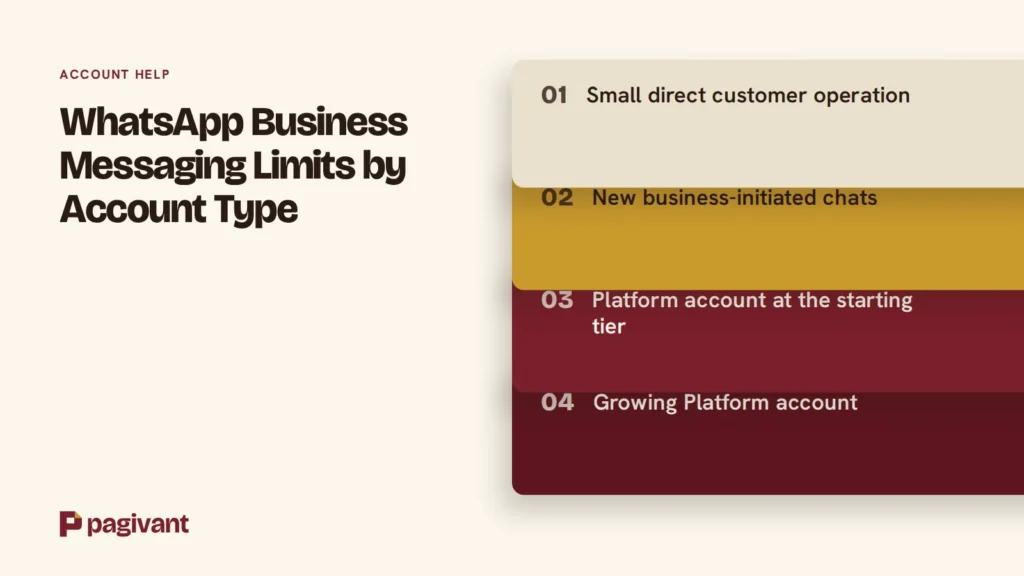
Use this table as a quick guide, but check your live WhatsApp Manager settings before sending. Limits can differ by product, business portfolio, phone number status, and Meta’s current rules.
| Situation | What to use | How long | What to watch for |
|---|---|---|---|
| One-to-one customer replies | WhatsApp Business app or Platform | During the active customer service window | A reply is different from starting a new business conversation |
| Small direct customer operation | WhatsApp Business app | No single universal daily message number | Broadcast recipients usually need to save your number |
| New business-initiated chats | WhatsApp Business Platform | Rolling 24-hour limit | The limit counts unique users, not message copies |
| Platform account at the starting tier | Business-initiated templates | Up to the tier shown in WhatsApp Manager | The starting tier is assigned by Meta and can change |
| Growing Platform account | Approved templates and verified opt-ins | The higher tier shown in WhatsApp Manager | Good quality and customer engagement matter |
| Customer replies to your message | Platform conversation tools | Use the current customer service window shown by Meta | A new promotional chat still needs the right template |
| High-volume technical sending | Cloud API or an approved provider | Based on account and throughput settings | Throughput and messaging limits are separate controls |
The trade-off is simple: the app is easier to start with, but it gives you less automation and campaign control. The Platform supports systems, templates, and larger audiences, but it adds setup, approval, consent, and monitoring work.
What improves message quality
Good limit management starts before the send. Collect clear opt-ins that explain what customers will receive, how often they may hear from you, and how they can stop messages. Keep separate consent records for order updates, support notices, and marketing when those purposes differ.
Write the message for the reason the customer agreed to hear from you. A delivery update should identify the order or event; a promotional message should state the offer plainly. Don’t hide a sales pitch inside a template labeled as an account or service notification.
Send the message when the customer is likely to use it. A reminder about an appointment should arrive close enough to help, while a sale shouldn’t continue after the customer has opted out. If replies show confusion, pause the campaign instead of adding more explanation to the same batch.
Check a small audience first when the message or offer is new. Review failed deliveries, blocks, reports, and replies before expanding. A high delivery count alone isn’t proof of quality, because a message can be delivered and still lead to blocks or complaints.
Leave the customer list alone when its consent is unclear. Buying a list, importing old contacts without permission, or messaging people who only gave an email address can create complaints and account risk. The mistake costs more than one weak campaign: it can reduce message quality, limit future reach, and make useful customer updates harder to send.
Common limit problems and fixes

A blocked send doesn’t always mean you’ve reached the daily limit. The number may be affected by the account type, template status, quality rating, recipient consent, or a separate technical error.
| What you notice | What it usually means | What to do first |
|---|---|---|
| A broadcast reaches only some contacts | Some recipients haven’t saved your business number, or the list is restricted | Confirm the recipient saved the number and review the app’s broadcast rules |
| A template is rejected | The content, category, language, or variable use doesn’t meet template rules | Edit the template so its wording matches the real customer purpose |
| Messages stop after a campaign starts | The business-initiated unique-user limit may have been reached | Stop new sends and check the live limit in WhatsApp Manager |
| The limit falls or quality turns low | Customers may be blocking, reporting, or ignoring messages | Pause the campaign, remove poor-fit contacts, and improve consent and wording |
| Messages show failed delivery | The number may be invalid, the user may be unavailable, or the account may have a restriction | Check error details and ask your provider or Meta support about account errors |
| Customer replies work but new outreach fails | The customer service window and business-initiated rules are different | Reply to active chats and use an approved template for a new conversation |
If a number is disabled, don’t create replacement accounts to get around the restriction. That can make the account history harder to resolve. Use the appeal or support process available in your WhatsApp Business tools.
Meta messaging rules
Meta’s messaging limit applies to business-initiated conversations on the WhatsApp Business Platform. It’s measured by the number of unique users a business can start conversations with during a rolling 24-hour period, not simply by the number of messages.
Meta has used tiers such as 250, 2,000, 10,000, and 100,000 unique users, with higher or unlimited access available under its current eligibility system. These tiers aren’t a promise for every account, so check the live value in WhatsApp Manager. Meta can revise the system and its eligibility requirements.
The Platform also requires approved templates for business-initiated conversations outside the customer service window. Marketing, utility, and authentication templates have different purposes. A template must accurately match the message you send; changing the content after approval in a way that changes its purpose can cause review or enforcement.
Meta also evaluates message quality through signals such as customer feedback, blocks, reports, and engagement. For the current definitions and tier rules, read Meta’s WhatsApp messaging limits documentation.
If you need API integration, automated sending, or a system that stores customer data, use a qualified developer or an approved solution provider. Don’t modify production webhooks, tokens, or phone-number settings unless you understand the failure risk.
Keeping limits healthy
Keep your opt-in records with the customer’s phone number, consent wording, date, source, and message purpose. Remove people who opt out, and don’t quietly add them to another marketing list.
Use separate lists for different customer needs. Someone who agreed to receive order updates hasn’t automatically agreed to every promotion. Clear groups make it easier to send fewer, more relevant messages.
Review message quality whenever a campaign ends and again when customers report problems. Look at blocks, reports, failed deliveries, replies, and opt-outs together. A campaign that gets replies but also creates many complaints needs a change in audience or wording.
Your current limit may change after account activity, quality changes, policy enforcement, or Meta’s system updates. The value shown in WhatsApp Manager is the one to use for planning; an old screenshot or provider estimate isn’t a dependable record.
If quality falls, stop expanding the audience until the cause is clear. Bring the account back with smaller, more relevant sends rather than trying to use every available slot.
When WhatsApp limits aren’t the right fit
The WhatsApp Business app isn’t a good choice for a large campaign with many audience groups, scheduled sends, or detailed reporting. Use the Business Platform with an appropriate customer system instead, and make sure the required templates and opt-ins are ready.
The Platform isn’t right when you need to contact a purchased or unclear list. Use email, your website, or another channel to request permission first; don’t move an unapproved list into WhatsApp just because the phone numbers are valid.
WhatsApp also isn’t the best channel for long documents, complex forms, or a conversation that needs a full support record. Use a secure customer portal or email for that task, then use WhatsApp for a short alert or a link the customer expects.
If your business only handles a small number of personal customer chats, the app may be the better trade-off. You’ll give up automation, but you’ll avoid Platform setup that adds work without solving a real volume problem.
Related guides
Want an expert to set this up with you? Take a look at Facebook Page Setup.
Part of our guide: WhatsApp Business: The Complete Guide for Small Businesses
Frequently asked questions
What is the WhatsApp daily messaging limit?
The Platform limit is based on unique users, with tiers such as 250, 2,000, 10,000, and 100,000 users in a rolling 24-hour period. The exact tier depends on the business portfolio and Meta’s current rules. The WhatsApp Business app follows different controls, so check its broadcast and account restrictions separately.
Can I send unlimited messages on WhatsApp Business?
No. You can’t assume unlimited sending on either product. The Platform limits business-initiated conversations, while the app can restrict broadcasts, activity, or accounts that break its rules. Even when Meta gives a business a high or unlimited tier, customer consent and message quality still apply.
Why did my WhatsApp messaging limit decrease?
A lower limit can follow poor message-quality signals, customer blocks, reports, policy issues, or changes to the account’s eligibility. Check the quality rating, warnings, template status, and error details in WhatsApp Manager. If the cause isn’t clear, pause new outreach and ask Meta or your provider to review the account.
How long does the WhatsApp messaging limit last?
The Platform uses a rolling 24-hour window for its unique-user limit. It isn’t a calendar-day allowance that resets at midnight. A customer becomes relevant to the limit based on the business-initiated conversation and the current window shown by Meta, so check WhatsApp Manager before planning a large send.
Is it safe to use a WhatsApp bulk sender?
No, not automatically. A bulk-sending tool can create policy, privacy, and account risks if it uses unauthorized automation, unclear consent, or misleading templates. Use the official Business Platform or a legitimate provider, keep consent records, and avoid tools that promise a way around Meta’s limits.
What happens if I exceed the WhatsApp limit?
New business-initiated conversations may be blocked, delayed, or rejected once the account reaches its current limit. Existing customer replies may follow different rules. Stop the send, check the live limit and error message, and don’t create replacement numbers to bypass the restriction.
How many people can receive a WhatsApp broadcast?
The WhatsApp Business app has broadcast-list rules, including a commonly used maximum of 256 contacts per list. Recipients generally need to save your business number to receive the broadcast. If you need larger, trackable campaigns, use the Business Platform with approved templates and proper opt-in records.
Conclusion
Before you scale your customer messaging, decide whether the app or Platform fits your goals. Keep an eye on reply quality and customer feedback, then adjust your approach early. That way, you’ll protect trust and build a healthier channel for future growth.

Derek Campbell writes about Facebook features, tools, and account management, covering topics such as account troubleshooting, Business Manager, Facebook Marketplace, and outreach strategies. His content also explores Facebook Groups, community engagement, and ways to connect with relevant audiences. His writing emphasizes practical Facebook know-how, from navigating Marketplace and managing business communities to building meaningful connections through Groups and outreach.
Checked against Facebook’s own help and policy pages on the date shown above.