Instagram Shopping Approval: Requirements and Fixes

To get instagram shopping approval, your business must sell physical goods, operate in a supported market, and link to a facebook catalog. Meta typically reviews applications within 48 hours, though some take up to two weeks. If you’re refused, it’s almost always because the website domain doesn’t match or the products violate commerce policies. This guide covers the exact setup steps, the settings that trigger rejections, and how to correct them without starting over.
What Instagram Shopping actually requires
Instagram Shopping is a feature that lets businesses tag physical products directly in posts, reels, and stories. When someone taps a tag, they see the price and a link straight to the product page on your website. It’s built for retail brands and small shops that already sell online through their own site.
The system works by connecting your Instagram profile to a product catalog hosted on Meta’s Commerce Manager. That catalog pulls data—images, prices, descriptions—from your e-commerce platform or a manual upload. The tags you place on photos simply point to those catalog entries.
A common mix-up is thinking any account can turn this on. Service-based businesses, digital download sellers, and dropshippers without a verifiable storefront usually get rejected. Meta’s rules require you to sell tangible items and own the domain where checkout happens. You can read the full list of supported markets and requirements on Meta’s official business help center.
Another misconception is that a big follower count matters. It doesn’t. The review looks at your business verification, your website domain, and whether your products follow Meta’s Commerce Policies. An account with fifty followers selling handmade mugs from its own site has a better chance than a large account reselling unverified electronics.
If your account is personal rather than professional, the option won’t even appear. Switching to a Business or Creator account is the mandatory first move before anything else works.
Steps to set up Instagram Shopping
You’ll need an active Instagram Business account, a Facebook Business Page, and a live website selling physical products before starting. Have your admin login ready for both platforms.
- Open Instagram, go to Settings and privacy, tap Account type and tools, and switch to a Professional account if you haven’t already. Choose “Business” as your category.
- Go to your Facebook Business Page settings. Under “Linked Accounts,” select Instagram and log in to connect the two. They must be linked for the catalog to sync.
- Open Meta Commerce Manager on a desktop browser. Click Add Catalog, select E-commerce, and choose how you’ll upload items. If you use Shopify or WooCommerce, pick the partner integration; otherwise, select manual upload.
- Add your products to the catalog. For manual uploads, include a clear image (at least 500×500 pixels), the exact price, a short description, and the direct URL to the checkout page on your site.
- Verify your website domain in Facebook Business Settings under Brand Safety > Domains. You’ll add a DNS record or upload an HTML file to prove ownership.
- Return to Instagram. Go to Settings and privacy > Business tools and controls > Set up Instagram Shopping. Select the Facebook Page and the catalog you just created.
- Submit the application for review. Meta usually responds within 48 hours, but complex catalogs can take up to 14 days. Check Settings > Business > Shopping for the status.
If the DNS record or HTML file for domain verification won't go through, ask our team and we can check it with you or do it for you.
The single judgment call that separates a smooth approval from a rejection is your product selection. If your catalog includes items that border on restricted categories—like supplements making health claims or replica fashion—the entire account gets flagged. Keep the initial submission limited to your safest, most standard physical products. Once approved, you can carefully expand the catalog later.
Instagram Shopping numbers and settings
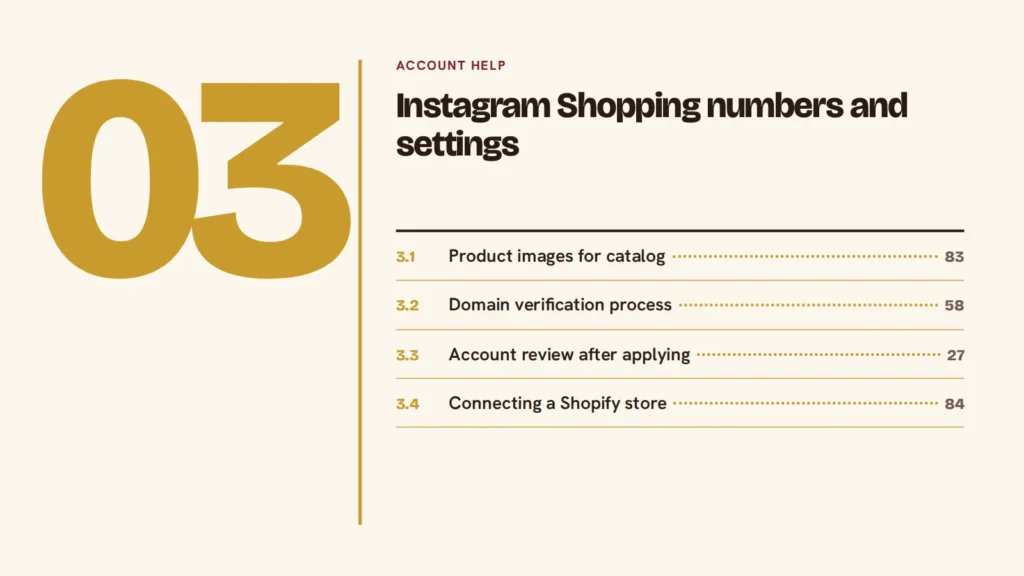
These are the specific figures you’ll need when setting up your catalog and configuring your shop. Keep this table handy while you work through Commerce Manager.
| Situation | What to use | How long | What to watch for |
|---|---|---|---|
| Product images for catalog | Minimum 500×500 pixels, JPG or PNG | Upload takes seconds per item | Blurry text or watermarks cause rejection |
| Domain verification process | DNS TXT record or HTML file | Usually verifies within 24 hours | Wrong subdomain leaves it stuck pending |
| Account review after applying | Standard submission via app | 48 hours to 14 days | Adding new items during review resets the clock |
| Connecting a Shopify store | Partner integration in Commerce Manager | Syncs every 15 minutes automatically | Currency mismatch between store and catalog |
| Tagging products in a post | Up to 5 tags per single image | Instant once approved | Tagging non-catalog items isn’t possible |
Your product feed needs to update whenever prices change. If you use a manual catalog, you have to edit the price in Commerce Manager yourself. For partner integrations like Shopify, the sync happens automatically, but you should still check that the currency matches your Instagram region settings. A mismatch there’s a frequent reason tags stop working after the first week.
Why applications get rejected
The difference between a fast approval and a frustrating rejection usually comes down to two things: domain consistency and product eligibility. Meta’s automated systems check these before a human ever looks at your application.
Your Instagram profile, your Facebook Page, and your Commerce Manager catalog must all point to the exact same website domain. If your Facebook Page links to example.com but your catalog items point to a completely different domain, the system flags a mismatch. Fix this by ensuring every URL uses the identical root domain you verified in Brand Safety settings. Don’t leave old links pointing to a previous website builder.
Product eligibility is the second major hurdle. Meta’s Commerce Policies strictly prohibit certain items, including digital goods, services, animals, and adult products. Even seemingly normal items like vitamins can trigger a rejection if the description implies they cure a disease. Review your catalog line by line. Remove anything that isn’t a straightforward physical good sold directly on your verified site.
Checking your catalog before submitting
Don’t submit your application the moment you finish uploading. Wait a few hours and click through your own product links from Commerce Manager. If a link leads to a 404 error, a generic homepage instead of the specific item, or a third-party marketplace like Amazon, your application will fail. Every single checkout link must land on your own verified domain, showing the exact item priced exactly as listed in the catalog.
What the review team actually looks at
They don’t evaluate your photography skills or follower count. They verify three facts: you sell physical goods, you own the domain, and your items comply with their prohibited content list. If your refund and return policy isn't clearly displayed and easy to reach on your website, Facebook or Instagram, or your contact information is missing, that can trigger a decline too. Make sure your footer includes a real email address and shipping terms before you hit submit.
Fixing Instagram Shopping problems

When something breaks after setup or during review, the error message in the app is rarely helpful. Use this table to match what you’re seeing on your screen to the actual fix.
| What you notice | What it usually means | What to do first |
|---|---|---|
| “Not eligible” message in settings | Account type is wrong or region unsupported | Switch to Business account and check country list |
| Shopping tab missing from settings | Catalog isn’t linked to the connected Page | Re-link catalog in Commerce Manager under settings |
| Products show wrong prices | Feed hasn’t synced or currency mismatched | Force a manual sync and check currency codes |
| Application rejected instantly | Website domain doesn’t match verified domain | Verify the exact matching domain in Business Settings |
| Tags disappear from old posts | Item was deleted or hidden in the catalog | Restore the item in Commerce Manager and wait 24 hours |
If your account shows “Not eligible,” double-check that you aren’t using a Creator account with a category that Meta excludes from shopping features. Switching the category to “Retail Company” or “Shopping & Retail” can sometimes fix it.
For pricing errors, never edit the price inside Instagram. Always change it at the source—your e-commerce platform or the manual Commerce Manager entry—and let it push through. Editing locally creates conflicts that break the tag entirely.
If you’ve been rejected and fixed the issue, don’t immediately reapply. Wait until the changes reflect fully across Facebook and Instagram, which can take up to 24 hours. Applying while the old data is still showing can lead to another rejection.
Commerce rules to follow
Meta enforces strict Commerce Policies that dictate what you can and can’t sell through Instagram Shopping. These aren't suggestions. Breaking them can lead to rejected or removed content and to suspended or terminated access to commerce features.
You must sell physical items. Services, event tickets, digital downloads, and gift cards are explicitly banned from product tags. If your business model relies on booking appointments or selling PDF guides, this feature isn’t available to you.
Your website must be fully functional and owned by you. You can’t direct shoppers to an Amazon listing, an Etsy page, or a wholesale portal requiring a login. The checkout process needs to happen on the domain you verified in Business Settings.
Certain physical goods face heavy restrictions. Healthcare products, weapons, alcohol, and real animals can’t be tagged. Even accessories related to restricted items—like holsters or vaporizer parts—often trigger automated bans.
If your products fall into regulated categories like cosmetics or dietary supplements, you must avoid making medical claims in your descriptions. Stating a lotion “cures eczema” violates policy, while saying it “moisturizes dry skin” is acceptable.
For businesses operating in regions with specific consumer protection laws, like the EU’s distance selling regulations, your website must display clear return policies and total costs including taxes before checkout. Meta’s review checks for this transparency. If you’re unsure whether your specific product category is allowed, check Meta’s official Commerce Policies directly rather than guessing.
Which Meta rules your account must follow
Meta’s Commerce Policies cover any attempt to buy, sell or trade products, even for free. They apply across Facebook, Instagram, WhatsApp and Messenger, including Marketplace, Shops and the WhatsApp Business Catalog.
- Your account and Facebook Page must follow Meta’s Terms of Service, Commercial Terms and Community Standards.
- Your Instagram professional account must follow the Instagram Terms of Use and Community Guidelines.
- Commerce content that breaks the Community Standards is not allowed.
- You can’t promote the sale of alcohol, adult products, human body parts or fluids, or certain subscriptions and digital products.
- Your refund and return policy must be clearly displayed and easy to reach on your website, Facebook or Instagram.
If you stop meeting these requirements at any time, you can lose access to commerce features. In some cases the account can be disabled.
Keeping your shop active
Approval isn’t a one-time event. Meta periodically rescans your catalog and website. If your site goes down, your domain expires, or you start listing prohibited items, your shopping access gets revoked without warning.
Keep your product feed updated. If you discontinue an item, hide or delete it in Commerce Manager immediately. Leaving dead links in your catalog signals poor maintenance to the automated review systems. Out-of-stock items should be marked as such, not left displaying a “buy” button that leads nowhere.
Check your domain verification status monthly. If you migrate to a new web host or change your site’s structure, the DNS record used for verification might break. Re-verifying takes minutes but prevents sudden loss of shopping features.
Monitor your support inbox. If Meta sends a warning about a specific product, remove it right away and appeal only if it was clearly a mistake. Ignoring policy warnings leads to full account restrictions.
Finally, keep your Facebook Business Page active. Since Instagram Shopping relies on the Page connection, abandoning your Facebook presence or letting the Page get unpublished will sever the link and disable your product tags on Instagram.
When Instagram Shopping isn’t the right fit
This setup works for direct-to-consumer retail, but it fails for several business models. Pushing an application through when your model doesn’t fit just wastes weeks of troubleshooting.
If you sell high-ticket B2B equipment requiring custom quotes, product tags with fixed prices confuse buyers. Instead, use Instagram purely for lead generation. Drive traffic to a landing page with a consultation form rather than a shopping cart. The algorithm favors engagement anyway, so focus on educational reels that prompt direct messages.
Service providers—consultants, salons, freelancers—can’t use this feature since digital services are banned. Trying to disguise a service as a physical product to trick the review leads to permanent bans. Use Instagram’s native booking integrations or link-in-bio tools designed for appointment scheduling instead.
Dropshippers who don’t control their inventory or shipping times struggle here. Meta’s review increasingly checks for consistent fulfillment capabilities. If your supplier ships from overseas with month-long delays, customer complaints will flag your account. Build a standalone storefront with transparent shipping policies first, or use affiliate marketing tools rather than native shopping tags.
If your catalog has fewer than five items and you rarely add more, the setup effort outweighs the benefit. Simply putting the direct purchase link in your bio is faster and avoids the compliance overhead entirely.
Prefer a done-for-you option? Read about Facebook Page Setup.
Can Facebook Marketplace replace Instagram Shopping?
Not reliably. Facebook Marketplace is intended for consumer-to-consumer sales. Businesses, and people acting in a business capacity, can face restrictions in some regions. Meta’s Commerce Policies name the European Economic Area, the Philippines and India.
Marketplace listings follow the same Commerce Policies as Instagram Shopping. A removed listing is judged against those policies, and a removal alone does not mean your account is disabled.
Frequently asked questions
How long does Instagram Shopping approval take?
It takes between 48 hours and 14 days for Meta to review your application. This assumes your catalog is complete and your domain is already verified. If they ask for more documents, the clock pauses until you reply. You can check the current status inside your Instagram settings under the Shopping menu.
Why was my Instagram Shop rejected?
Rejection usually happens because your website domain doesn't match the one verified in your business portfolio settings, or your catalog contains prohibited items. Digital goods, services, and products making medical claims are automatic failures. Fix the specific issue mentioned in the rejection email before requesting another review.
Can I use Instagram Shopping without a website?
No, you can’t get approved without a functioning website that you own. Meta requires a verified domain where the actual checkout takes place. Directing users to third-party marketplaces like Amazon or eBay violates their commerce policies and results in immediate rejection.
Is it safe to sell high-value items on Instagram?
Yes, the tagging feature itself is secure, but Instagram doesn’t process the payment. The transaction happens on your own website, so your site’s security handles the risk. Ensure your checkout uses SSL encryption and complies with standard payment processing rules to protect buyer data.
How many products can I tag in one post?
You can tag up to 5 products in a single-image post or up to 20 products in a carousel post with multiple slides. Each tag must point to an active item currently published in your connected Commerce Manager catalog. Hidden or out-of-stock items can’t be tagged.
What happens if I change my website domain?
Changing your domain breaks your shopping approval immediately. You must verify the new domain in your business portfolio settings, update every product link in your Commerce Manager catalog, and then request a new account review through Instagram settings. Until that review passes, your existing product tags will stop working.
Do I need a certain number of followers?
No, there’s no minimum follower requirement to apply for or receive Instagram Shopping approval. Meta evaluates your business legitimacy, domain ownership, and product compliance rather than your audience size. A brand-new account with zero followers can be approved if the catalog and website meet all commerce policies.
Conclusion
Getting your shop running smoothly comes down to matching your domains perfectly and keeping your catalog free of restricted items. Double-check your links before submitting, and don’t rush the review process by editing things while Meta is looking at them. Once you’re live, treat your catalog like your actual storefront—keep prices accurate, remove sold-out items quickly, and make sure every click lands exactly where the buyer expects it to.

Derek Campbell writes about Facebook features, tools, and account management, covering topics such as account troubleshooting, Business Manager, Facebook Marketplace, and outreach strategies. His content also explores Facebook Groups, community engagement, and ways to connect with relevant audiences. His writing emphasizes practical Facebook know-how, from navigating Marketplace and managing business communities to building meaningful connections through Groups and outreach.
Checked against Facebook’s own help and policy pages on the date shown above.