How to Set Up Conversions API with a Partner Integration on Facebook

To set up conversions api with a partner integration on Facebook, choose your partner in Meta Events Manager, connect the partner account, map events, and test the data before sending traffic.
Setup time depends on your partner platform, how many events you map, and whether you already have a Meta pixel. It’s easy to medium difficulty, depending on your partner platform. You’ll need admin access to your Meta business portfolio, ad account, pixel or dataset, and the partner account.
The cost depends on your partner, and your website platform or app may charge separately. Check the partner’s pricing page before you start. You’ll also need the exact website, store, or CRM account that sends the events. If you can’t access its settings, stop and ask the account owner.
What you need for Facebook Conversions API
| Item | How much | Why it’s needed | A substitute |
|---|---|---|---|
| Meta business access | 1 admin login | Grants setup permissions | None — don’t swap this |
| Ad account | 1 active account | Receives conversion data | None — don’t swap this |
| Pixel or dataset | 1 matching asset | Stores website events | Dataset ID from Meta |
| Partner account | 1 connected account | Sends server events | Manual developer setup |
| Website domain | 1 verified domain | Matches customer activity | Partner-supported domain |
| Test event code | 1 temporary code | Confirms event delivery | Test Events tool |
| Privacy settings | Your current policy | Explains data use | Legal review |
Meta’s available choices can change by country, account type, and partner platform. Open Meta Events Manager and note the exact pixel or dataset name before connecting anything. If your partner asks for an ID, copy it from Meta instead of typing a number from memory.
Before setting up Facebook Conversions API

- Sign in to the correct Meta Business account, then open Events Manager. Check the business name, ad account, and pixel or dataset name before you change a setting.
- Pause any old manual Conversions API setup if it sends the same events. Duplicate browser and server events can make reporting unclear, so check your partner’s integration page for existing connections.
- Keep your partner dashboard open in another browser tab. You’ll need its store, website, or CRM settings, and the account must have permission to install or enable the integration.
- Review your privacy notice, consent tool, and data-sharing settings first. Meta’s Conversions API guidance explains the product and data-sharing setup.
- Don’t edit server code, DNS records, checkout code, or customer data rules unless you’re qualified to do so. Stop and contact your developer, platform support team, or privacy adviser when the partner requests those changes.
The preparation people skip is checking for an older connection. If the same purchase is sent by a plugin, a tag manager, and a partner app, the result can be duplicate or mismatched events.
Set up Facebook Conversions API
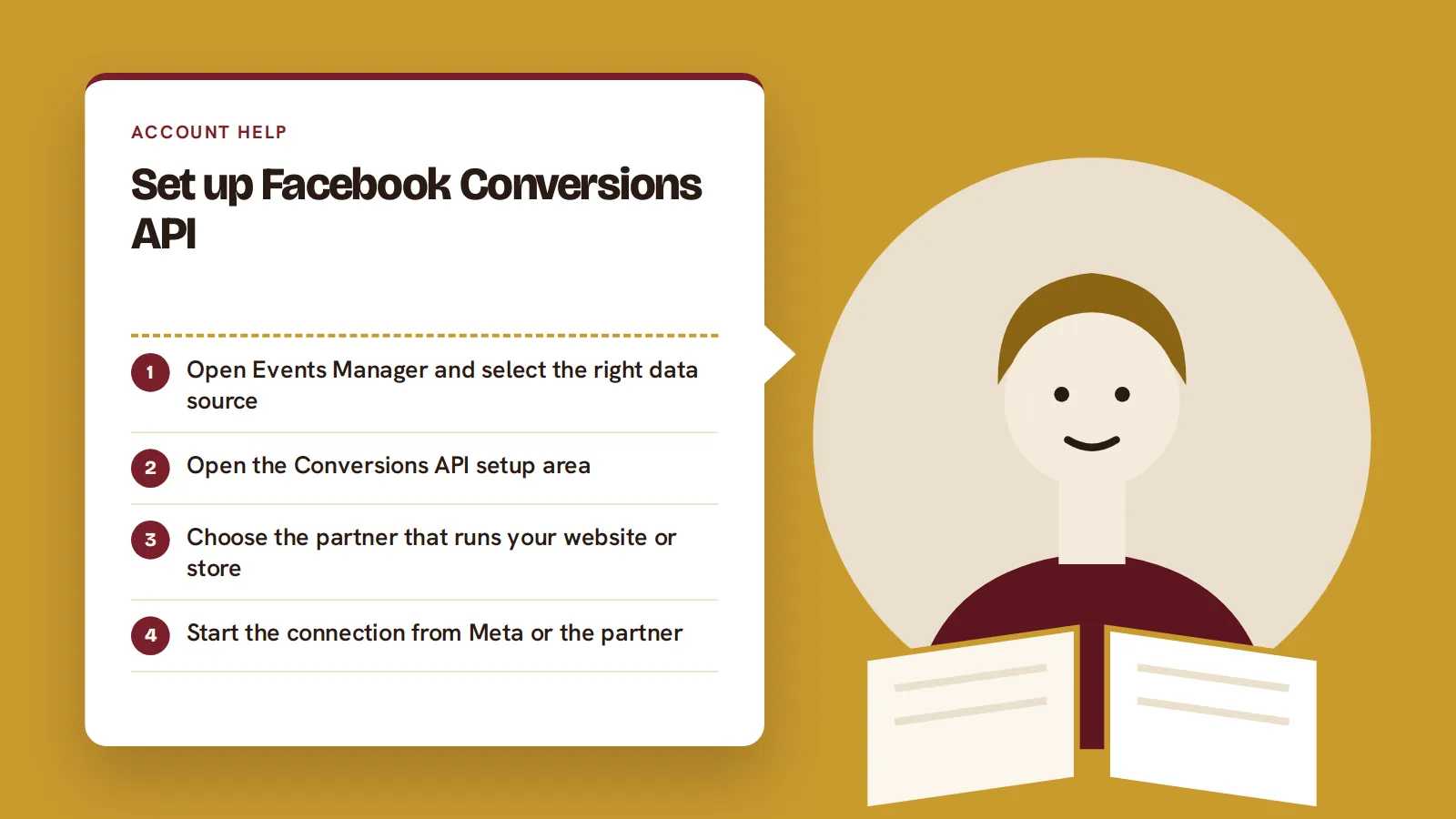
- Open Events Manager and select the right data source. Go to Meta Business Suite or Events Manager, then choose Data Sources. Select the pixel or dataset linked to the ad account you’ll use. Check the name and ID against your website or partner dashboard. If the asset is wrong, don’t continue; connecting the wrong source can send events to the wrong advertising setup.
-
Open the Conversions API setup area. Choose the option for setting up Conversions API, then select a partner integration rather than a manual developer setup. The wording may differ across Meta account versions. You’re in the right place when Meta shows a list of partner platforms or asks you to choose your commerce, website, or CRM provider.
-
Choose the partner that runs your website or store. Select the exact platform that processes the event, such as your store or customer-management system. Don’t choose a similar-sounding app. If your platform isn’t listed, use its official integration instructions or stop here; a different partner won’t automatically understand your checkout and customer records.
-
Start the connection from Meta or the partner. Click the partner connection button and sign in with the account that controls the website or store. Approve only the permissions needed for event sharing. The step worked when Meta returns you to the setup screen and shows the partner account, store, or site you selected.
-
Select the matching website and data source. If the partner lists several stores, domains, pixels, or datasets, choose the one used by your ads. Compare the domain and business name, not only the account number. If you can’t match them, stop and ask the platform owner; choosing the wrong source can make your reports unusable.
-
Turn on the partner’s server-side event sharing. Enable the setting named Conversions API, server-side tracking, or similar. Keep the browser pixel enabled when the partner’s instructions use both methods. The setting worked when the partner dashboard shows an active connection, not merely an installed app or saved preference.
-
Map the important events. Choose the events your business actually uses, such as PageView, ViewContent, AddToCart, InitiateCheckout, and Purchase. Map each event to the partner’s matching action. For a purchase event, confirm that the partner sends the value, currency, and order identifier from the completed order.
-
Check event matching and deduplication settings. If both browser and server events are active, the integration needs a shared event ID for the same customer action. Look for settings named event ID, deduplication, or duplicate event handling. Don’t invent an ID format or paste a customer’s email into an ID field unless the partner specifically instructs you to.
-
Run a test event. In Events Manager, open Test Events and copy the temporary test code. Trigger one real test action on your site, such as viewing a product or placing a test order only if your store supports that safely. The event worked when it appears with the correct event name and shows browser, server, or both sources as expected.
-
Review diagnostics before publishing campaigns. Open the data-source overview, event activity, and diagnostics screens. Check for missing value, currency, event ID, domain, or permission warnings. If the test event is correct and no critical warning remains, publish or leave the integration active; otherwise, fix the warning in the partner settings first.
The main trade-off is control versus speed. A partner integration is faster and avoids custom code, but it gives you fewer choices over event rules and customer-data handling than a developer-built setup.
Where partner integrations sit in Events Manager
In Events Manager, open the Data sources tab, select Settings, then scroll to the Conversions API section and choose a partner. Meta’s help pages note that some partners can be set up inside Events Manager. For others, you finish the setup on the partner’s own website or contact the partner directly.
If your partner isn’t listed, follow your provider’s own instructions or ask them for help. Depending on your account, Meta may also offer a Conversions API Gateway option or a manual developer setup. Only use the paths Meta shows for your account.
How to know Facebook Conversions API works
A successful setup shows the expected events in Events Manager after you trigger matching actions on the website. The event name should match the action, and a purchase should show the order value and currency when the partner supports those fields.
Check the event’s connection details for the expected source. If your integration uses both browser and server events, the same action should be handled as one conversion rather than two. A sudden rise in purchases after installation can signal duplication, not better tracking.
Use a test order only when your store has a safe test method. If a real order is required, avoid placing repeated paid orders just to test the connection. One controlled event gives you more useful evidence than several uncontrolled orders.
A second round is needed when the event appears with the wrong name, missing value, missing currency, or no matching event ID. It also needs attention when Events Manager reports duplicate events, poor event matching, or a disconnected partner.
The result can vary by partner platform, consent setting, and checkout path. Find your exact figure from the event details: compare the order ID, event source, event time, value, currency, and delivery status shown for the test action.
Facebook Conversions API problems
| What happened | Why | What to do |
|---|---|---|
| No events appear | The connection isn’t active, or the selected dataset isn’t receiving the event | Recheck the partner status, then trigger a test action and look for that event in the correct dataset |
| Events appear twice | Browser and server events lack matching event IDs | Enable deduplication and confirm both sources send the same event ID for one action |
| Purchases lack value | The value field isn’t mapped, or the integration sends no order total | Map the order value and check the currency field before relying on return-on-ad-spend reporting |
| The wrong pixel receives events | An incorrect asset or dataset was selected | Reconnect the correct dataset, then verify its name before sending another test purchase |
| The partner connection fails | The connecting account lacks the required permissions | Ask an administrator to connect the partner, rather than repeatedly retrying with the same account |
| Event diagnostics show warnings | Required fields are incomplete or formatted incorrectly | Follow each listed warning, then test the affected event again |
A test event can confirm that a connection works, but it doesn’t prove that every purchase, value, or customer-data field is being sent correctly. Check the event details for the actual action you need to measure.
If browser and server events both report the same action, compare their event IDs before disabling either source. Keep both when they serve different purposes; fix the IDs when they describe one action.
If the partner asks for custom code, a server token, or changes to customer-data collection, don’t guess. A small setup mistake can affect reporting, privacy obligations, or the security of your business account.
The costly mistake is connecting a second plugin without checking the first one. It can send the same purchase twice, which may inflate reported conversions and make campaign decisions less reliable. Remove or pause only the duplicate connection after confirming which integration should remain.
How often to check Facebook Conversions API
Check the connection after every major website, checkout, partner-app, or consent-tool change. For a stable store, a monthly review is a practical minimum. A high-volume store may need to check event diagnostics weekly, especially during active campaigns. Use the same test path each time so the results are comparable.
Run a test purchase when possible, then confirm that the browser and server events arrive with the expected event name, value, currency, and event ID. Check that the purchase isn’t missing, delayed, or counted twice. A successful page-view test doesn’t prove that checkout events work.
The two biggest factors are checkout changes and consent behavior. A new checkout can stop purchase data even when product-page events still work. A changed consent banner can also reduce the events that the partner is allowed to send. If consent rules differ by region, test an allowed and a denied consent path.
Check sooner after changing the pixel, dataset, domain, business permissions, or partner account. Also review the setup when reported purchases suddenly fall, duplicate, or lose values and currencies. Keep a record of the test date and result so a later change can be traced.
If events stop, first compare the partner’s connection status with Meta’s event activity. If both show a failure, contact the partner’s support team. If only Meta shows a problem, check the selected data source and permissions before changing the integration. Avoid reconnecting everything first, because that can introduce a second configuration problem.
Related guides
- How to Set Up Automated Replies on a Facebook Page
- How to Set Up a Facebook Page for Ads: The Checklist
- How to Set Up Click to Facebook Messenger Ads in Meta
If you would rather have this handled for you, our Facebook Page Setup service covers it end to end.
Frequently asked questions
Can I use Facebook Conversions API without a pixel?
Yes, some partner integrations can send server events to a Meta dataset without the usual browser pixel, but the exact option depends on the partner. Open Events Manager and check the available data-source setup. If the partner requires a pixel ID, use the matching pixel rather than creating another one. A second asset can split your reporting and make it harder to compare events.
Why are my Facebook Conversions API events duplicated?
Duplicate events usually mean the same action is sent through separate browser and server paths without a shared event ID. Check for an old plugin, tag manager, or manual server connection. If your partner supports deduplication, enable it there and confirm that the browser and server events for the same purchase use the same event_id. Don’t delete every connection at once; keep the path that your platform officially supports.
How long does Facebook Conversions API take to show events?
A test event should appear after you trigger the action, but the exact delay depends on the partner and Meta’s processing. Start with one controlled action, then check Events Manager and the partner dashboard. If nothing appears after the partner’s documented processing window, confirm the selected data source, connection status, and test code. Don’t repeat paid orders while waiting.
Is it safe to connect a partner to Facebook?
It can be safe when the partner is trusted, the permissions match its purpose, and your privacy settings cover the data sharing. Review the permissions before approving access, then check what customer fields the integration sends. Don’t give an app broader business access than it needs. For privacy or legal questions, ask your privacy adviser rather than relying on a tracking setting alone.
What happens if I choose the wrong pixel?
Events can go to the wrong Meta data source, so your ad reports may miss the conversions you expected. Disconnecting and reconnecting may fix future events, but it won’t automatically move past data to the correct source. Check the pixel or dataset name and ID before connecting. If campaigns are already running, ask your advertising administrator to review the affected reporting.
Does it matter if browser and server events both run?
Yes, it matters because both paths can describe the same customer action. Running both can improve coverage when they’re correctly matched, but unmatched events may appear twice. Check the event details for one test purchase and confirm the partner uses a shared event ID. If your partner documents a browser-only or server-only setup, follow that supported path instead.
What to do next
After your integration is live, review event quality and match rates regularly in Events Manager. Compare results with your website and sales records, then adjust your tracking when needed. Keep your partner connection and privacy settings up to date so your reporting stays reliable as your campaigns grow.

Derek Campbell writes about Facebook features, tools, and account management, covering topics such as account troubleshooting, Business Manager, Facebook Marketplace, and outreach strategies. His content also explores Facebook Groups, community engagement, and ways to connect with relevant audiences. His writing emphasizes practical Facebook know-how, from navigating Marketplace and managing business communities to building meaningful connections through Groups and outreach.
Checked against Facebook’s own help and policy pages on the date shown above.